 Orange Marketing
Everyone wants to be able to send multiple messages to prospects in a given order. Or maybe based on actions taken or not taken by the prospect. HubSpot was designed to make this very do-able, and even (gulp), easy.
Based on multiple conversations with our B2B startup clients, we’ve found a common source of confusion. The challenge? Understanding the difference between HubSpot Templates and Sequences vs. HubSpot Emails and Workflows!
This is NOT an either/or discussion. They can work harmoniously together. It is a matter of understanding where each is best used. Without further ado: the unequivocal:
- Templates are used in Sequences
- Emails cannot be used in Sequences
- Emails are used in Workflows
- Templates cannot be used in Workflows
Got it? HAHAHA. Nope. I’ll continue.
HubSpot Sequences
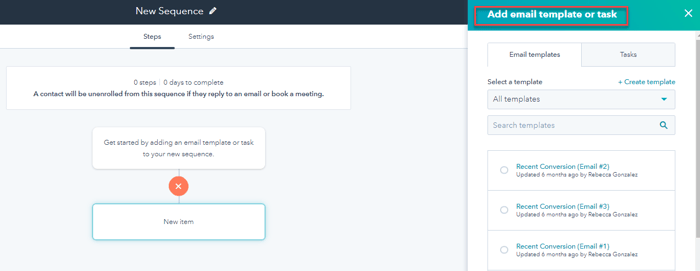
Sequences are created from a combination of places, just like workflows.
Step A - Create emails. In the LIBRARY tab (Library > Templates). NOT in Marketing Tab >Emails.
Step B - Create a Sequence, from the emails you created in Step A, in the AUTOMATIONS tab. Note that you will NOT be able to access emails created in the Marketing tab.
Sequences are a series of sales emails and tasks designed for “one to one” communication. This is ideally by a salesperson, a BDR or SDR, who is doing outreach for any number of reasons. We recently used this process for PR outreach for examples.

Why I say it’s 1-1 is because templates are made to be personalized. The system will force you to go through them one at a time and enroll them. This is a great best practice. If you’re going to use sequences, you SHOULD do this! That’s the point.
Sequences can:
- Include up to 10 emails (from TEMPLATES, remember, not from marketing “emails”)
- Include as many additional tasks as needed
- Include “custom” tasks - to-do, call, or email that can be added to a specific queue
- Be triggered “in bulk”, meaning users can enroll contacts in batches of up to 50 at a time, with a daily send limit of 500 per day (Sales Hub or Service Hub Professional) or up to 1,000 per day (Service Hub Enterprise)
- Be triggered by a "workflow action" (Sales Hub or Service Hub Enterprise only)
- Be set for a certain amount of time in between steps, measured in DAYS or WEEKS
- Include opt-out language
Sequences cannot
- Invoke another action, other than email or task
- Result in complex reporting. The reporting is very limited.
- Be automatically UNenrolled, unless the contact replies by email, books a meeting, their email hard bounces, or YOU manually unenroll them.
- Be sent “on behalf of” someone else. It’s YOU sending them. So unless you’re logging in as someone else, it’s not doable. Refer to the point: 1-1 communications, from YOU.
- Cannot include manually unique images per person. While you can include images in a template, they cannot be edited per contact within a sequence.
- Be sent in bulk. That’s where Emails and Workflows come in!
Workflows
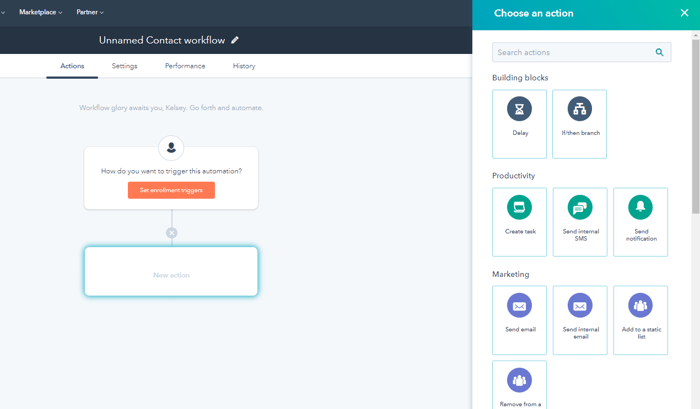
Workflows are a MUCH hardier tool. You can create any number of combinations of activities, emails, tasks, and webhooks, among many other things. However, you cannot use the emails you create in Templates!
Workflows are meant to be real automation. You can indeed create the exact same flow as you did in a sequence (let’s say email > call > email > call,) but unless you pick the “simple” email template when creating emails in the marketing tab, they will not look the same. They may however, very much act the same!
Workflows can:
- Be used for more than emails (templates) and tasks. For example, it can trigger a property change, a webhook to send a piece of direct mail, etc.ƒ
- Be sent in bulk
- Be triggered by any kind of activity you can imagine
- Invoke other workflows
- Be “from” any connected inbox or configured email you want
- Be set to transpire in any type of time frame with more flexible delays
- Include emails with personalization tokens, including dynamic images and so forth
Workflows cannot:
- Be readily used for personalization or 1-1 communications
- Use Template emails (that are built in the Library tab)
- Um, that’s about it.
Best Practices
Ideally, you would use these automation tools the way they were intended.
- Templates and sequences for outbound sales efforts (or where you want 1-1 communications and customization for each person, eg; new employee onboarding)
- Emails and Workflows for your more complex marketing automation and bigger batch emails and tasks.
A word about mass emailing.
IF you are GOING to send emails “from” a sales rep en masse, (and I know you are) - unless you have “permission” from those contacts, DO NOT do it. Going to HubSpot jail is a pain, and your domain reputation WILL take a hit—causing lower email deliverability rates and potential blacklisting.
Some of the other things that can happen:
- Depressed sender reputation – this could be a drop in inbox placement of 10% – 50% of your file every time you send email
- Unsubscribes/smaller list - You should use HubSpot's “don't send to unengaged contacts” option to avoid this, but if you are sending crap, you’re going to have a lot more unengaged contacts
- You are sent to HubSpot jail - get locked out of sending emails until you’ve been properly reprimanded
If you absolutely must, there are ways to do this to avoid real brand damage. (We have seen real brands with nasty Google review comments calling them spammers.) We can refer you to people who can do it, but we don’t do it. Because it’s SPAM.
HubSpot Resources:
How To Get the Most Value From Your HubSpot Investment
Sales Team Still Avoiding HubSpot's Meeting Scheduler? It’s Time to Fix That!
Why B2B Marketers Should Use Custom Campaign Tagging for HubSpot List Imports