Orange Marketing
%20(43).png)
This week’s HubSpot update is a big one, and for good reason. UNBOUND 2026 just wrapped, and HubSpot rolled out a huge wave of new features, with AI and agents taking center stage. From agents that personalize nurture emails and improve your knowledge base to new ways to build, manage, and call custom agents, there’s a lot to unpack.
We’ve pulled out just some of the many updates we think HubSpot users should know about, including new buyer intent signals, AI-powered email quality checks, and HubSpot Work, HubSpot’s new AI work management experience connected directly to your CRM.
And there’s more to come! Stay tuned for our upcoming post-UNBOUND live session, where we’ll recap the biggest announcements, share our takeaways from the event, and break down what these changes actually mean for HubSpot users. [REGISTER FOR OUR LIVE RECAP!!].
In the meantime, here are the updates for the week of September 21, 2026:
- Nurture Agent,
- Custom agent plans based on how your team uses HubSpot,
- New Native Signal: Job Change Signals, Powered by UserGems,
- Email Quality Checks,
- Agent Builder's Custom Agent are Live,
- Calling Agents from Breeze Asisstant,
- HubSpot Work, and
- Knowledge Base Agent.
Nurture Agent
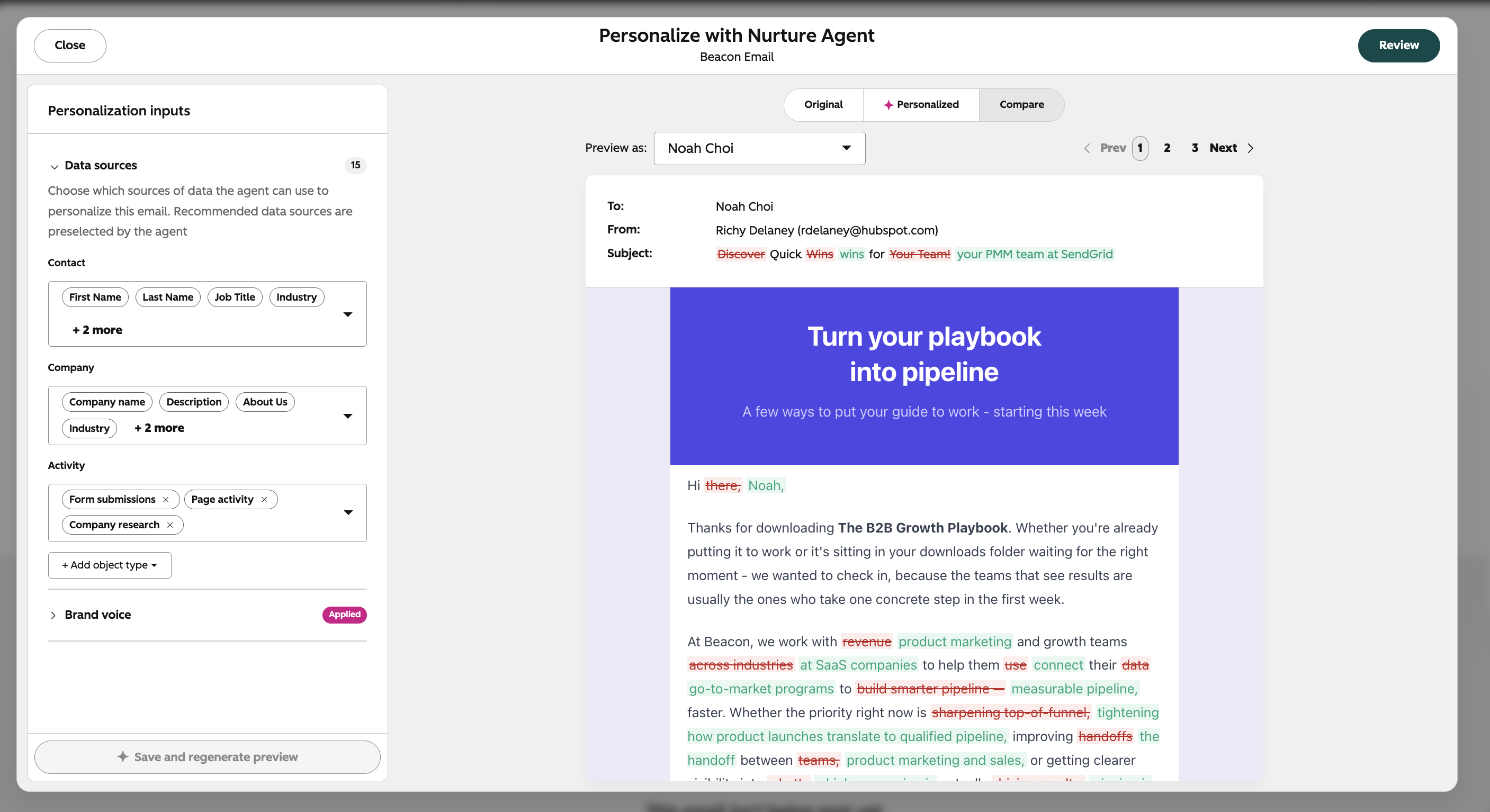
The Nurture Agent personalizes your automated nurture marketing emails for every recipient at send time. Using context from your CRM, contact engagement signals, and live web research, the agent rewrites the subject line, preview text, body copy, and call-to-action text individually for each contact who would receive the email.
Why does it matter?
Marketing teams talk about 1:1 nurture, but almost no-one does it in reality. It's incredibly difficult to execute at scale.
The Nurture Agent changes that. Leveraging all available data in your HubSpot CRM, the Nurture Agent ensures every marketing email sent with HubSpot is tailor-made, rewritten personally for every recipient, fostering stronger customer relationships and driving unprecedented engagement.
Every Marketing Email sent, crafted individually (1:1) for each recipient.
How does it work?
The Nurture Agent works with your existing automated emails. Once you've published a marketing email, you can opt it in to the Nurture Agent, and from that point forward, contacts that reach that send step gets a version of the email written specifically for them.
Step 1: Turn the agent on for your email
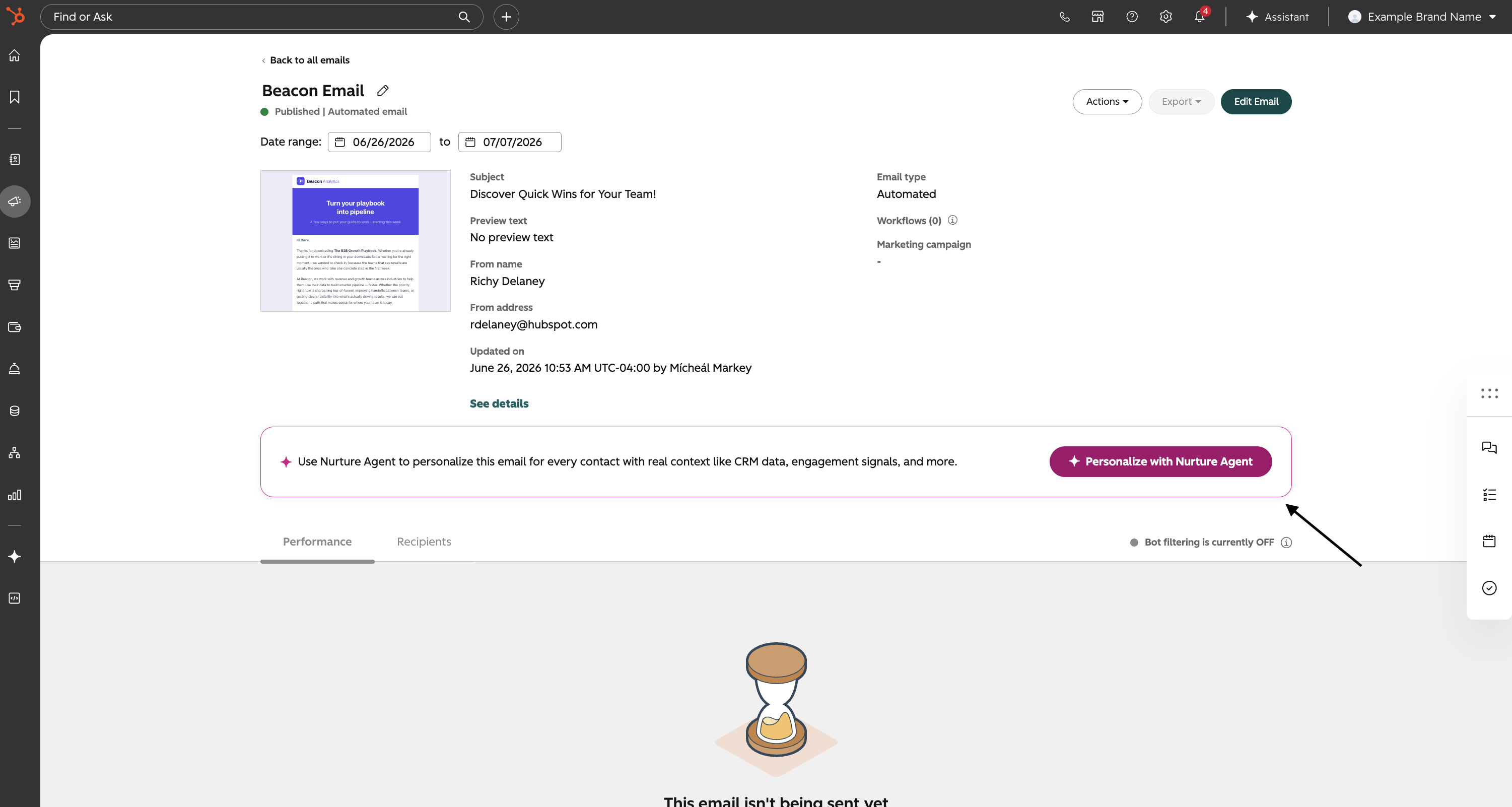
- Navigate to Marketing > Email and find a published automated email. On the Email Manage page, click Actions and select Personalize with Nurture Agent. The agent will analyse the email and recommend the data sources it plans to use to personalise it, based on the content and intent of the original email.
Step 2: Review your data sources
The agent surfaces a recommended set of data sources it will draw on when personalising for each recipient. These can include:
- Contact properties (job title, lifecycle stage, industry, etc.)
- Recent contact activity and engagement history
- Associated CRM objects (companies, deals)
- Custom properties
- Custom objects
- Live company research from the web
- Your portal's Brand Voice settings
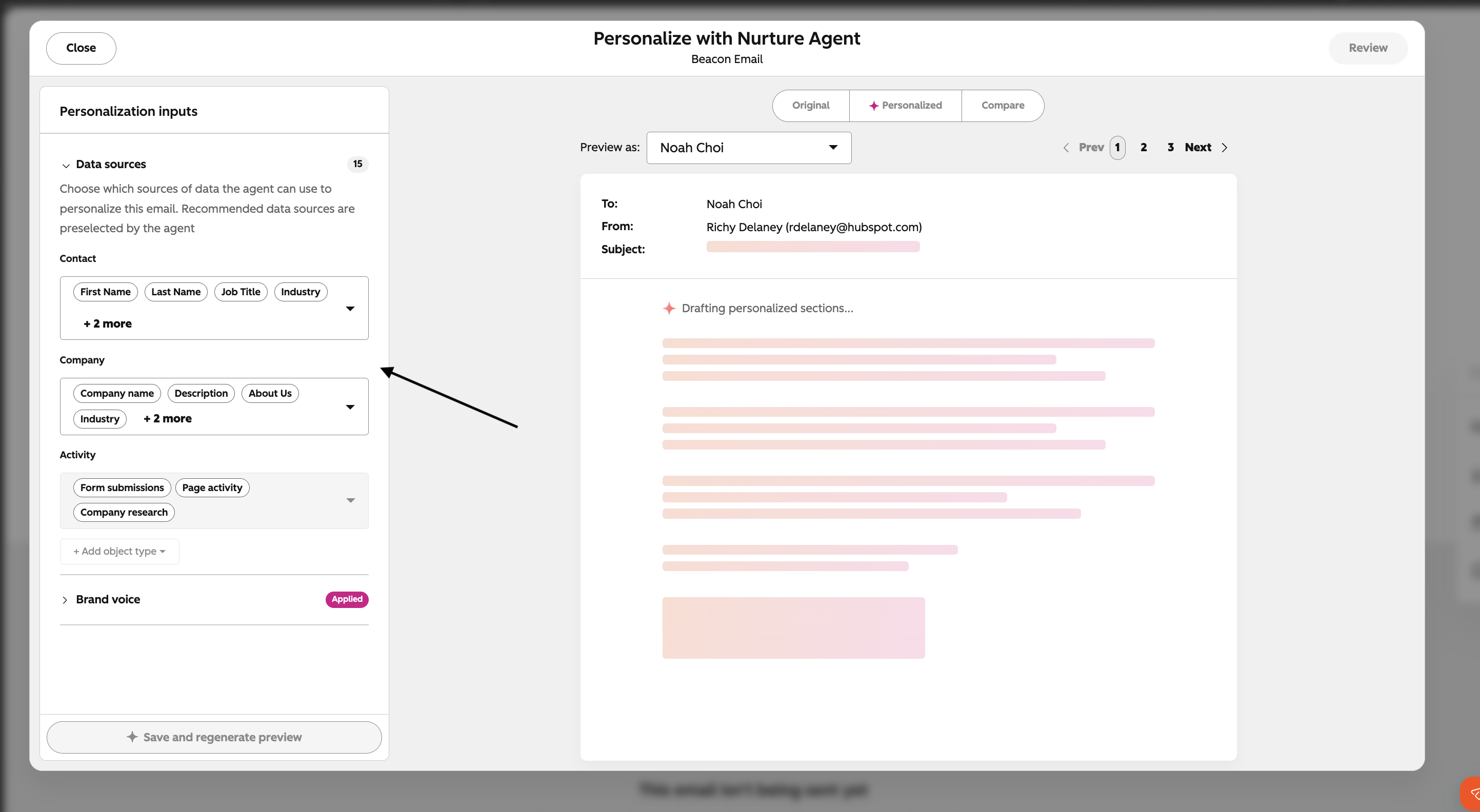
You can review and adjust which sources are active before turning the agent on.
Step 3: Preview personalised output
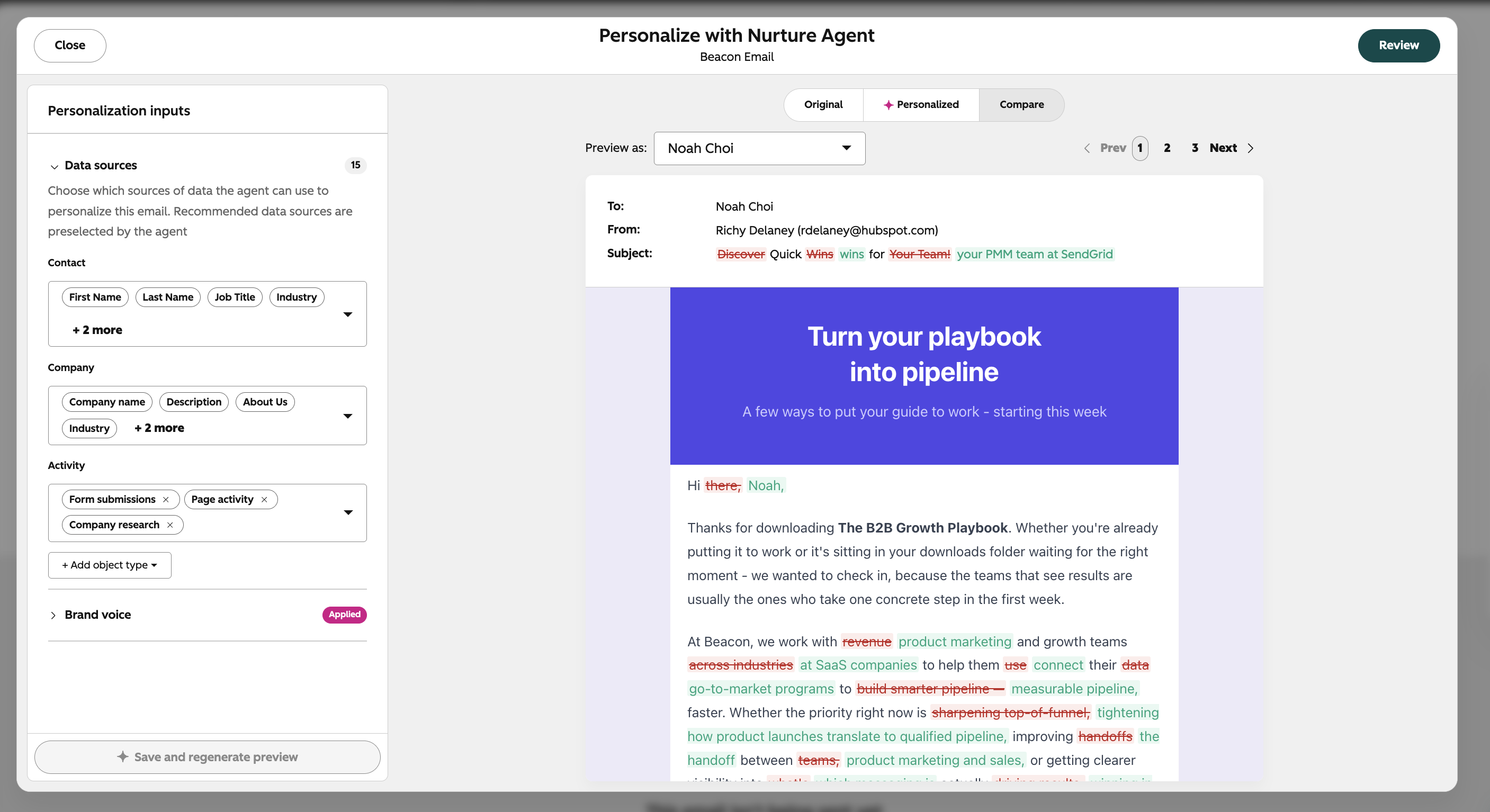
- Before enabling the agent, you can preview what the personalised email will look like for up to 10 real contacts at a time in your portal. This gives you confidence in the output quality before it goes live.
What gets personalised?
The agent can rewrite multiple elements of the email for each recipient:
- Subject line
- Preview text
- Body copy
- CTA copy
The structure and design of the original email template are preserved throughout.
Step 4: Controlling what gets personalised
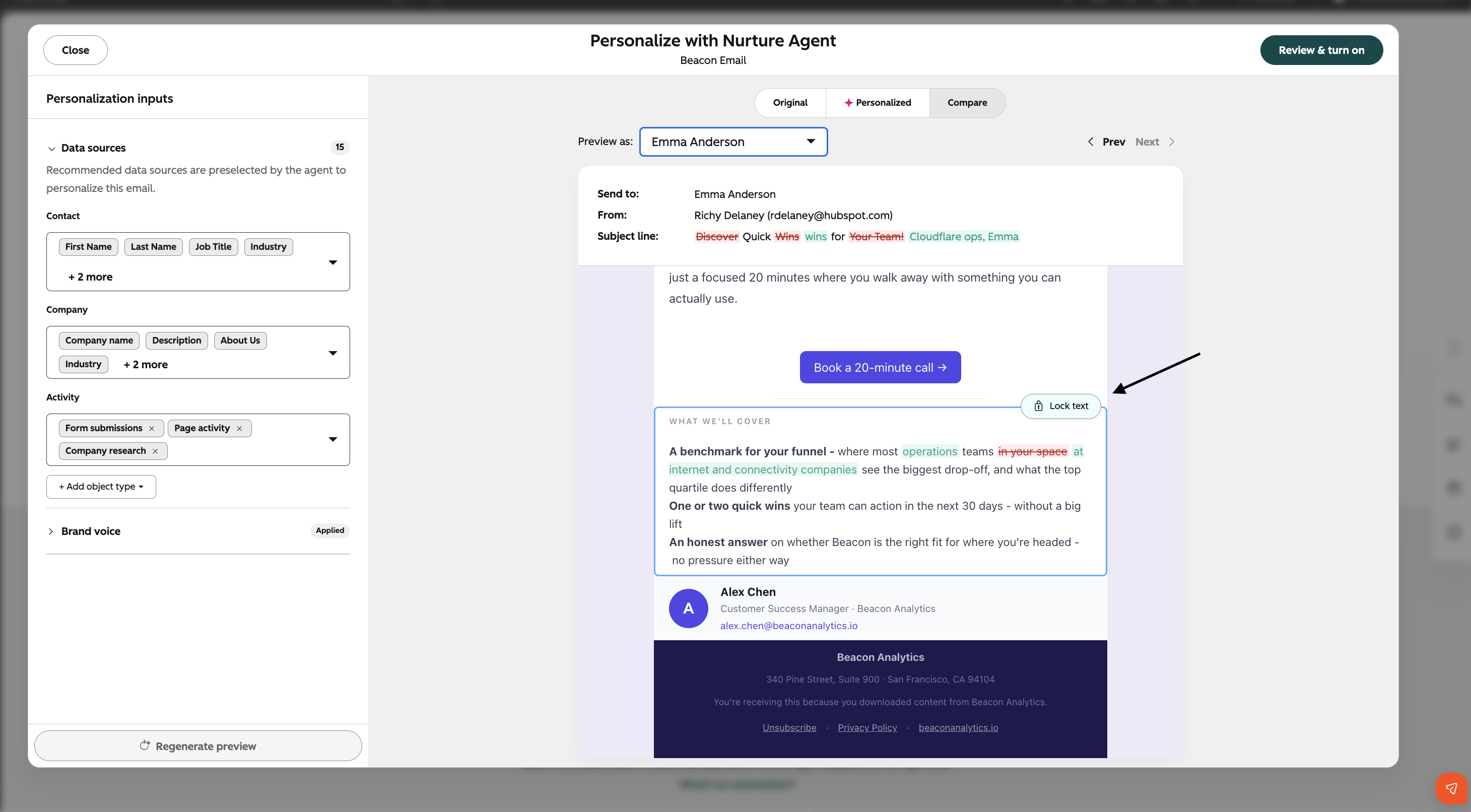
By default, the agent can personalise any text element in your email. If there are sections you want to keep exactly as written - a legal disclaimer, a specific promotional offer, a section with carefully crafted brand copy - you can lock them from personalisation.
To lock a section, hover over an element of your email you want to protect. Click Lock text. Locked sections will always be sent exactly as they appear in the original email, for every recipient.
Step 5: Turn the agent on
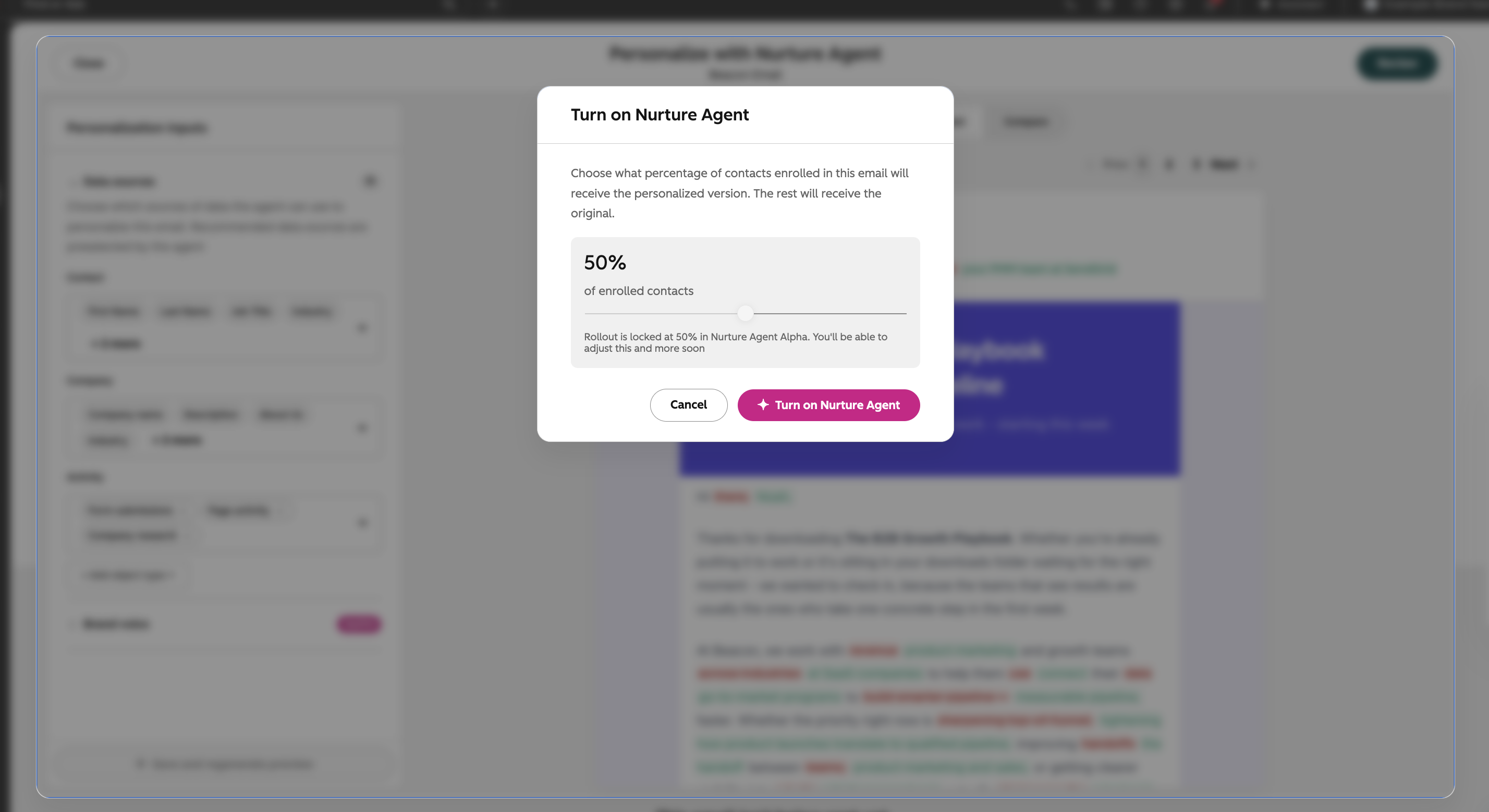
Once you're happy with the setup, click Review in the top left of the modal. Before enabling the agent, you can choose what percentage of your email audience will get sent a personalised version of your Email versus the Original. This will allow you to see the performance difference between both on the Post-Send Page.
Click Turn on Nurture Agent. From this point, every time a contact reaches the send action in the workflow, the agent runs in real time, pulling the latest data from your CRM and rewriting the subject line, preview text, body copy, and CTA text before the email is sent.
Step 5: Analyze agent performance
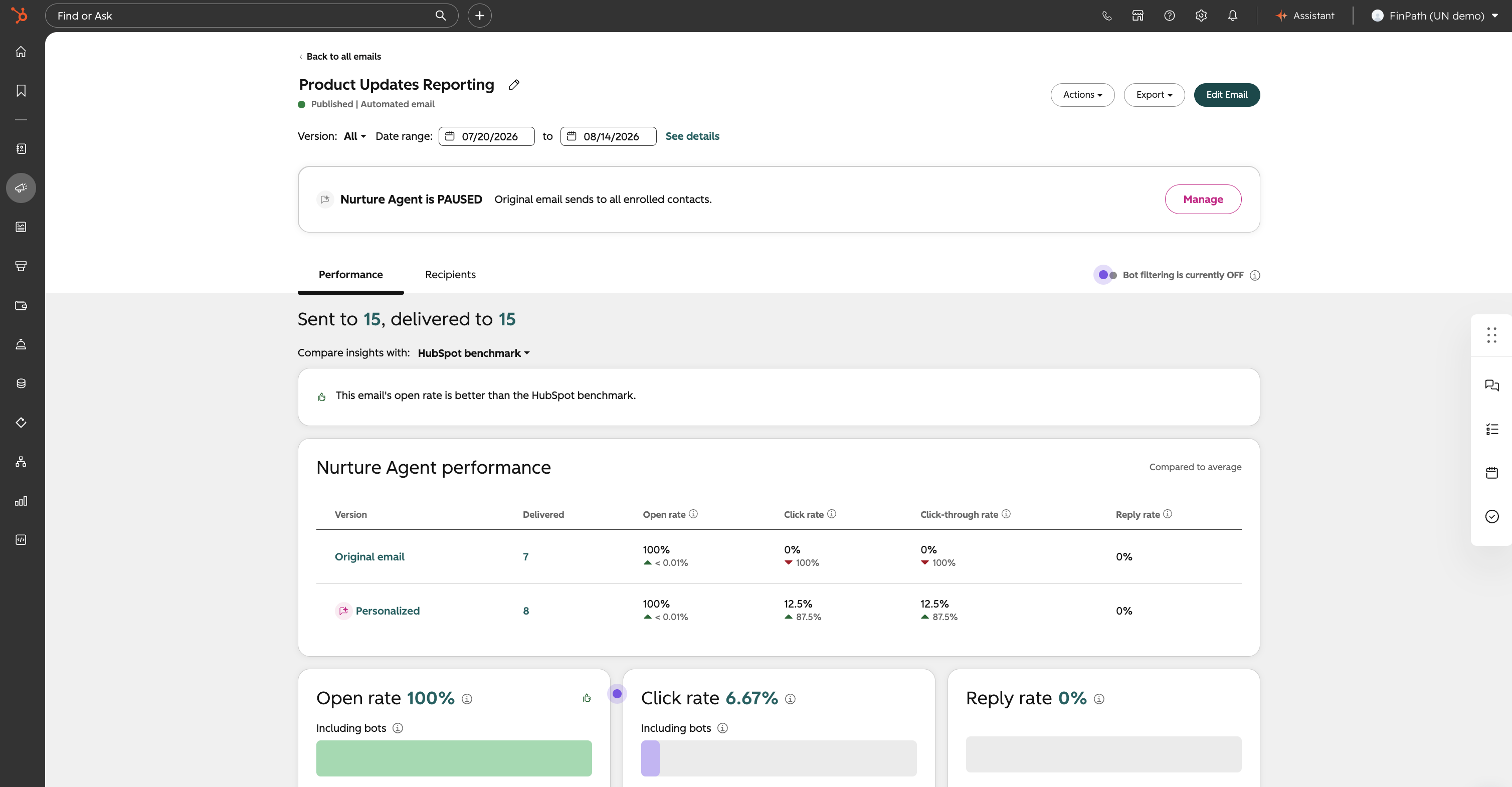
Once your Email starts sending to contacts, head to the Post-Send page of your email to see how the personalised version is performing against the original.
The Performance tab shows a side-by-side breakdown of both versions - original email and personalised with Nurture Agent - across key metrics including open rate, click rate, click-through rate, and reply rate. You can use the version switcher dropdown to focus on either version in detail, or keep the combined view to compare them directly.
The Recipients tab also honours the version switcher, so you can filter down to see exactly which contacts received the personalised version and how they engaged with it.
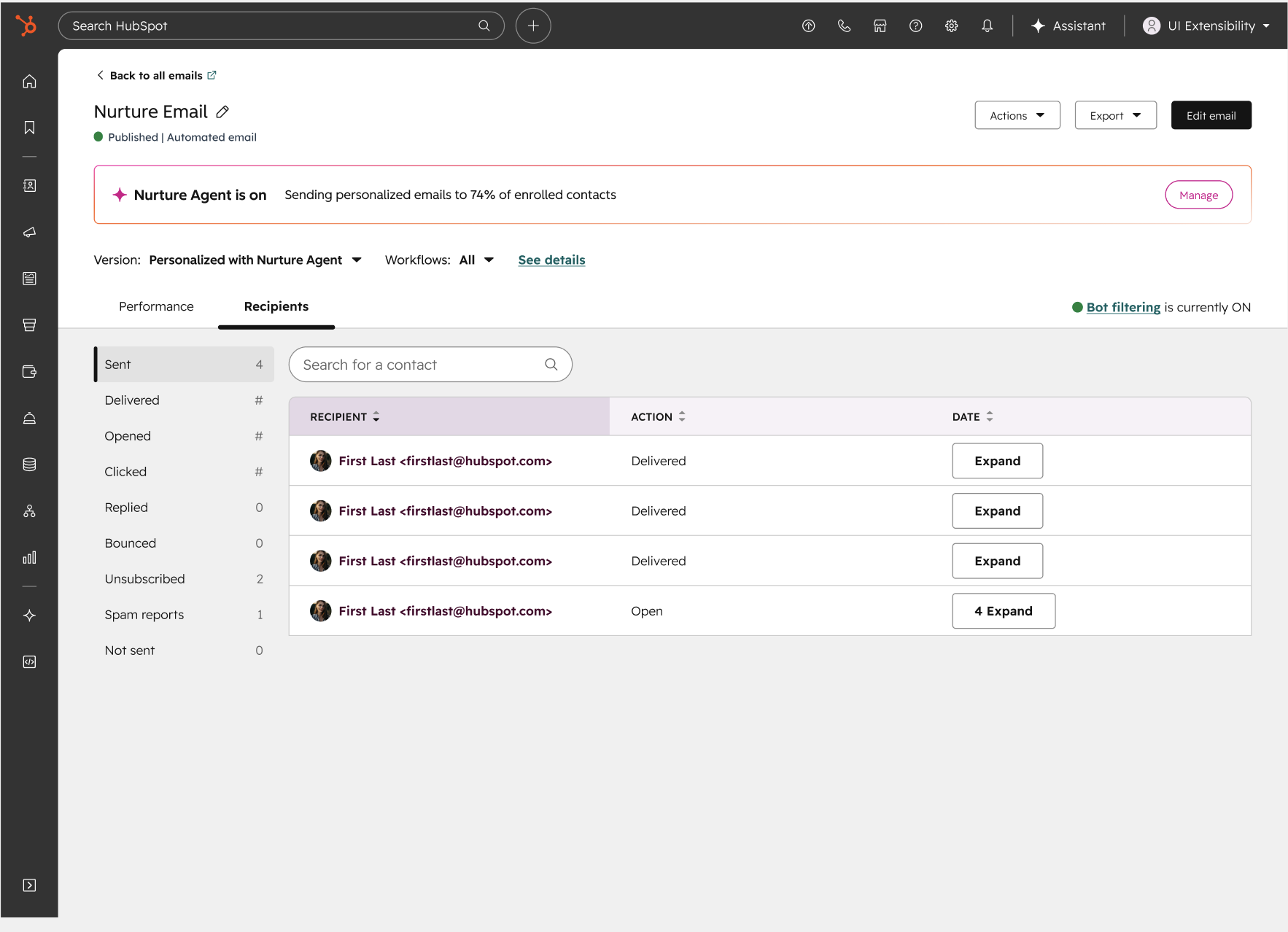
As your send volume builds, the performance data updates in real time. When you're ready to expand personalisation to a wider share of your audience - or pull it back - click Manage in the banner at the top of the Post Send page to adjust the percentage split at any time.
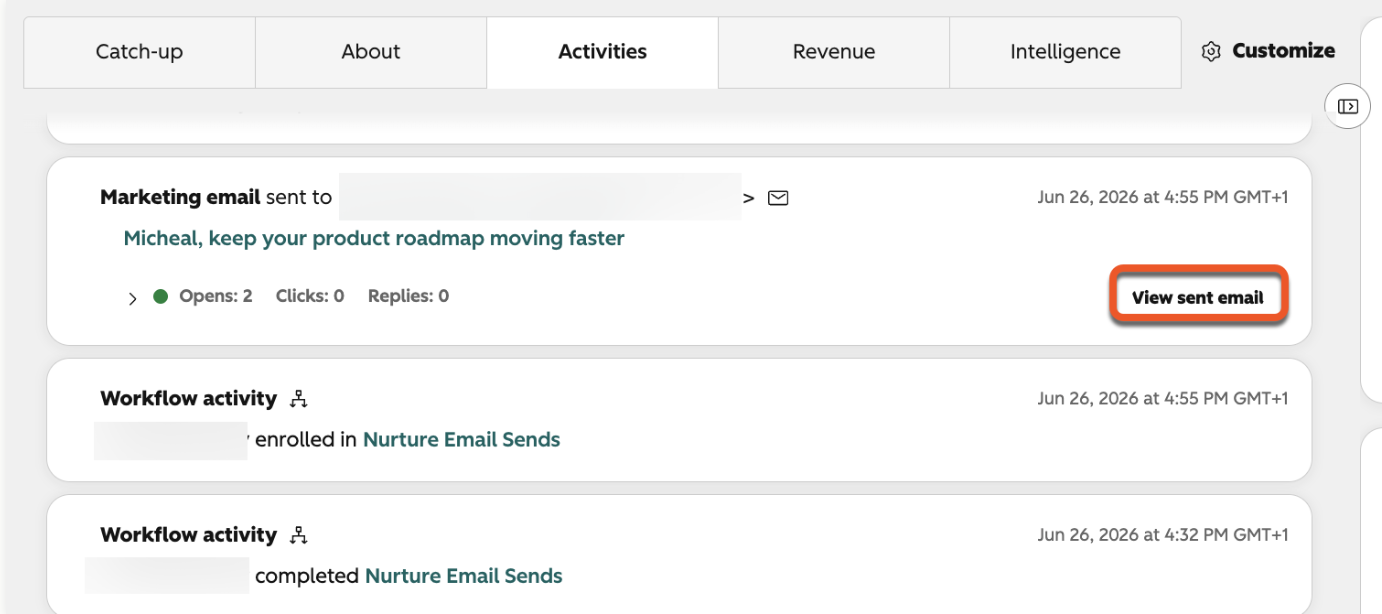
Step 6: View personalized emails sent
Once a personalized email has been generated and sent by the nurture agent, you can view the version of the email sent to a specific contact for up to 30 days after the email is sent.
- Click the name of the contact who was sent the email.
- At the top of the contact record, click the Activities tab.
- On the activity for the marketing email sent with nurture agent, click View sent email. This will only appear for those who got sent a personalsied version of your email.
Pricing
From September 16th 2026, nurture agent will begin consuming credits. You pay $0.10 (10 credits) when nurture agent personalizes one email for a contact.
Note: During private beta, the Nurture Agent is available at no additional cost. Pricing will be introduced at Public Beta on September 16th 2026.
Review the Knowledge Base Article. Password: MarketingEmail_318889
Custom agent plans based on how your team uses HubSpot
Agent Hub Home now surfaces custom agent recommendations based on how your team uses HubSpot, built around your specific setup and processes. Instead of building from scratch, you get a recommended agent that already reflects the way your team operates, ready to review, tweak, and activate.
Each recommendation comes with a plain-language explanation of what it's based on and what it's designed to do, so you can evaluate it before anyone flips a switch.
Why does it matter?
The hardest part of building a Custom agent isn't the configuration, its knowing where to start. Custom agent plans based on your teams' unique usage means faster time-to-value, and agents that fit how you work.
How does it work?
To get started with your custom agent plans:
- Navigate to Agent Hub home by clicking Agents --> Agent Hub
- Scroll to "Or start with an automation just for your portal"
- Recommendations with the robot icon are custom agent plans. Clicking on a recommendation will open Breeze within the Custom Agent builder to see more detail and the full agent prompt.
- Chat with Breeze about your recommendation, edit as needed, and launch into the Custom agent builder to save!
Plans refresh on a monthly basis based on your teams most current usage.
New Native Signal: Job Change Signals, Powered by UserGems
HubSpot's Job started and Job ended signals now has a second detection source on top of HubSpot's native job change signals, Job Change signals by UserGems. When a contact at one of your tracked companies starts or leaves a role, you catch it faster and more often. Run both together for maximum coverage or keep them independent.
This signal is included in the cost of standard intent signal tracking. No existing UserGems account required.
You can now do the following:
- Catch more job changes with better coverage: UserGems monitors contacts across your tracked companies for role changes that HubSpot's native detection may miss. When UserGems spots a new hire, a departure, or a role shift, it fires a signal on the associated contact record, with source attribution so you always know which provider (HubSpot or UserGems) detected it.
- Know exactly who moved and where: Job change signals fire at the contact level and surface on both the contact record and the company timeline. Whether it's a new champion joining, a key contact leaving, or a decision maker shifting roles — you'll see it as it happens, with full context.
- Automate your response in the same workflows you already have: Job change by UserGems uses the same Job started and Job ended signal types your existing workflows, segments, and scoring rules already reference. No rewiring required — just more signal firing through the same pipes.
How does it work?
You can access Job change by UserGems in Buyer Intent via the Signals tab. From My Signals, you'll be able to:
- Toggle Job change by UserGems on or off independently from HubSpot's native job change signals
- Filter the Signals tab to Job change by UserGems to isolate UserGems-sourced events specifically
- View source attribution on contact and company record timelines — see whether a signal was detected by UserGems or HubSpot natively
- Use UserGems-sourced job change events in workflows, segments, lead scoring, and custom reports, identical to how you use native job change signals
NOTE: this feature is currently available in private beta only.
Email Quality Checks
Email Quality Checks are a built-in AI review in HubSpot's email editor. They scan your email before you send, looking for common issues: spelling and grammar, spam triggers, broken links, missing token fallbacks, date formatting, a weak first-sentence hook, off-brand voice, and more.
Sending email well means catching the small things and the strategic ones: a stray typo, a token that never populated, a subject line that reads as spam, a first sentence that won't pull anyone in, a brand voice that drifts off. Today that review lives across test sends, browser extensions, and Slack pings to a teammate. Email quality checks bring it into the editor you're already working in.
How does it work?
Open an email in HubSpot, click "Quality check," and the panel runs every enabled check against your current email content. Results come back grouped into errors, warnings, and suggestions.
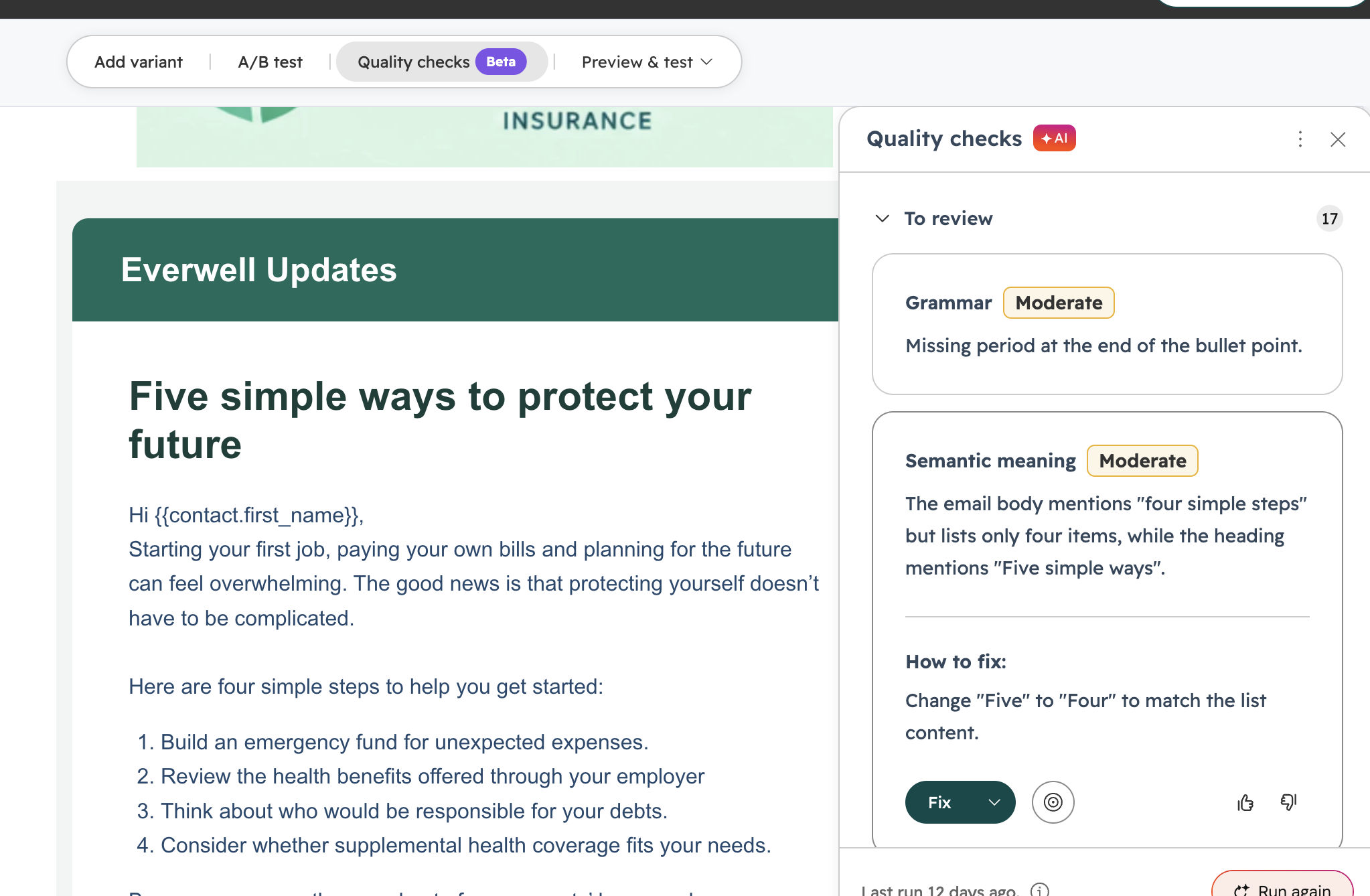
Click any issue to jump to that spot in the editor. Many issues identified include a one-click auto-fix.
In Settings > Marketing > Email > Quality Checks, you can toggle checks on or off.
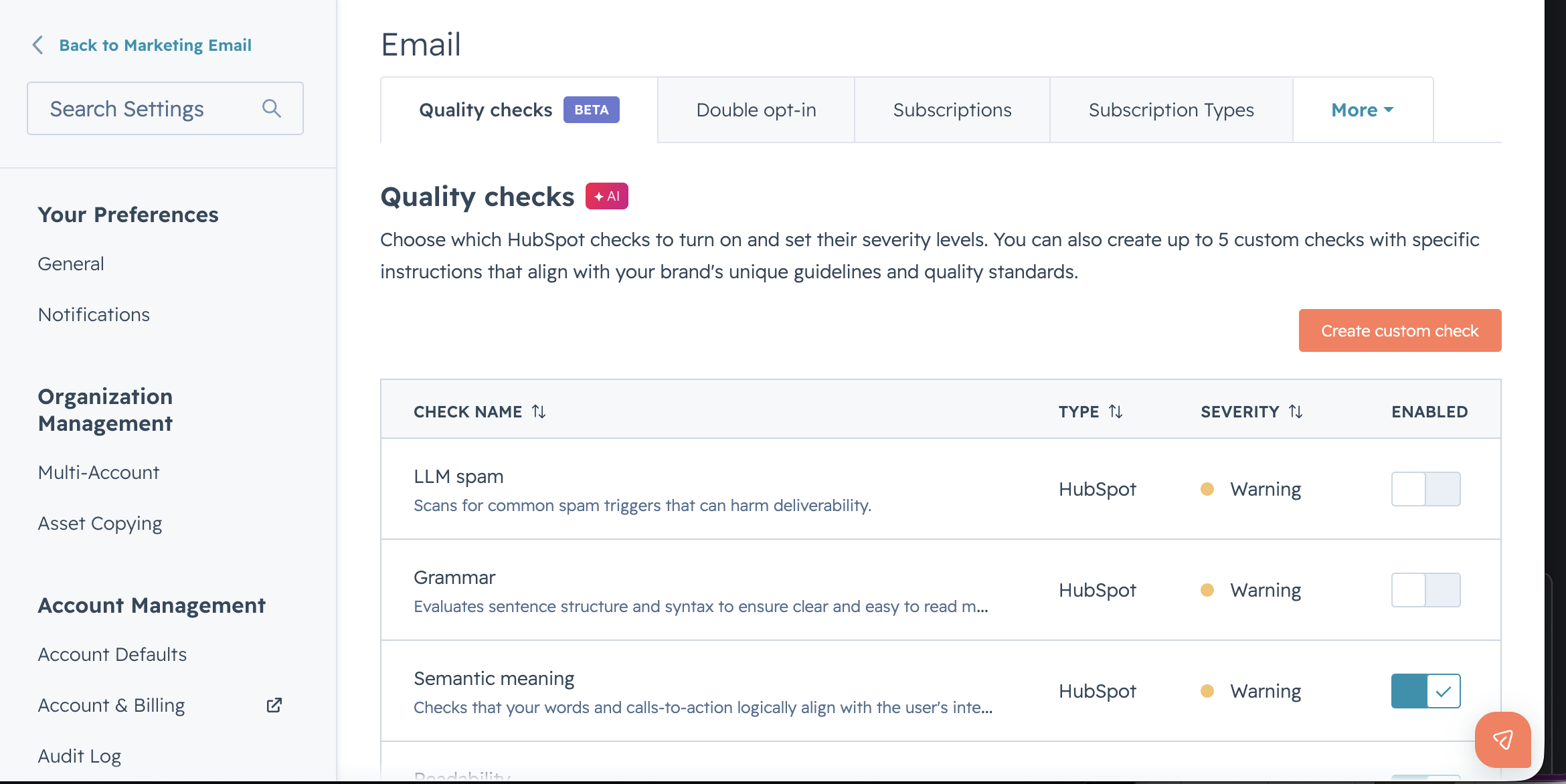
Includes out-of-box quality checks that scan your email for issues related to:
|
Agent Builder's Custom Agent are Live
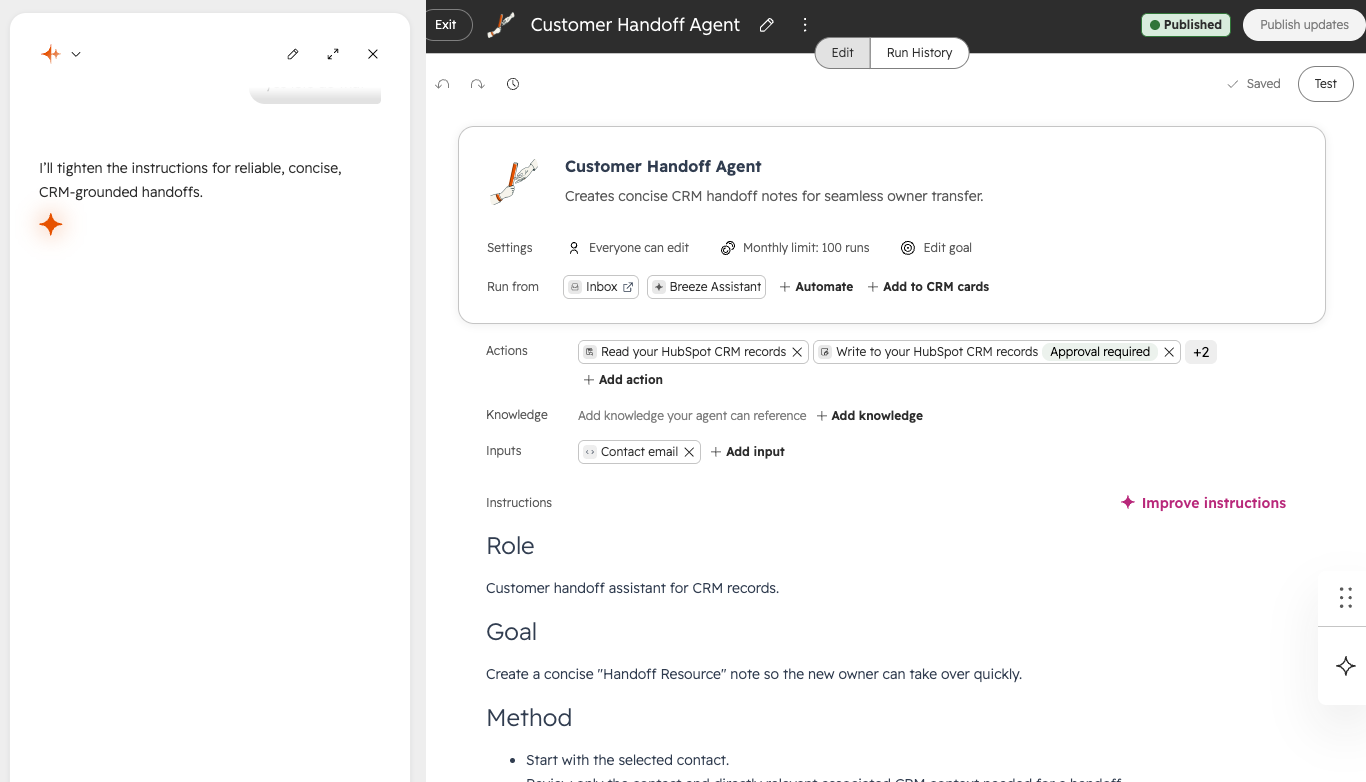
Agent Builder includes custom agents you build for your business, and a new automation canvas that connects agents, actions, and triggers in one place.
Build agents tailored to your business using your own instructions, tools, and knowledge, on the customer data already in your CRM. Connect them to workflows to trigger automation, follow up with contacts, and take action on records at scale.
Why it matters
Custom agents let you build AI that works the way your business does. No code required. By giving you full control over what the agent knows, how it behaves, and where it acts, custom agents transform AI from a helpful add-on into a scalable advantage for your entire front office. And with Breeze Assistant, you don't have to start from scratch. Just describe what you need and it builds the agent for you based of your intent.
What's included?
- Custom agents run on HubSpot credits: Custom agent runs count toward your plan's credit usage.
- You can see the estimated cost of each agent run in your inbox and on your agent configured CRM cards. You can also set run limits to make sure your agents don’t run more than you’d expect. Read the knowledge base article on estimated spends and run limits and how to manage your credits.
- You’re in control of your spend:
- Set run limits per agent from the agent details page
- Monitor usage and cap total spend across all your custom agents
- Use “simulation mode” to test your agents and get an estimate of what each run would cost before going live, no credits consumed.
- Build with Breeze Assistant. Describe what you want your workflow to do in plain language. Breeze Assistant builds it for you using the data already in your CRM.
Who has permission to build?
- Custom agents:
- Users must have Agent access turned on to activate, credit, and edit agents, as well as their tools and knowledge vaults. HubSpot Pro+ Customers and NOW: Starter!
- Agentic workflows:
- To edit workflows, users must have Edit permissions or be a Super Admin. To publish workflows, users must have Publish permissions for workflows.HubSpot Pro + Customers
Calling Agents from Breeze Assistant
Breeze Assistant can now call your custom agents directly from conversation. Mention one by name, or just describe what you need. If a custom agent is the right fit, Breeze invokes it without you ever leaving the chat.
Why does it matter?
Custom agents let teams build specialized AI capabilities tuned to their business. But getting value from them has required knowing they exist and navigating to a separate interface. With this release, every custom agent your team builds becomes accessible through the one place your team already works. Breeze surfaces the right agent for the job.
How does it work?
There are two ways to call a custom agent from Breeze:
- @-mention: Type @AgentName in the Breeze input to invoke a specific agent directly.
- Implicit routing: Describe what you need in natural language. If a custom agent is the right fit, Breeze suggests or invokes it automatically.
Before a custom agent runs, Breeze surfaces a confirmation card showing what the agent will do and the estimated credit cost. When it finishes, the result appears inline in your chat thread with attribution and follow-up actions. You can ask follow-up questions about the results in the same thread without consuming additional credits. Below are example prompts you can ask for each named agent.
─────────────────────────────────────
Campaign Agent
Best for planning a full marketing campaign, not just one asset.
• "Plan a campaign for our fall plant care promotion"
• "Build a lead gen campaign for workplace wellness buyers"
• "Turn this product launch into a multi-channel campaign"
• "What assets should this campaign include by funnel stage?"
• "Generate the landing page, email, blog, and social assets for this campaign"
─────────────────────────────────────
Data Agent
Best for AI-powered CRM enrichment and Smart Properties.
• "Create a smart property to summarize each company's business model"
• "Make a company field that classifies industry from the website"
• "Set up an AI property that pulls risk signals from calls and emails"
• "Why is this smart property returning bad values?"
• "Show me my smart property fill rate"
─────────────────────────────────────
Revenue Agent
Best for invoice collection plans and the emails inside them.
• "Approve this collection plan"
• "Push all reminder emails back a week"
• "Make the tone firmer on the second reminder"
• "CC finance on every send"
• "Redo this plan so it only includes overdue invoices above $1,000"
─────────────────────────────────────
Prospecting Agent
Best for ongoing outbound prospecting based on plays and buying signals.
• "List my prospecting plays"
• "Which play should I use for this contact?"
• "Start outreach to this prospect"
• "Recommend a play for facilities leaders"
• "Who should we prospect at this target account?"
─────────────────────────────────────
Customer Agent
Best for customer-facing support and service automation.
• "How is my Customer Agent performing?"
• "Show me coaching opportunities"
• "Review recent conversations where the agent struggled"
• "Add a knowledge source to my Customer Agent"
• "What actions should I add so it can book meetings or look up orders?"
HubSpot Work
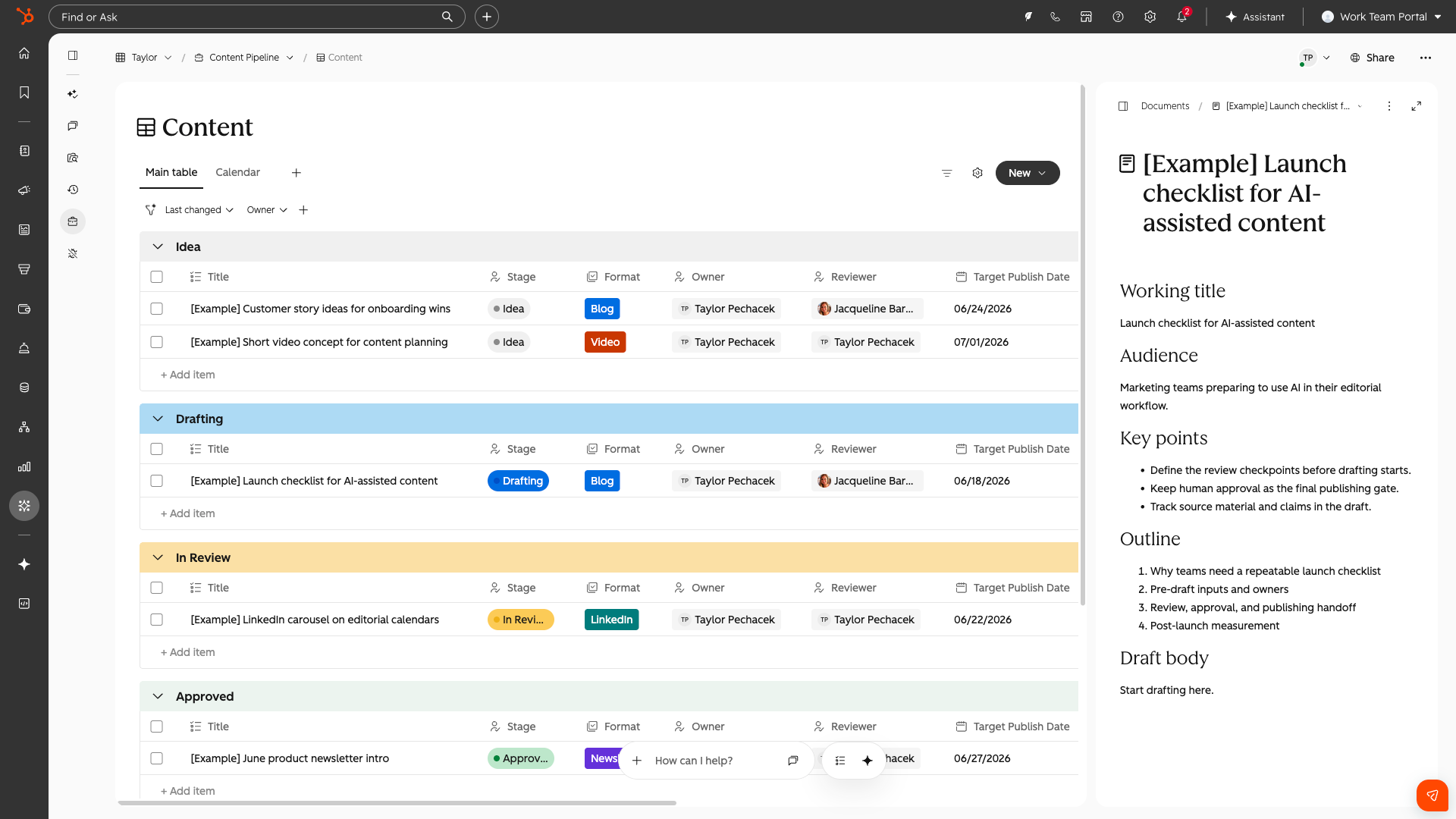
Where to find it?
Once enrolled, it may take a few minutes to see the product. You can access this along your left hand navigation titled "Work Management". This may appear under "More". You can pin it for quick access in the future.
To navigate directly there the URL is: app.hubspot.com/work/{portalId}
What is it?
HubSpot Work (Beta) is AI work management, natively connected to your CRM, where teams and agents organize, accomplish, and automate work.
Describe what you need in plain language and the AI builds projects, tables, documents, forms, and agent automations from a single prompt. It replaces the spreadsheets and project tools where critical work around the CRM has always lived.
Why HubSpot?
When operational work and customer data live in different places, three things break.
- You lose context, because the person running onboarding can't see the deal history without switching tools.
- Cross-team coordination breaks down, because no one shares a clear view of what needs to get done, where it lives, or who owns it.
- It becomes nearly impossible to build agents that do meaningful work on your behalf, because they don't have the full picture.
The result: your team spends more time coordinating work than doing it.
HubSpot Work brings that context into your workspaces so agents don't just organize tasks; they take action grounded in real customer relationships, deal history, and pipeline data.
Three things set HubSpot Work apart:
- Agentic AI. An omni-assistant that's always with you. Ask it questions, assign it tasks, let it run while you're away. It also recommends ways to improve the project over time.
- Flexible data. Projects with tables, forms, and documents built on the fly from a single prompt, shaped for exactly what you need.
- Connected CRM. Linked to the contacts, deals, and companies you already have, so agents work with full context from the start.
Getting Started
Building your first project
During onboarding, you will be asked to create your first workspace and project. You can:
- Describe what you want in plain language and the chat omnibar will generate what's needed: data tables, columns, forms, documents, and agents.
- Use a template such as client onboarding, deal desk coordination, webinar events, content pipelines, and more.
- Start from scratch with a sample project to get into the product quickly.
HubSpot Work is natively connected to your CRM, has web search, and can act on anything data you put into the product.
How to think about your first session
This is an AI-native product, which means the chat omnibar is your most valuable feature. It has a built-in knowledge base about what the product can and can't do, so whenever you're wondering whether something is possible, ask it before assuming it isn't! Or jump into plan mode and strategize how best to build your idea.
The best way to start is to come with a clear use case in mind. Describe what you want in plain language, like describing it to a colleague, and add any relevant files that may help. The AI will build out your project and ask any clarifying questions. Start simple and then iterate via chat to layer in more detail, complexity, or entirely rebuild certain aspects.
Pricing Guide
HubSpot Work has three primary components for the pricing of this product.
- Seats: Any user who has a paid seat will have access to HubSpot Work, it is included in the price of that seat!
- Functionality by Tier
- Starter: Limitation automation
- Professional & Enterprise: Full automation
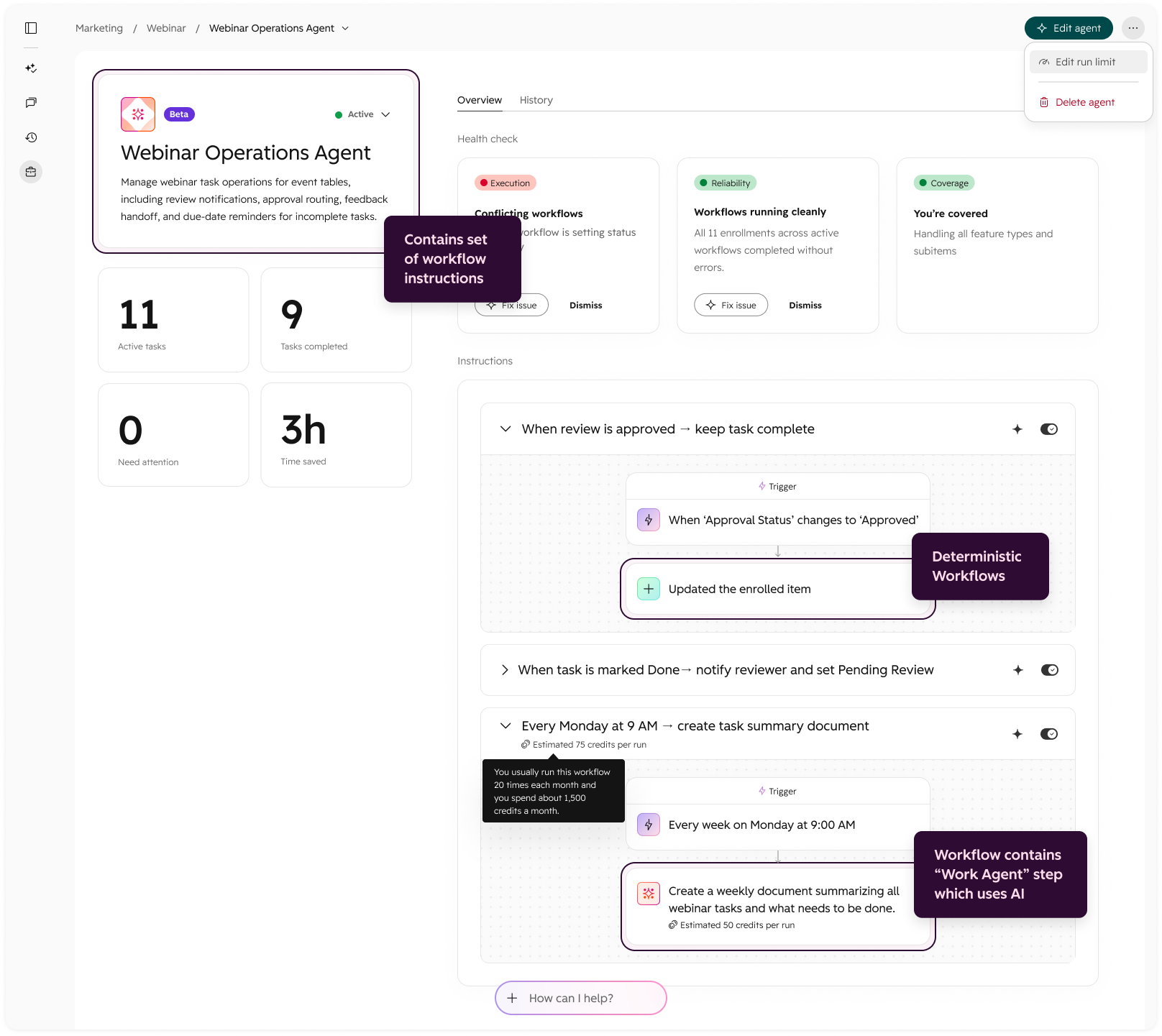
- HubSpot Credits: You can build Work agents that autonomously execute your projects, tasks, and workflows. Automated Work agents (AI-powered steps) consume HubSpot Credits.
Taking a closer look at HubSpot Work Agents
Agents in HubSpot Work allow you to bundle together a set of workflows, which make up the agents instructions. This drives what each agent does within that project. The set of instructions can be more or less intelligent, based on how you design them.
Each workflow is made up of a Trigger + Steps. Not everything has to be AI. Some steps are basic automations like IF this happens THEN notify someone which does not involve AI, or Work agents. However, sometimes you will need more complex, agentic driven steps that do leverage Work agents. These will consume HubSpot credits when executed.
Knowledge Base Agent
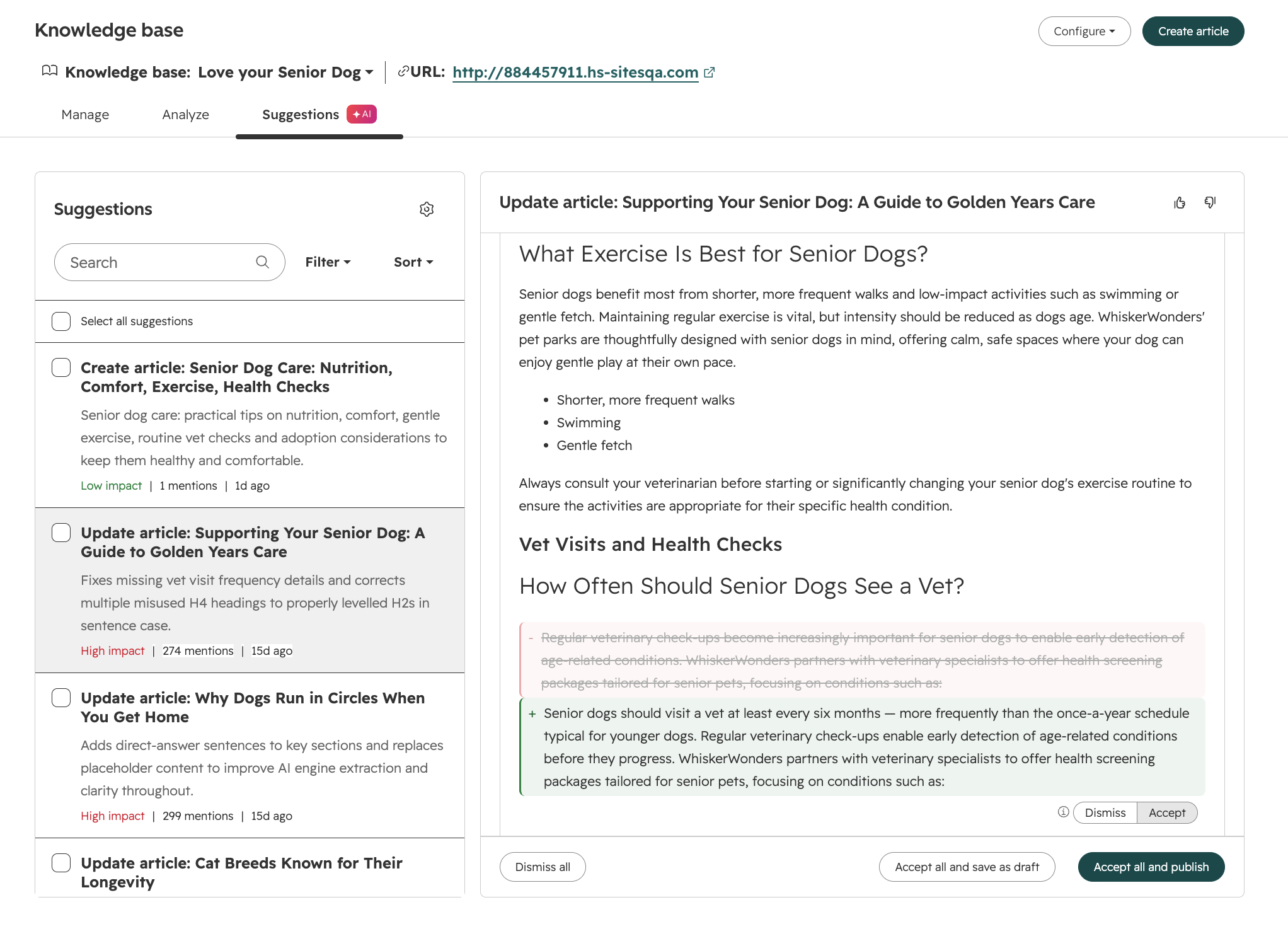
Breeze knowledge base agent analyzes and extracts topics from your tickets, compares them to existing knowledge articles, and surfaces suggestions for new articles and edits to existing articles where content is unclear, outdated, incomplete, or off-brand. You can review, accept, or reject each suggestion directly from the Suggestions tab.
Why does it matter?
Knowledge base content goes stale over time. Without a systematic way to catch issues, teams are left doing manual audits to find outdated facts, unclear phrasing, or content gaps: problems that often only surface when a customer files a support ticket.
Knowledge base agent lets teams address these issues proactively and keep self-service content accurate without dedicating manual review cycles.
How does it work?
The agent scans existing articles, compares them against support ticket patterns and brand guidelines, and generates targeted improvement suggestions.
Setup
Knowledge base agent requirements:
- Your portal should have at least 5 closed tickets
- You should have a knowledge base setup
- Customer conversation data switch should be toggled on
After confirming the requirements:
- Navigate to Service > Knowledge Base > Suggestions
- Click the knowledge base agent tab, then "Create knowledge base agent."
- Select a knowledge base and a ticket pipeline you'd like the agent to pull tickets from
- Knowledge Base Agent will produce suggestions in the primary language set on the knowledge base utilized
- Click Finish

Using Suggestion Cards
- Sort / filter by the preferred method (Impact, Card Type, Source Count, Age).
- Click a suggestion card to open the associated article.
- Review the suggested change. Click "Source conversations" beneath applicable suggestions to see which support tickets and knowledge gaps contributed to the article(s).
- Toggle "Accept" or "Dismiss" for each suggestion item, then choose Accept all and publish, Accept all without publishing to create a draft for later review, or Dismiss all.
- View in editor to continue editing or view the live published page.
- Provide feedback on the AI-generated content you see in the editor.
Edit Suggestion Types
You'll see the following edit suggestion types:
Clarity: rewrites unclear phrasing to make articles easier to understand
Incomplete: identifies missing information
Stale data: flags outdated facts/references
Branding: checks that articles match your company's name and messaging standards
Answer Engine Optimization (AEO): improves how your articles appear in AI-generated answers and search features
Voice & formatting: rewrites content to match consistent tone, voice, and formatting
Decay: detects articles whose traffic or engagement has declined significantly
On September 16th, knowledge base agent will begin consuming credits. You pay $2 (200 credits) when you prompt the knowledge base agent to generate one new knowledge base article.
Note: edit suggestions to existing knowledge articles will be included in the Service Hub seat.
Fresh From UNBOUND 2026: Unpack What's New With Us
HubSpot dropped a lot at UNBOUND 2026, and there’s plenty more than we could cover in one weekly update. From new AI agents and automation capabilities to major platform enhancements, the question now is: Which updates actually matter for your business?
Join Orange Marketing for UNBOUND Unpacked 2026, our live briefing fresh from Boston. We’ll break down the biggest HubSpot announcements, AI updates, show-floor highlights, and what we think HubSpot users should be paying attention to now.
Register for UNBOUND Unpacked 2026 and get our take on what’s new, what matters, and what to do next: