 Orange Marketing
.png)
This week’s HubSpot updates bring a mix of changes, from a shift in how case studies are managed to smarter customer support reporting and new AI-powered presentation tools.
HubSpot is retiring its standalone case studies tool in favor of a more flexible blog format, while new topic-based reporting makes it easier to understand what customers are reaching out about. Plus, Breeze Assistant can now create fully editable PowerPoint presentations, helping teams spend less time building slides from scratch.
Here are three updates worth knowing for the week of October 19, 2026:
- Case Studies Sunset,
- Analyze Your Help Desk and Customer Agent Performance by Topic, and
- PowerPoint Decks in Breeze Assistant.
Case Studies Sunset
The standalone case studies tool is being sunset. If you have existing case studies, HubSpot will migrate them to blogs using a case study template that keeps your content, layout, and URL intact.
The old case studies tool had no templates, limited customization, and limited advanced settings. Building case studies as blogs gives you a more flexible, user-friendly experience.
You don’t need to do anything. Your existing case studies will be automatically recreated as blog posts, using a template that mirrors the case study layout. Published case studies stay published and keep the same URL.
Going forward, you can create case studies as blogs from the blog template titled Case Studies.
Analyze Your Help Desk and Customer Agent Performance by Topic
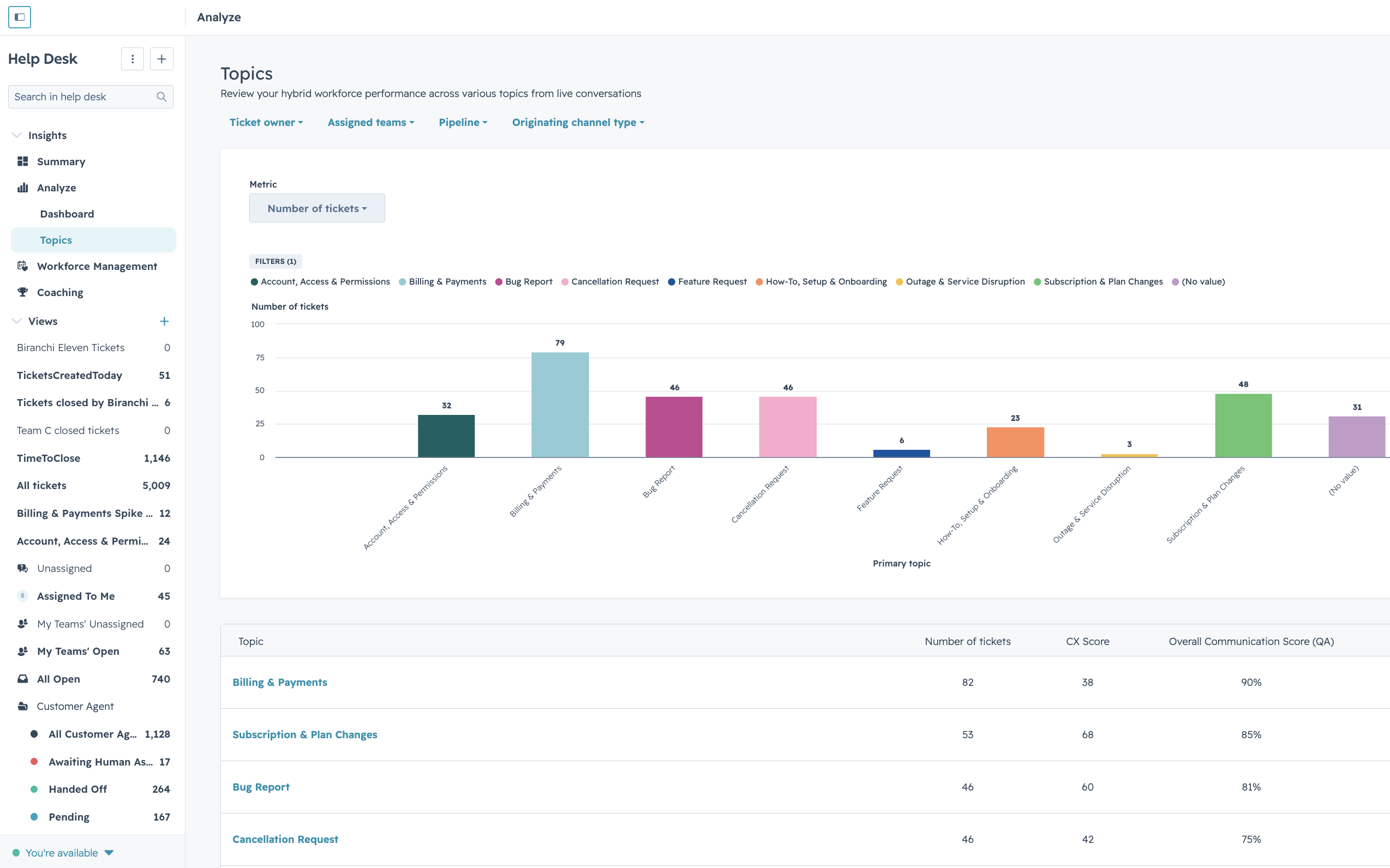
What is it?
HubSpot now automatically understands what your customers are contacting you about, and helps you analyze your Help Desk and Customer Agent performance by those topics. No manual tagging, no setup. You get a clear picture of what's driving volume and where your team has room to improve, straight out of the box.
Why does it matter?
Support leaders have never had a reliable, low-effort way to answer a basic question: what are customers actually reaching out about, and where are we falling short? Manual ticket categories depend on reps tagging every conversation correctly and consistently, so the picture is often incomplete and out of date.
Topics does the work for you. Every conversation and ticket is classified automatically, so you can spot common inquiries, coach your team on it, and catch emerging issues early, without running a data project.
How to start analyzing
Open the Topics view to see which topics are underperforming — where resolution times, volume, or customer sentiment point to a problem worth digging into.
Open the Topics view to find coaching opportunities by topic — where the agent is struggling to answer certain kinds of questions well.
Good to know
- We automatically track topics across all your conversations and tickets.
- You start with a default taxonomy out of the box, and can add your own custom topics and subtopics.
- Your support team can manually change a ticket's primary topic and its "all topics mentioned."
- New ticket properties for topics and topic drilldowns, which are also available in custom reports
PowerPoint Decks in Breeze Assistant
Breeze Assistant now builds real, editable PowerPoint decks. Ask for a presentation and Breeze creates it slide by slide as an artifact, where you can edit it directly, ask Breeze to change it, present it fullscreen, and download it as a .pptx file for PowerPoint, Keynote, or Google Slides.
Why does it matter?
Reps spend hours copying CRM data into slides for prospect meetings, proposals, and business reviews. With the updated PowerPoint deck capability in Breeze, you can now create presentations that follow your brand guidelines and templates, so decks come out on-brand and ready to present without reformatting.
How does it work?
Ask Breeze to "Create a slide deck for my QBR with Acme" or "Put this report into a 6-slide presentation."
From there:
- Edit directly. Change text, backgrounds, and layout in the presentation artifact. Edits save automatically as new versions, with Undo and Redo in the toolbar. Breeze knows when you've changed the deck yourself and builds on your edits.
- Ask Breeze to change it. Ask for updates in chat, or select an element and ask Breeze about just that part.
- Follow your brand and templates. Breeze applies the brand guidelines you provide, such as colors, fonts, and tone, and builds on PowerPoint templates you give it.
- Start from an existing deck. Upload a PowerPoint (up to 50 MB) and Breeze turns it into an editable deck, or uses it as a template or style reference for a new one, including its layouts and typography.
- Present or download. Use Present in the artifact header to go fullscreen, or Download
.pptxto get the file. - Share. Share a deck with teammates and they open it as a live, read-only deck.
This rollout is automatic. No action required.
Important Notes
- Decks you've already built as read-only presentations keep working, including on mobile and in PDF exports.
Is Your Brand Showing Up in AI Search?
AI is changing how buyers research products, compare solutions, and discover companies. Getting found is no longer just about ranking on Google. It's also about making sure your brand appears in answers from tools like ChatGPT, Perplexity, and Gemini.
Orange Marketing's Answer Engine Optimization (AEO) services help B2B companies and nonprofits improve their visibility in AI-powered search through smarter content, structured data, and strategies designed for how buyers search today.
Ready to get found in AI search? Learn how Orange Marketing can help your brand stand out.
