Orange Marketing
%20(45).png)
This week’s HubSpot updates are focused on making your CRM more accessible and easier to use, whether you're working on the go or managing data behind the scenes.
From accessing important customer information without an internet connection to creating smarter conditional property rules using multiple criteria, these updates are designed to help teams stay productive and keep their CRM organized.
Here are two updates worth knowing for the week of October 12, 2026:
- Mobile Offline Read-only Mode, and
- Conditional Property Logic with Combination Operators.
Mobile Offline Read-only Mode
What’s changed? To enable Offline mode, please go within the mobile app to Settings > Offline Mode and toggle "Offline mode" to ON. Manually trigger an offline download sync by tapping 'Resync data' when required. The sync model performs a full background update every 24 hours with delta changes fetched upon app access.
What is it?
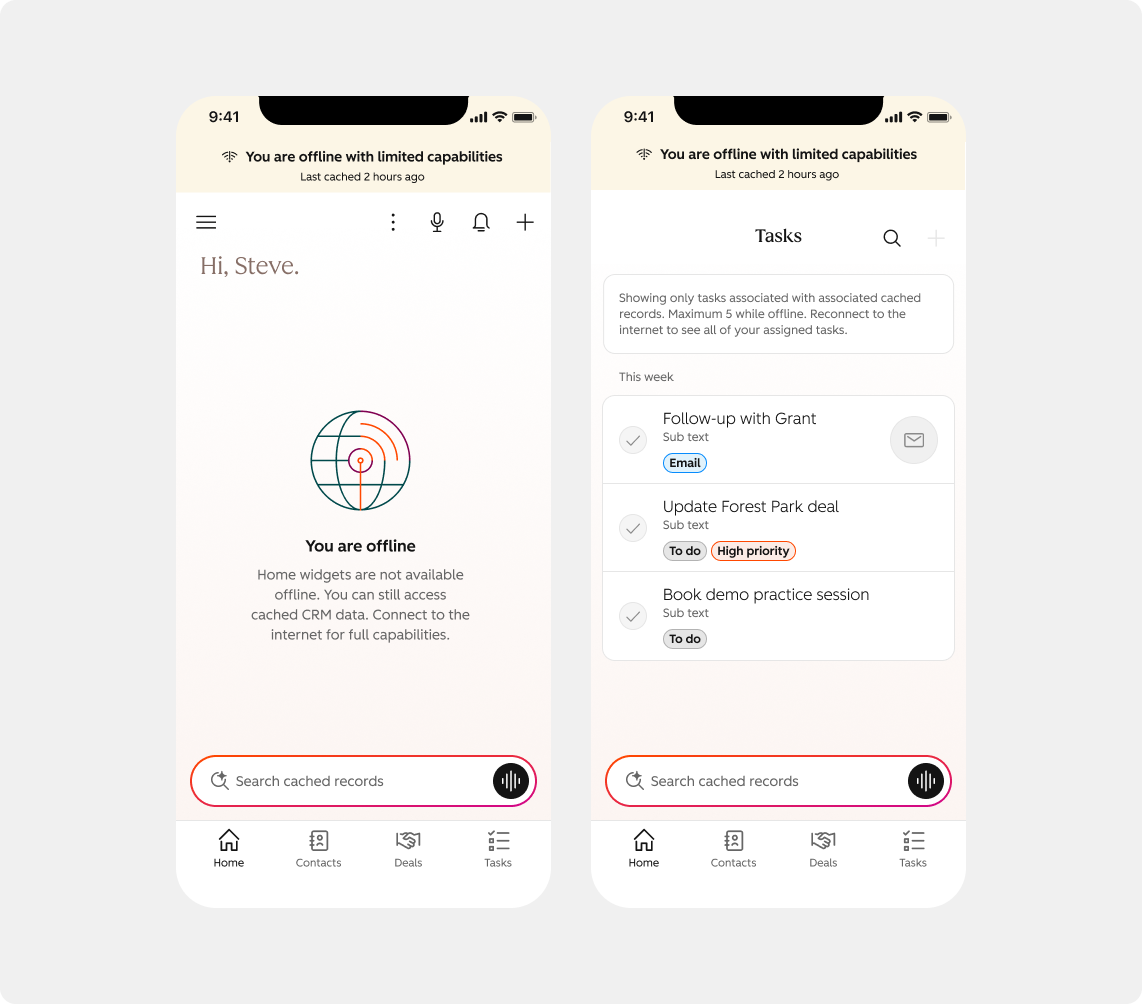
HubSpot mobile users can now access key CRM information even when they lose their internet connection. With Offline Mode enabled, the mobile app securely caches users’ most recently viewed Contacts, Companies, Deals, and Tickets, along with selected recent engagements and tasks, so reps can continue reviewing important customer information while offline.
Why does it matter?
Field sales and service reps often work in places where internet connectivity is limited or unavailable, such as construction sites, hospitals, rural locations, warehouses, or customer premises. Previously, losing connectivity also meant losing access to the CRM, making it difficult for reps to review a contact’s history, check a deal’s status, or prepare for a customer conversation. This literally blocked them from doing their work in this scenarios.
Offline Read-only mode gives reps continued access to the information they need while on the go, helping them stay prepared and productive even when a reliable data connection is not available.
How does it work?
Once you opt into the beta, to enable Offline mode, please go, within the mobile app, to Settings > Offline Mode and toggle "Offline mode" to ON. Once enabled, HubSpot begins securely caching and refreshing supported CRM information in the background.
While offline, you can:
- Access up to the 50 most recently viewed records per object type across Contacts, Companies, Deals, and Tickets (200 in total).
- View standard and custom CRM properties available on cached records.
- Review the three most recent calls, emails, or meetings associated with a cached record.
- View the next five due open tasks assigned to them and associated with cached records.
- Browse cached records from the Records index tab using List view.
- Use global search to find cached Contacts, Companies, Deals, Tickets, and Tasks.
- See a persistent offline indicator and the record’s last-synced timestamp.
- Manually trigger an offline download sync from Settings when required.
Offline mode is read-only in this release. Actions such as editing properties, creating records, adding notes, or other write actions are not supported yet. Most record actions are disabled while offline; where mobile calling coverage is still available, you may be able to call using the My Phone call method.
Note: Sensitive portals, including HIPAA-enabled portals, are excluded from offline mode support.
Conditional Property Logic with Combination Operator
You can now combine multiple conditions when setting up conditional logic on properties, triggering dependent properties to appear based on the values of multiple properties.
Why does it matter?
Until now, conditional property logic in HubSpot could only look at one property at a time, limiting how you could control dependent fields. With multi-condition logic, your records can now surface the right fields only when multiple criteria are met, without any extra effort from your team.
- Sales reps can show a "Renewal date" field only when a contact is both a customer AND has an active subscription, cutting down on irrelevant fields cluttering the record.
- Marketing teams can apply a lead score property only when a contact's Lead Status is New OR their Lifecycle Stage is Lead, catching new prospects from either signal.
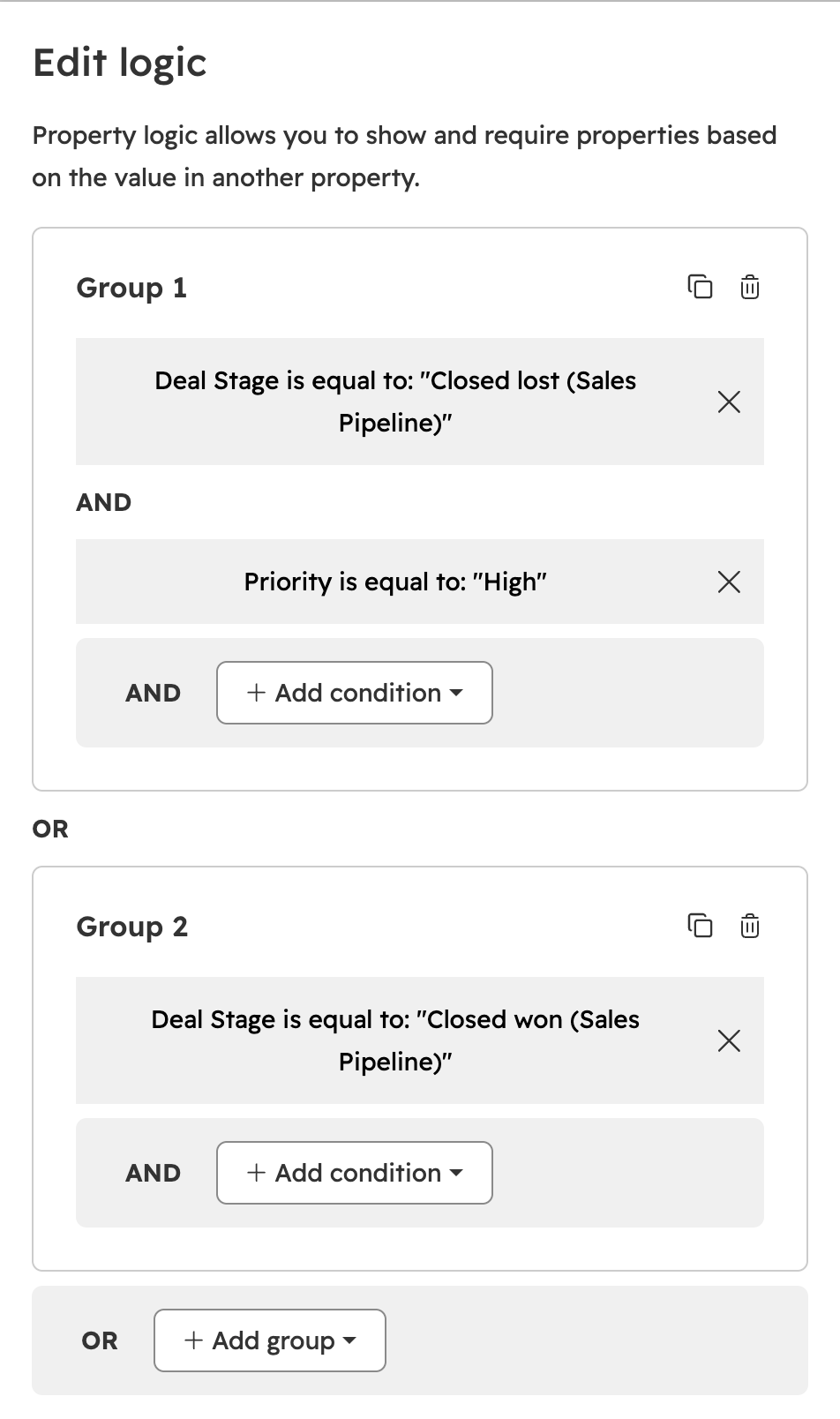
- Ops teams can require a "Reason for churn" field when Lifecycle Stage is Customer, OR Deal Stage is Closed Lost AND Amount is greater than $50,000, keeping data collection precise.
How does it work?
- In your HubSpot account, go to Settings, then click Properties in the left sidebar.
- Select your object type (e.g., Contacts), then click the Conditional logic tab.
- Click Create logic and set your first condition, adding a property, operator, and value if applicable.
- Add more conditions to your group or add more groups with other conditions. You can duplicate a group to customize logic more quickly.
- Click Save logic.
Missed Unbound 2026? Get Caught Up!
HubSpot announced a lot at UNBOUND 2026, especially when it comes to AI, automation, and new ways to get more from your CRM. But which updates should your team prioritize, and which need more development time?
We unpack the goods in our recent briefing, where the Orange Marketing team (fresh from Boston) breaks down the biggest announcements, demos some cool new tools, and explores what these changes mean for HubSpot users.
Watch the live session recording and get caught up on what's new, what's important, and what's next for HubSpot.