Orange Marketing
This week’s HubSpot updates bring more ways to connect your tools, put AI to work, and get better insights from your data.
From bringing Zoom meeting insights directly into Breeze Assistant to generating AEO-optimized product pages, HubSpot continues to make it easier to turn information into action. Plus, a redesigned report builder simplifies reporting with AI assistance, while new product usage tracking helps customer success teams monitor adoption and identify potential churn risks.
Here are our favorite updates for the week of November 23, 2026:
- Zoom Connector for Breeze Assistant,
- Generate Product Pages from AEO Recommendations,
- Updated Unified Report Builder, and
- Product Usage Tracking.
Zoom Connector for Breeze Assistant
The Zoom connector lets Breeze Assistant and HubSpot agents securely access your Zoom meetings, AI Companion summaries, recordings, and Zoom Docs using Model Context Protocol (MCP). Breeze pulls this information when prompted, so it’s available right in your HubSpot conversations.
Your meeting data is in Zoom, but your customer context lives in HubSpot. With this connector, your team can bring what was actually said in a meeting into their HubSpot work without searching Zoom for the right recording or summary.
Try asking Breeze:
- “Find my last meeting with [company name] and summarize the key takeaways.”
- “Pull the transcript from yesterday’s call and list the action items.”
- “Find the recording of our kickoff meeting with [customer].”
- “Search my Zoom meetings from last month for mentions of pricing.”
- “Create a Zoom Doc with talking points for tomorrow’s renewal call.”
How does it work?
- Connect your Zoom account and authorize access when prompted.
- Ask Breeze a question in natural language.
- Breeze uses the appropriate Zoom tool to retrieve or create the information and returns the result in the conversation.
You control what Breeze can do. For each Zoom tool, you can choose “Always allow”, “Ask permission”, or “Never allow”.
Note: Each user connects their own Zoom account, so Breeze can only access what that user can access in Zoom.
For more information, view this knowledge base article
Generate Product Pages From AEO Recommendations
You can now generate an AEO-optimized product page directly from a product recommendation, making it easy to create well-structured content designed to close answer engine visibility gaps.
AEO shows you where your brand is missing visibility in AI-powered search. Product pages are now one of the most cited sources in answer engines but previously it required manual work to act on product pages recommendations — translating recommendations into new content and figuring out how to structure it to actually improve answer engine visibility.
This feature removes that friction.
With just a few clicks, you can turn AEO recommendations into ready-to-edit product pages that are already structured for answer engine optimization. It helps you move from insight to impact — faster.
How does it work?
- In your HubSpot account, navigate to Marketing > AEO.
- In AEO, open a Product recommendation and click Generate
- Breeze opens and will generate your product page
- Open the page in the editor to inspect, edit, and publish
Updated Unified Report Builder
A new report builder experience is now available focused on making report creation both easier to use and providing better assistance via Breeze. Key elements of the new unified builder include:
- A new, more streamlined entry point into the report builder experience
- Single object report builder and Custom Report Builder have been merged into one report builder experience that should carry the full functionality of both but should be simpler to use than the existing Custom Report Builder Experience
- Breeze and Templates are available as assistive functions to help you create the desired report
Why does it matter?
The existing report building experience can be too complex and fragmented, which leads to confusion and lower satisfaction scores. Simplifying report creation into one builder with integrated AI and templates helps users create reports faster and more confidently, reducing friction and blank-canvas anxiety.
How does it work?
Accessing the Unified Builder
Visit the reporting section (from Reports list page or Dashboards) and select the "Create report", this will immediately enter the new report builder.
Using the Builder
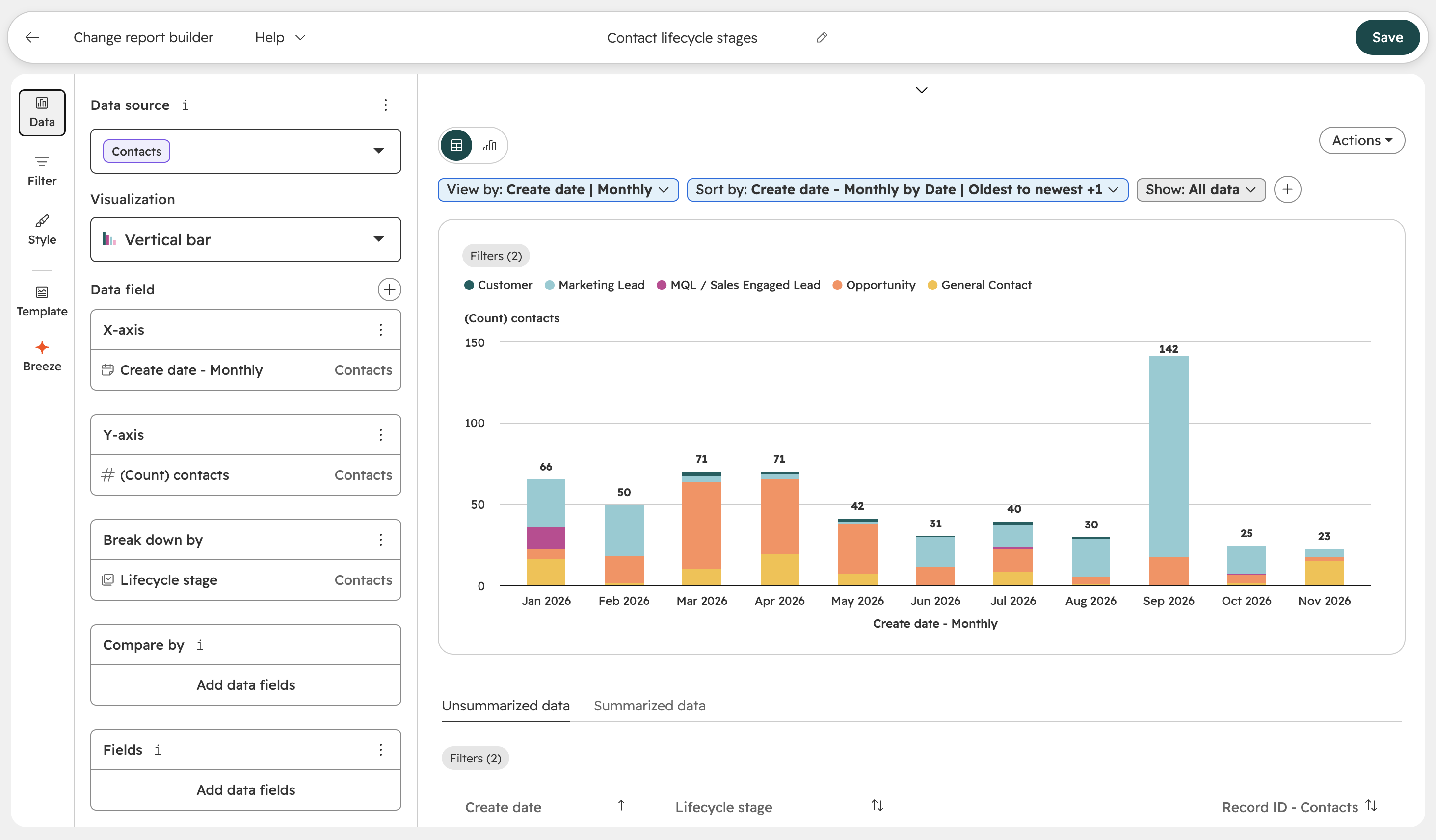
Choose data sources using the dropdown selection, pick your chart type and start adding fields. Access Filters, Styling settings, Templates, and Breeze in the redesigned left bar, find commonly used controls like sorts or limits above the chart.
For a quick walkthrough, here's a video overview walking through the core features. Check the knowledge base link below for a deeper dive.
AI-Assisted Building
Use Breeze from the left navigation to create and edit reports via natural language, with dynamic starter prompts and concurrent manual editing.
Templates
Access templates from within the builder, filtered by data source and visualization type, and preview or apply templates directly.
Other Details
All changes are available within the unified builder interface; no manual migration or setup is required.
Product Usage Tracking
Customer success managers can now define what product activation and usage looks like for their book of business by combining custom events and setting frequency expectations. There's a limit of 10 activation and usage events tracked per account.
Why does it matter?
Customer success managers often lack visibility into whether their customers are actively using key product features, making it hard to prepare for business reviews or spot churn risk early. Product usage tracking lets you monitor feature adoption, track active users, and catch usage declines in real time so you can take proactive action before problems escalate.
How does it work?
Users with the Manage Customer Success setting enabled can configure which custom events to track together to define activation and usage for specific products from the product library:
- Open Product usage in the CS workspace navigation.
- Select Usage or Activation depending on what you're defining.
- Name the new event and, optionally, select the related product from the product library.
- Select the relevant events, groupings, and expected frequency.
- If tracking ongoing usage, define the time period over which to measure events.
Once enabled, the event is available as a standard custom event for use in reporting, segments, and the workflows tool. It also appears on the CRM activities timeline.
Is Your Brand Getting Found in AI Search?
As HubSpot continues to expand its AEO capabilities, visibility in AI-powered search is becoming an increasingly important part of B2B marketing. But knowing where your brand is missing opportunities is only the first step. The real value comes from taking action to improve your visibility.
Orange Marketing's Answer Engine Optimization (AEO) services help B2B companies build strategies designed to get their brands discovered, cited, and recommended by AI search tools like ChatGPT, Perplexity, and Gemini.
Ready to improve your visibility in AI search? See how Orange Marketing can help you get found.