 Orange Marketing
%20(28).png)
This week’s HubSpot updates are all about visibility and efficiency, giving you clearer insight into your data while making it easier to act on it. From demystifying duplicate records to bringing your documents and AI-driven content workflows closer to your CRM, these updates help teams spend less time searching and more time executing.
You’ll also see continued momentum around AEO, with new ways to turn AI-driven insights into publish-ready content faster than ever.
Here are our favorite updates for the week of May 4, 2026:
- Duplicate Similarity Score,
- New Google Drive App, and
- Generate LinkedIn Articles and Posts from AEO Recommendations.
Duplicate Similarity Score
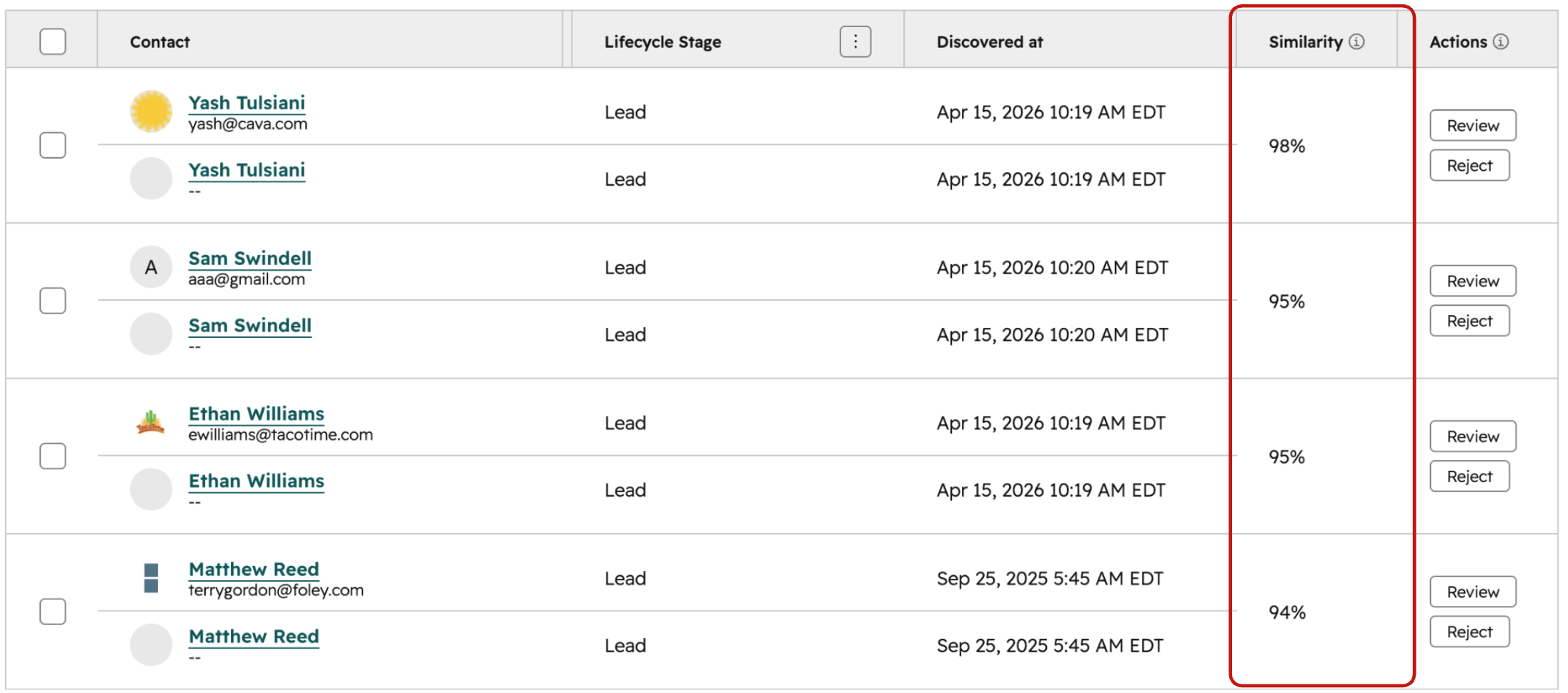
There is a new similarity score that users can filter the duplicate management table by. This score looks specifically at duplicates surfaced by the default HubSpot model.
The default HubSpot model for duplicate detection looks at a specific set of properties to identify what is a duplicate, and what is not. Previously, we surfaced all contacts above a score of 30% similarity, and all companies above a score of 80% similarity -- but we never surfaced this data point to you. This led to many users thinking of our duplicate detection model as a bit of a "black box."
By surfacing this similarity score, you can now get more insights into why a duplicate is shown on the table, and filter the table down to only view duplicates above a specific threshold so you can get more targeted with how you manage duplicates.
How does it work?
On the duplicate management table, you'll now see a new similarity score column on the table of duplicates surfaced by the default HubSpot model. By default, we surface duplicate contacts with a score higher than 30%, and duplicate companies with a score above 80%.
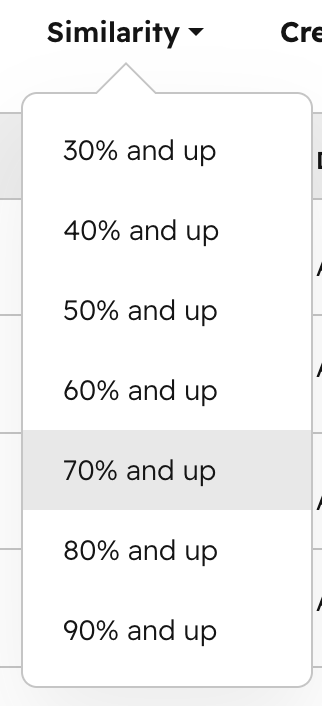
If you'd like to only see duplicate contacts with a similarity score above 70% (for example), you can now filter the table down by this score.
New Google Drive App
The Google Drive app for HubSpot is now in public beta. Connect personal drives, shared drives, folders, and files to all object types. Automate file management through workflows, and get Breeze-powered document summaries right from the middle panel card of your records.
Your team's documents and CRM data live in two different places, so reps waste time hunting for the right file or switching tabs to understand what a document says. This integration puts Drive documents right on the records reps are already working in, surfaces what's inside them without anyone having to click through, and lets workflows handle the file organization that slows your team down. And because you're linking to live, cloud-based documents rather than static attachments, everyone always sees the latest version.
How does it work?
The Google Drive app is in public beta. Once opted into the beta, here's how it works:
- Install the app
- Find and install the new Google Drive app from the HubSpot Marketplace
- Link Your Documents
- Go to any HubSpot record
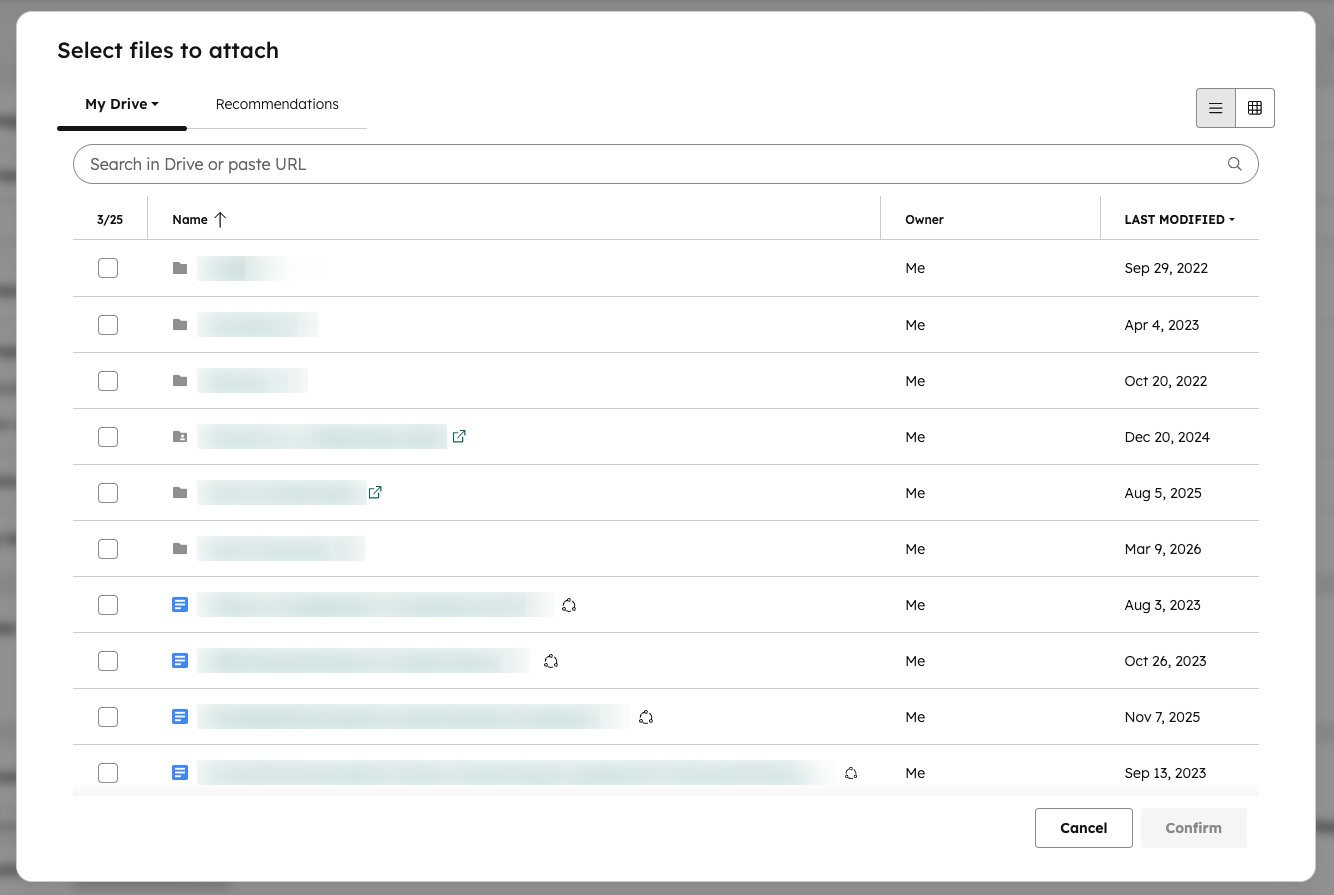
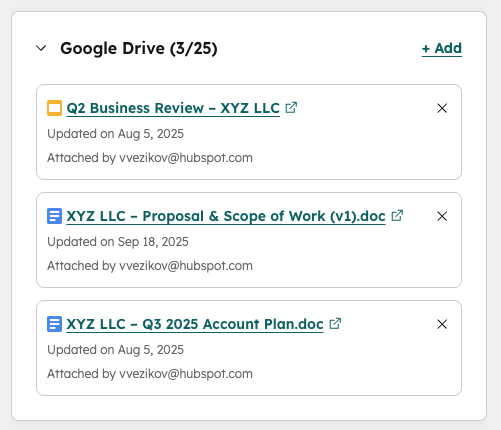
- Use the Google Drive card in the right-side panel
- Attach relevant files you have permission to access
- Pro tip: You can link entire Google Drive folders or drives for maximum flexibility
- Generate Document Overviews
- From the corresponding middle panel card, you can generate document overviews with Breeze.
- Note: Document overviews are limited to Docs, Slides, and PDFs.
- Automate file and folder management with HubSpot workflows
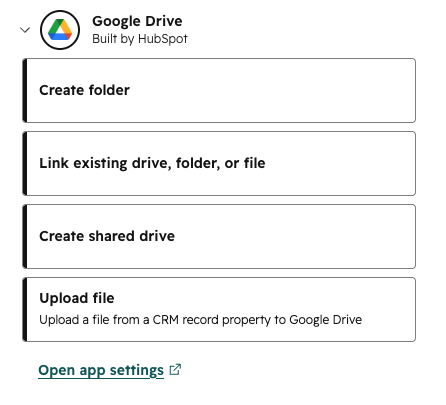
- Create shared drives or folders, and link to HubSpot records
- Link existing drives, folders, or files to HubSpot records
- Upload files from file-type properties to Google Drive destinations
Learn more about setting up and using this app here.
Generate LinkedIn Articles and Posts from AEO Recommendations
You can now generate AI-drafted LinkedIn articles and posts directly from AEO recommendations, making it faster to act on gaps in your brand's AI search visibility.
HubSpot's AEO (Answer Engine Optimization) tool tracks how AI answer engines like ChatGPT, Gemini, and Perplexity respond to questions relevant to your brand. When LinkedIn content is being cited in those responses and your brand isn't mentioned, AEO recommends LinkedIn article or post topics to help improve your visibility. Now you can act on those recommendations by generating AI-drafted LinkedIn content directly within the AEO tool.
Why does it matter?
Buyers are increasingly asking AI engines for product recommendations and industry advice instead of searching the web. When those engines respond, they cite sources, and LinkedIn content — both long-form articles and posts — is among the most commonly cited. If a competitor's content is showing up in those answers and your brand isn't, prospects are forming opinions before they ever visit your website.
AEO already flags these gaps and recommends what to publish. But going from recommendation to published content is a heavy lift: you'd need to research the topic, structure the piece, and write something that reads as genuine thought leadership, not marketing copy.
Now, from any LinkedIn recommendation in AEO, you can generate a full draft. If you have Brand Voice set up, the draft will reflect it. The experience adapts depending on the content type:
- For LinkedIn articles, click Generate article to get an AI-drafted title, body, and companion post. Each section has its own copy button so you can paste the content into LinkedIn's article editor, review, and publish. The companion post is included because articles don't automatically appear in your connections' feeds.
- For LinkedIn posts, select which LinkedIn account(s) to publish from, then click Generate post. A draft is created directly in HubSpot's social tool, where you can review, edit, schedule, or publish — no copy-pasting required.
How does it work?
- In your HubSpot account, navigate to Marketing > AEO > Recommendations
- Open a LinkedIn recommendation and click Create LinkedIn article or Create LinkedIn post
- Review the title, summary, and data sources.
For articles:
- Click Generate article.
- Once generation is complete, the article appears in the Content tab. The title, body, and companion post each have their own copy button.
- Copy the content and paste it into LinkedIn's article editor. Review and edit the draft, then publish.
For posts:
- Select which LinkedIn account(s) to post from.
- Click Generate post.
- Once generation is complete, the post appears in the Content tab as a draft. Click Open in editor to review and edit the post in HubSpot's social tool, then schedule or publish.
Ready to Turn AI Visibility Into Real Results?
AI search is already shaping how buyers compare solutions and shortlist vendors. The teams getting ahead are using AEO insights to close visibility gaps and create content AI engines are more likely to reference.
In our upcoming AEO Playbook webinar, we’ll walk through how B2B teams are spotting visibility gaps, turning recommendations into content, and building a repeatable process for showing up in more AI-generated answers. PLUS we'll give you a live look at HubSpot's freshly announced prompt visibility tools!
