 Orange Marketing
%20(29).png)
May’s HubSpot updates continue to focus on helping teams move faster and work smarter behind the scenes. From a more intuitive file management experience to faster lead follow-up from TikTok campaigns and AI-powered email reviews, these enhancements are designed to improve organization, efficiency, and campaign performance across your marketing efforts.
Here are our favorite updates for the week of May 11, 2026:
- New Folder Tree in File Manager
- TikTok Lead Syncing, and
- Email Quality Checks.
New Folder Tree in File Manager
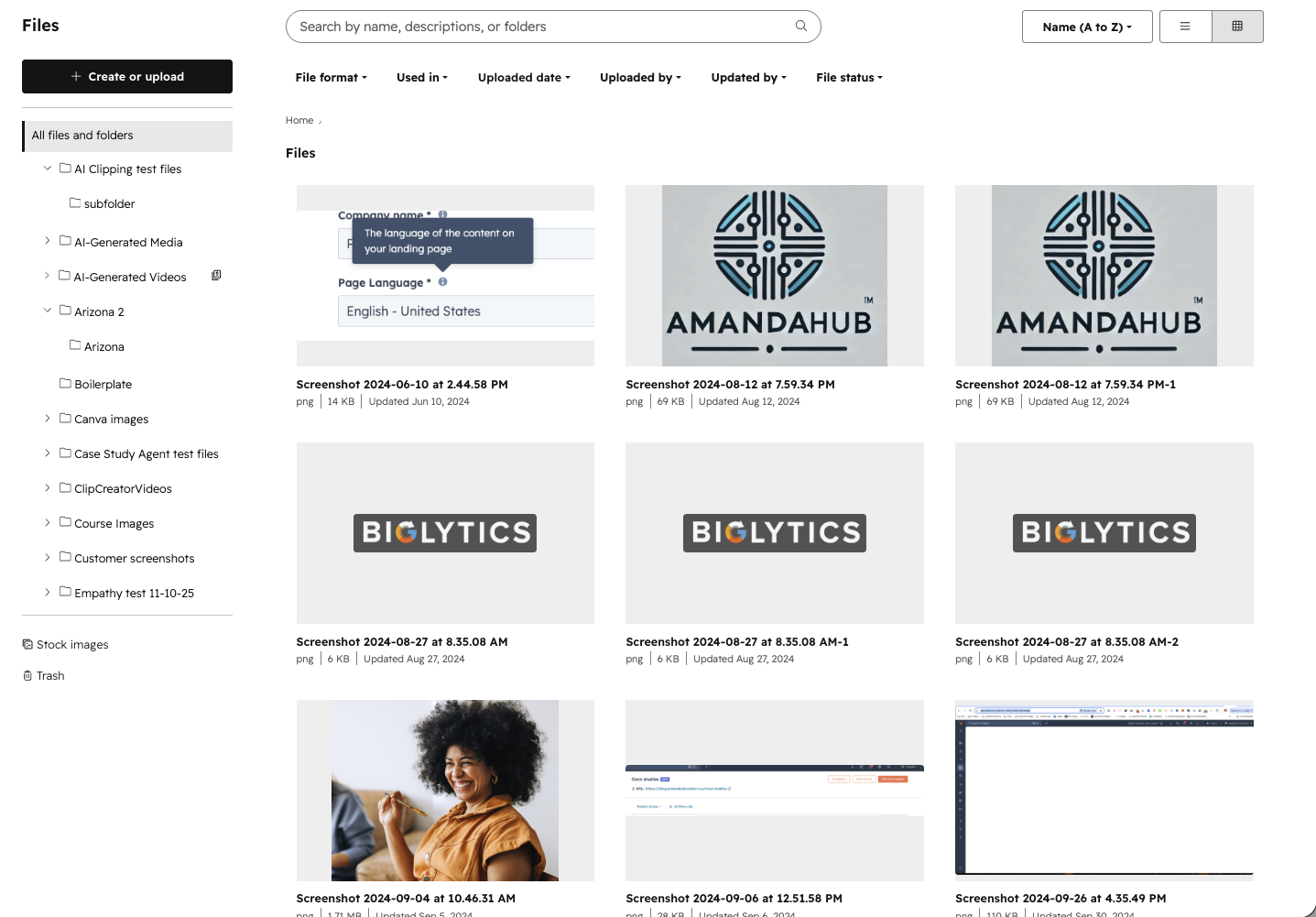
A new folder tree view in the file manager that displays all files and folders in a clear, hierarchical structure. It lets you expand and collapse folders, see nested content at a glance, and move assets between folders via drag and drop or marquee select with familiar interactions.
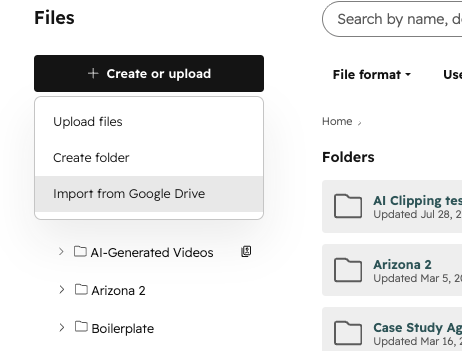
We also consolidated the previous upload/folder create options that used to be in the upper right of the File manager into a single Create or upload button on the left above the file tree.
Why does it matter?
Managing large libraries of files can quickly become difficult when folder structures are deep or scattered. The folder tree gives you a single, organized view of your entire file system, making it easier to find, group, and maintain assets without losing context.
For HubSpot admins or users working with high volumes of files, this means less time spent searching and reorganizing, and more time focused on creating and publishing content. The improved structure also reduces errors when moving or nesting files across campaigns and projects.
How does it work?
- Navigate to the Files tool in your account.
- Use the new left-hand sidebar to view the All files and folders root directory in a tree layout.
- Click the arrow icons to expand or collapse folders and explore nested structures.
- Select a folder to view its contents in the main panel.
- Drag and drop files or folders within the tree to reorganize them across different levels.
- Using your cursor, you can use marquee select to bulk-select files from the right panel and drag them into folders or subfolders in the tree on the left.
- Scroll within the tree to browse large folder structures while keeping access to additional sidebar tools like Trash and Stock Images.
To upload a file, import from Google Drive, or create a new folder in this new UI: Click the Create or upload button above the folder tree layout on the left sidebar.
TikTok Lead Syncing
Lead syncing is a data sync from an ad network into HubSpot. When a person fills out a lead generation form on TikTok (called a TikTok Instant Form), HubSpot automatically creates or updates a contact in your CRM with the information they submitted.
TikTok lead generation ads let users fill out a form directly within TikTok without ever visiting your website. Without lead syncing, these leads stay trapped in TikTok's platform & your team would need to manually export and import them, causing delays and lost opportunities.
Speed-to-lead is critical: the faster you follow up with a lead, the higher the conversion rate. By automatically syncing TikTok leads into HubSpot in real-time, your team can immediately engage with them through workflows, sequences, and sales follow-ups.
How does it work?
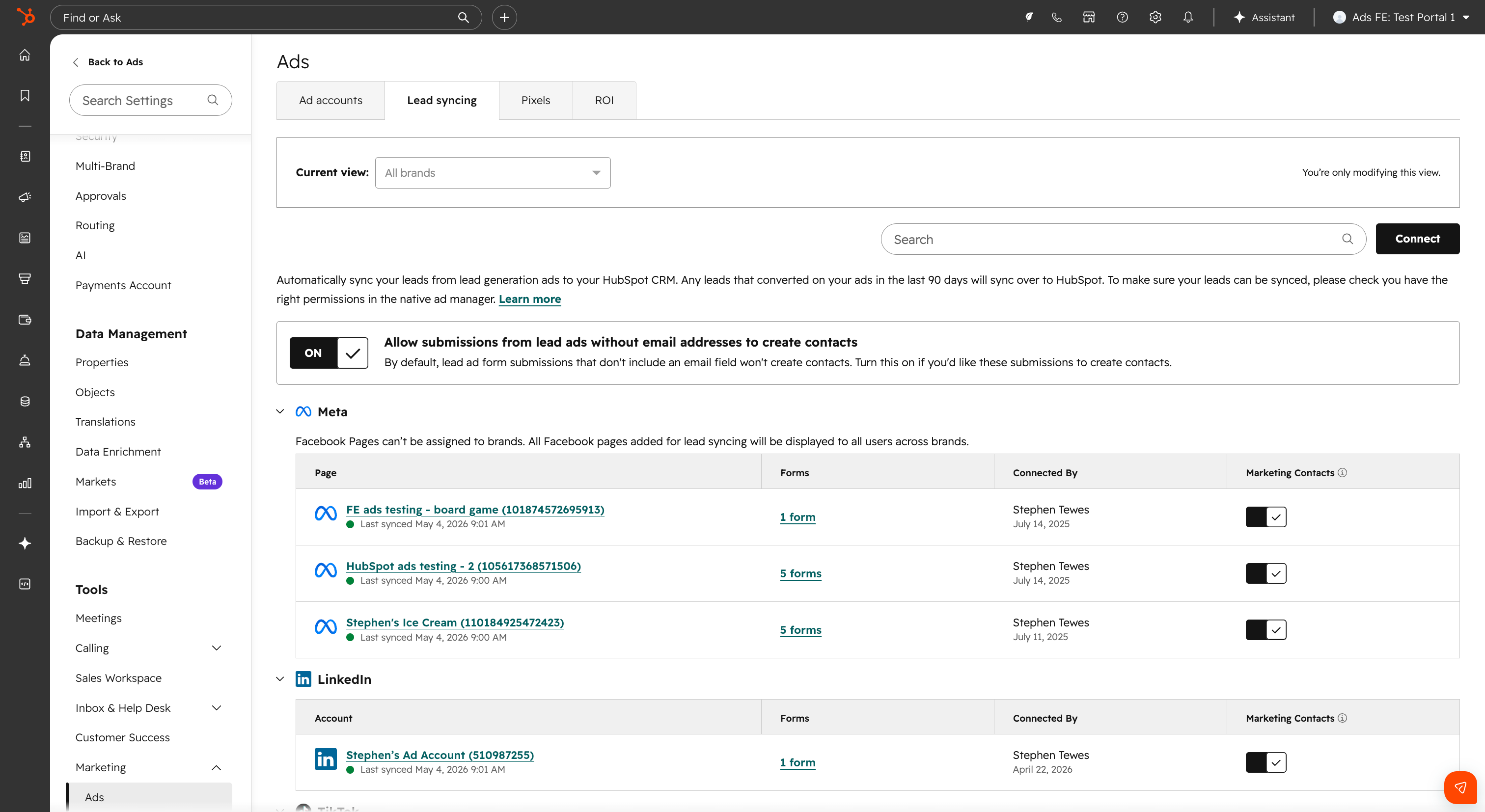
- In your HubSpot account, navigate to Marketing > Ads.
- Click the Settings gear icon in the top right.
- Click the Lead Syncing tab.
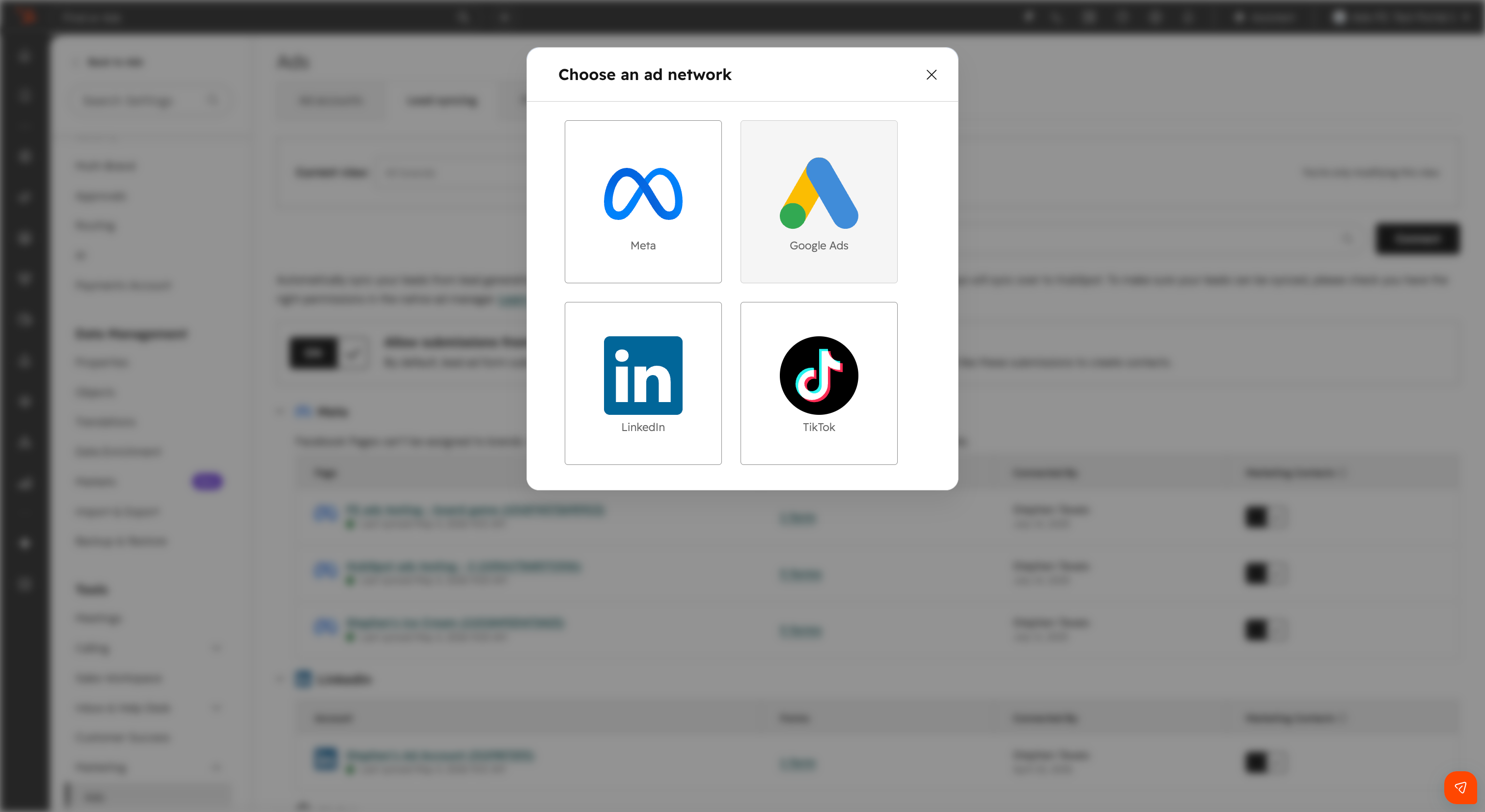
- Click the Connect button & select the TikTok icon.
- Select the TikTok account you want to connect for lead syncing.
- Choose your sync range: New & recent leads (includes leads from the past 90 days) or New leads only (from this point forward).
- Choose whether to enable marketing contacts for synced leads.
- Click Save.
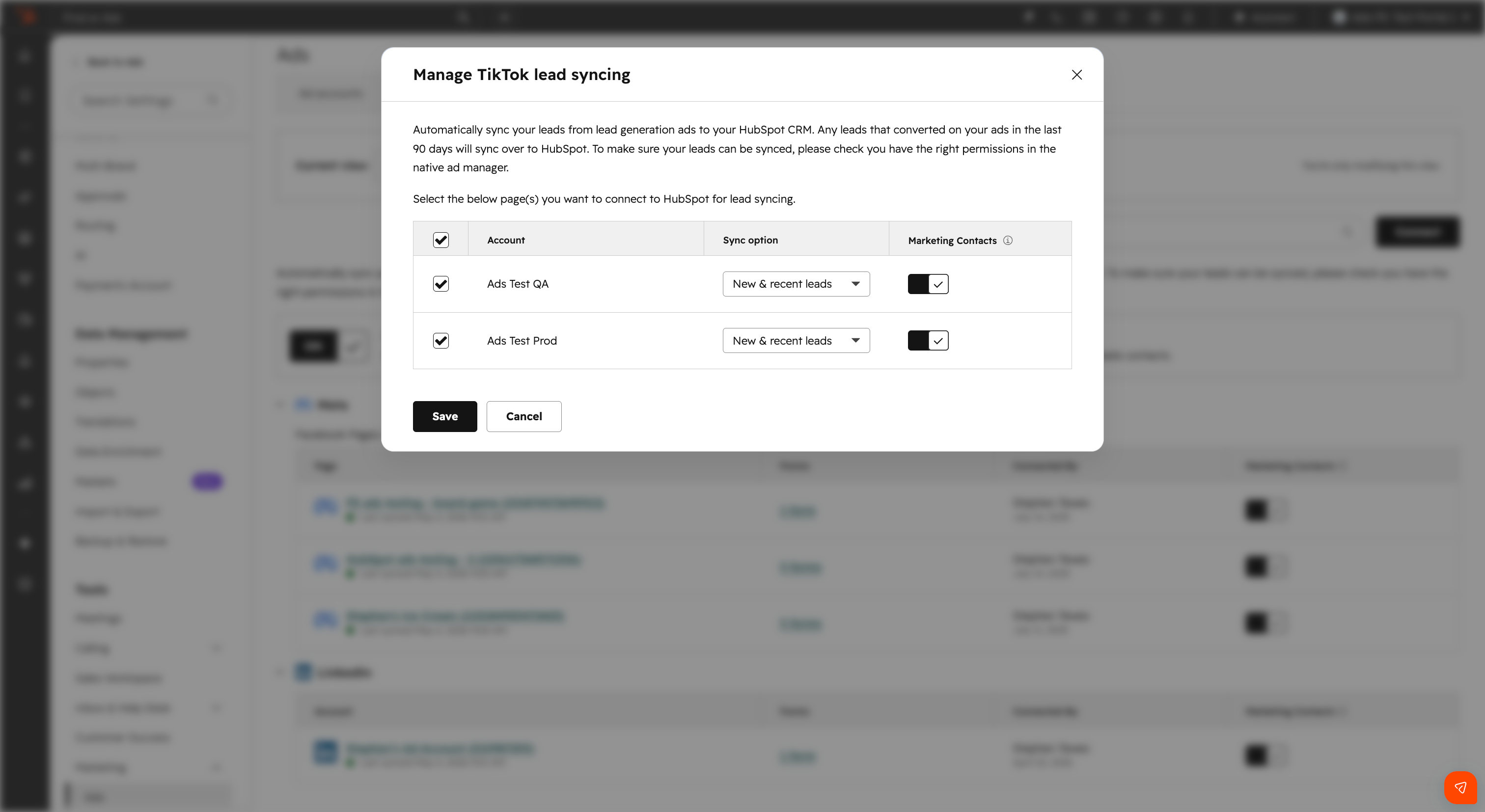
Email Quality Checks
Email Quality Checks are a built-in AI review in HubSpot's email editor. They scan your email before you send, looking for common issues: spelling and grammar, spam triggers, broken links, missing token fallbacks, date formatting, a weak first-sentence hook, off-brand voice, and how AI inbox assistants will summarize your email to recipients.
Why does it matter?
Sending email well means catching the small things and the strategic ones: a stray typo, a token that never populated, a subject line that reads as spam, a first sentence that won't pull anyone in, a brand voice that drifts off. Today that review lives across test sends, browser extensions, and Slack pings to a teammate. Email quality checks bring it into the editor you're already working in.
Every team has its own standards, so you can add custom AI-powered checks for specific voice, tone, or content requirements, and adjust the severity of those custom checks to match how strict you want to be.
How does it work?
Open an email in HubSpot, click "Quality check," and the panel runs every enabled check against your content. Results come back grouped into errors, warnings, and suggestions.
Click any issue to jump to that spot in the editor. Most items include a one-click fix with a before-and-after preview, and you can re-run after fixes to verify.
In email settings, you can toggle checks on or off and add custom AI-powered checks for standards specific to your team. Severity is adjustable on your custom checks, so you can tune what rises to an error versus a suggestion.
Your Brand Is Already Showing Up in AI, But How?
As AI-driven search and answer engines continue to influence buying decisions, understanding how your company appears in tools like ChatGPT and Gemini is becoming essential for modern B2B marketing.
If you want practical strategies, not just theory, on how to improve your visibility and influence in AI-generated answers, this is a session worth attending.
Join us this Friday for the AEO Playbook webinar and learn what’s actually working right now for B2B brands using HubSpot’s new visibility tools.
