 Orange Marketing
HubSpot continues to expand how marketers reach buyers, and how they measure and influence those interactions. This week’s updates focus on connecting emerging channels, adapting to AI-driven discovery, and improving the experience around meetings and scheduling.
From bringing TikTok Ads directly into your HubSpot reporting and attribution to helping brands optimize for answer engines like ChatGPT, these features reflect the changing ways buyers research, discover, and engage with companies today.
Here are the updates we found most interesting for the week of March 9, 2026.
- TikTok Ads Integration,
- AEO: Create a Blog Post From a Recommendation, and
- Customize Confirmation Email in Meeting Scheduling Pages.
TikTok Ads Integration
Connect your TikTok Ads account to see all your ad data, attribution, and audiences in one place.
TikTok is the fastest-growing ads channel, and short-form video drives the highest marketing ROI. Managing it separately means missing unified attribution and first-party data sync.
What can you do?
- Report: View TikTok campaign performance alongside all other channels
- Attribute: See which contacts and deals came from TikTok ads
- Sync: Push HubSpot contact segments directly to TikTok as audiences
- Track: Add TikTok pixels anywhere your HubSpot tracking code lives
How does it work?
To see it in action, please check out this Loom demo.
Creating or Connecting a TikTok Account
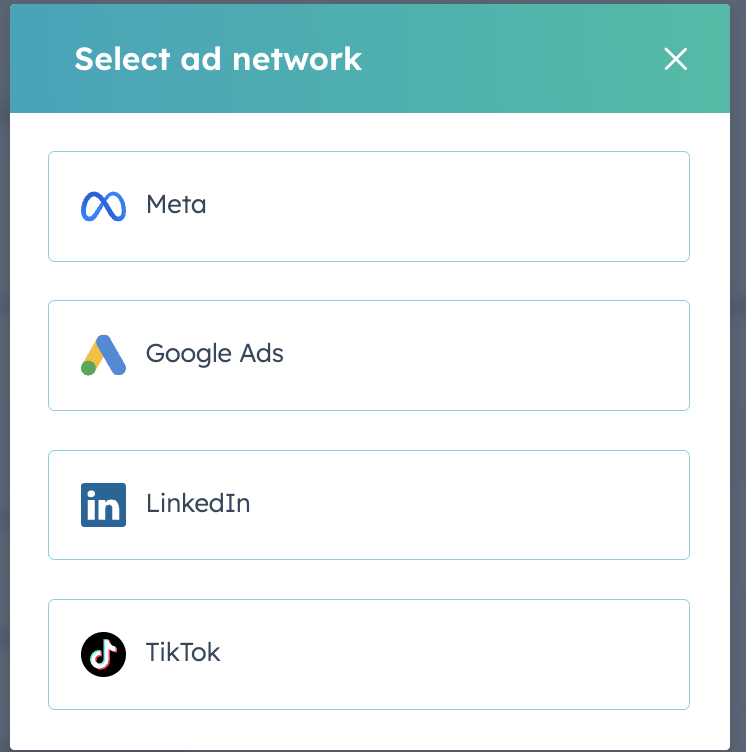
If you haven't used the Ads tool before, navigate to Marketing > Ads. Then, click "Get started with ads". Click the TikTok icon to proceed with the authentication flow.
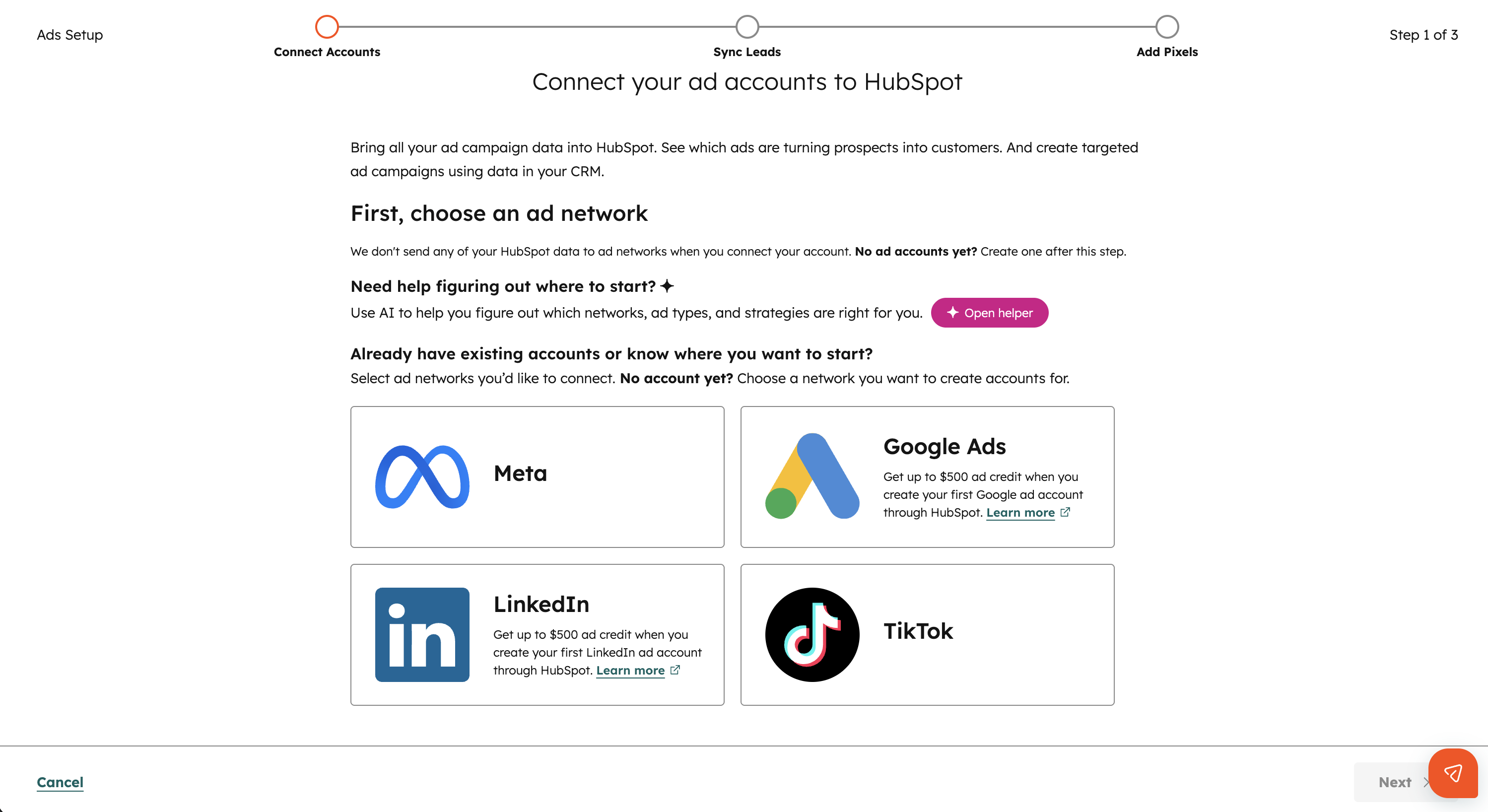
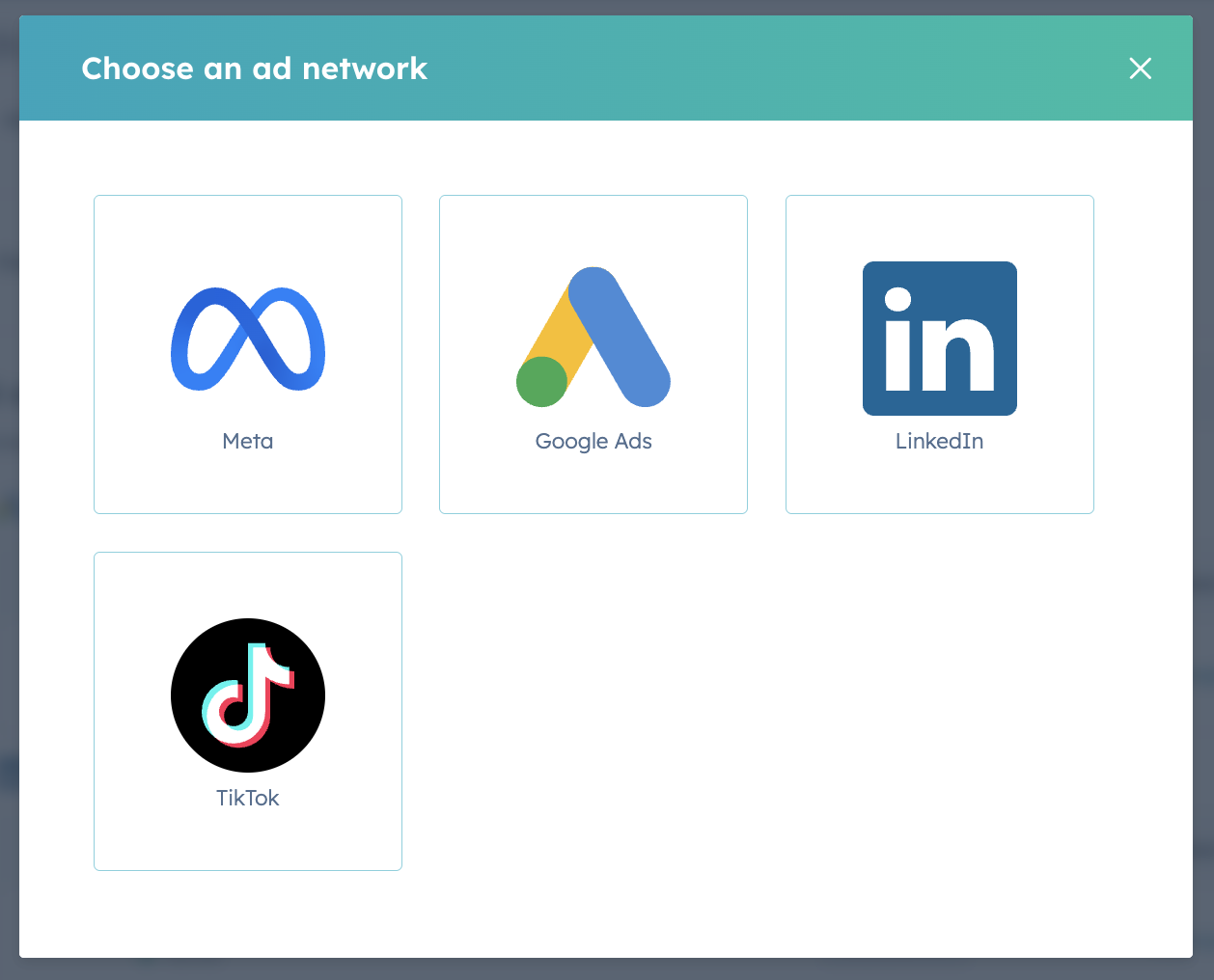
If you have used the Ads tool before, navigate to Marketing > Ads and click the Settings gear in the top right. Then click "Connect account", choose the TikTok icon, and follow the authentication flow.
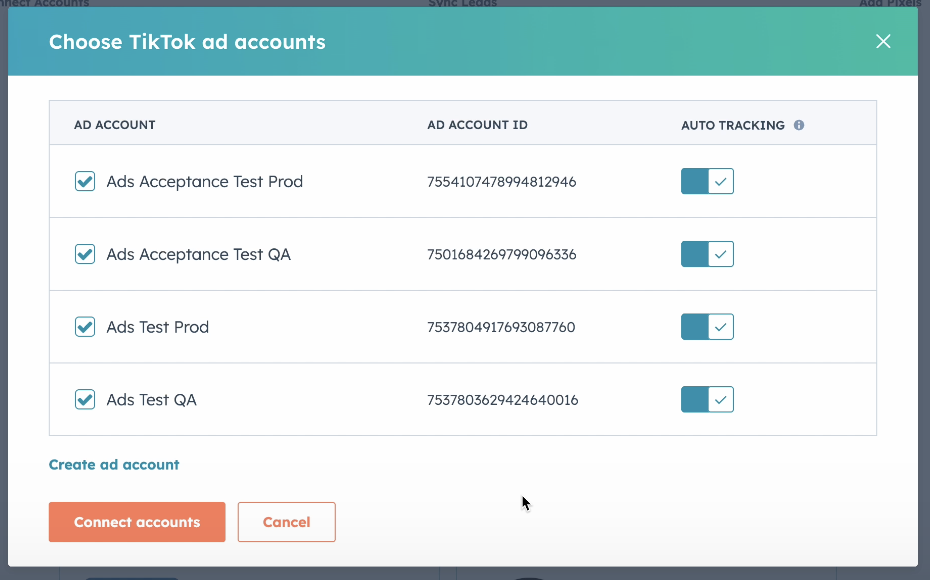
Once you authenticate your TikTok account, we will prompt you to create a new TikTok Ads account if you don't already have one or connect your existing TikTok Ads account if you already have accounts. You can also click "Create ad account" if you want to create another TikTok ads account directly from HubSpot.
Reporting and Attribution
Once connected, your TikTok campaigns will automatically appear in the Manage and Analyze Tabs. Campaign, ad group, and ad-level reporting are available in the same places as other networks.
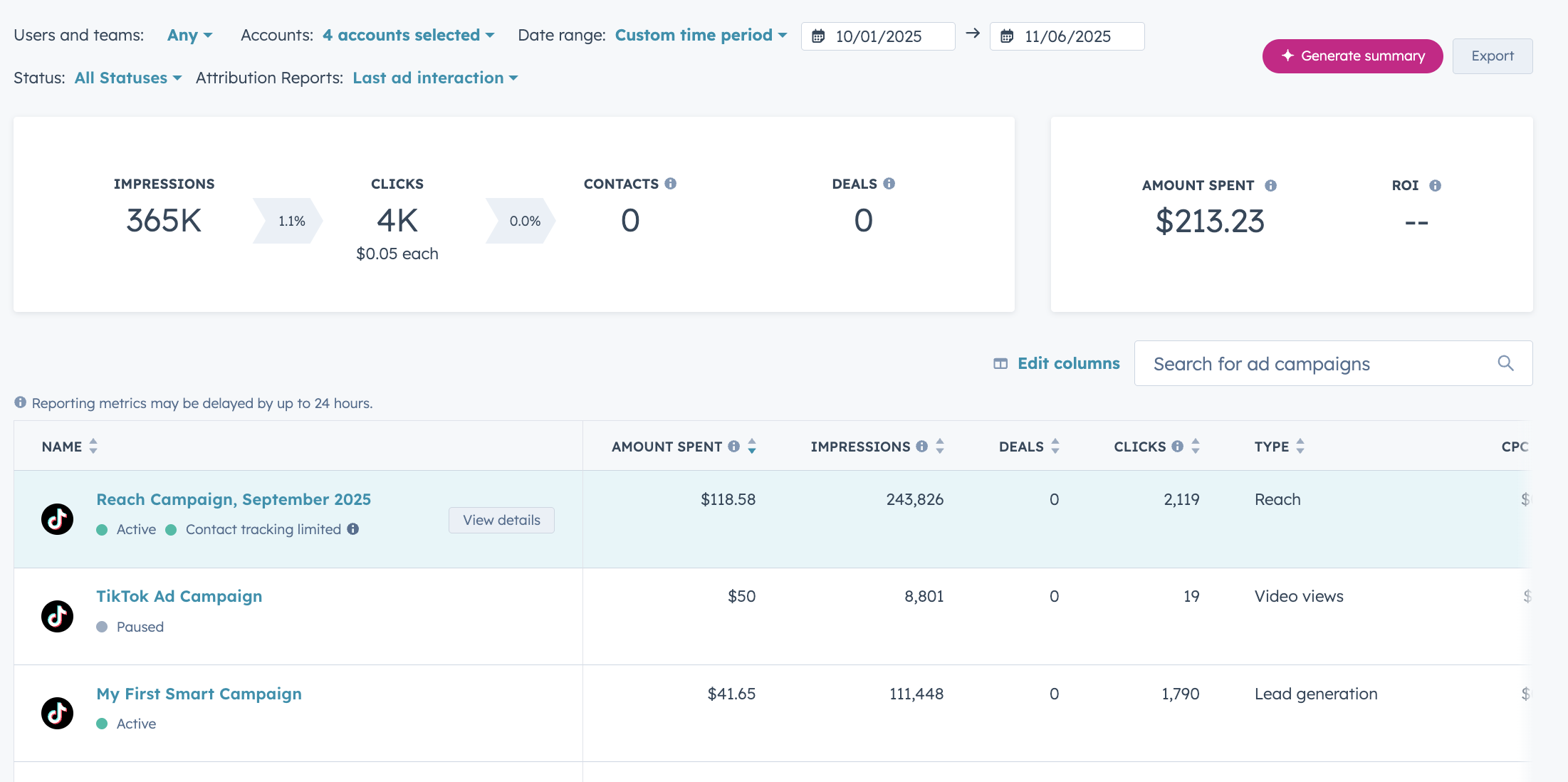
If you've enabled auto-tracking when you connected your TikTok account, we will automatically append UTM parameters to the end of your ad URL and will be able to track which contacts have interacted with your ads. From that, we'll be able to calculate how many deals were made from TikTok and how much ROI they've resulted in.
Audience Creation
Once your in the Ads tool, click Create > Audience on the top right. TikTok either supports creating a contact segment audience or a lookalike audience.
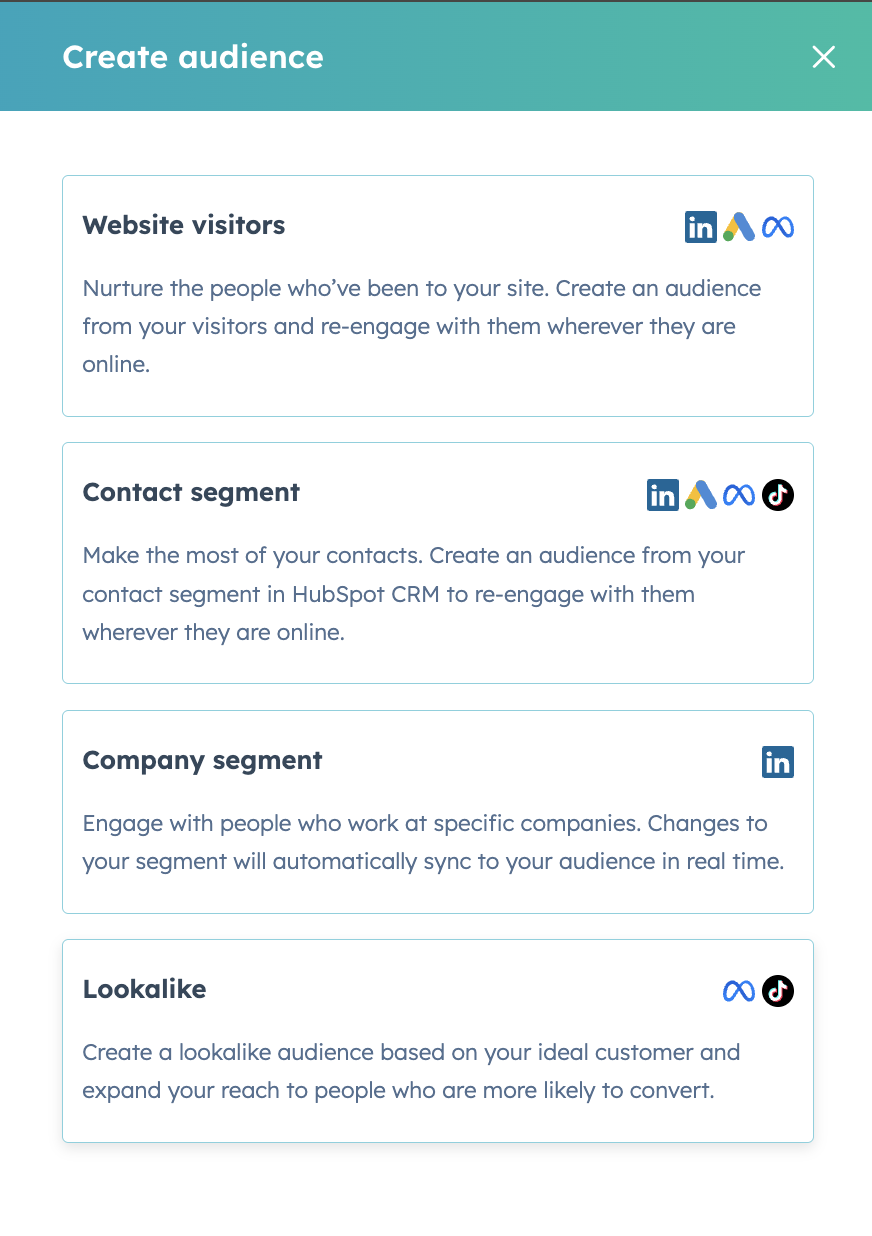
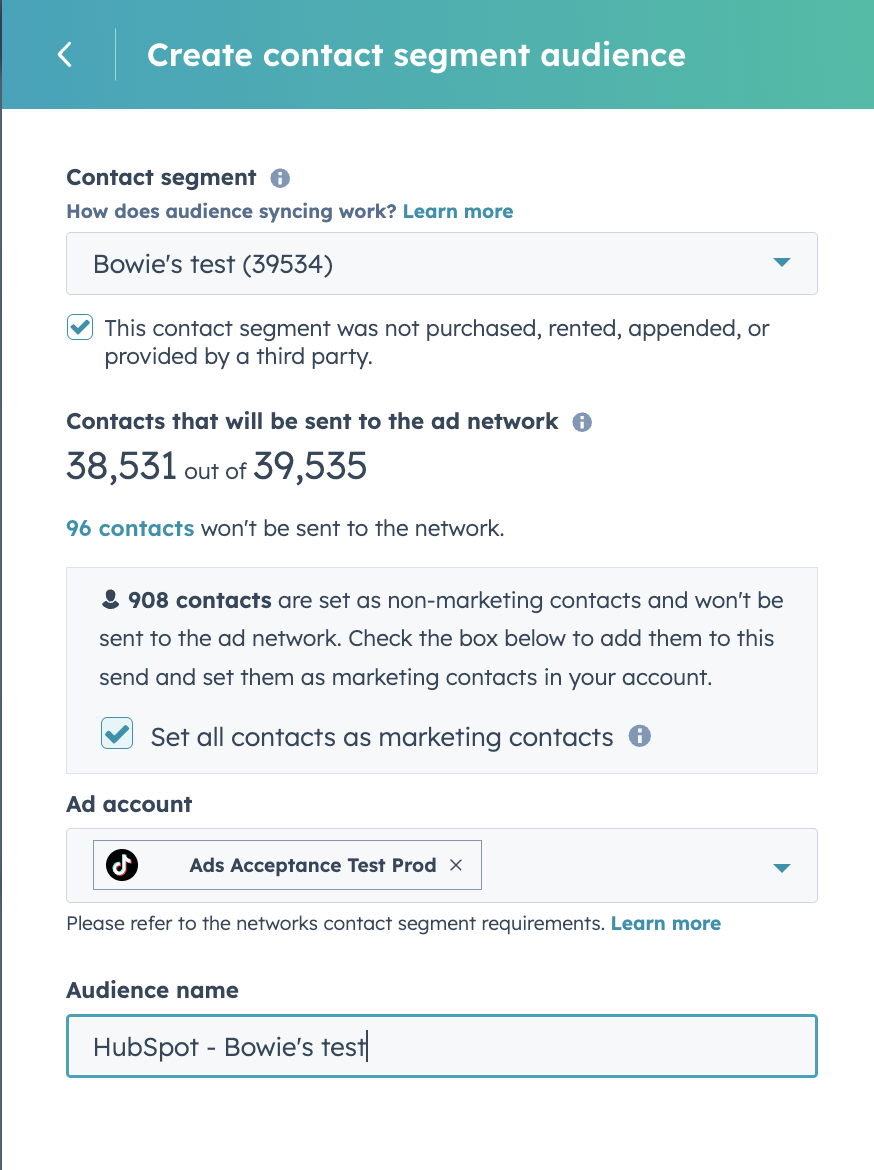
To create a contact segment audience, simply select the contact segment you'd like to send over to TikTok, specify the TikTok ad account to send it to, and give it a name. You'll then be able to create the audience and every time the contact segment updates in HubSpot, we'll update the audience accordingly.
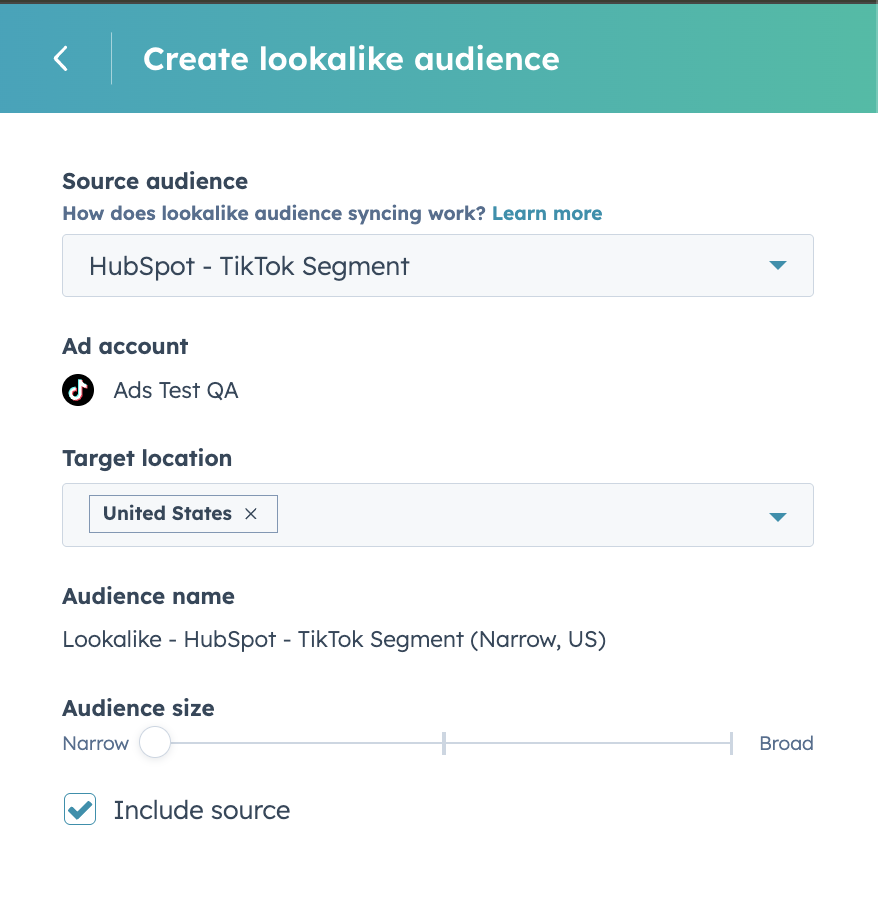
To create a lookalike audience, simply select the source audience, specify the target location, indicate the audience size, and indicate whether you want to include the source segment as part of the lookalike audience.
Pixels
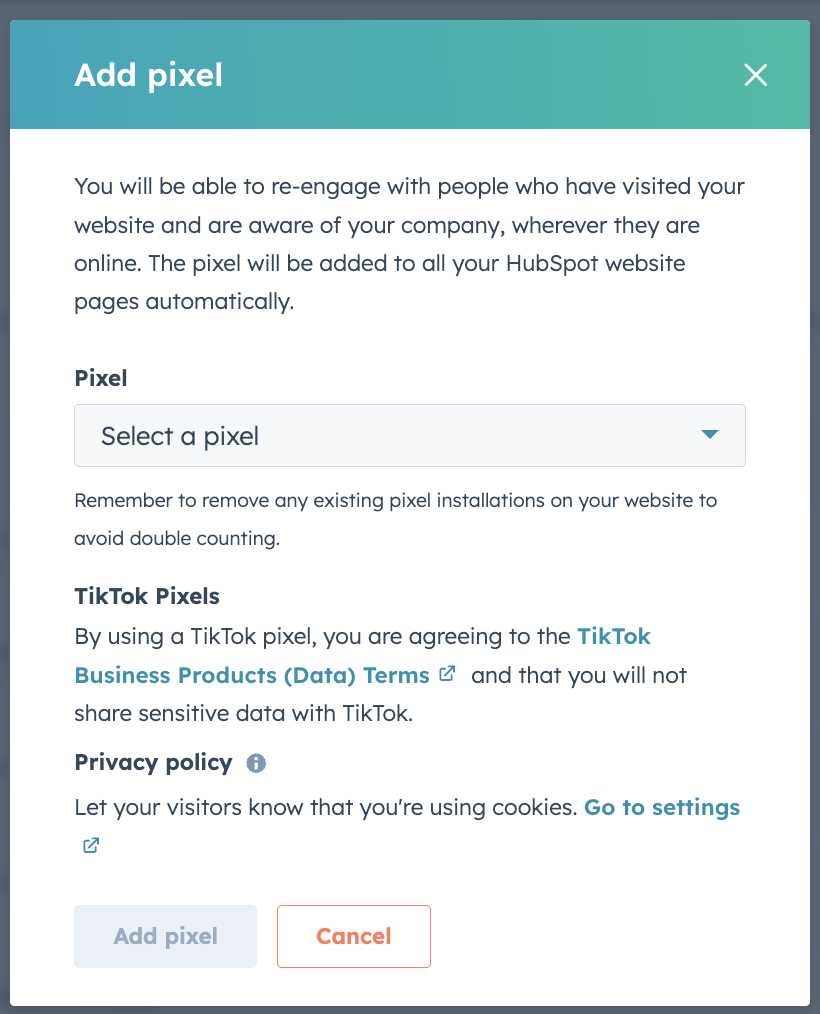
Navigate to Marketing > Ads and click the Settings gear in the top right. Then, click on the "Pixels" tab. Click on "Add pixel" and select the TikTok icon.
From there you can select all the pixels that exist in the TikTok account, which will add them to wherever the HubSpot tracking code exists. If you want to create new TikTok pixels, you'll have to create them from the TikTok Ads UI.
AEO: Create a Blog Post From a Recommendation
How people discover brands is changing.
Instead of clicking through traditional search results, buyers are increasingly asking questions directly in answer engines—and trusting the answers they get. These AI responses often summarize the market, recommend vendors, and cite sources before a customer ever visits a website.
The challenge: You can be doing great SEO and still be invisible in AI-generated answers.
The AEO tool helps you close that gap by giving you visibility into a channel that's otherwise a black box. Just as SEO tools helped marketers adapt to traditional search engines, AEO helps you adapt to AI-driven discovery with real data - and now, actionable recommendations to improve your results.
How does it work?
Set up prompt tracking
In your HubSpot account, navigate to Content > Search Strategy > AEO.
During onboarding, you'll confirm basic information about your business (audience, products, and brand name variations). HubSpot will suggest prompts to track based on questions your customers are likely asking, such as product comparisons or category-level questions.
You can also add your own custom prompts. HubSpot runs these prompts daily against leading answer engines and tracks how your brand appears.
Review your visibility data
Once your prompts are running, you can view:
- Brand visibility percentage showing how often your brand appears in AI responses
- Competitor comparison showing where competitors appear when your brand doesn't
- Visibility trends over time
- Performance differences across answer engines
Analyze individual prompts
Click into any prompt to see:
- The exact AI responses returned
- Which sources (domains, content types) are being cited
- Whether competitors are being referenced and why
Get recommendations to improve visibility
Based on your prompt data, AEO now surfaces tailored recommendations - like what content to create or optimize - along with the reasoning behind each suggestion and which prompts it would impact.
By participating in this beta, you acknowledge and agree to the HubSpot Beta Terms.
Customize Confirmation Email in Meeting Scheduling Pages
Customize the meeting booked confirmation email that is sent to contacts when they book a meeting through your scheduling page.
Why does it matter?
Instead of sending a generic confirmation email to each contact that books a meeting, you can now customize it to include the best information to send to a contact to help them understand what to expect for that upcoming meeting.
How does it work?
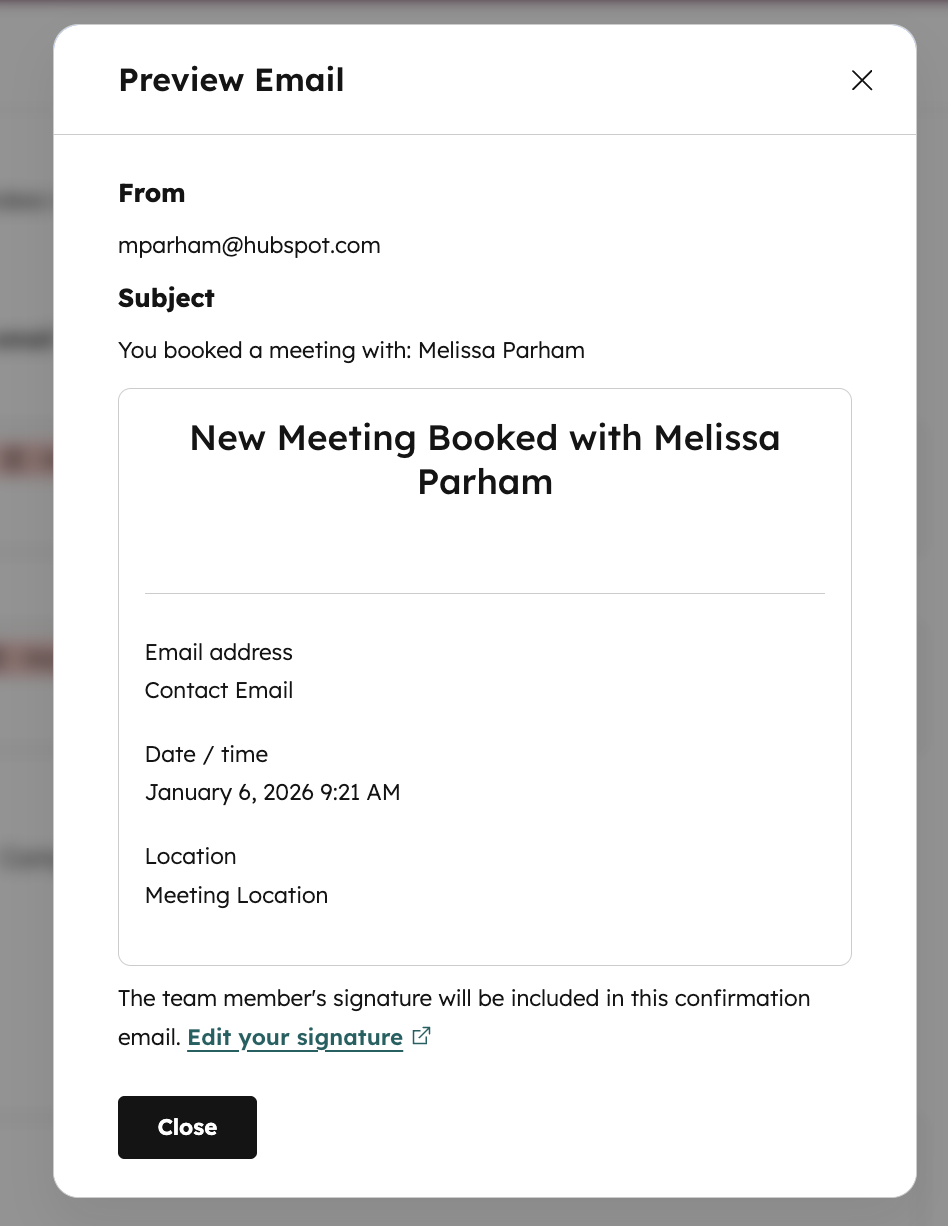
When creating or editing a scheduling page (Sales > Meetings Scheduler), visit the "Automation" tab to customize your confirmation email.
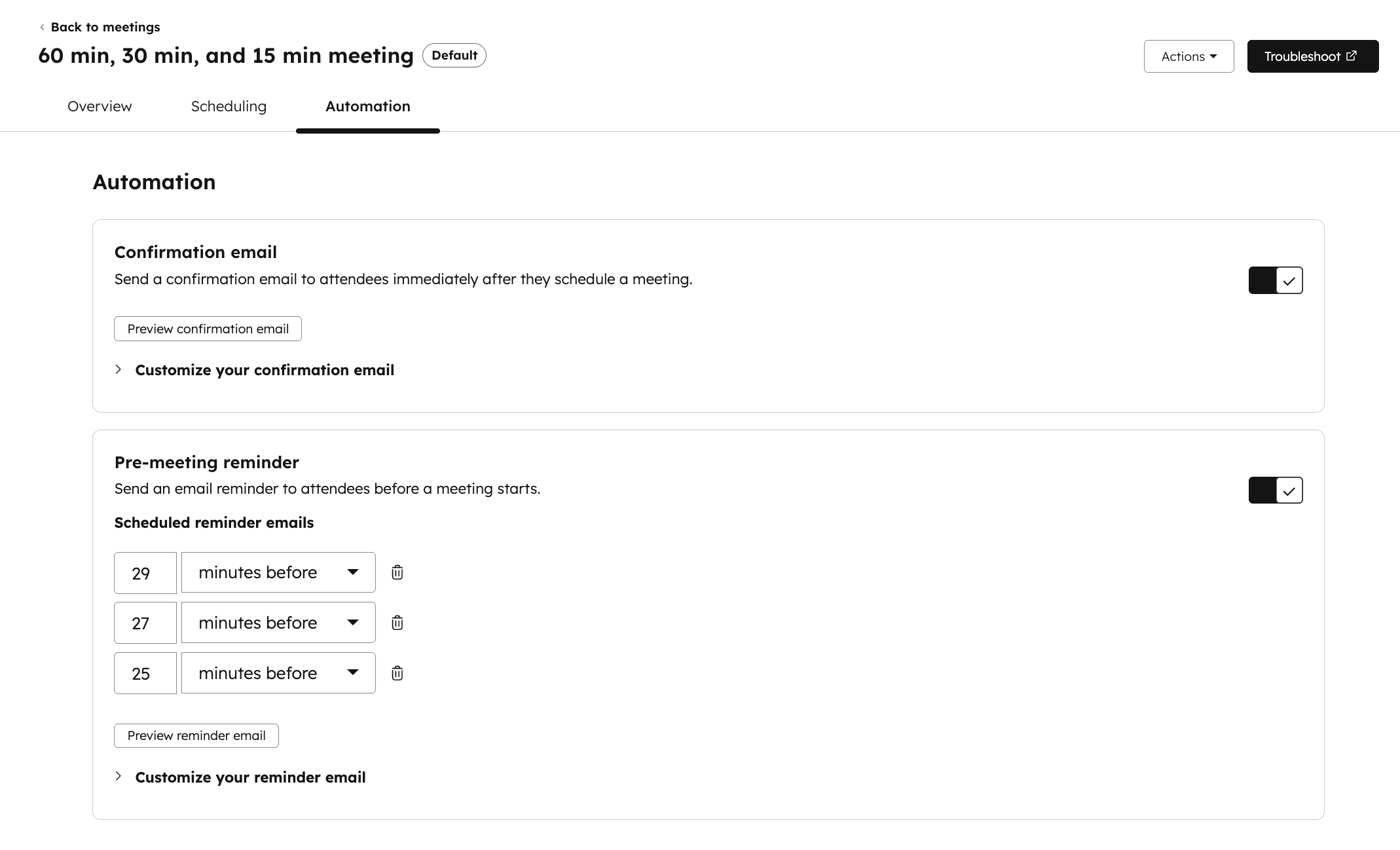
Customize the subject line, title, body, and image. Include tokens like meeting time and location.
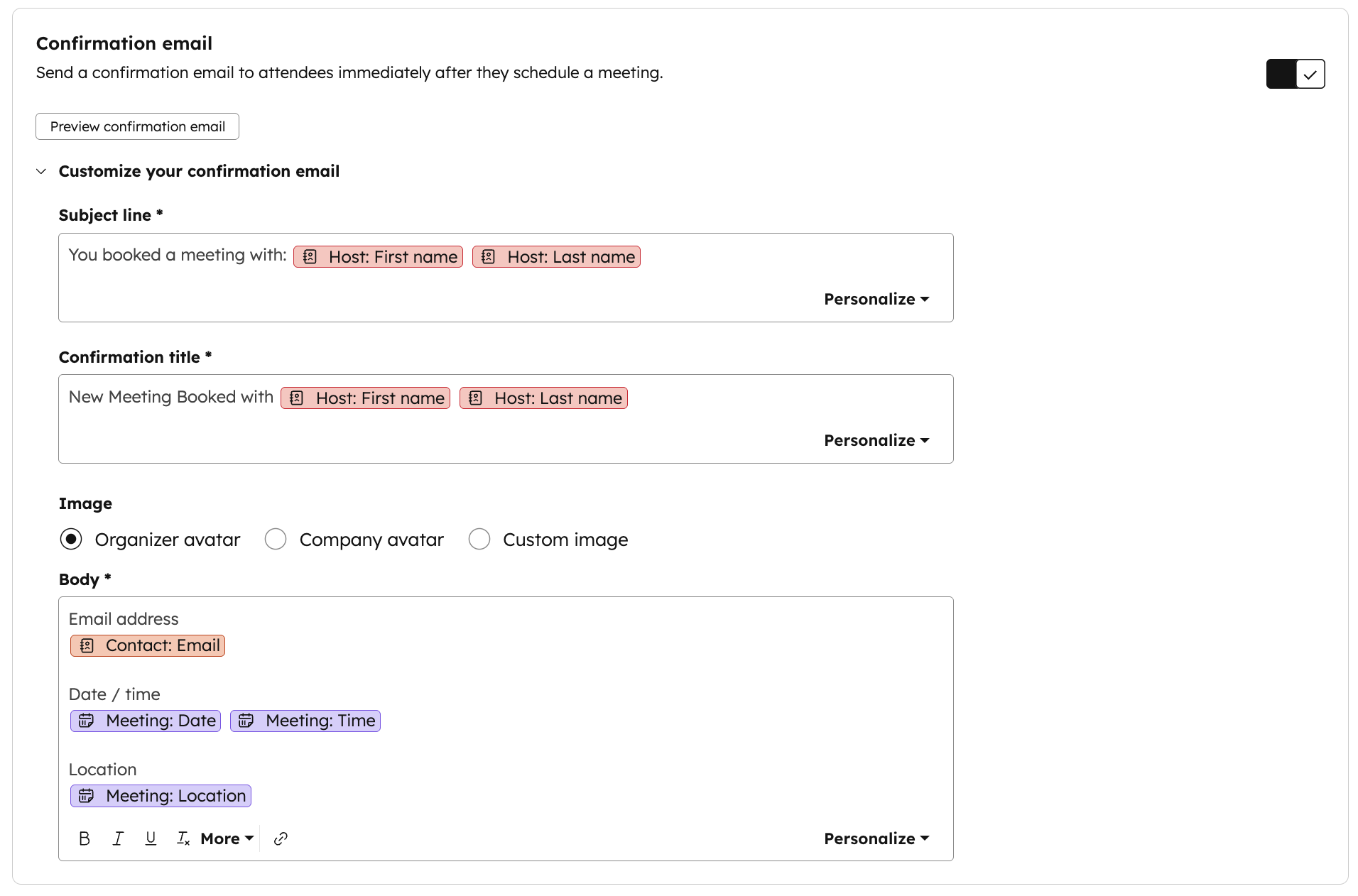
Click the "Preview confirmation email" button to preview what will be sent to contacts when they book a meeting through this scheduling page.
Want to Show Up in AI Answers?
As tools like HubSpot’s AEO features roll out, it’s becoming clear that AI-driven discovery is the next frontier of search. Buyers are increasingly asking platforms like ChatGPT for recommendations, and the brands that appear in those answers will have a major advantage.
If you want to understand how to optimize your content for this new landscape, we break it all down in our on-demand briefing.
Watch the AI Visibility Playbook and learn how B2B marketers can start showing up in AI-generated answers!
