Orange Marketing
%20(21).png)
This week’s HubSpot updates are all about making everyday work a little easier, especially when it comes to managing content and collaborating across teams. While not a headline-heavy release, these improvements bring meaningful upgrades to how you organize files, track changes, and connect your existing resources into HubSpot.
From a more intuitive file manager experience to better visibility into who’s updating what, and a new way to connect Google Drive content into your workflows, these updates help streamline the systems your team relies on every day.
Here are the updates we found most helpful for the week of March 23, 2026.
- File Manager: Improved Drag & Drop and Bulk Selection,
- File Manager: "Updated by" Filter, and
- Google Drive Integration for Knowledge Vaults in for Custom Agent.
File Manager: Improved Drag & Drop and Bulk Selection
We’ve improved the experience in the file manager to make organizing your content faster and more intuitive. These include:
- Marquee select: clicking and dragging your cursor to create a square shape to select files in the select area is now available for bulk selecting files via list view.
- Keyboard shortcuts for additive bulk selection: users can now hold shift and perform selection that would select multiple assets.
- Confirmation notifications: we show confirmation notifications after files have been moved to confirm where they moved to.
- Drag and drop improvement: hover over a folder to drag and drop files into folders and subfolders.
Managing large volumes of video content often means juggling multiple files across folders. These updates reduce friction by making selection and movement more predictable, especially when working with many assets at once. You can now confidently organize your workspace without second-guessing where files will land.
How does it work?
- From within the File Manager (Content -> Files in global nav), click and drag files or folders to move them. Drop targets will now highlight more clearly to show where items will land.
- Select multiple files by holding Shift or Cmd/Ctrl, or click and drag to use marquee selection in list view.
- Drag selected items to a folder in the list; you can hover to navigate into subfolders.
- While dragging, preview indicators will show what you’re moving and where it will go.
- Release to drop files—notifications will confirm the move so you know the action was successful.
File Manager: "Updated by" Filter
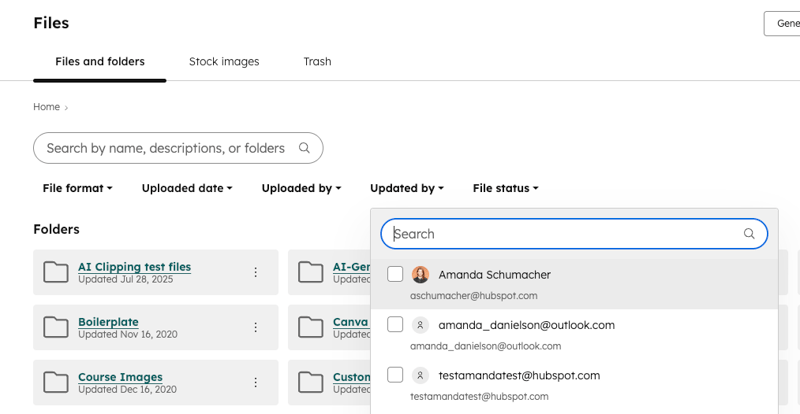
You can now filter files in the file manager by who last updated them. The new Updated by filter helps you quickly find content modified by a specific user.
When multiple people are collaborating across different types of content, it can be time-consuming to track down who made the latest changes to things like file names or metadata.
This filter helps you see which users most recently took certain actions, such as renaming a file, editing alt text or metadata, deleting a file, or moving a file.
How does it work?
Navigate to the file manager (Content -> Files in the global nav).
Locate the Updated by filter in the top filter bar.
Click into the filter to open the user dropdown.
Search for or select a specific user or users.
View files that were last updated by that user.
(Optional) Clear or change the filter to adjust your results.
Google Drive Integration for Knowledge Vaults for Custom Agents
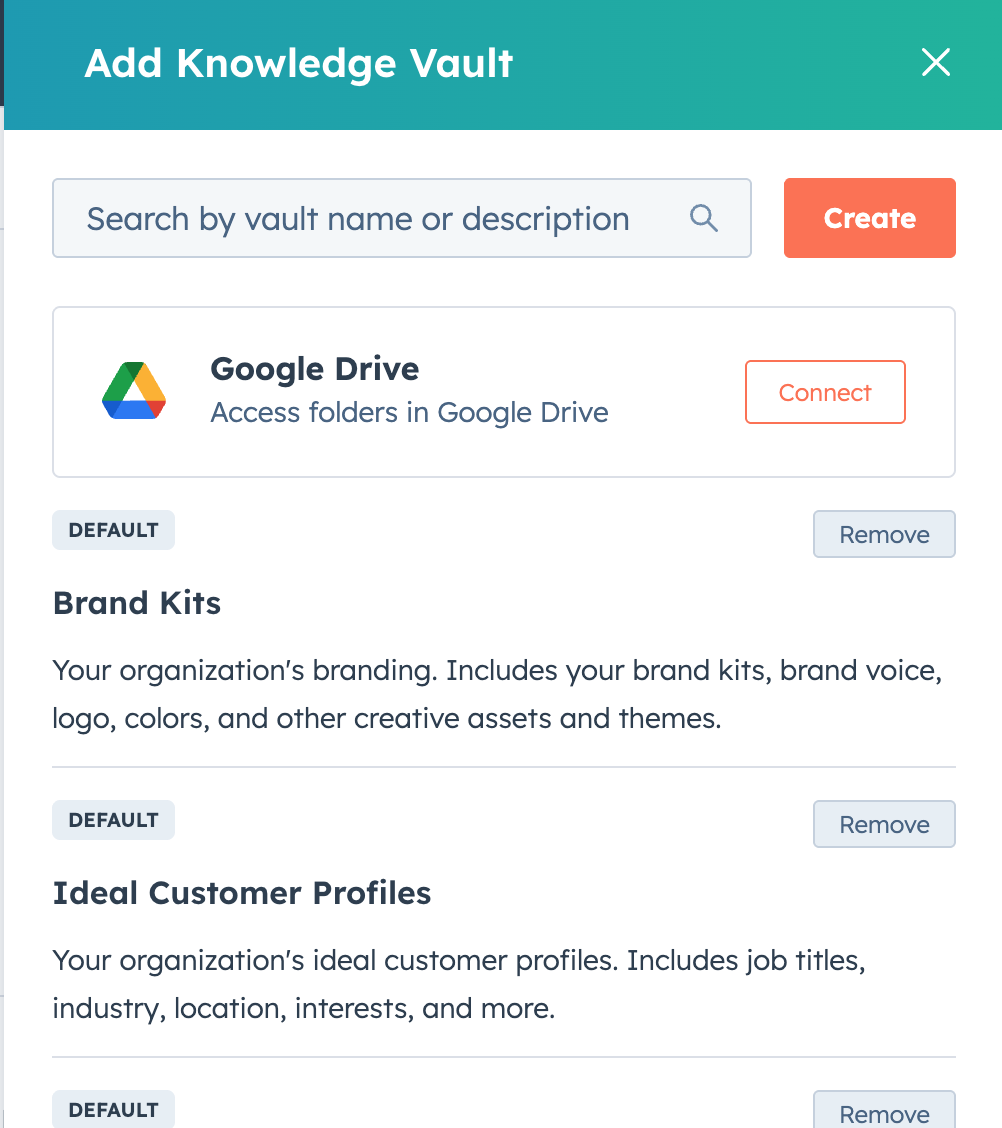
Users can connect Google Drive folders as Knowledge Vault sources in Breeze Studio for custom agents, making Drive content accessible and searchable for AI Agents while enforcing Drive permissions.
Why does it matter?
Reason for development
Many customers store critical institutional knowledge in Google Drive, but cannot easily leverage it within custom agent AI workflows.
This integration lets users access, search, and use their existing Drive documentation securely, with permissions and governance intact, eliminating the need to duplicate data or manage separate content sources.
How does it work?
Connecting Google Drive Folders
- Navigate to build custom agents in Breeze Studio, and select 'Add Knowledge' to have the option to connect a new content source.
- Authenticate with your Google account and select one or more Drive folders to connect.
- Custom Agent Vaults display a visible badge summarizing the Drive access mode and scope.
Permission Transparency & Auditability
Review which Google identity is connected, the list of connected folders, and the current permission scope via Vault details. All actions (search, file access, reauth) are logged and auditable by Vault admins/owners.
Handling Permission Changes
If Drive access is revoked or expires, users receive prompts to reconnect or reauthorize, and Vaults prevent further access until fixed. Agent responses and search results always reflect the permissions of the connected identity, ensuring context accuracy.
Where Better Systems Start to Show Results
These updates make it easier to organize content, track ownership, and connect the systems your team already relies on. That matters, because the less time your team spends chasing files or clarifying changes, the more time they can spend executing. But cleaner systems do not guarantee better results. They just remove the friction.
What happens next still depends on how you use that content, especially in the channels where performance is easiest to measure and hardest to get right.
Email is one of those channels. It is where organization, timing, targeting, and content all converge. And it is also where small missteps can quietly limit performance. That is why it is worth stepping back and pressure-testing your approach.
If you want a clear look at what is working right now and where most teams are leaving results on the table, this is a good place to start: AI Is Loud. Email is Louder: 7 proven email tactics for 2026.