 Orange Marketing
%20(17).png)
HubSpot continues to double down on automation, accuracy, and smarter outbound execution. This week’s updates give teams more confidence when editing workflows, more intelligence when prospecting, and more precision when measuring performance.
From reverting workflows with a single click to an upgraded Prospecting Agent that identifies buying signals and sources contacts automatically, these enhancements are built to save time and drive better results. Add in business-day calculations and Outlook alias support, and you’ve got a well-rounded set of improvements across sales, ops, and marketing.
Here's what's new and noteworthy for the week of March 2, 2026.
- Revert to Prior Revision in Workflows,
- Prospecting Agent Gets Smarter: Buying Signals and Contact Sourcing,
- Exclude Weekends From "Time Between" Calculated Properties, and
- Send from Outlook Aliases.
Revert to Prior Revision in Workflows
You can now revert your workflows to a previous version using revision history! If a change doesn’t work as expected, you can quickly restore an earlier revision and continue building from there.
Workflows often evolve over time and even small edits can have downstream effects. This update gives you more confidence when making changes by letting you easily undo mistakes, recover from accidental deletions, and return to a known working version without rebuilding your workflow from scratch.
How does it work?
From the workflow editor, open View > Revision history to see a list of past changes. You can review who made each change and when, then select 'Revert' to restore that version. Reverting creates a new revision that matches the selected version, so you can always go back again if needed.
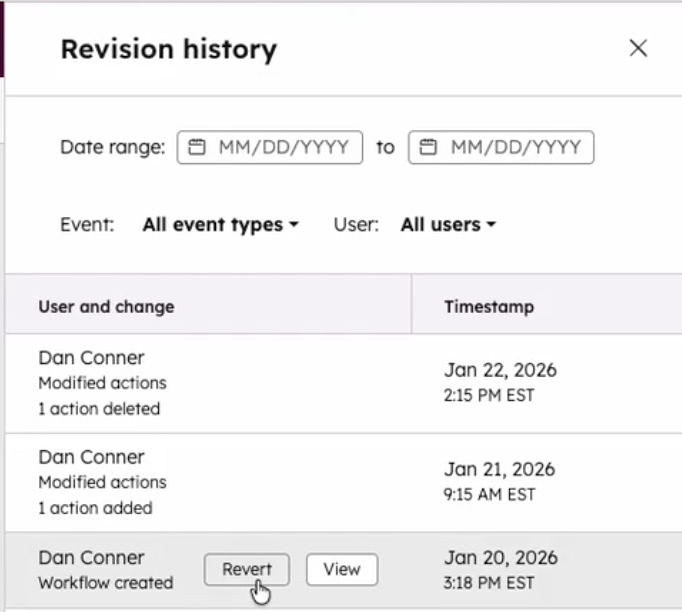
Note: Reverts are not supported for Webhook and Custom Code actions.
Prospecting Agent Gets Smarter: Buying Signals and Contact Sourcing
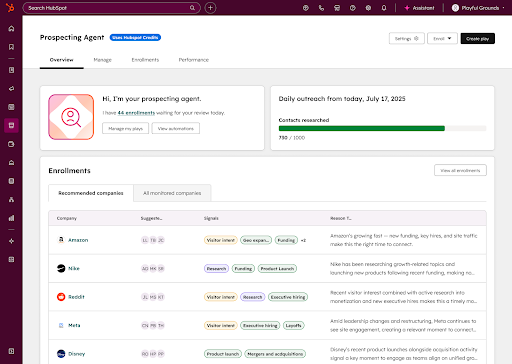
Prospecting Agent has evolved to become an end-to-end outbound agent, enabling reps to automatically identify in-market companies based on real-world triggers and instantly source the right contacts via 3P integrations.
With this update, Prospecting Agent can:
- Detect companies that match key buying signals (like growth, hiring, funding, or intent)
- Automatically identify and source relevant contacts at those companies from within the CRM or through 3rd party integrations
- Generate and enroll contacts in personalized email outreach and calling tasks
Why does it matter?
Sales reps currently spend significant time manually building account lists, finding contacts, and researching companies before they even begin outreach. This manual process lacks intent and often leads to engagement with prospects when the timing isn’t right or produces generic outreach that doesn't resonate.
Prospecting Agent addresses this by automatically identifying companies showing buying signals, sourcing contacts, and generating personalized outreach, so reps can engage buyers at the right time without any manual research.
How does it work?
Admins create plays, a series of emails and calling tasks informed by your brand identity, tone, product details, and custom instructions. The agent then uses these plays alongside buying group data to personalize outreach at scale.
Here's the rep experience:
- Prospecting Agent monitors companies for signals (e.g. growth, hiring, funding, intent)
- A triggered signal prompts the agent to identify relevant companies
- The agent recommends contacts sourced from third-party providers
- The agent drafts outreach for rep review
- The rep approves and enrolls contact
It all runs continuously in the background, no manual list building, no refreshing. Just the agent working toward your predefined goal, like a booked meeting.
Limitations:
- Supported signals are limited to a predefined set and may not cover all buying indicators
- Prospecting Agent may not find contacts for every triggered company
- Contact sourcing requires a connected third-party provider (see below)
- Coverage and data quality vary by provider and your contract with them
Third-party contact sourcing (BYOK):
The Prospecting Agent uses a Bring Your Own Key (BYOK) model for contact data. To source contacts, you must connect at least one supported provider inside the Prospecting Agent app:
- ZoomInfo
- Apollo
- Surfe
Prospecting Agent does not include contact data by default. All enrichment, usage limits, and compliance are governed by your existing agreement with each provider.
NOTE: this feature is currently available in private beta only.
Exclude weekends from "Time between" calculated properties
You can now exclude weekends when using Time between calculated properties. This option allows you to calculate the time between two dates while skipping weekends, defined as 12:00am Saturday through 11:59pm Sunday, based on your account’s time zone. This update is available when creating or editing a Time between calculation property.
For many teams, weekends aren’t working time—but until now, Time between properties counted them anyway. This made it harder to accurately measure things like response times, resolution times, or internal SLAs.
By excluding weekends, you can:
- Better reflect actual working time in your calculations
- Get more accurate reporting for operational and service metrics
- Reduce the need for workarounds or manual adjustments
This is especially helpful for teams that want clearer insights into how long work actually takes during business days.
How does it work?
When creating or editing a Time between calculated property, you’ll see a new option to exclude weekends.
- Select Calculation as the field type
- Choose Time between as the calculated property type
- Pick your start and end date properties
- Check the option to exclude weekends
Once enabled, weekends (Saturday and Sunday) are automatically excluded from the calculation, using your account’s time zone.
Exclusions:
This initial release focuses on excluding weekends only. It does not currently support:
- Excluding holidays
- Excluding custom or admin-defined days
- User-specific time zones
- Excluding weekends for Time since or Time until calculations
We’re starting with this beta to gather feedback and better understand how teams want to use this capability before expanding it further.
Send From Outlook Aliases
You can now use the aliases of your connected Microsoft Outlook account to send emails from the CRM.
Aliases allow users to communicate from more targeted email addresses that are still part of the same account. Your company may have different branding for different products you sell, and you change your email address based on who you are emailing.
Previously, to use aliases, Outlook users would need to send emails from within the Outlook app, include the BCC address, and add their alias manually to a setting to log the email. This prevented users from taking full advantage of HubSpot functionality, like sequences bulk enroll.
How does it work?
Necessary disclosure: Aliases are only accessible to HubSpot's integration via the Beta version of Microsoft's Graph API. This feature is subject to change and break without warning. HubSpot cannot fully release and support this feature until Microsoft also does so.
In order for HubSpot to automatically detect your alias for use in the CRM, you will need to disconnect and reconnect your personal email so we can request the additional Microsoft scope needed for the Beta.
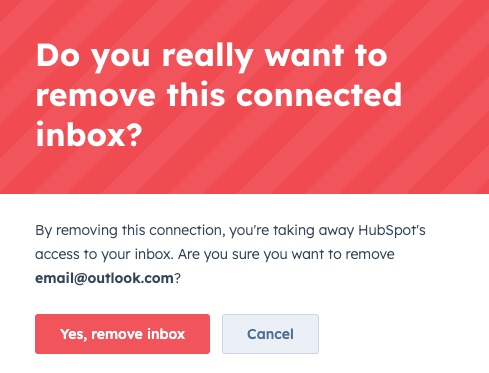
In Settings > General > Email, click Remove next the account to disconnect.

Click "Yes, remove inbox" in the modal to confirm.
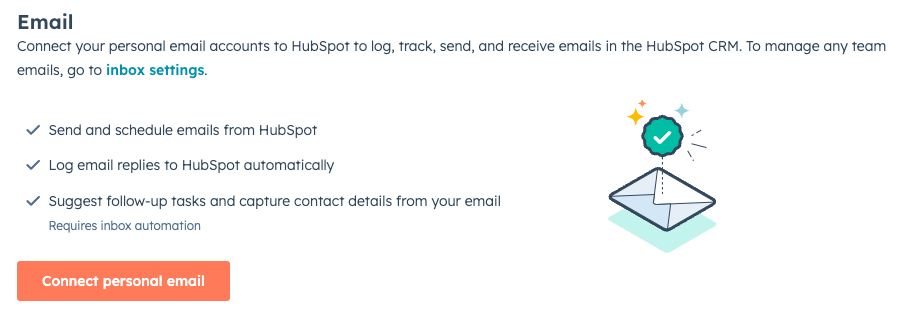
Then click "Connect personal email" to reconnect your account.
You have 10 minutes to reconnect your account to avoid any data loss. If your account is disconnected for longer than 10 minutes, we will not sync in any emails received during the disconnection.
Once reconnected, you will now see your aliases available in the From drop down when sending emails from the CRM. Select the alias to send emails as normal.

Tools are Powerful. Process is Everything.
These updates make HubSpot smarter and more efficient, but technology only amplifies what’s already in place. If your deal stages are unclear, leads aren’t processed consistently, or forecasting feels shaky, automation won’t fix that.
Before you hire another rep or increase spend, make sure your foundation is solid. Read What’s Slowing Down B2B Sales in 2026 to see what your pipeline actually needs to scale.
