 Orange Marketing
%20(20).png)
HubSpot continues to invest heavily in AI that reduces manual work for sales and support teams. This week’s updates focus on turning conversations into action automatically and making it easier for customers to communicate issues clearly.
With Meeting Notetaker’s Smart Deal Progression, reps can move deals forward faster with AI-generated follow-ups and CRM updates based on real meeting conversations. And with the new screen capture button in the chat widget, support teams can get the visual context they need from customers without the back-and-forth.
Here are the updates we found most interesting for the week of March 16, 2026.
- Meeting Notetaker with Smart Deal Progression, and
- Screen Capture Button in the Chat Widget.
Meeting Notetaker with Smart Deal Progression
Enable Sales and Customer Success teams to close more deals, faster, by ensuring every conversation leads to clear next steps and timely follow-up.
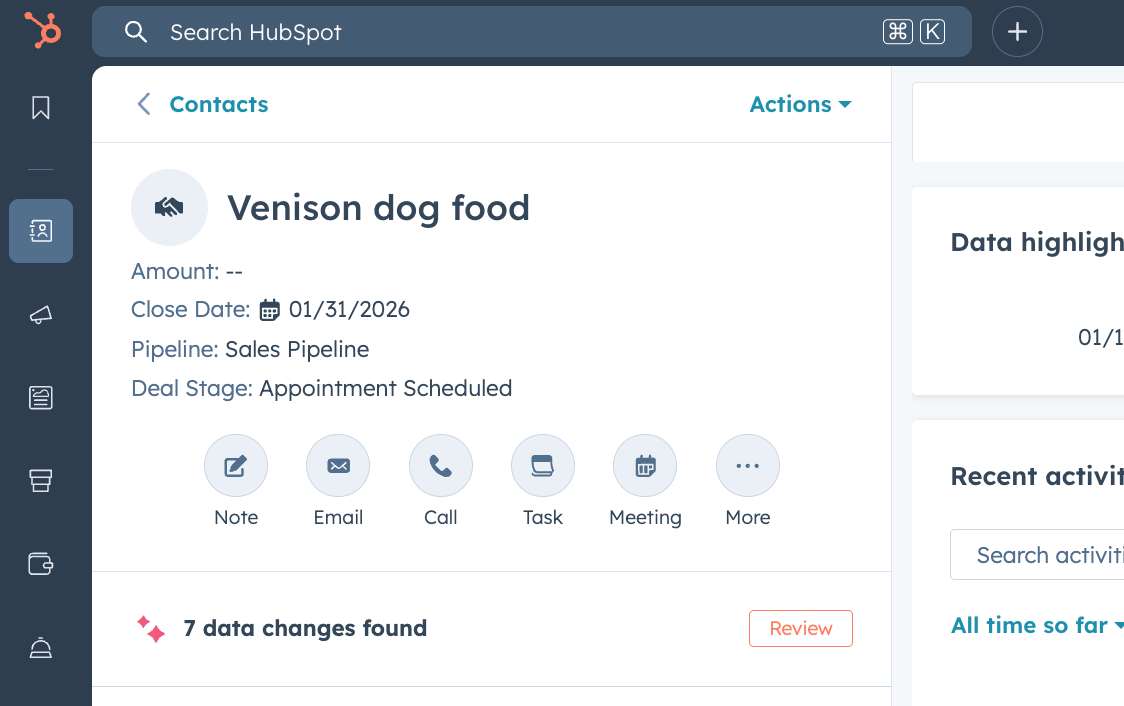
Smart Deal Progression uses your meeting transcripts and deal history to handle the manual work that follows a customer call. After every meeting, HubSpot analyzes the conversation to suggest CRM updates, draft follow-up emails, and surface high-value next steps such as sending a proposal or booking a follow-up. Reps can quickly review and confirm these suggestions, ensuring every interaction moves the deal forward.
Why does it matter?
Reps spend hours every day on manual tasks like writing follow-up emails, creating tasks, and updating CRM records. Smart Deal Progression automates this busywork so reps can stay focused on their customers.
By using the actual context from your conversations, HubSpot provides accurate suggestions that ensure no detail is forgotten. This helps your team follow up faster, keeps your pipeline data clean, and prevents deals from stalling. When every conversation leads to a clear next step, you can close more deals with less manual effort.
How does it work?
- Set your HubSpot Meeting Notetaker to automatically join and record conversations or utilize a video conference integration to ensure your conversation is captured in HubSpot.
- As soon as the meeting ends, reps receive a detailed post-meeting summary right in their inbox as well as an in-app notification and notification via Slack, Google Chat, and Microsoft Teams.
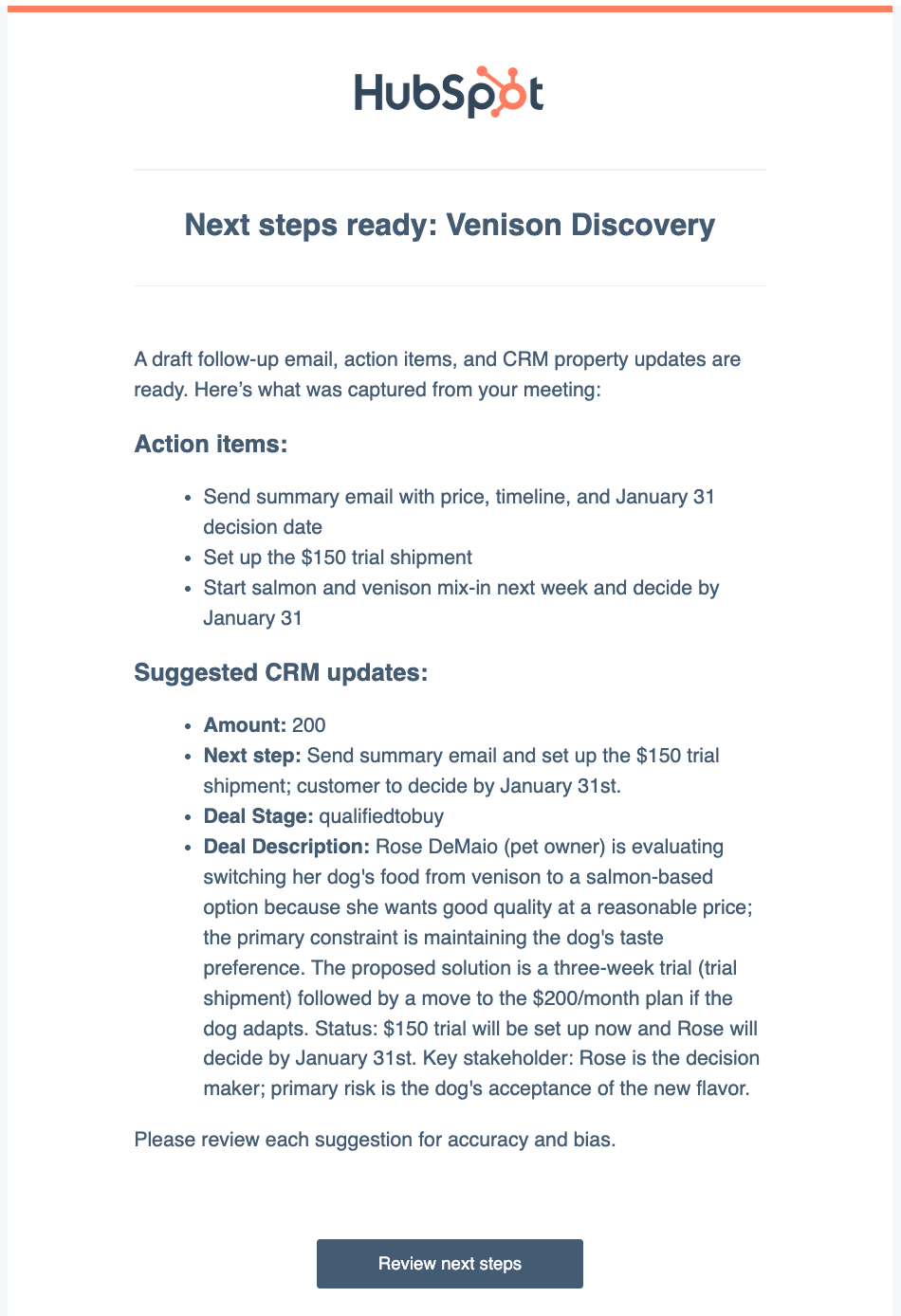
Users can review and action on next steps and property updates from the meeting by clicking “review next steps” in their email or in-app notifications
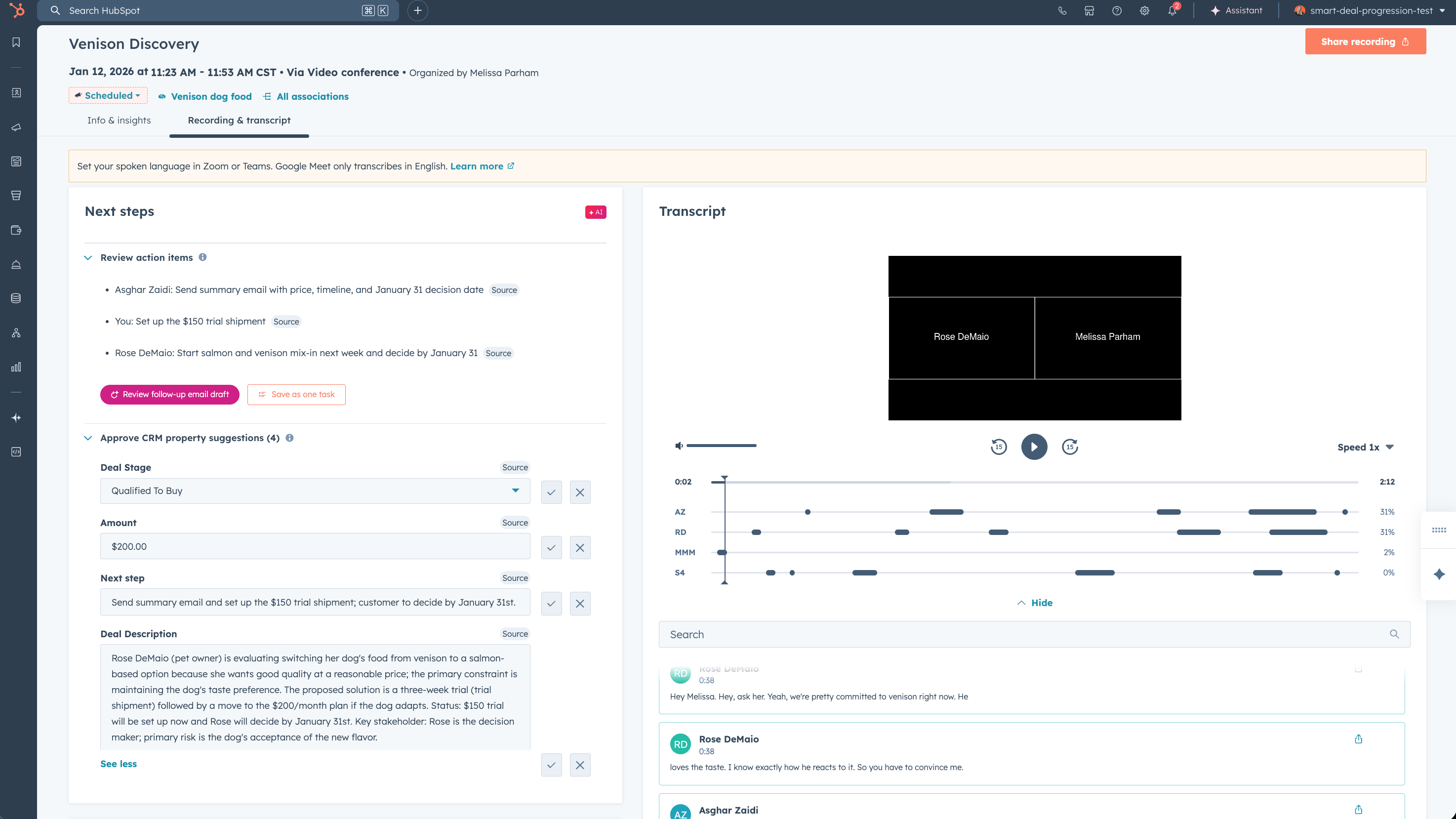
- From the post-meeting summary, reps can:
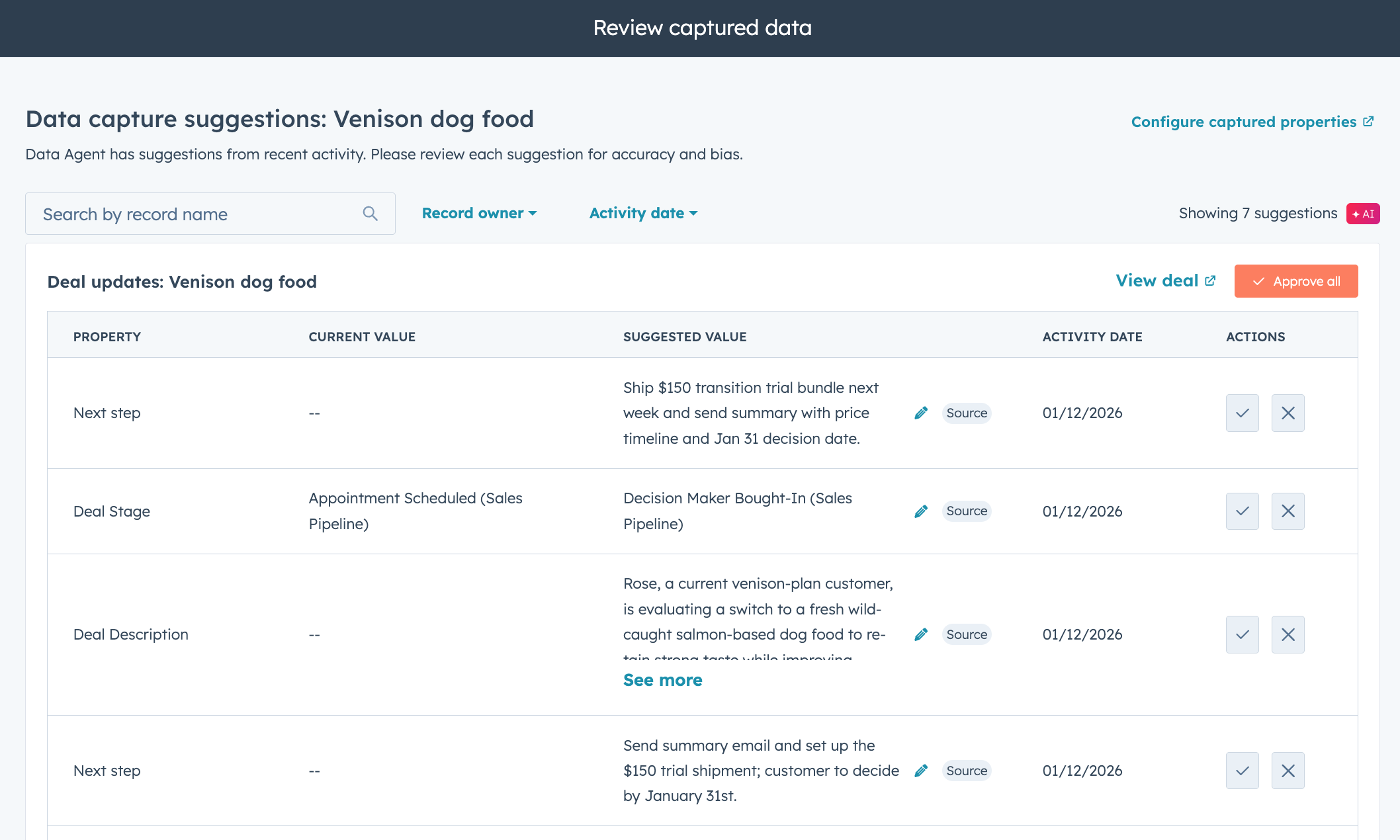
- Approve suggested CRM updates quickly, keeping your CRM organized and up-to-date
- Review AI-generated next steps and quickly convert them into tasks so no follow-up actions get missed
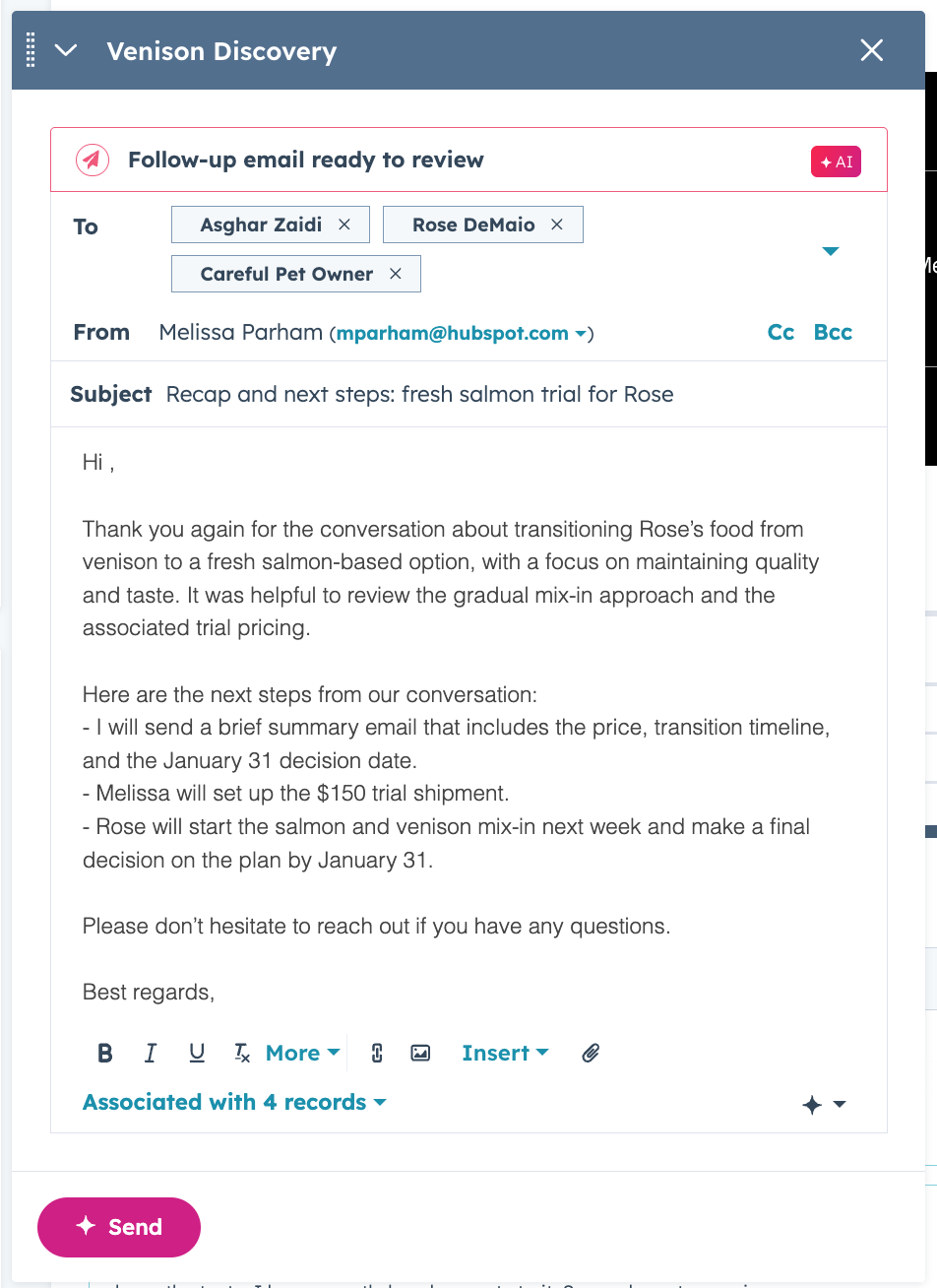
- Quickly approve and send an AI-generated follow-up email containing a meeting summary and next steps based on your conversation
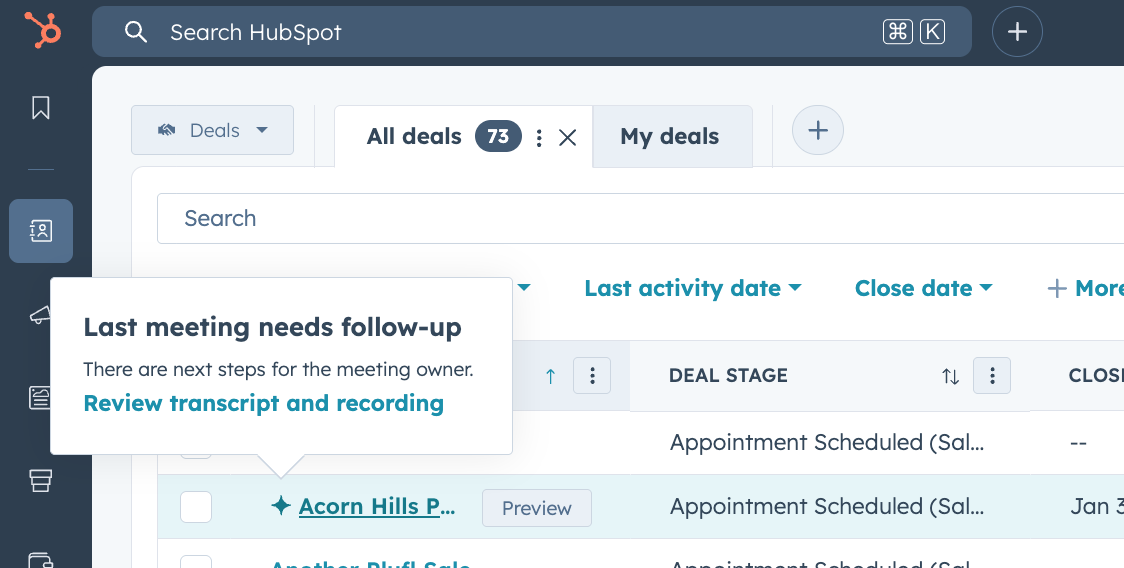
- If snoozed or if follow-up needs to happen later, reps can revisit suggestions via an end-of-day email, in the CRM record page, or in the index page. Click into previous meetings at any time from the sales workspace, customer success space, object record, or meetings index page (beta) to review meetings and refresh on any details.
- Bulk CRM property updates are also supported by clicking on data suggestions on a record.
Admin Configuration
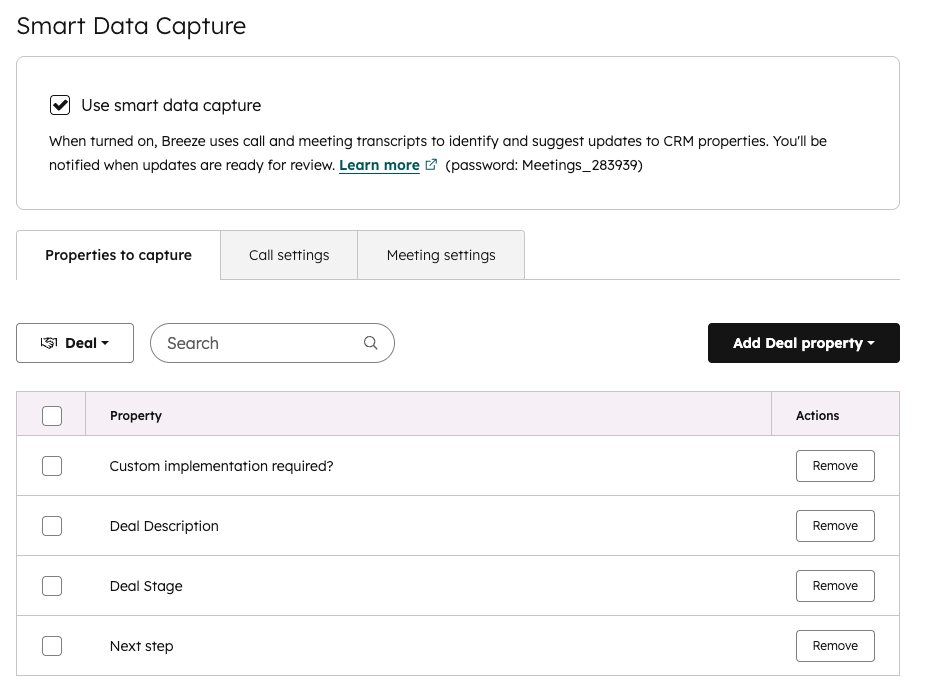
Admins can configure which deal properties are included in suggestions as well as which calls and meetings to target for suggestions. These settings can be found in Data Management < Data Capture.
To turn on Meeting Notetaker for your account:
- Navigate to Settings > Tools > Meetings > Meeting Notetaker
- Toggle the Meeting Notetaker feature to on
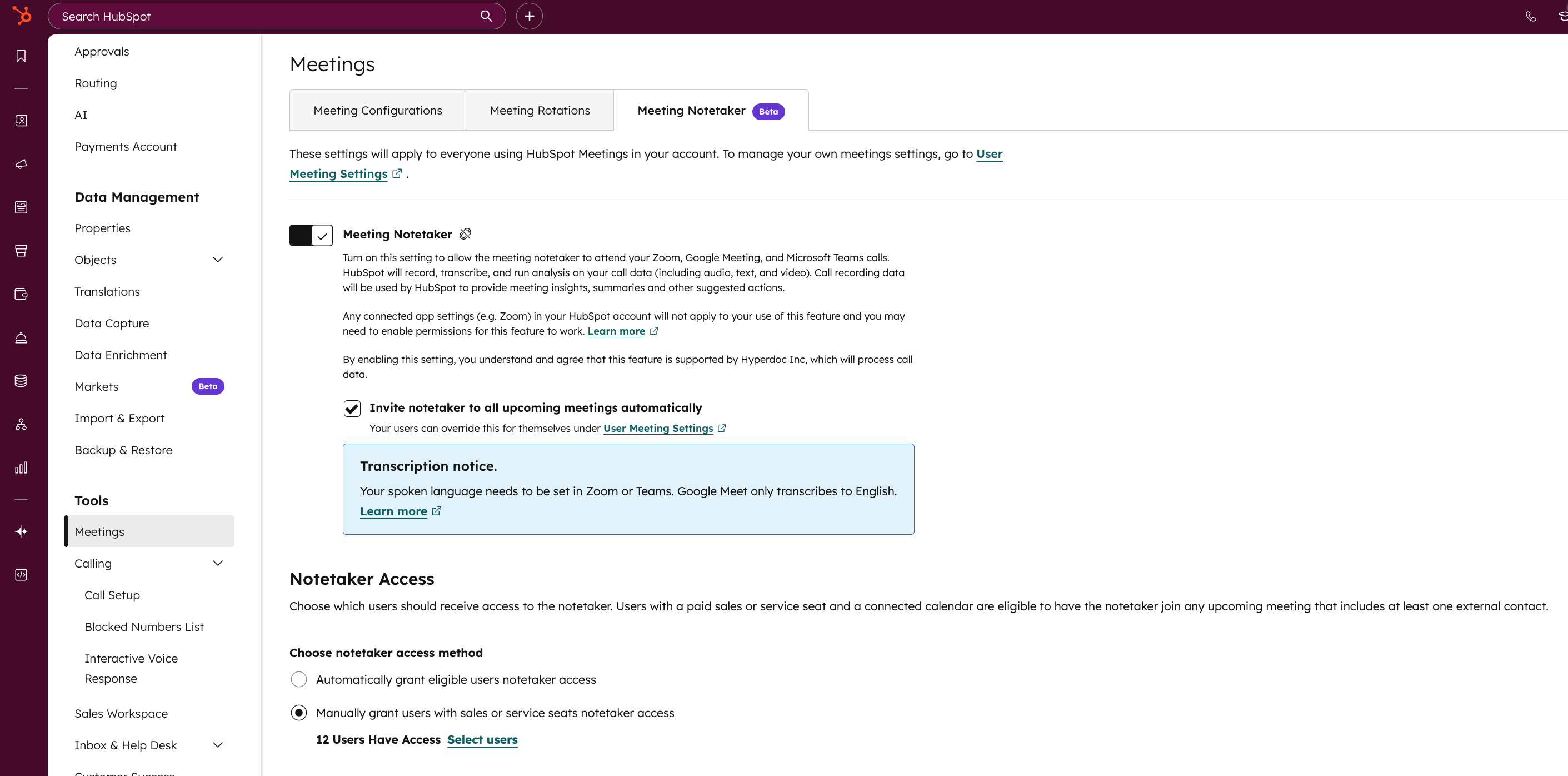
By default, the notetaker is set to join all meetings automatically, though you can change this default for your users on your account by checking/unchecking the setting Invite notetaker to all upcoming meetings automatically. Learn more about the Meeting Notetaker here (now available for Service and Sales Pro+ seats).
Learn more on the KB (PW: Meetings_283939)
Screen Capture Button in the Chat Widget
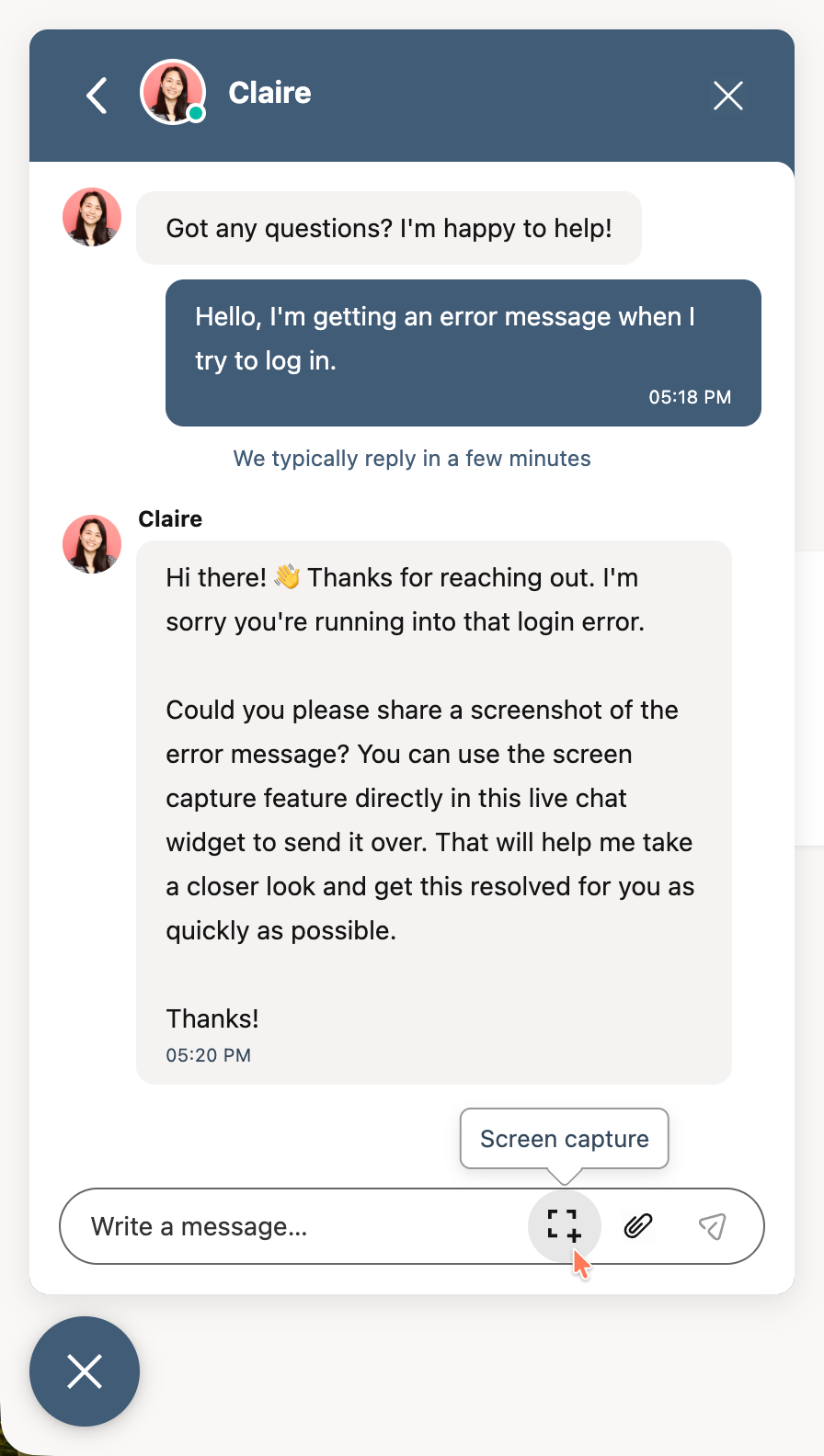
Attaching a screenshot to a chat has never been easier. With the click of a new button in the chat widget, your visitors on modern desktop and tablet can quickly take and attach a screenshot to their conversation with your agents.
Support agents can't assume that all visitors using chat are able to quickly take a screenshot for use in support asks. By shortening the journey from asking for a screenshot to attaching it to a message, friction and frustration can be reduced.
How does it work?
- Turn on the feature in your help desk or inbox settings for the Chat Channel in Web Chat.
- Once a visitor starts a new conversation in the chat widget, a new icon will appear for desktop and tablet users that allows for quickly adding a screenshot as an attachment to the conversation.
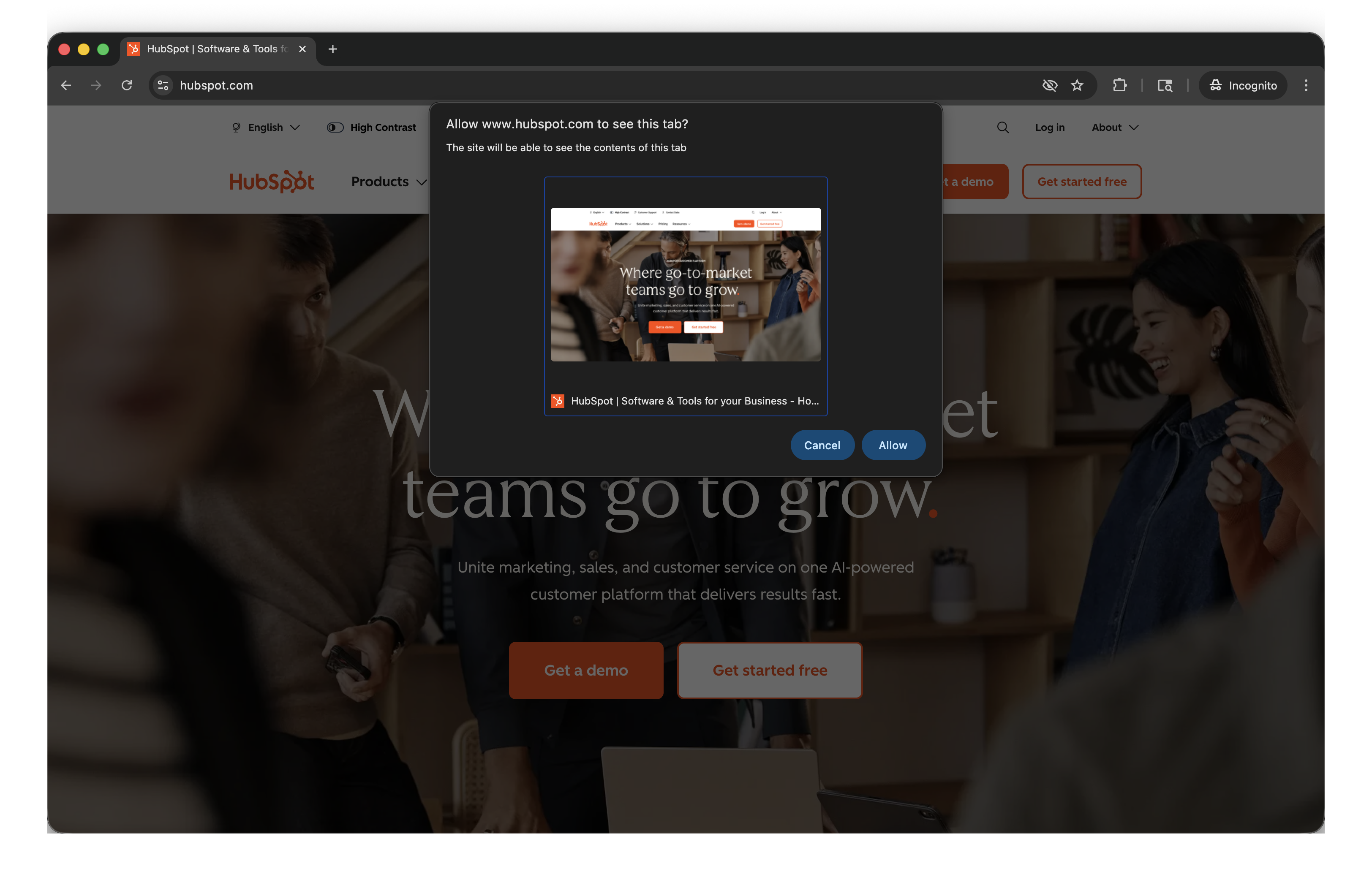
- When the icon is clicked, built-in browser functionality will prompt for the user's permission before taking and attaching the captured screenshot to chat.
Make Sure Your Emails Actually Get Delivered
Even the best campaigns won’t perform if your emails never reach the inbox. With inbox providers tightening filters and AI changing how messages are evaluated, deliverability has become one of the most important, and overlooked, parts of modern marketing.
If you want to improve inbox placement, protect your sender reputation, and get more out of every campaign, our latest resource can help.
Download the 2026 Email Deliverability Guide to learn the strategies B2B teams are using to reach more inboxes and drive better results.
