Orange Marketing
%20(12).png)
As we round out January, HubSpot is delivering thoughtful improvements that reduce friction and support the way your team already works. Whether you're calling leads, fine-tuning workflows, or managing tasks, this week's updates are all about helping you move faster with more control and less clutter.
Here are the most helpful updates for the week of January 26, 2026:
- Chrome Extension Now Supports Calling,
- Subtasks,
- Remove Specific Values from Multi-checkbox properties with the Workflows Edit Record Action, and
- Business Days Support for Workflow Delays.
Chrome Extension Now Supports Calling
HubSpot calling users can now manage their calling connection through the HubSpot Chrome extension. This removes the need to keep a seperate browser window open.
Why does it matter?
Previously, users needed to keep a seperate calling window open to receive inbound calls or make outbound calls using the dialer. This update removes that friction by maintaining the calling connection seamlessly in the background through the Chrome extension.
How does it work?
Set up the Chrome extension
- Install or update the HubSpot Chrome Extension to the latest version 3.0.0.39290 (or the latest version) from the Chrome Web Store.
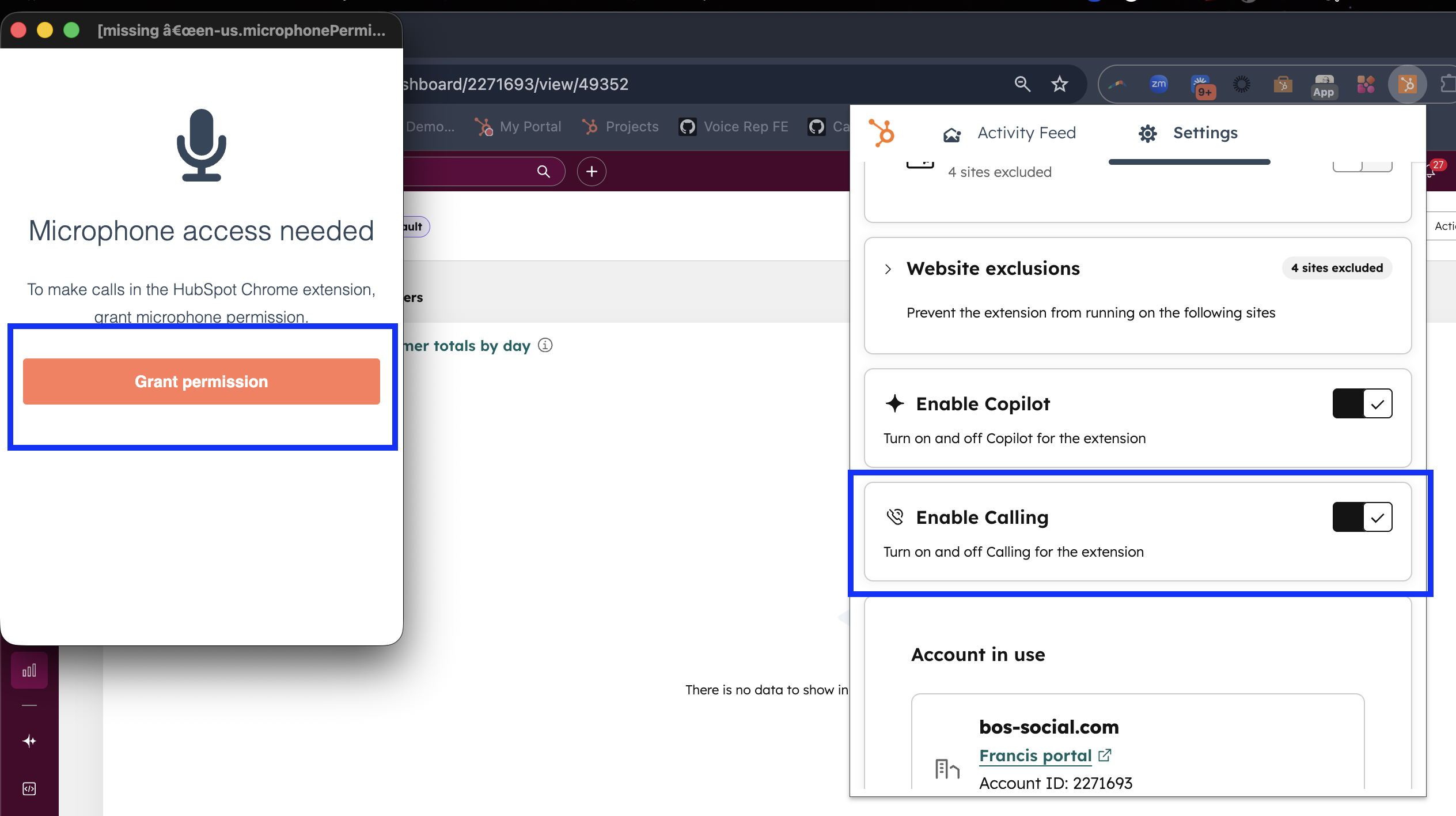
- Once installed, Click the extension and navigate to settings. Click Enable Calling toggle and grant microphone permission.
(If you don't see a permission prompt, right-click the extension and select View web permissions. Scroll to the microphone section and select Allow.)
Configure calling settings in HubSpot
- In your HubSpot account, navigate to your calling settings.
- Set your Inbound ring preference to Ring in Browser for Inbound Calls.
- Set your Call From Device to Browser.
Once configured, the calling connection will be maintained through the Chrome extension. You'll no longer be prompted to open a second tab or window when making or receiving calls.
Subtasks
Subtasks allow you to break down tasks into smaller, more manageable steps within HubSpot.
Why does it matter?
Complex tasks often involve multiple steps to complete. Previously, you had to create separate tasks for each step, which didn't align with how you actually approach your work. Subtasks let you organize your work in HubSpot exactly as you think about it, making it easier to:
- Track progress on multi-step tasks
- Delegate specific steps to team members
- Ensure all parts of a complex task are completed
How does it work?
Creating Subtasks
You can add subtasks when creating or editing a task in several locations:
- Gantt View in Projects, Deals, and Services
- Project Record & Preview
- Customer Success Workspace
To create a subtask:
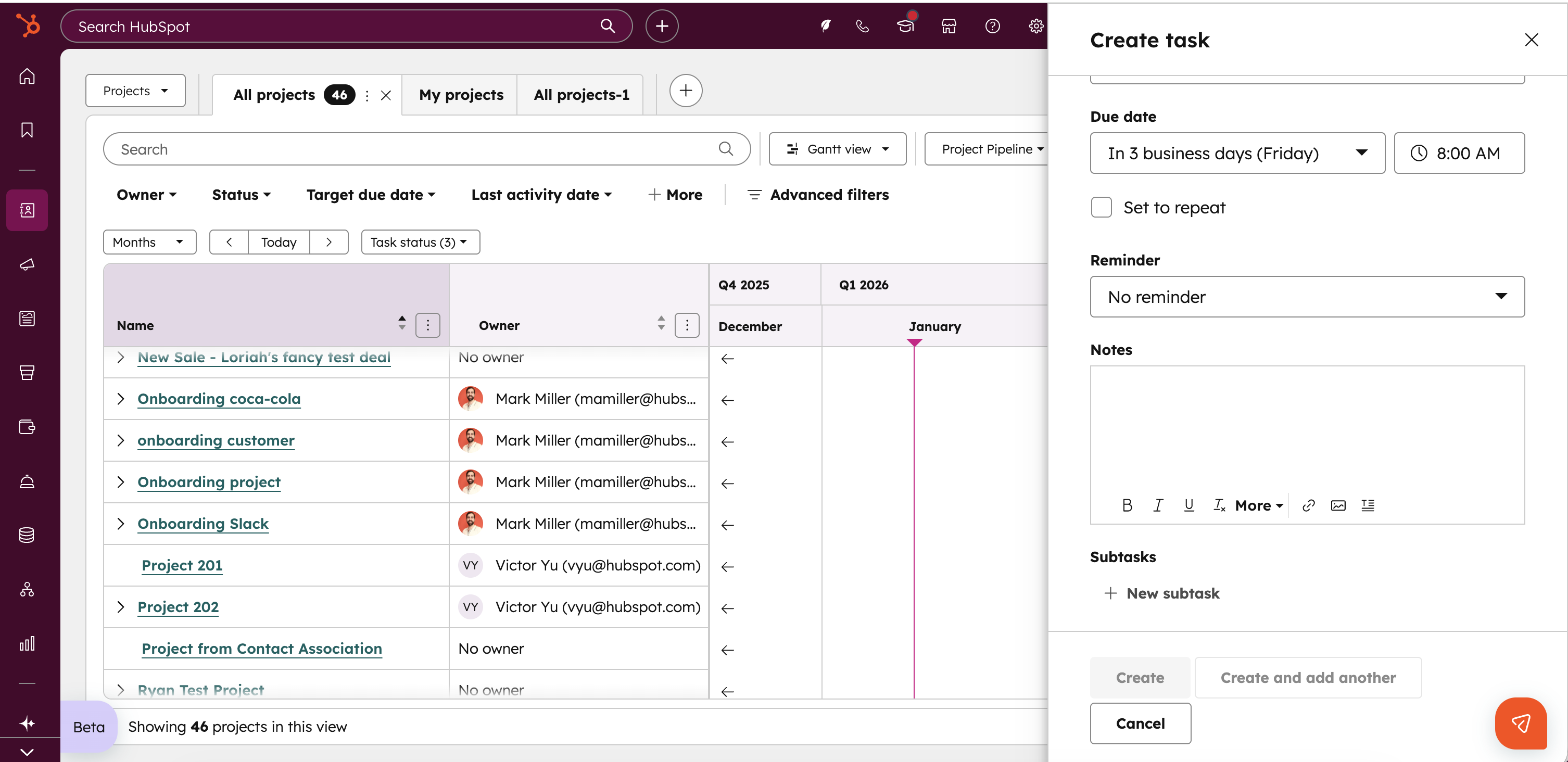
- Navigate to Gantt View > Create Task
- Look for the Subtask section in the task form
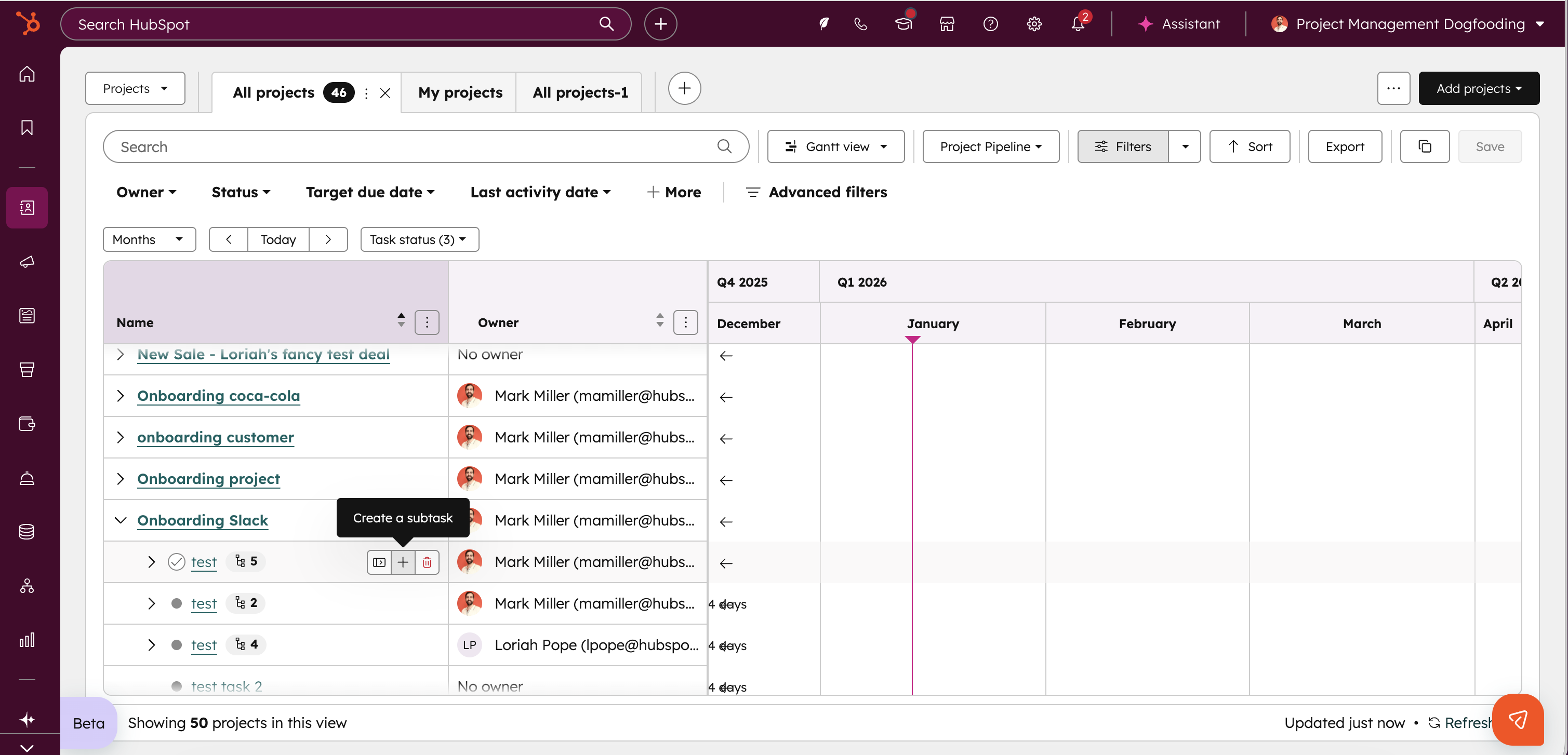
Alternatively, in the Gantt View:
- Hover next to an existing task
- Click the Create subtask option
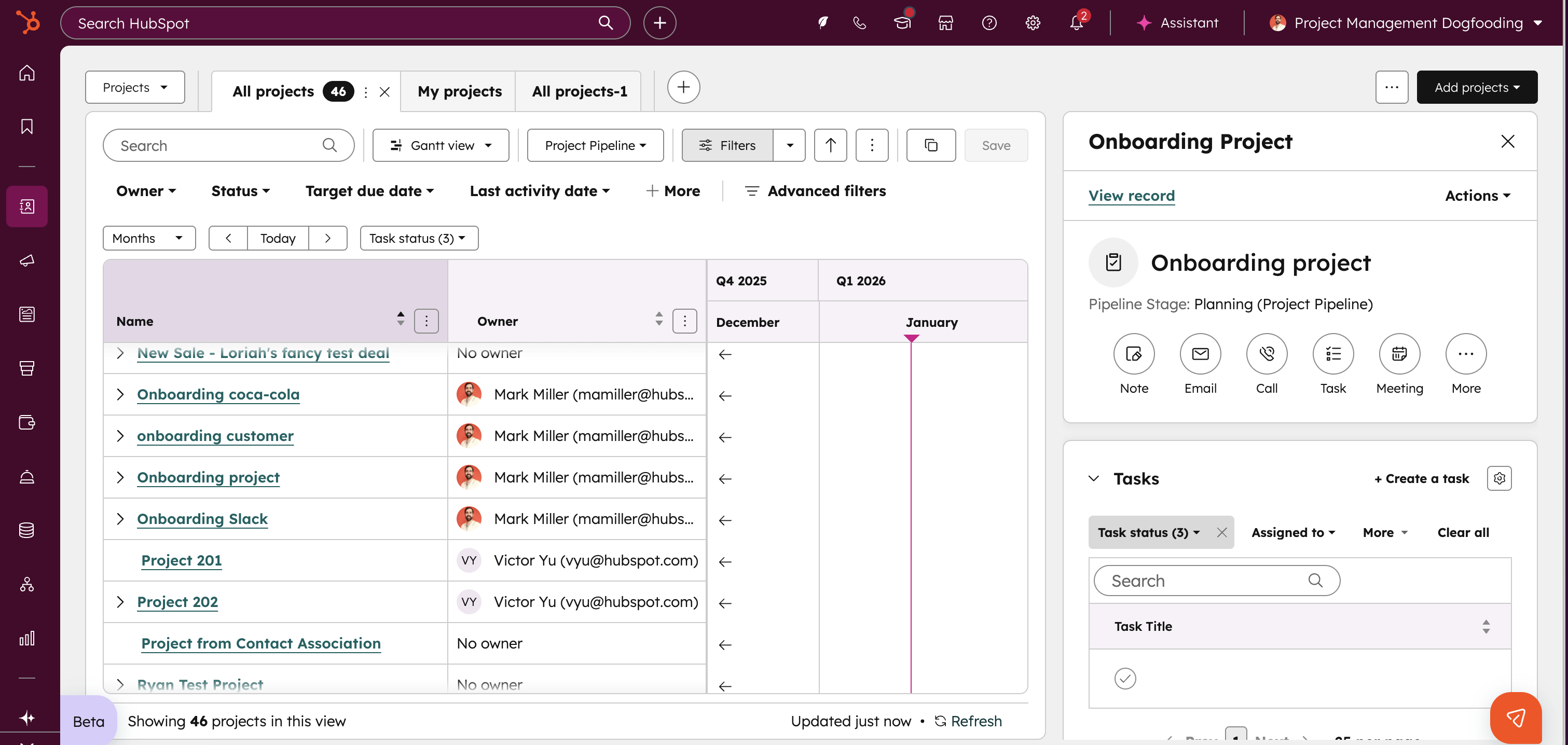
In the Project Preview:
- Click Create task in the Tasks card
- Add subtasks in the form
Within the Project Record:
- Go to the Tasks card
- Click Create task or edit an existing task
- Add subtasks in the form
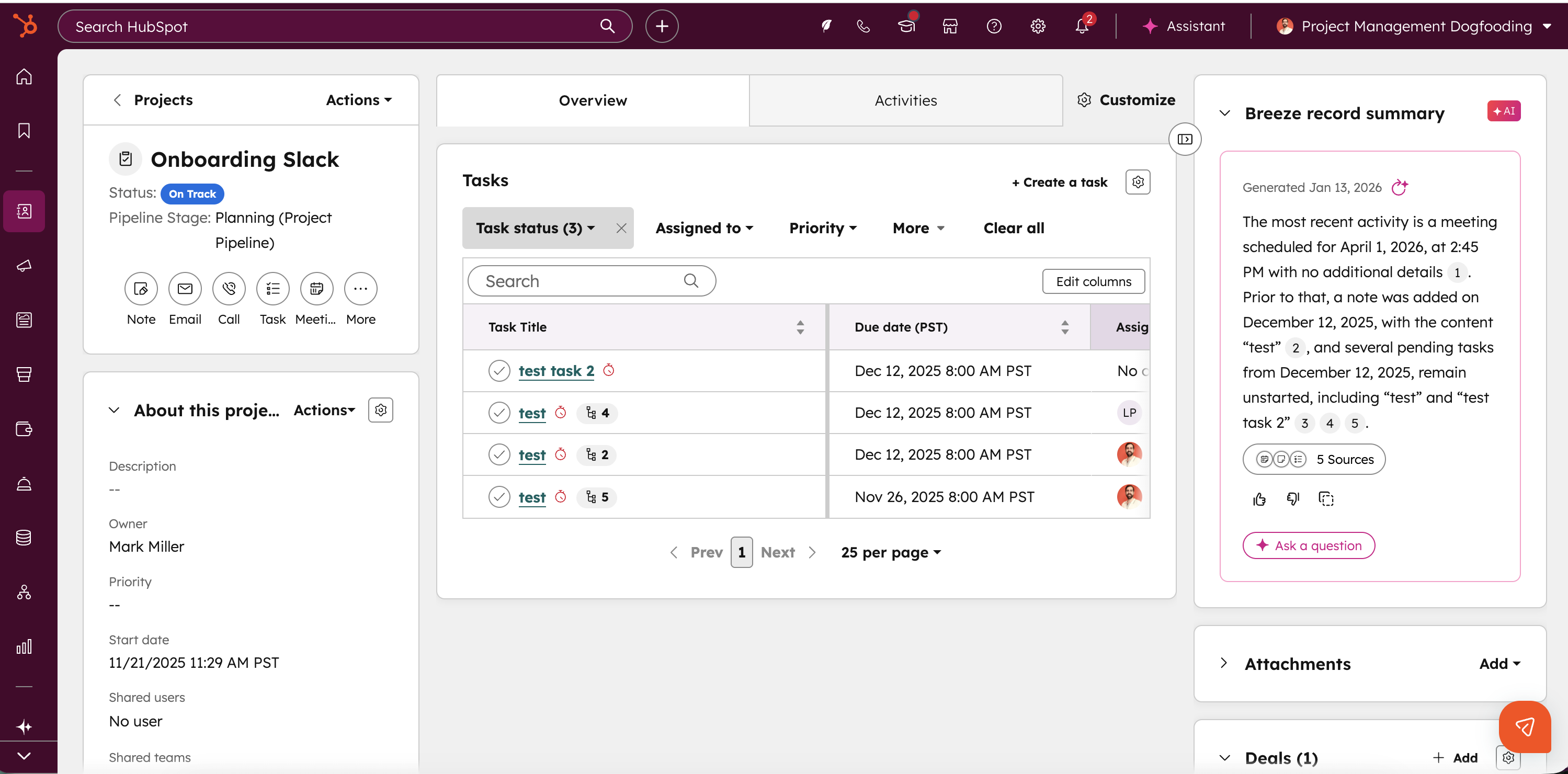
In the Customer Success Workspace:
- Navigate to the Gantt View or Project Preview
- Follow the steps above to create subtasks
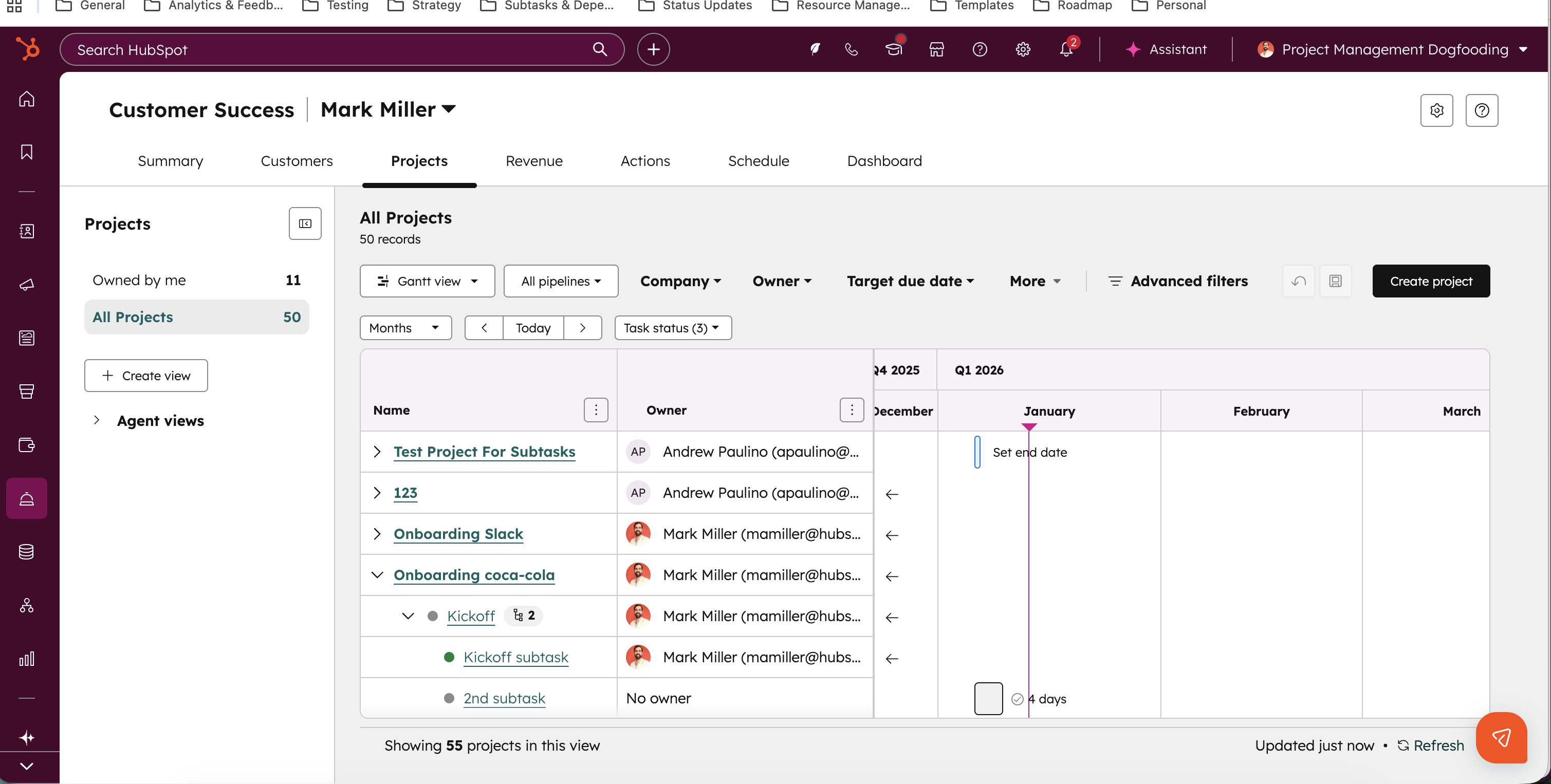
About Subtasks
- Subtasks have the same properties and permissions as regular tasks
- You can create up to 30 subtasks per parent task
- Subtasks are not yet available when creating tasks from the top highlight card of Project Preview or other CRM Record Pages
NOTE: this feature is currently available in private beta only
Remove specific values from multi-checkbox properties with the Workflows Edit Record action
We’ve added a new option to the Edit Record workflow action that lets you remove specific values from a multi-checkbox property without clearing the entire field. You can now selectively subtract values from a list of selected options directly in workflows.
Why does it matter?
The Edit Record workflow action is one of the most powerful tools in workflows, giving you the ability to append, replace, or clear property values at scale.
Until now, removing just a few values from a multi-checkbox property meant clearing everything and rebuilding the list from scratch often with complex branching logic. That workaround was time-consuming, hard to maintain, and easy to get wrong.
With selective value removal, workflows are simpler, cleaner, and more efficient. This makes it so much easier to keep your CRM data accurate without unnecessary complexity.
How does it work?
- Add the Edit Record action to your workflow.
- In Property to Edit: choose a multi-checkbox property from your CRM.
- In Change type: select Remove (You'll also see the familiar options append, replace, and clear)
- From there, choose the specific values you want to remove from the property.
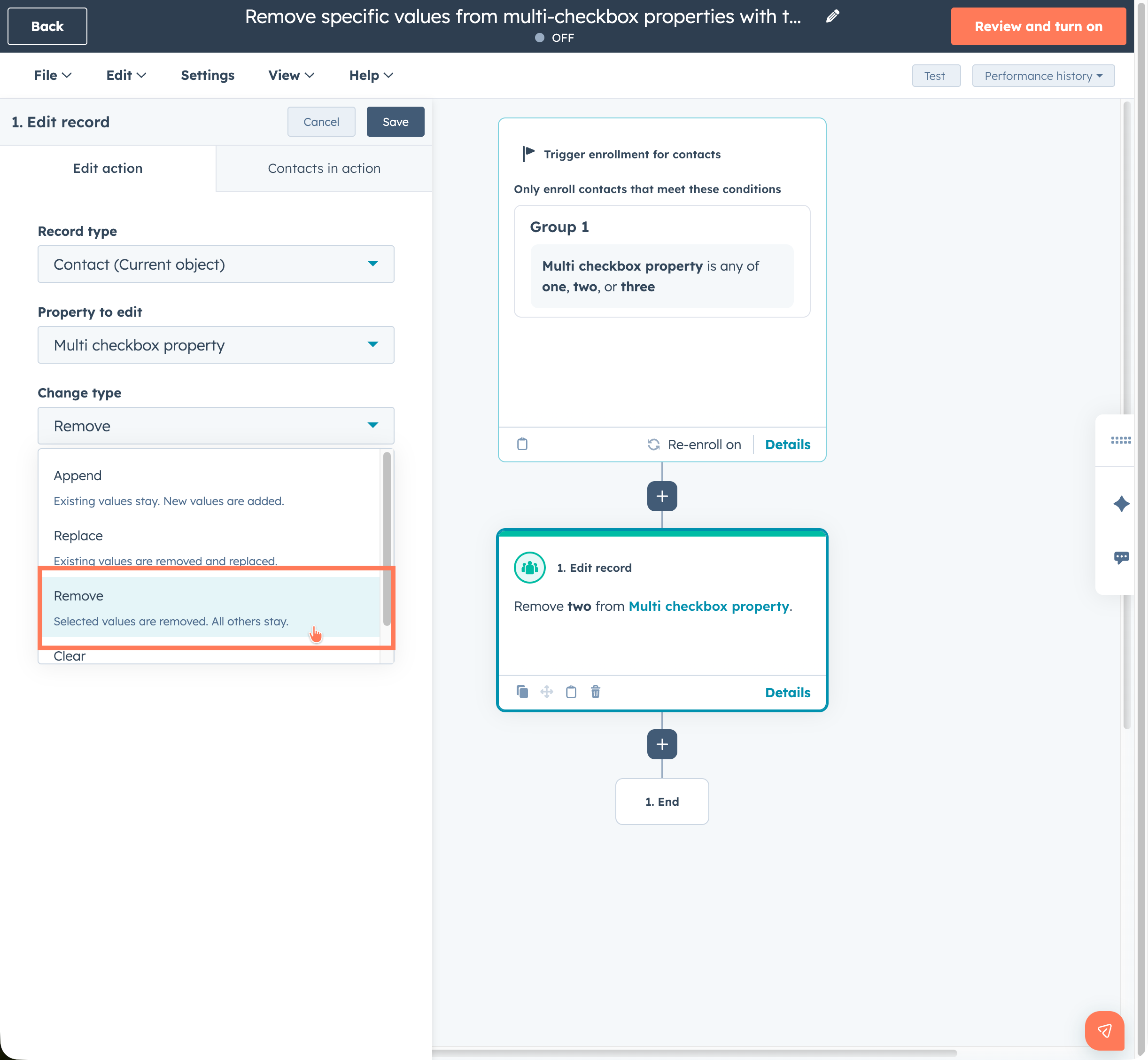
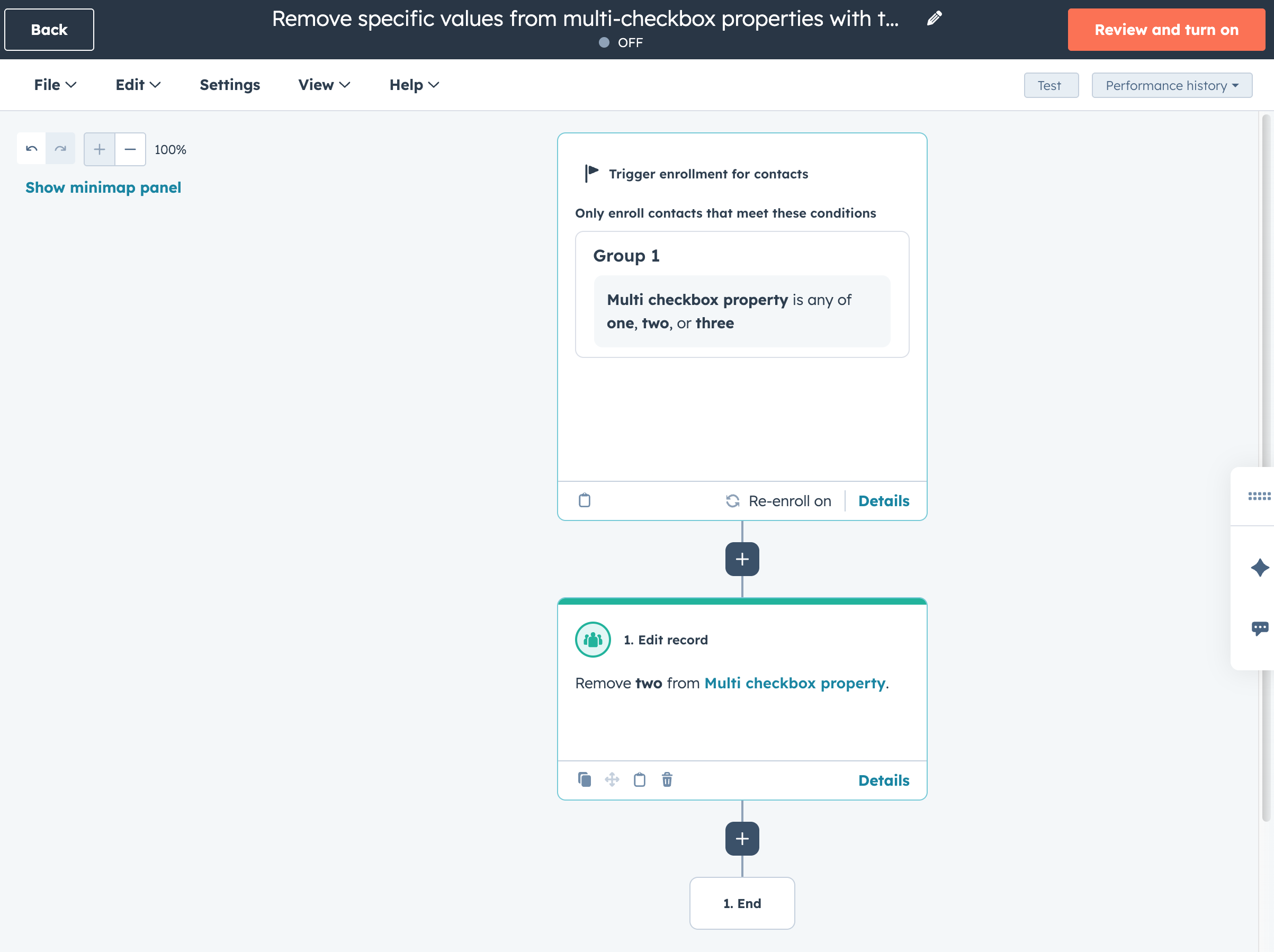
Business Days Support for Workflow Delays
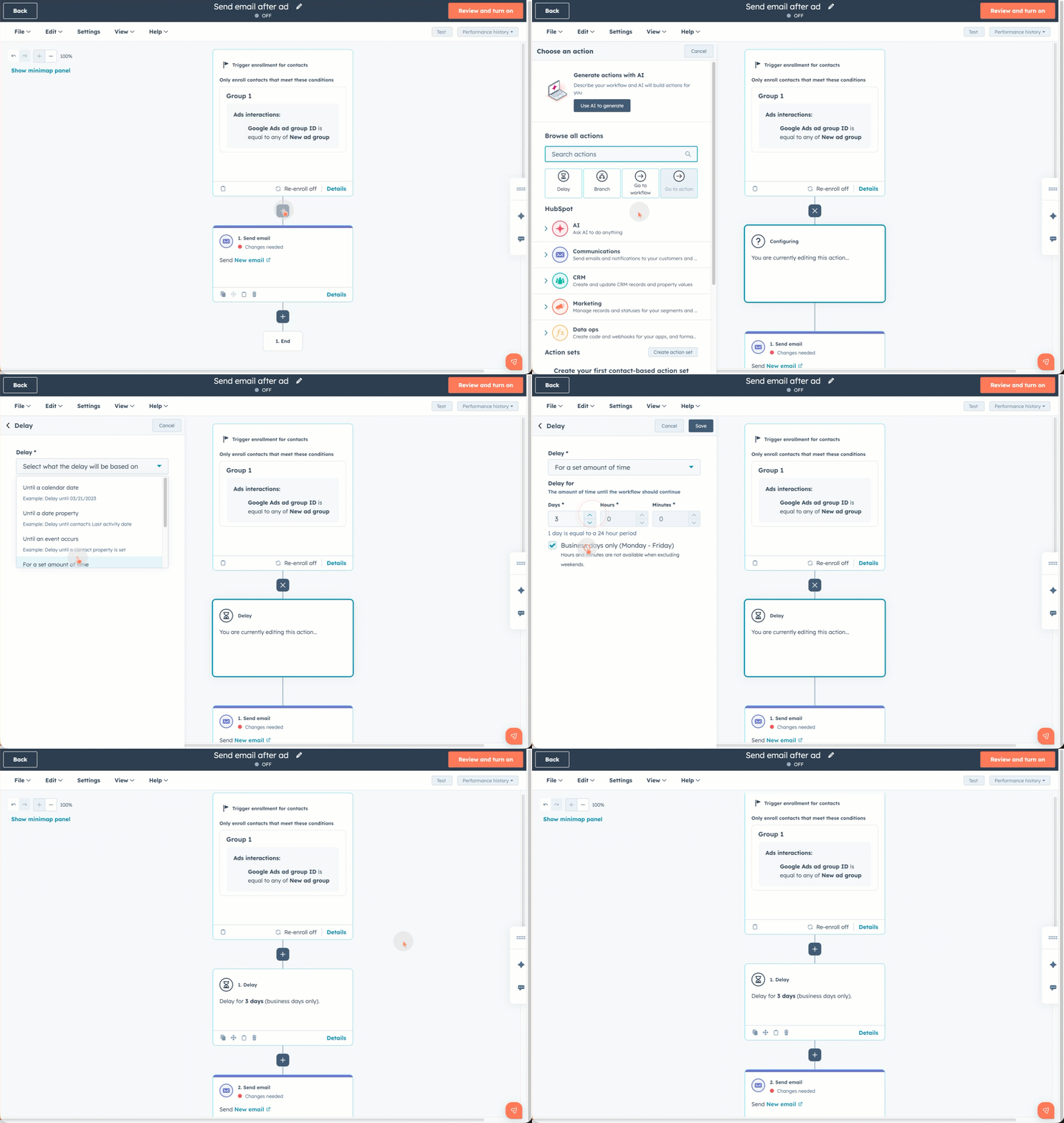
We’ve updated the Delay action in Workflows to include an option to exclude weekends. When this option is enabled, delays count only Monday through Friday. For example, if a contact enters a 1-day delay on a Friday with weekends excluded, the next action will run on the following Monday.
Why does it matter?
This update makes workflow timing more aligned with normal business operations. With it you can:
- Stop sending emails on weekends when your team won’t be available to respond.
- Ensure follow-ups happen on workdays, improving conversion and engagement rates.
- Avoid confusing timing logic where calendar days push next actions into unexpected gaps (like weekend dates).
This update will help your team maintain professional, predictable communication cadences and reduces manual workarounds people previously used to approximate business day timing.
How does it work?
- Open your Workflow and add a Delay action.
- Select the new Business Days option.
- Enter the number of business days you want the delay to last (e.g., 2 business days).
Want More Practical Email Tips?
If refining your email strategy is on your radar this quarter, don’t miss the recording of our webinar with with ZeroBounce, AI is Loud. Email is Louder. 7 Tactics That Drive Results in 2026. You’ll get insights on deliverability, list hygiene, and smarter segmentation, perfect for putting those new HubSpot updates into action. Check it out!