Orange Marketing
%20(10).png)
HubSpot’s latest updates are all about visibility and control, giving marketers and ops teams the tools they need to improve data quality, streamline processes, and deliver more effective campaigns.
From knowing exactly how many contacts can receive your emails, to triggering data collection at just the right lifecycle stage, this week’s features help you tighten your operations and act with more confidence.
Here are the most helpful updates for the week of January 19, 2026:
- See Number of Emailable Contacts in Segments,
- Lifecycle Stage Conditional Property Logic,
- Create Associations to Activities Using Workflows, and
- Configure Unsubscribe Links in Email.
See Number of Emailable Contacts in Segments
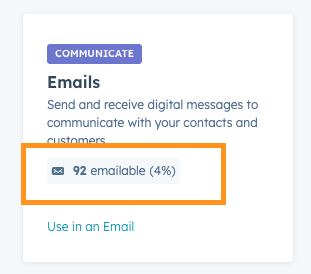
View how many contacts in a segment are eligible to receive emails.
Why does it matter?
When creating email campaigns, you need to know how many contacts will actually receive your message, so that you can avoid a surprise if only a portion of your segment is reachable, and refine your segment for more effective email marketing. Prior to this update, you may spend time creating a segment only to find that certain contacts are not eligible to receive an email. Now, you can identify the emailable contacts in the segmentation process.
How does it work?
1) Create a Contact segment or navigate to an existing Contact segment
2) Click into the Performance tab --> Available channels OR click the "Use in" button
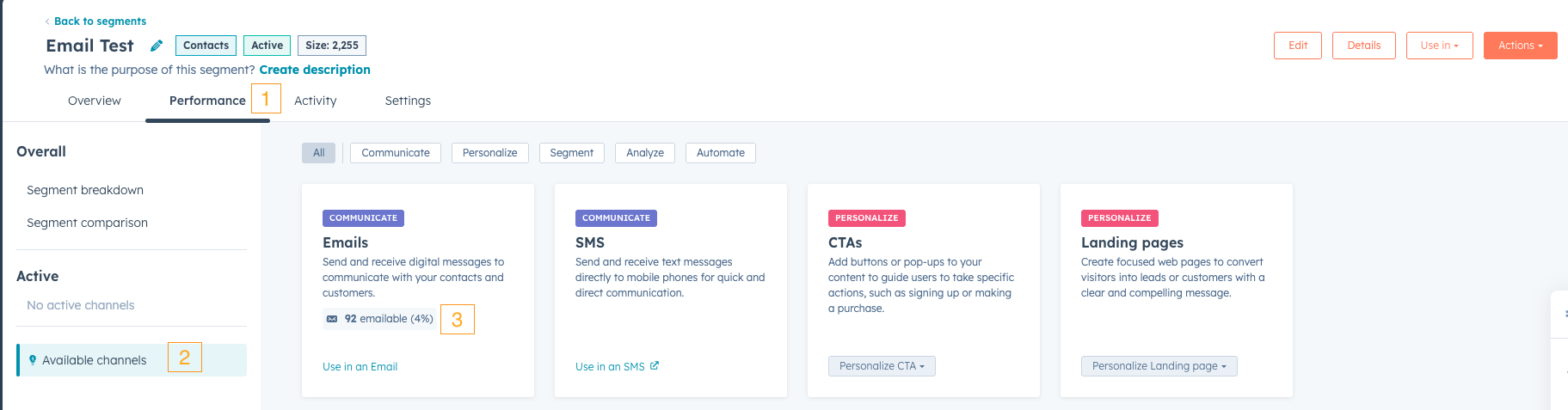
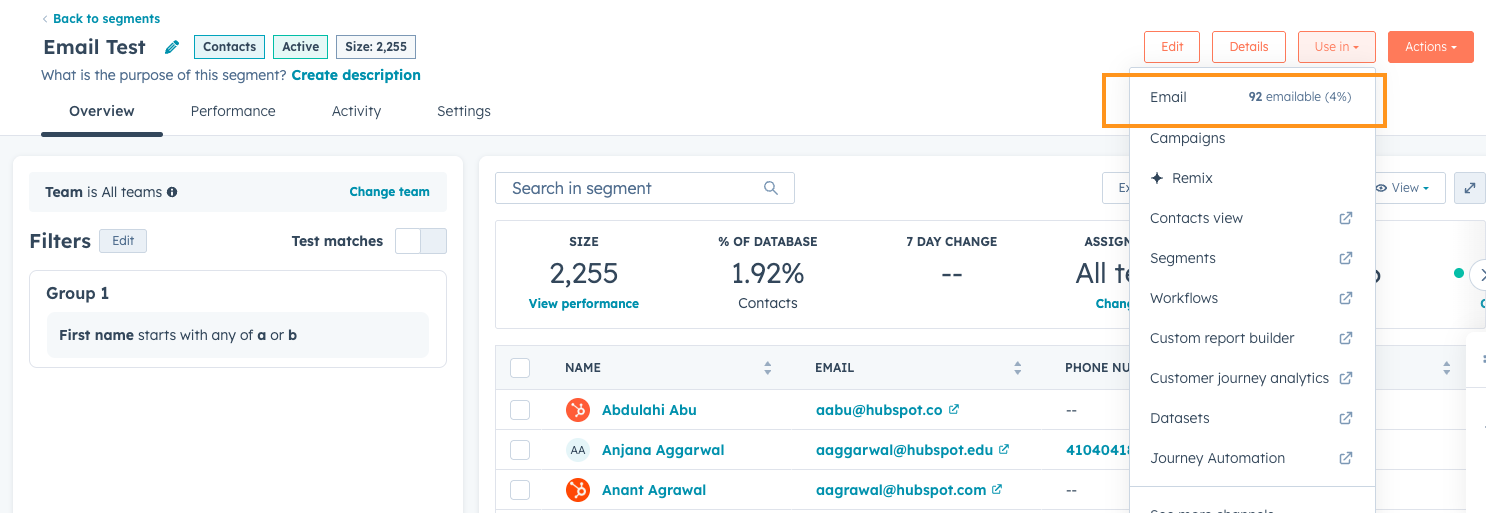
3) You can now view the estimated number and percentage of the Contact segment that is eligible to receive an email.
Note: the estimated number of emailable contacts takes into account factors like whether the contact is a market contact, if the conact has an email address, if the contacts hard bounced, and others.
Lifecycle Stage Conditional Property Logic
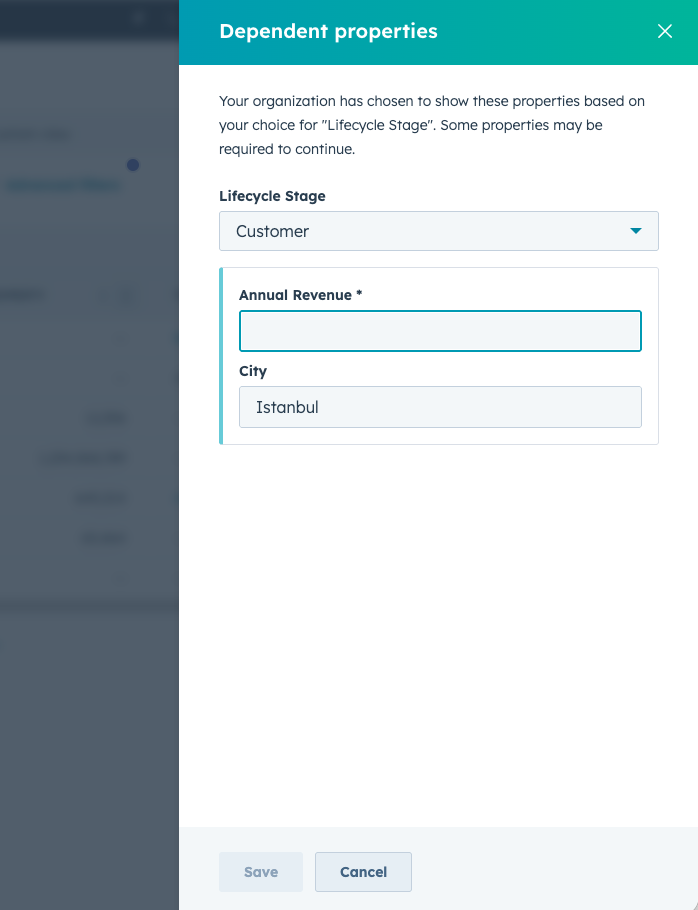
Conditional property logic now supports contact and company lifecycle stages as controlling properties, letting you show or require specific fields when records reach certain stages in your process.
Why does it matter?
You can now enforce data quality at critical points in your sales and marketing process. When contacts or companies progress to specific lifecycle stages, you can automatically surface relevant fields and make them required before users can save changes.
For example, when a sales rep moves a contact from "Lead" to "MQL," you can require fields like "Qualification notes" or "Budget range" to appear and must be completed before the stage change saves. This ensures teams capture essential information at the right moments without manual reminders or post-facto data cleanup.
How does it work?
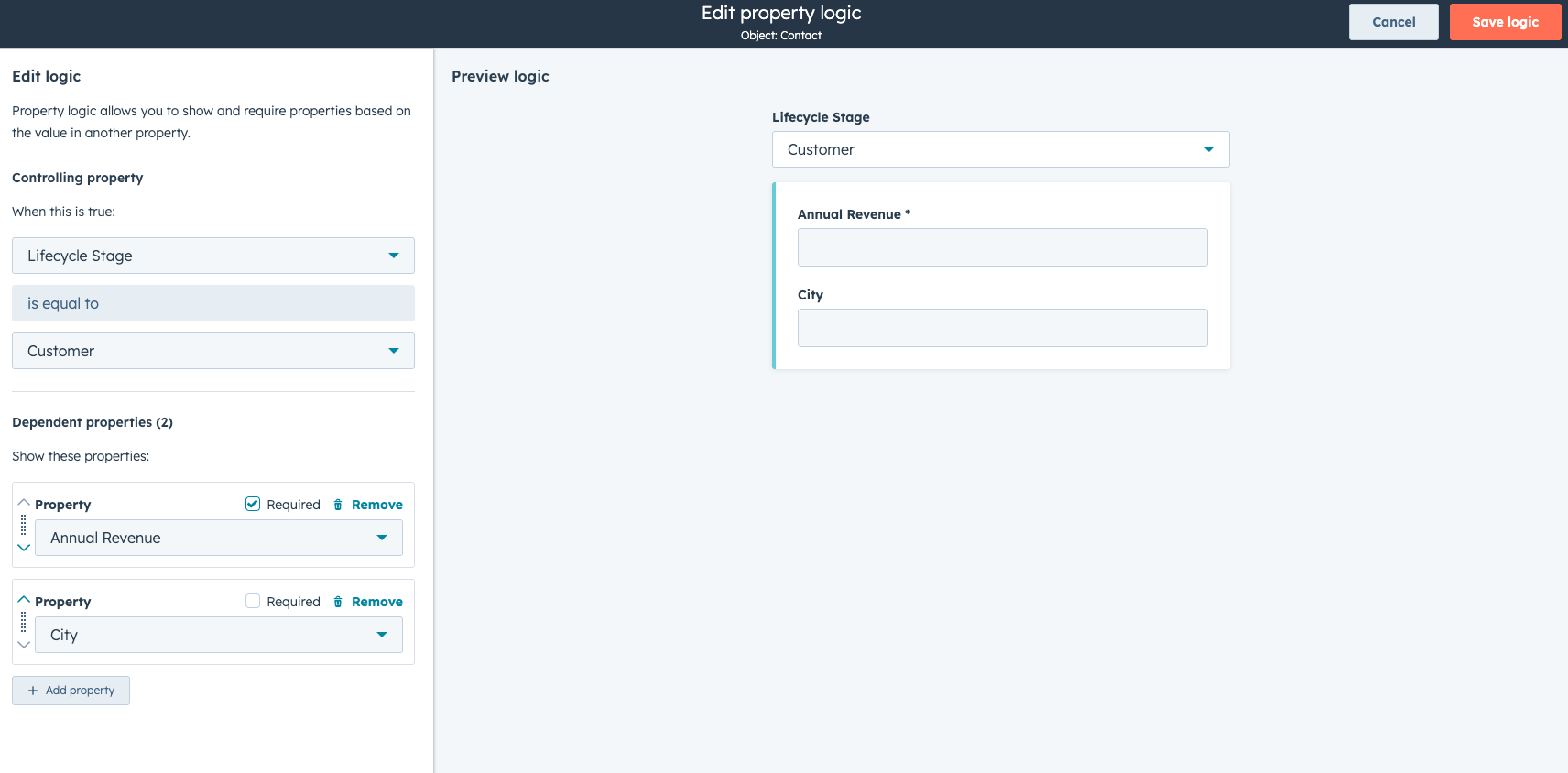
In your HubSpot account, go to Settings > Properties > Conditional property logic:
- Select either Contact or Company as your object type
- Click Create logic
- Choose Lifecycle Stage as your controlling property
- Select which lifecycle stage value triggers the logic (e.g., "MQL" or "Opportunity")
- Add dependent properties that should appear or become required
- Mark properties as Required if users must fill them before saving
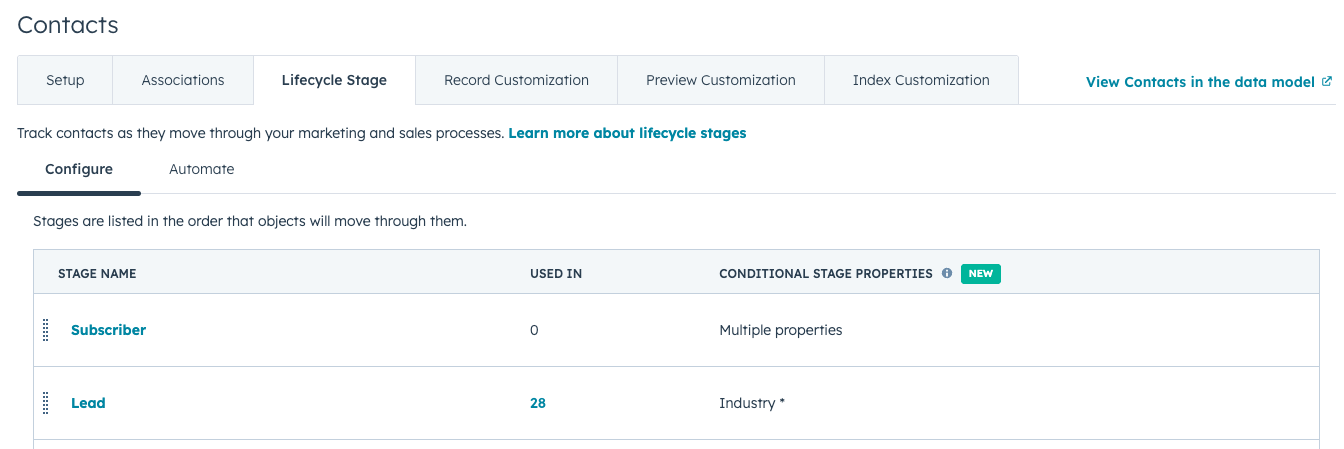
Alternatively, go to pipeline settings to define rules that show or hide (or require) certain properties based on:
- Contact lifecycle stage
- Company lifecycle stage
Create Associations to Activities Using Workflows
You can now use the Create association workflow action to create associations to activities. Activities included are Notes, Tasks, Meeting event, Call, Email, Communication, and Postal Mail.
Why does it matter?
Admins can replace manual, repetitive activity association work with native automation, reducing operational overhead and improving data consistency. This removes the need to rely on reps to remember to associate calls, meetings, or communications—an error-prone process that often leads to incomplete records. The result is more reliable, unified activity data across workflows, reporting, and automation.
How does it work?
To automate activity associations to records,
- Create or update a workflow using the Create association action.
- Choose from available activities as "Object to associate".
Configure Unsubscribe Links in Email
Customize the meeting booked confirmation email that is sent to contacts when they book a meeting through your scheduling page.
Why does it matter?
Instead of sending a generic confirmation email to each contact that books a meeting, you can now customize it to include the best information to send to a contact to help them understand what to expect for that upcoming meeting.
How does it work?
When creating or editing a scheduling page (Sales > Meetings Scheduler), visit the "Automation" tab to customize your confirmation email.
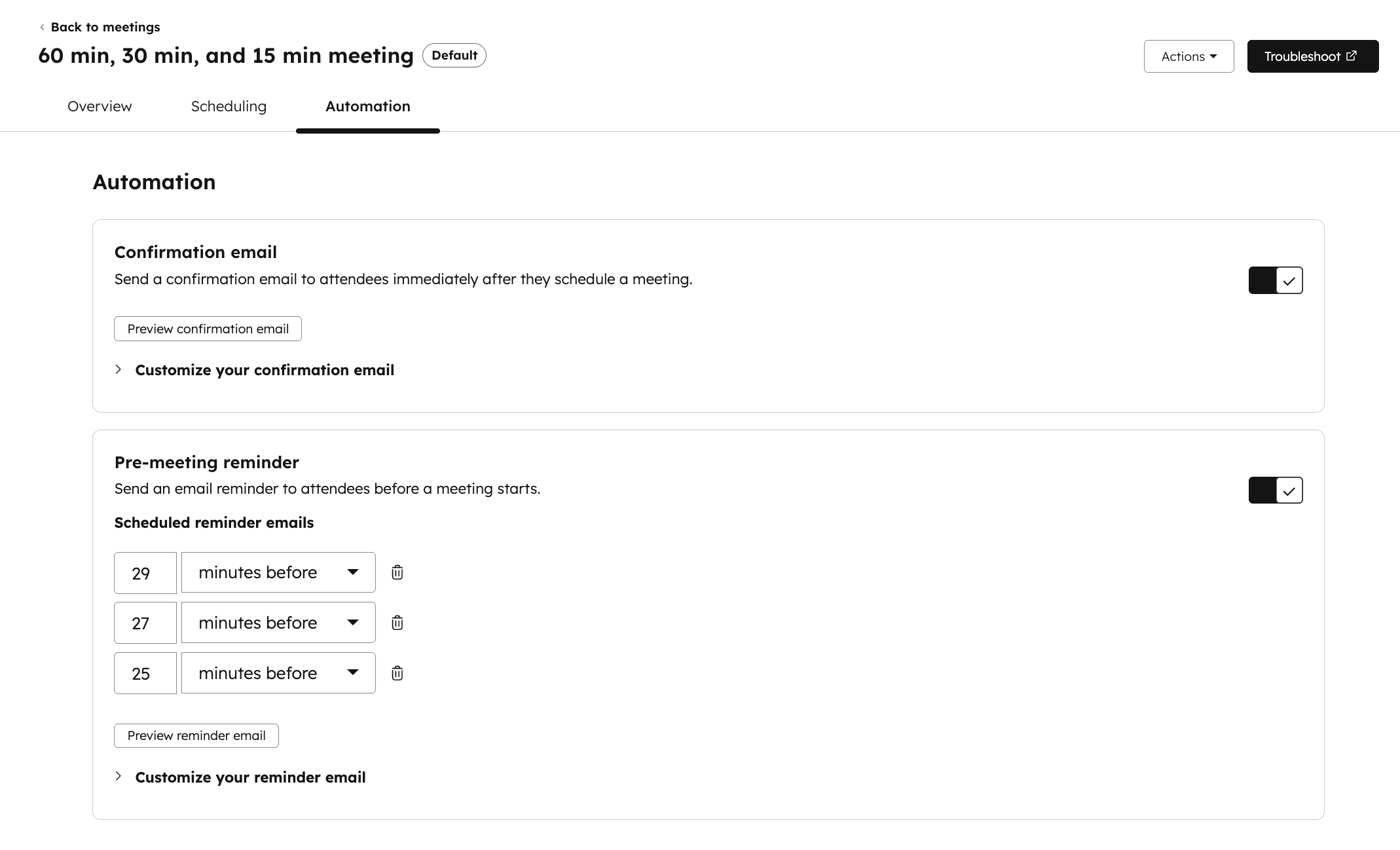
Customize the subject line, title, body, and image. Include tokens like meeting time and location.
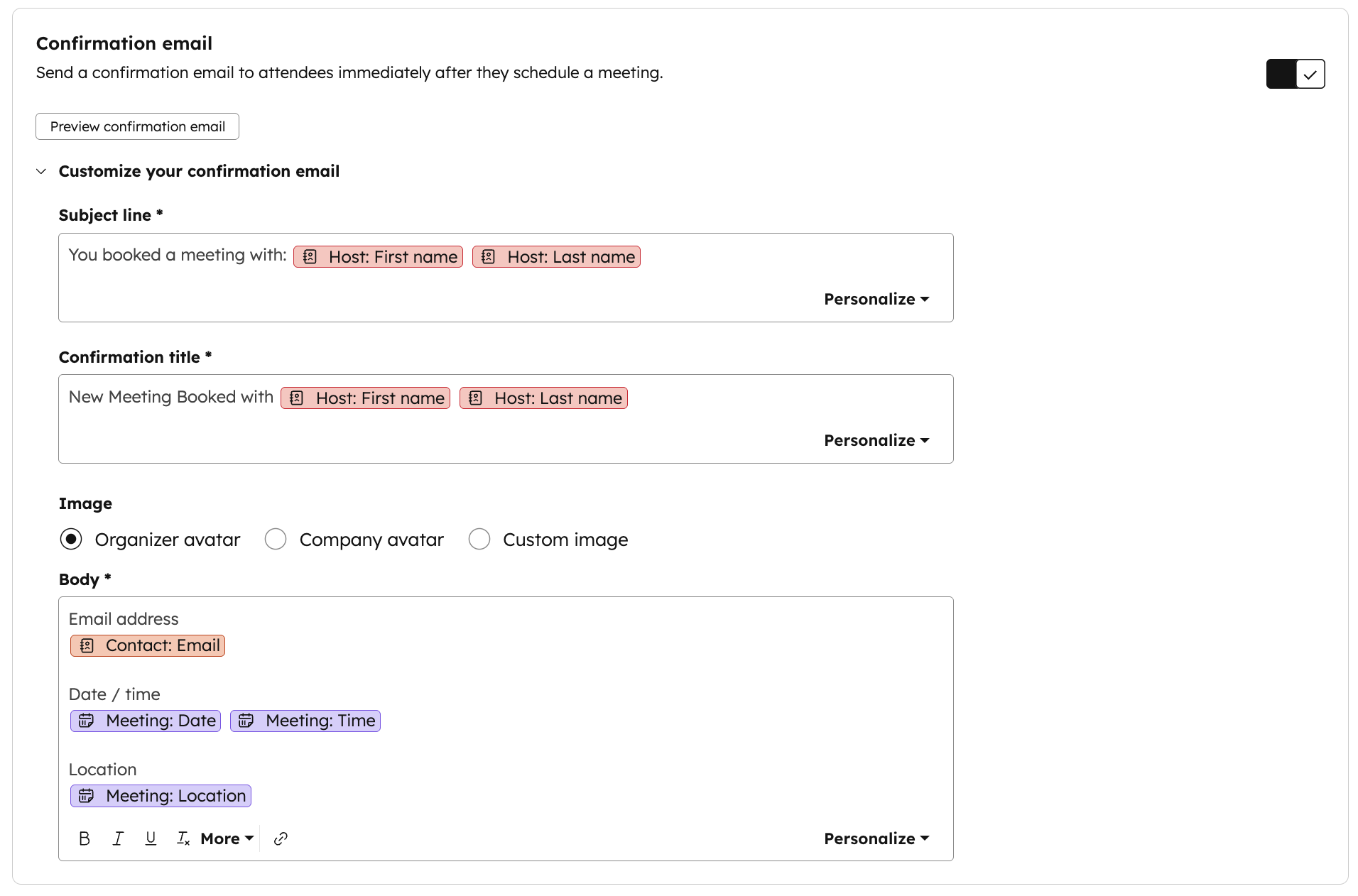
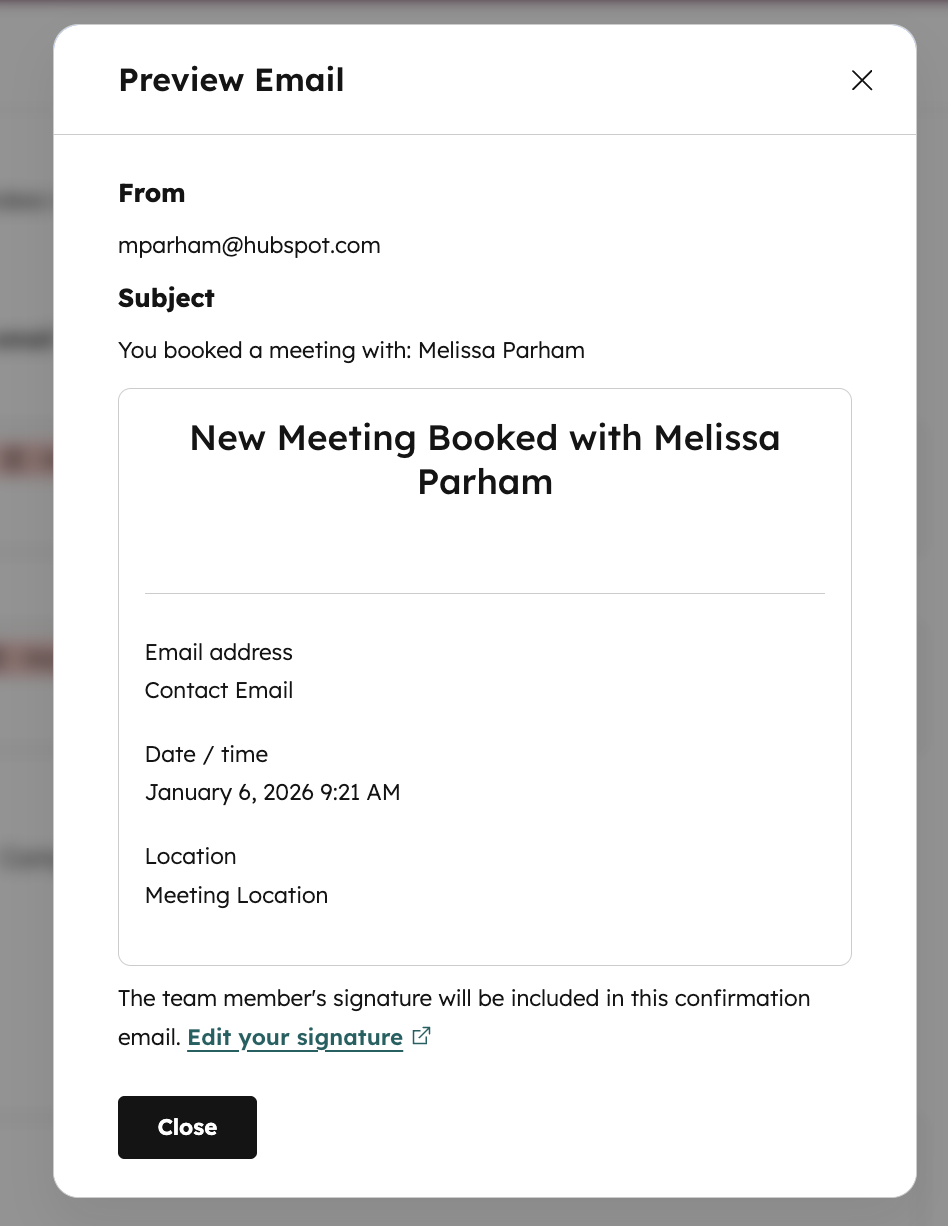
Click the "Preview confirmation email" button to preview what will be sent to contacts when they book a meeting through this scheduling page.
Want to Land More Emails in Inboxes?
Deliverability isn’t magic, it’s strategy. Whether you're cleaning up your lists, fine-tuning your segments, or improving sender reputation, our webinar with ZeroBounce breaks it all down. Catch the recording of AI is Loud. Email is Louder. 7 Tactics That Drive Results for 2026, that will show you what today's marketers need to know to reach real people, not just spam filters.