Orange Marketing
%20(7).png)
The new year is already bringing thoughtful improvements across HubSpot’s platform: some small, but mighty. This week’s updates include smoother copy/paste for content creators, smarter scoring logic for success teams, easier property sorting for ops pros, and more flexibility in how you customize meeting follow-ups.
Here are the most helpful updates for the week of January 12, 2026:
- Improved Copy & Paste in HubSpot's Content Creation Tools,
- Conditional Scoring with "and" for Health Scores,
- Property Sort in the Data Panel,
- Customize Confirmation Email in Meeting Scheduling Pages, and
- Support Multiple Main Teams For Full Functionality.
Improved Copy & Paste in HubSpot's Content Creation Tools
Improved copy/paste experience in HubSpot's content creation tools. We now better preserve text formatting from external sources like Google Docs, MS Word, and AI writing tools -- while still aligning with your theme.
HubSpot heard feedback that pasting content into HubSpot can be frustrating, especially when important formatting is lost. This update addresses some of the most common pain points by:
- Preserving key text formatting and document structure
- Reducing the need for manual cleanup after pasting
- Making it faster to move content into HubSpot across blogs, landing pages, marketing emails, etc.
While this update does not solve every copy/paste edge case just yet, it’s an important step toward a more reliable content creation experience.
How does it work?
1. Copy your content from an external source
2. Paste directly into any HubSpot rich text editor. Your text will retain its original formatting while matching your HubSpot theme styles
You'll still have the option to paste without formatting:
- Windows: Use Ctrl + Shift + V
- Mac: Use Cmd + Shift + V
Conditional Scoring with "and" for Health Scores
You can now create conditional scoring rules using "and" that award points only when multiple criteria are met. Check out this quick 🎥 video demo to learn more!
Two types of conditional scoring:
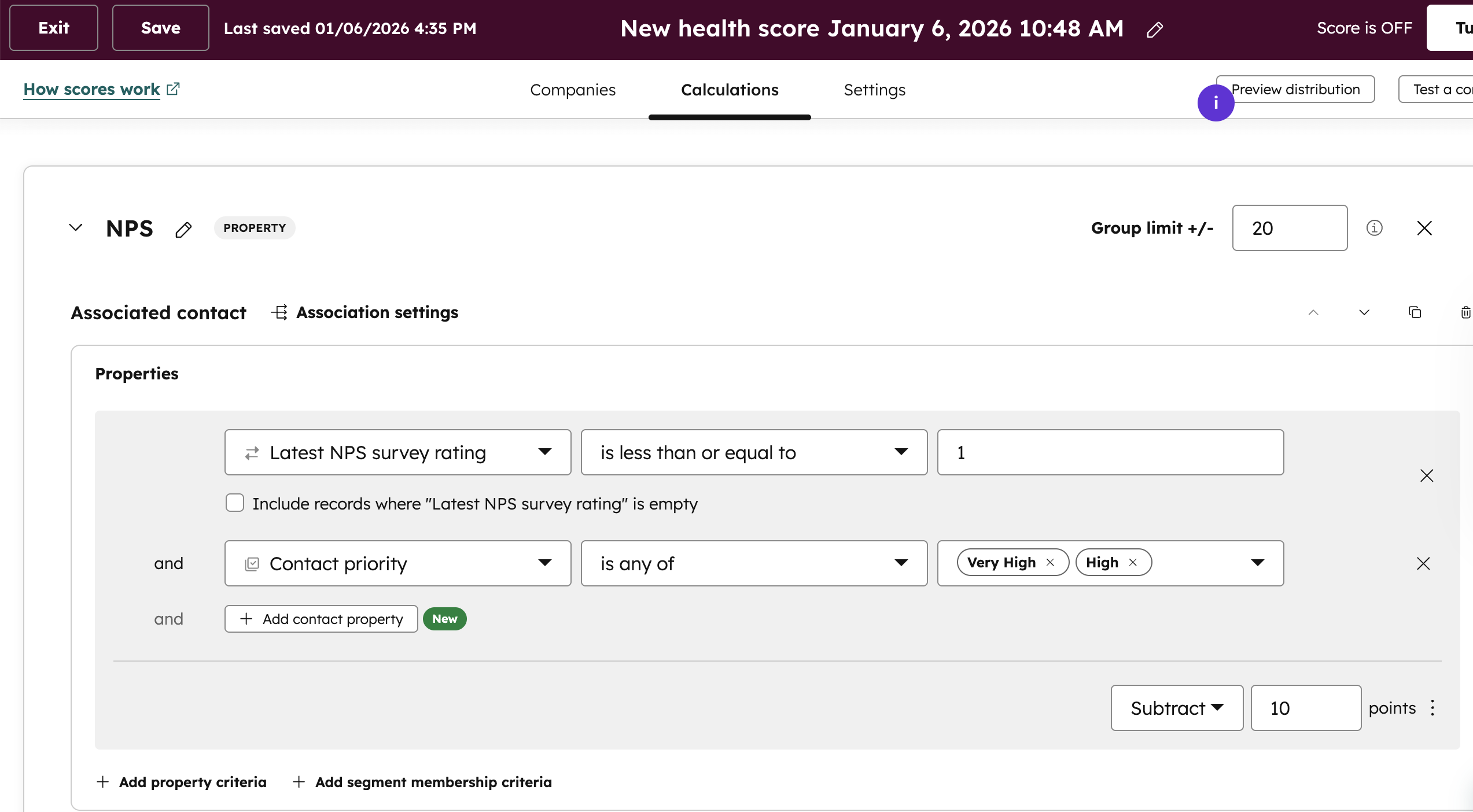
- Cross-property criteria (Fit scoring): Combine multiple property criteria to award points only when all criteria are met for a single object.
- Example: Subtract 10 points when a contact's Latest NPS survey ranking is less than or equal to "1" AND Contact priority is any of "high or very high"
- Example: Subtract 10 points when a contact's Latest NPS survey ranking is less than or equal to "1" AND Contact priority is any of "high or very high"
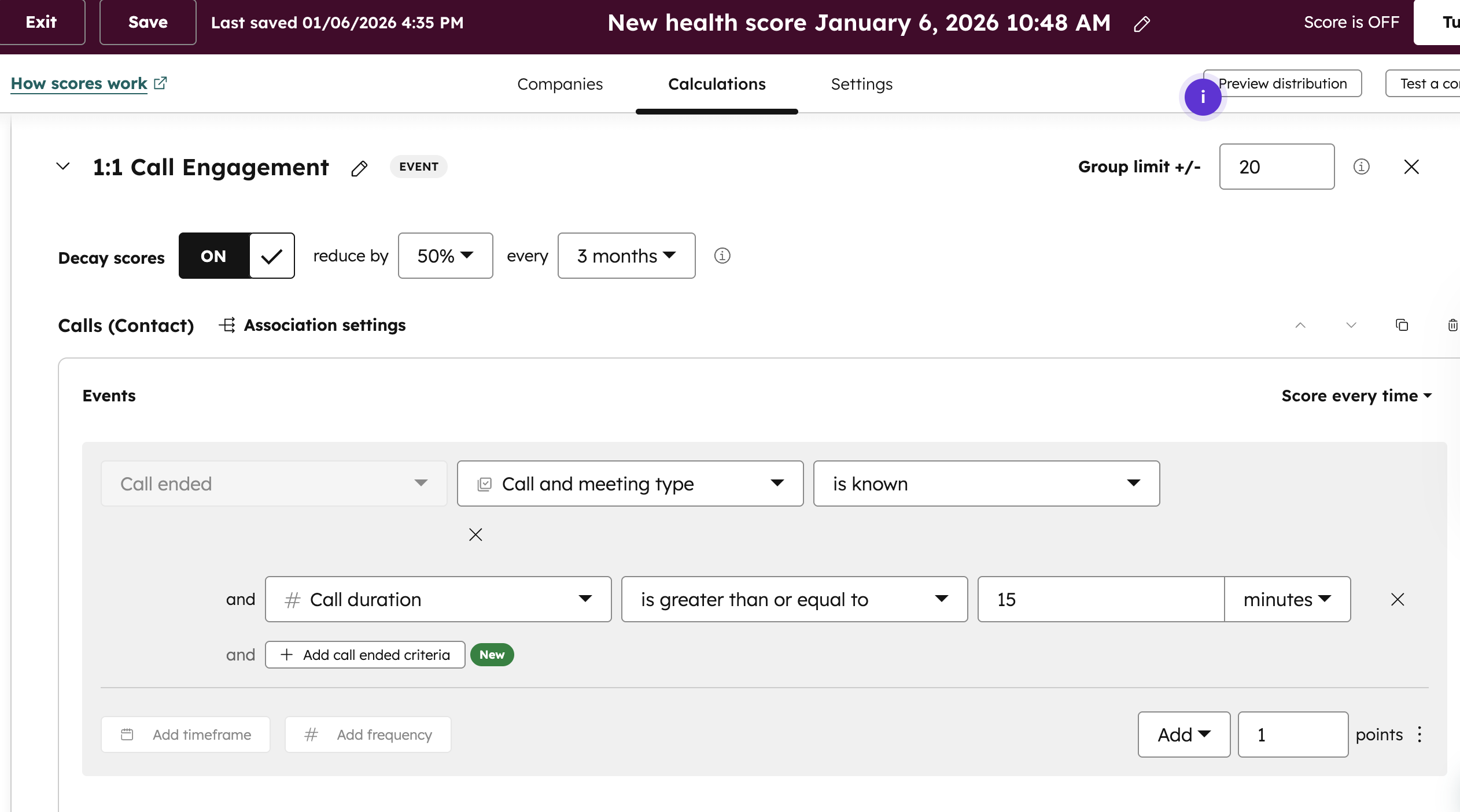
- Event-specific criteria (Engagement scoring): Award points when a specific event happens in a specific context for a single object.
- Example: Add 1 point for when a call ends where the call and meeting type is known AND the Call duration is greater than or equal to "15 minutes"
- Example: Add 1 point for when a call ends where the call and meeting type is known AND the Call duration is greater than or equal to "15 minutes"
Why does it matter?
Previously, health scores only supported single-criterion rules. While you could use segment (list) membership or workflow enrollment as workarounds for conditional logic, those approaches added friction and required you to leave the Customer Success workspace.
Now, you can create conditional scoring rules natively within health scores. This lets you capture compound qualifications for fit and contextual signals for engagement, resulting in more accurate health scores.
Property sort in the data panel
HubSpot has added new sorting options to the property picker that help you understand which properties are actively used and make it easier to find the right one.
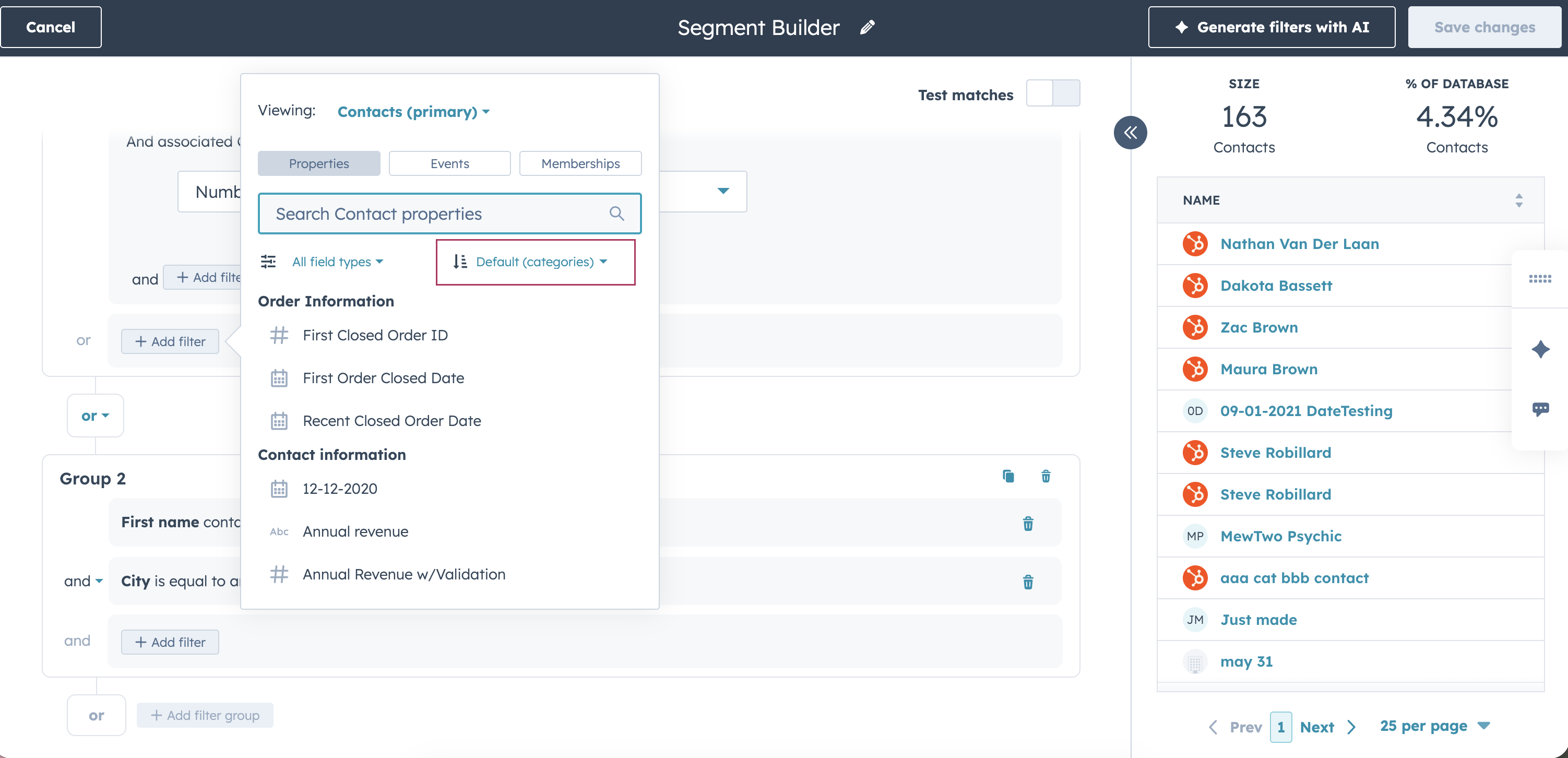
You can now sort properties by:
- Name (A–Z)
- Name (Z–A)
- Used in assets (Most → Least)
- Created date (Newest → Oldest)
- Last updated (Newest → Oldest)
This gives you visibility into property usage directly where you build segments, lists, and workflows.
Why does it matter?
Customers told us that managing properties often feels like a guessing game, especially in portals with years of customization.
Common feedback we heard:
- “I don’t know which properties are actually used anywhere.”
- “We want to clean up properties, but we’re afraid of breaking something.”
- “There are too many properties, and I can’t tell which ones matter.”
By surfacing usage-based sorting, you can quickly identify which properties are heavily relied on—and which ones may be safe to audit, clean up, or ignore. This reduces risk, speeds up filtering, and makes large property libraries easier to manage.
How does it work?
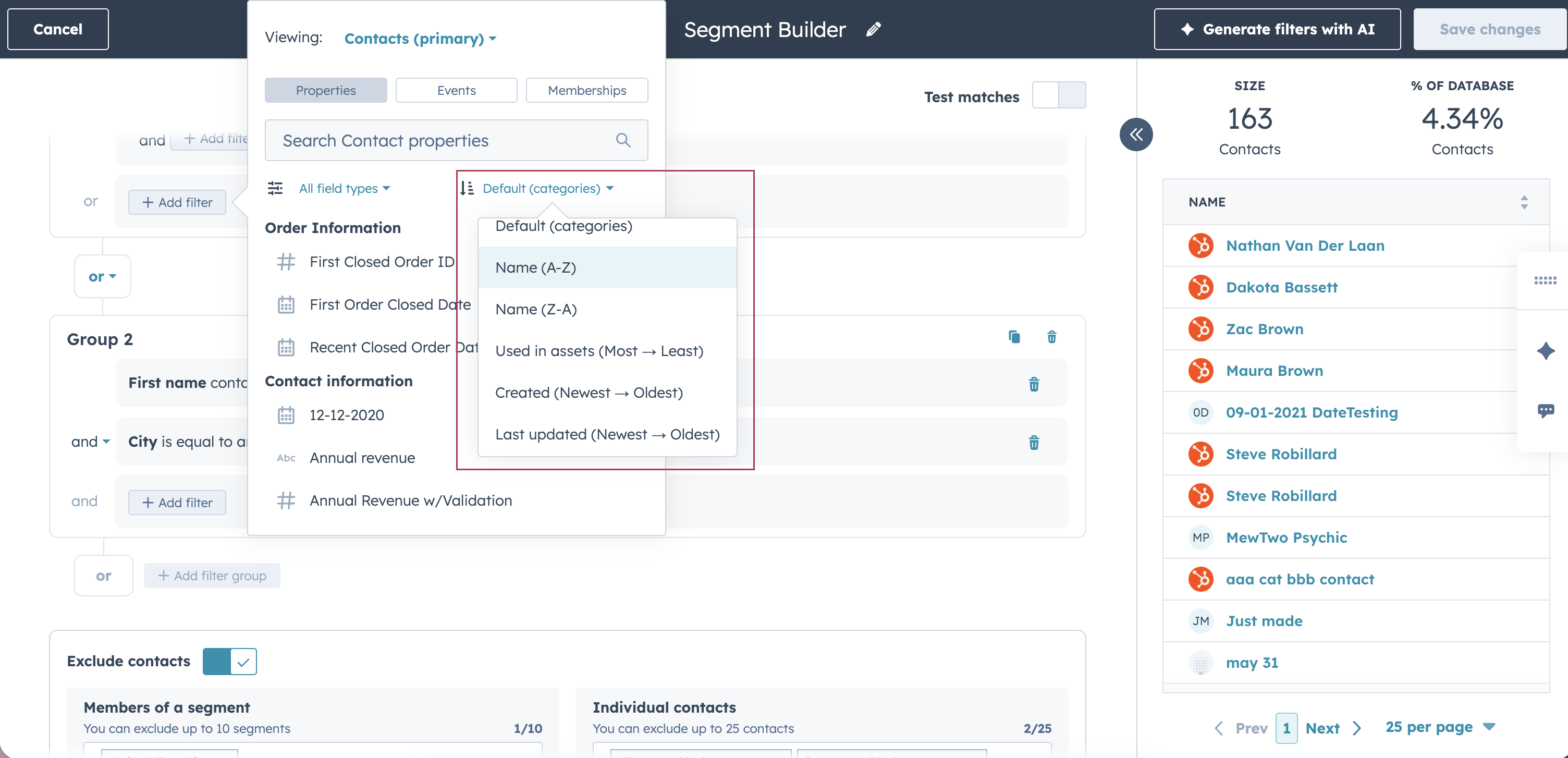
- Open the property picker while building a filter
- Use the sort dropdown at the top of the panel
- Choose how you’d like to sort properties:
- Alphabetically
- By usage across HubSpot assets
- By creation or last update date
Customize Confirmation Email in Meeting Scheduling Pages
Customize the meeting booked confirmation email that is sent to contacts when they book a meeting through your scheduling page.
Why does it matter?
Instead of sending a generic confirmation email to each contact that books a meeting, you can now customize it to include the best information to send to a contact to help them understand what to expect for that upcoming meeting.
How does it work?
When creating or editing a scheduling page (Sales > Meetings Scheduler), visit the "Automation" tab to customize your confirmation email.
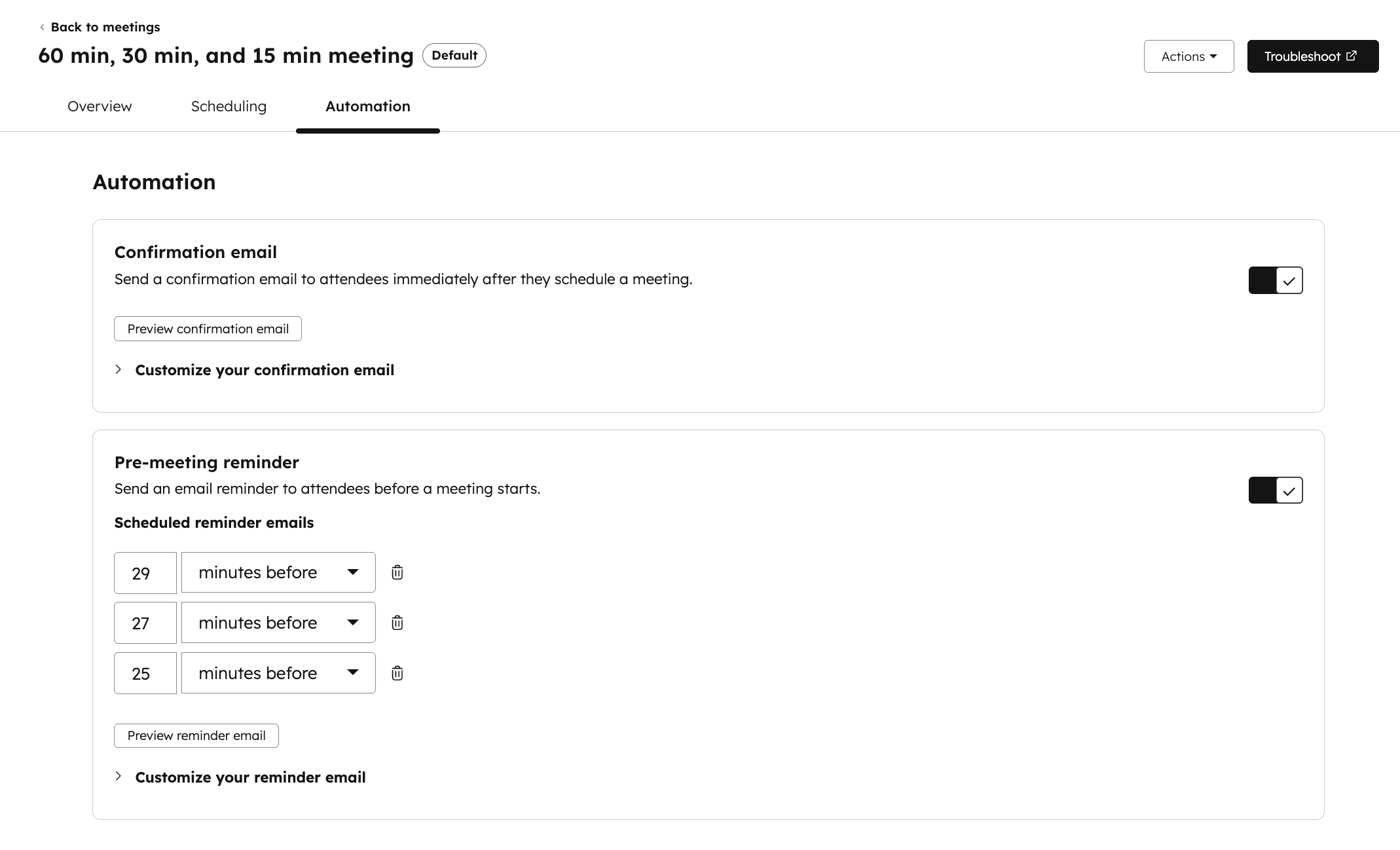
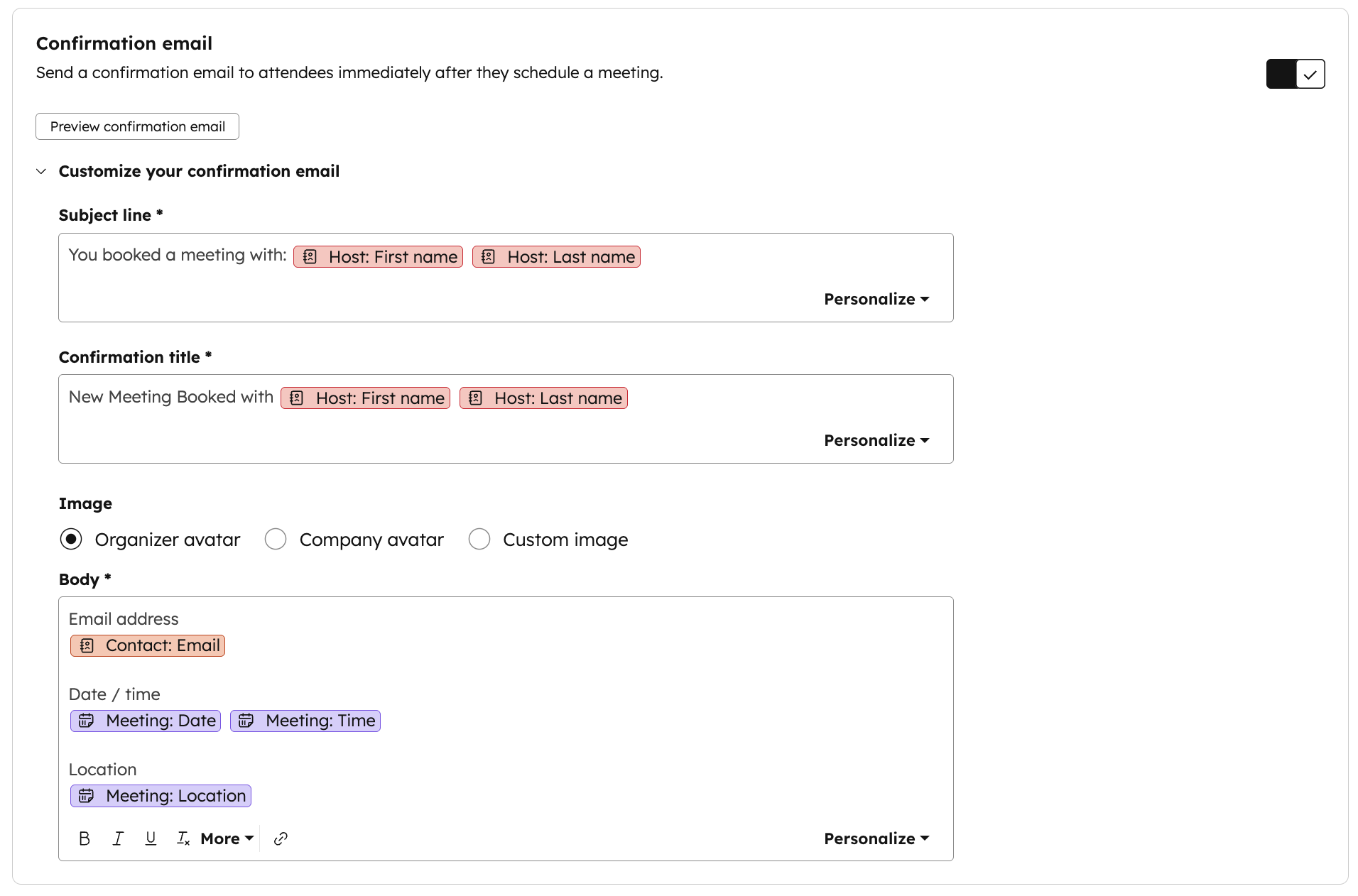
Customize the subject line, title, body, and image. Include tokens like meeting time and location.
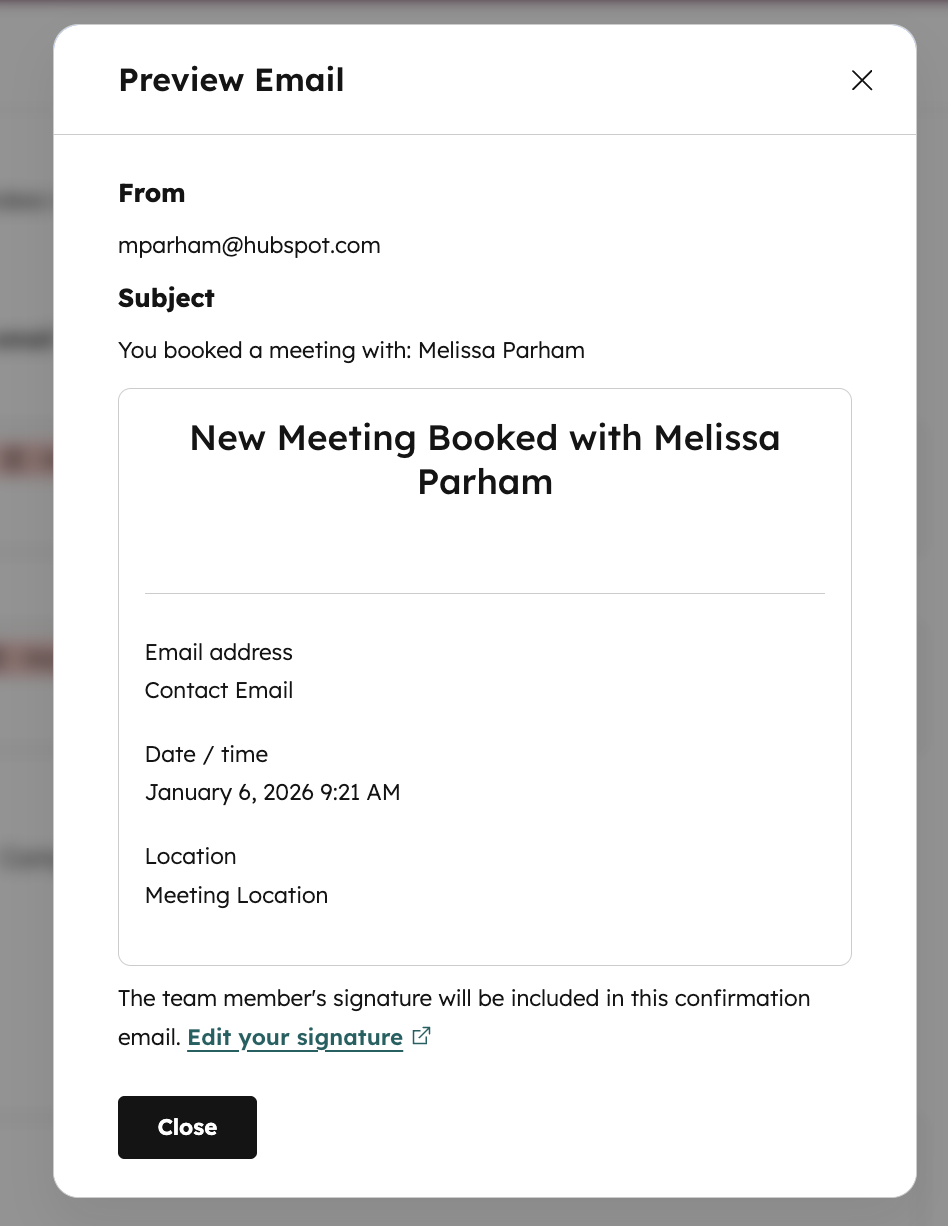
Click the "Preview confirmation email" button to preview what will be sent to contacts when they book a meeting through this scheduling page.
Support Multiple Main Teams for Full Functionality
Users can now be fully functional members of multiple teams in HubSpot, with equal access to routing and workflows across all assigned teams.
Why does it matter?
Previously, users assigned to more than one team could only be full members of a single 'main' team, leading to reduced capabilities and workflow friction for those working across regions or functions.
The idea “Allow users to be ‘primary team members’ of more than one team” has collected 200+ upvotes, including 70+ replies and numerous comments over multiple years. This change removes artificial limitations, improving collaboration, and ticket coverage for organizations with flexible or matrixed team structures.
This update also ensures predictable and transparent routing behavior. Previously, many customers did not realize that “extra” team members were excluded from assignment pools, leading to confusion or inequitable workload distribution. By making all team members fully functional, teams can now rely on routing rules and workflow logic behaving consistently.
How does it work?
The team model is now simplified with just two fields:
Teams
A user can belong to multiple teams, all of which offer full functionality — access to records, inclusion in reports, eligibility in routing rules, and participation in workflow rotation.
When a team is used in routing rules - such as workflows' Rotate Owner, Help desk ticket assignment, or Meetings' round robin - every seated user on that team will now be eligible for assignment, not just seated main team members.
Because the beta eliminates the “main” vs. “extra” distinction:
- If a team is referenced in a routing rule, all members of that team will begin receiving the assigned work.
- Customers should review their team memberships to make sure assignment behavior matches expectations.
Default Team
A single team that determines record customization views and preset preferences like notification profiles and the default home page.
When customers enroll in the beta:
- Existing teams listed as “extra teams” are automatically added to the new Teams field.
- The prior “primary team” becomes the user’s Default Team.
- All functional differences between “main” and “extra” teams are removed.
This makes it significantly easier to manage users who work across regions, queues, or functional groups.
Note: Inbox users and teams-based automatic assignment is currently excluded from this update and will updated in the coming weeks.
This feature is currently available in private beta only.
Learn to Master Email Strategy in 2026
HubSpot updates are great, but without a smart email strategy, your marketing stack is only doing half the job. If you're ready to boost deliverability, engagement, and results, don’t miss the recording of our webinar with ZeroBounce, a leading email validation and deliverability platform.
The webinar, AI is Loud. Email is Louder. 7 Tactics That Drive Results for 2026, shows you how to clean your email lists, improve inbox placement, and align your emails with AI-driven buyer behavior, all in under an hour.