Orange Marketing
%20(14).png)
Even though we’re cruising through February, HubSpot isn’t slowing down, and neither are the updates. This week brings new flexibility for managing meetings and data accuracy across your CRM, email properties, and Salesforce integration. Whether you're looking to tighten privacy controls, improve email hygiene, or keep your CRM in sync across platforms, these updates are here to make your life easier.
Here are the updates we found most interesting for the week of February 9, 2026:
- Never Log Option for Meetings,
- Updated Company Object Sync Between HubSpot and Salesforce, and
- Email Property.
Never Log Option for Meeting
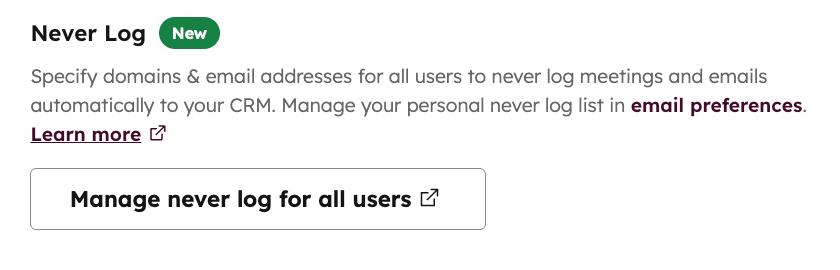
The Never Log setting in HubSpot now applies to meeting activities. Your never log list will now exclude both email and meeting activities from appearing in HubSpot for specified email addresses and domains.
Why does it matter?
Previously, calendar sync in HubSpot was an all-or-nothing setting. You either chose to sync all meeting events that contain at least one contact, or you chose not to sync any meeting events from your connected calendar into HubSpot.
Now, you have the flexibility to turn on calendar sync with the reassurance that you can define specific email addresses and domains whose meetings should not sync into HubSpot.
How does it work?
Any email address or domain that you add to your never log list will prevent email and meeting activities for those contacts from syncing into HubSpot.
You can manage the Never Log list for your own individual HubSpot user or for your entire account.
To manage the never log list for your entire account:
- Navigate to Settings > Tools > Meetings OR Settings > Objects > Activities
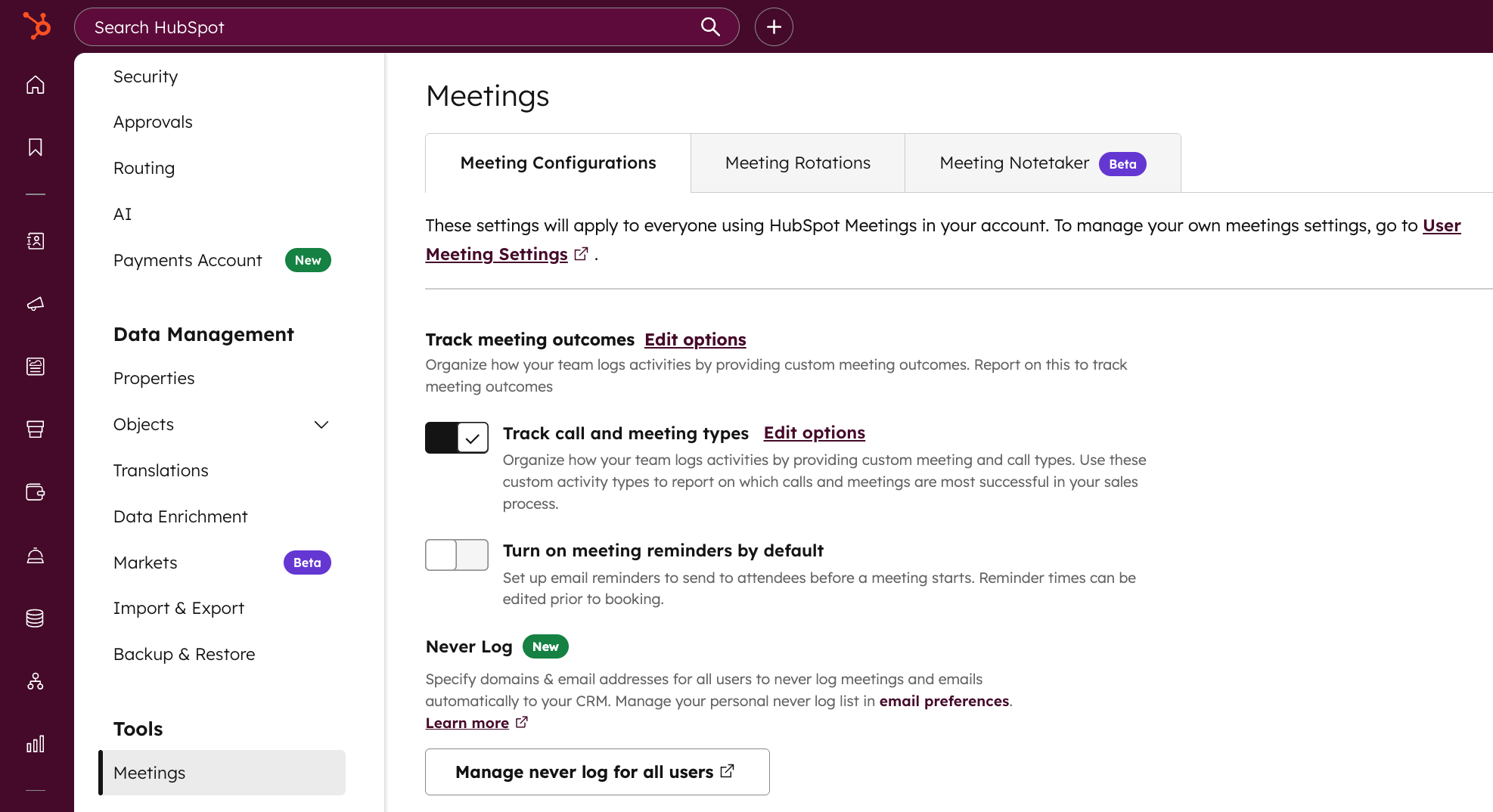
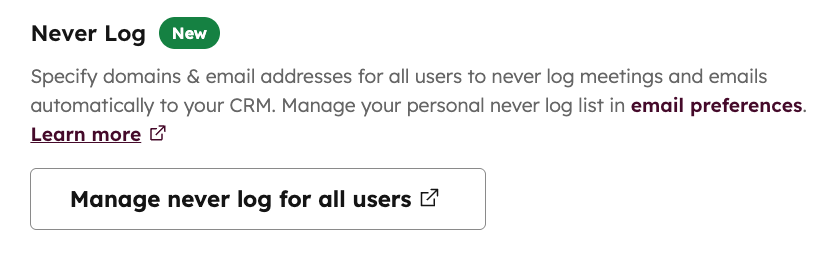
- If navigating to Settings > Tools > Meetings, find the Never Log section on the Meeting Configurations tab
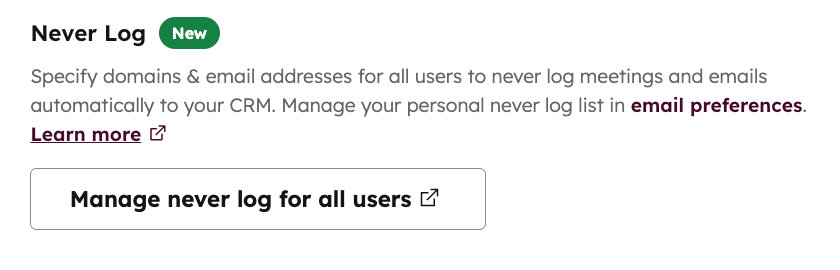
- Click the "Manage never log for all users" button
- Clicking the button will navigate you to Settings > Objects > Activities, where you will find the never log list for all users
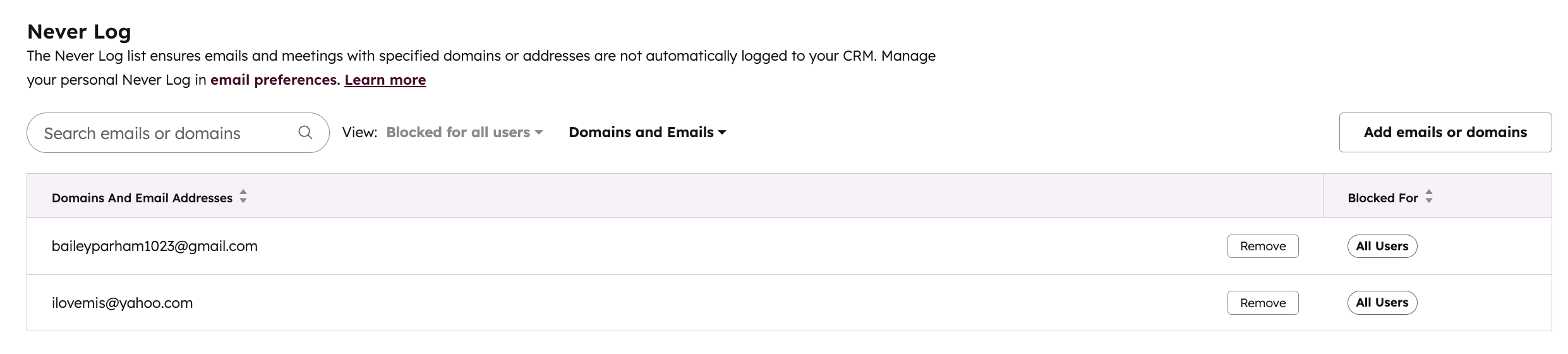
- Click the "Add emails or domains" button to specify which email addresses or domains you want to appear on your account's never log list.
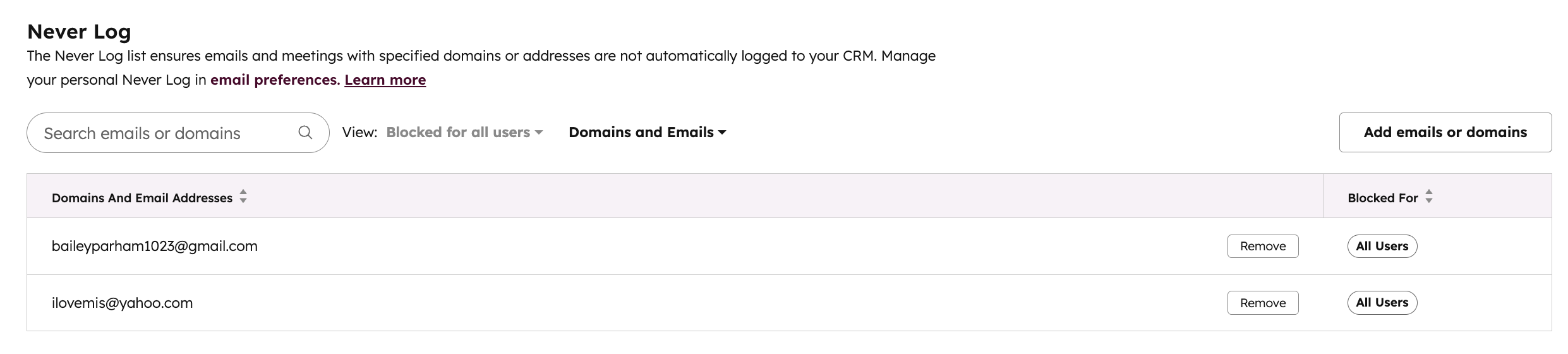
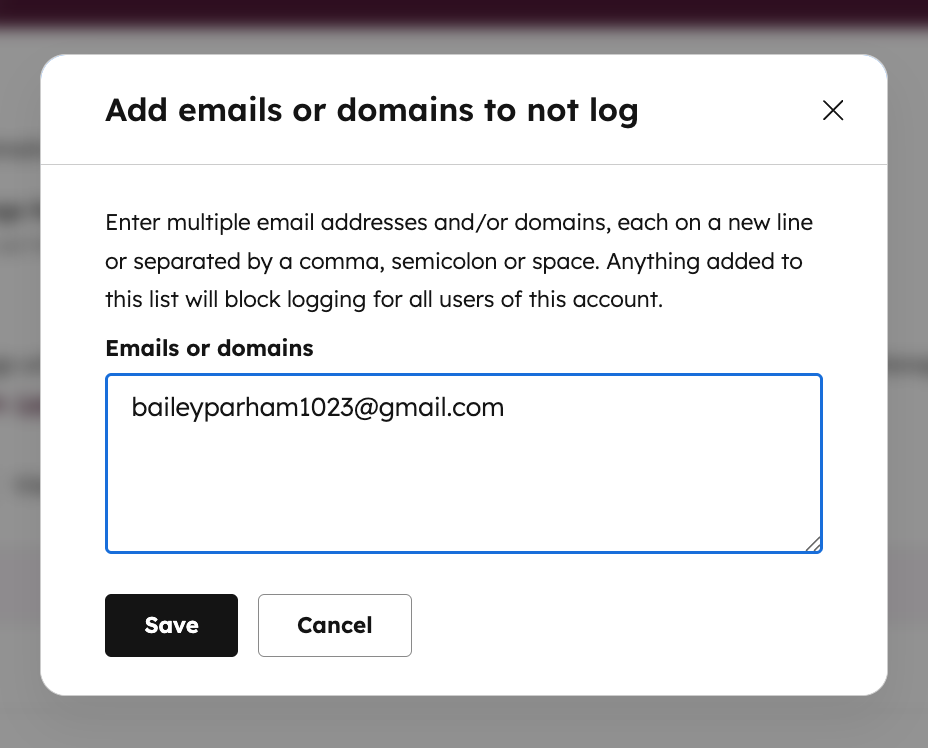
When an email address or domain is added to the never log list for your entire account, emails sent to or from those contacts and meetings with those contacts on your connected calendar will not sync to or appear in HubSpot. For example, if Bailey (baileyparham1023@gmail.com) is on my account's never log list, meetings that any user books with Bailey from their connected calendar will not appear in HubSpot.
To manage the never log list for your individual user:
- Navigate to Settings > General > Calendar OR Settings > General > Email
- If navigating to Settings > General > Calendar, find the Never Log section on the Calendar tab
- Click the "Manage never log" button
- Clicking the button will navigate you to Settings > General > Email, where you will find the never log list for your individual user. This list shows all email addresses and domains that either apply to your entire account or only apply to your individual user, noted by the "All users" or "Only you" tag.
- Click the "Add emails or domains" button to specify which email addresses or domains you want to appear on your individual never log list.
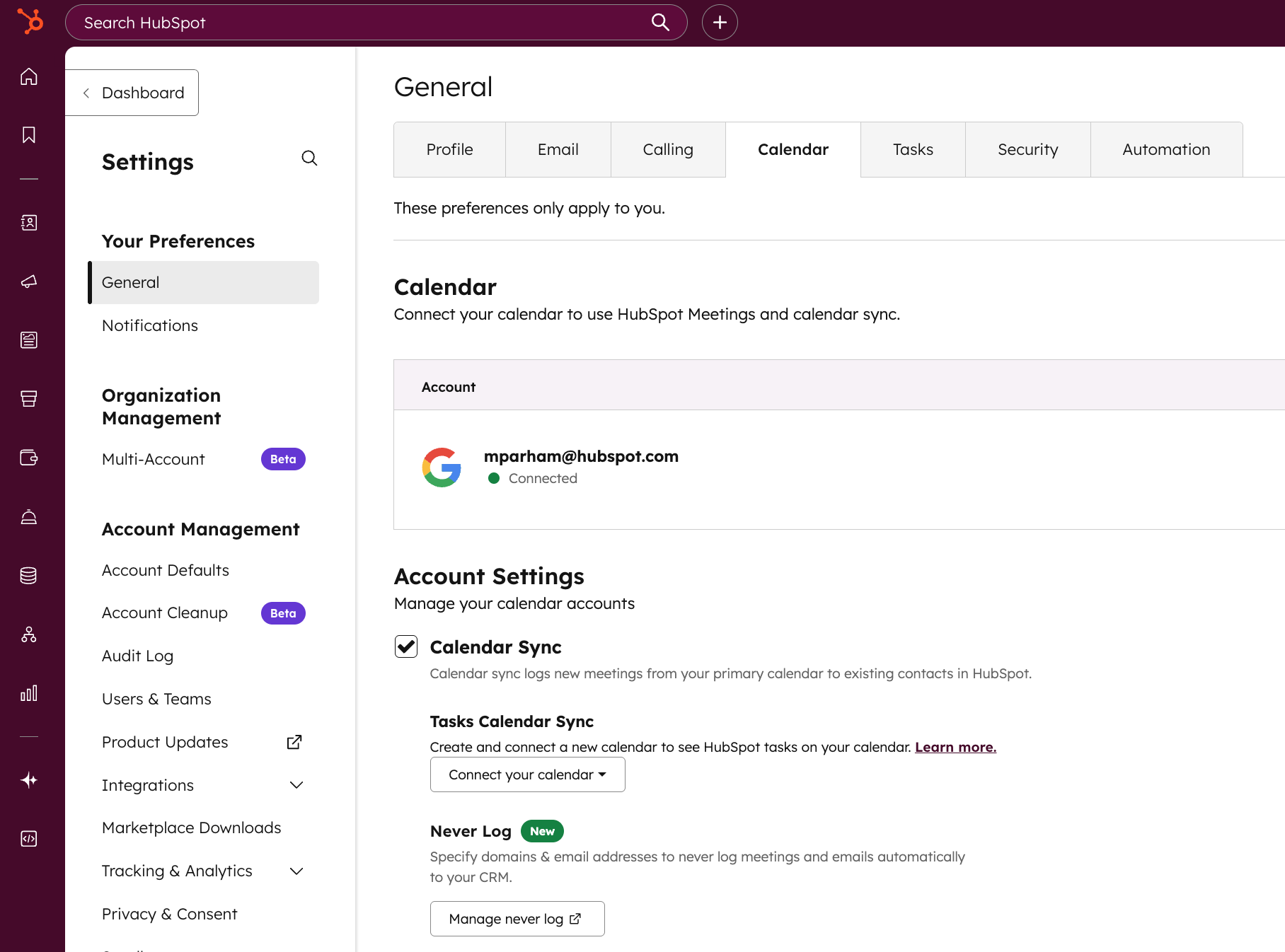
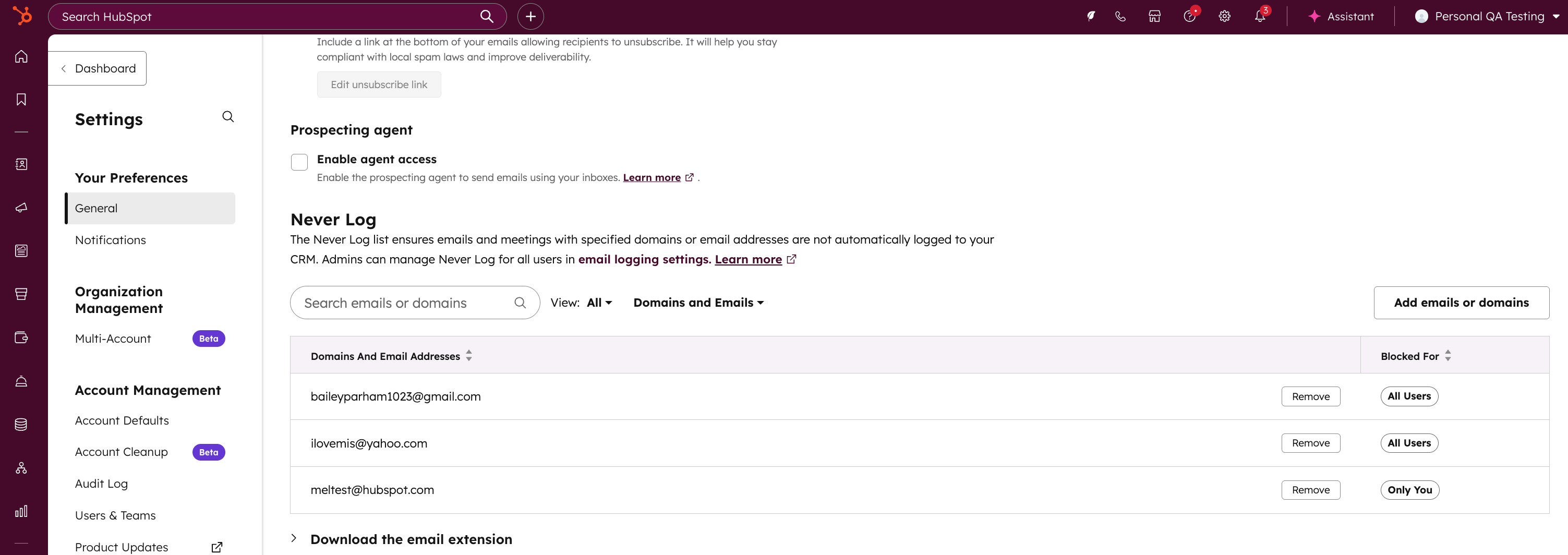
When an email address or domain is added to the never log list for only you individually, emails sent to or from those contacts and meetings with those contacts on your connected calendar will not sync to or appear in HubSpot. However, emails and meetings created for other HubSpot users in your account could still allow the activity to appear in HubSpot. For example, if Mel (meltest@hubspot.com) is on my individual never log list, meetings that Mel books with me on my connected calendar will not appear in HubSpot. However, if Mel books a meeting with a different HubSpot user, that meeting could still sync to HubSpot if that contact is not on the other user's never log list.
Additional information:
- If there are recipients on an email or contacts on a meeting who are not on the never log list, HubSpot will still log emails and meetings to those contact records.
- The never log lists only applies to meetings created through calendar sync from your connected calendar. Meetings created directly in HubSpot on the CRM record or created via HubSpot scheduling pages will still appear in HubSpot even if the contact is on the never log list.
- If there are multiple HubSpot users on a meeting, the owner of that meeting in HubSpot will control the never log logic for that meeting. This is important to know for a scenario where a contact schedules a meeting with two HubSpot users but one HubSpot user has that contact on an individual never log list.
Updated Company Object Sync Between HubSpot and Salesforce
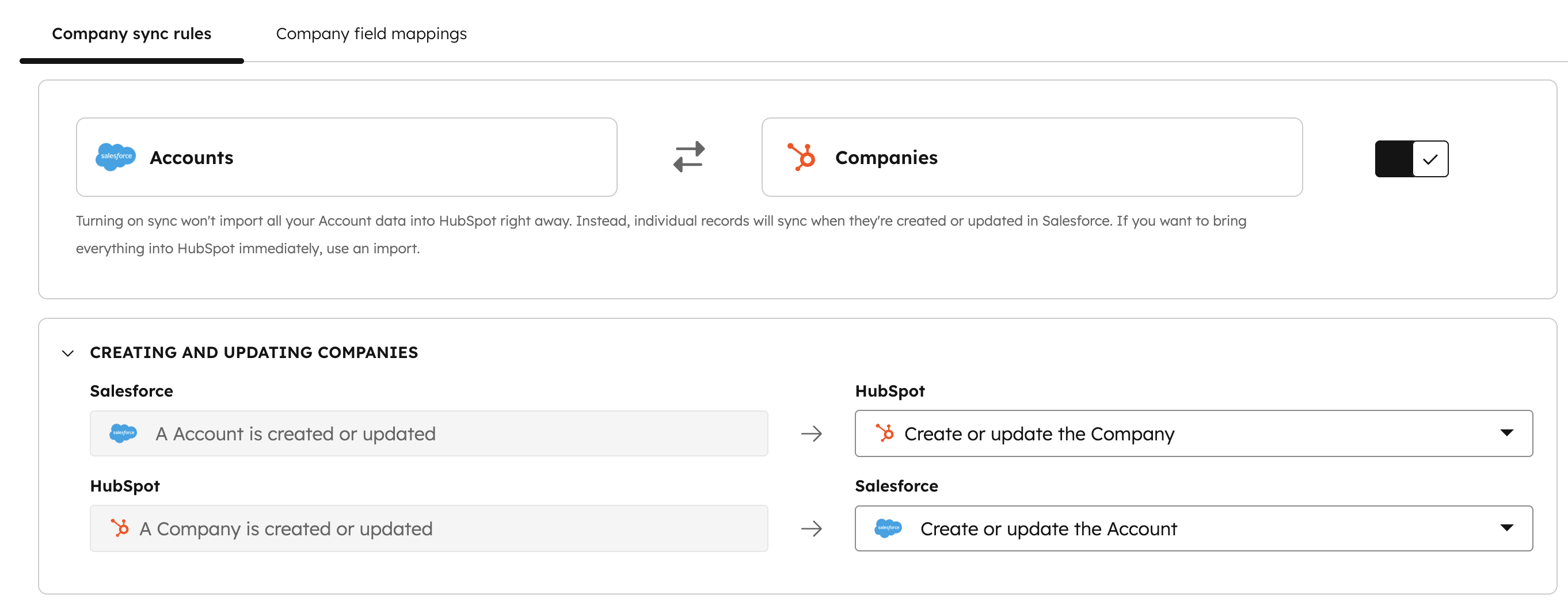
Sync company objects between HubSpot and Salesforce with greater accuracy. This new update includes de-duplication features and new support for merging Company objects.
Maintain accurate and reliable CRM records between HubSpot and Salesforce. This update strengthens data integrity and streamlines operations for businesses managing customer relationships across both platforms.
How does it work?
When the Salesforce app for HubSpot is already installed, go to the settings icon in the top navigation bar and click on Integrations > Connected Apps > select Salesforce.
All customers will now see a new feature card under the Feature Discovery tab for Upgraded Company Sync. Click the Upgrade button, and your account will be enabled with this new feature.
Email Property
You can now create a dedicated Email property type with built-in email validation—including checks for a valid email format (such as required @ and domain structure)—and additional validation options like restricting values to specific domains. These validation options are also available on HubSpot’s default email properties, giving you more control over how email data is captured and stored.
Why does it matter?
Accurate email data is key to running effective sales, marketing, and service processes. Built-in validation helps prevent invalid or malformed email addresses, while domain restrictions let you enforce business rules—keeping your CRM data clean and reliable no matter how records are created.
How does it work?
You can define validation options when creating a new email property, or update an existing one directly in Property settings.
To set validation on an existing email property:
- In your HubSpot account, click the settings icon in the top navigation bar.
- In the left sidebar, go to Properties.
- Select the email property you want to update.
- Click the Rules tab.
- Enter the domains you want to allow or block.
- Click Save.
To create a new email property with validation:
- In Properties, click Create property.
- Under Field type, choose Email.
- Click the Rules tab.
- Enter the domains you want to allow or block.
- Click Create.
How to Clean Email Lists For Better Deliverability
Don’t miss our recording of our webinar with ZeroBounce, AI is Loud.Email is Louder. 7 Tactics That Drive Results in 2026. In the session, we break down how to clean your data, protect your sender reputation, and set your email programs up for long-term success, especially as tools like HubSpot continue to evolve.