 Orange Marketing
%20(15).png)
HubSpot is keeping the momentum going this week with updates that make it easier to create, capture, and act on customer insights, without jumping between tools. From recording videos directly inside HubSpot to smarter post-meeting follow-up powered by AI, these releases are all about helping teams move faster while staying organized.
Here are the highlights from HubSpot for the week of February 16, 2026:
- Video Capture: Record Videos Directly in HubSpot,
- SurveyMonkey App: Sync Data to HubSpot Surveys,
- Meeting Notetaker with Smart Deal, and
- Enhanced Multi-Step Form Logic (Hide & Show Steps).
Video Capture: Record Videos Directly in HubSpot
You can now record videos without leaving HubSpot—no third-party apps, uploads, or device switching required.
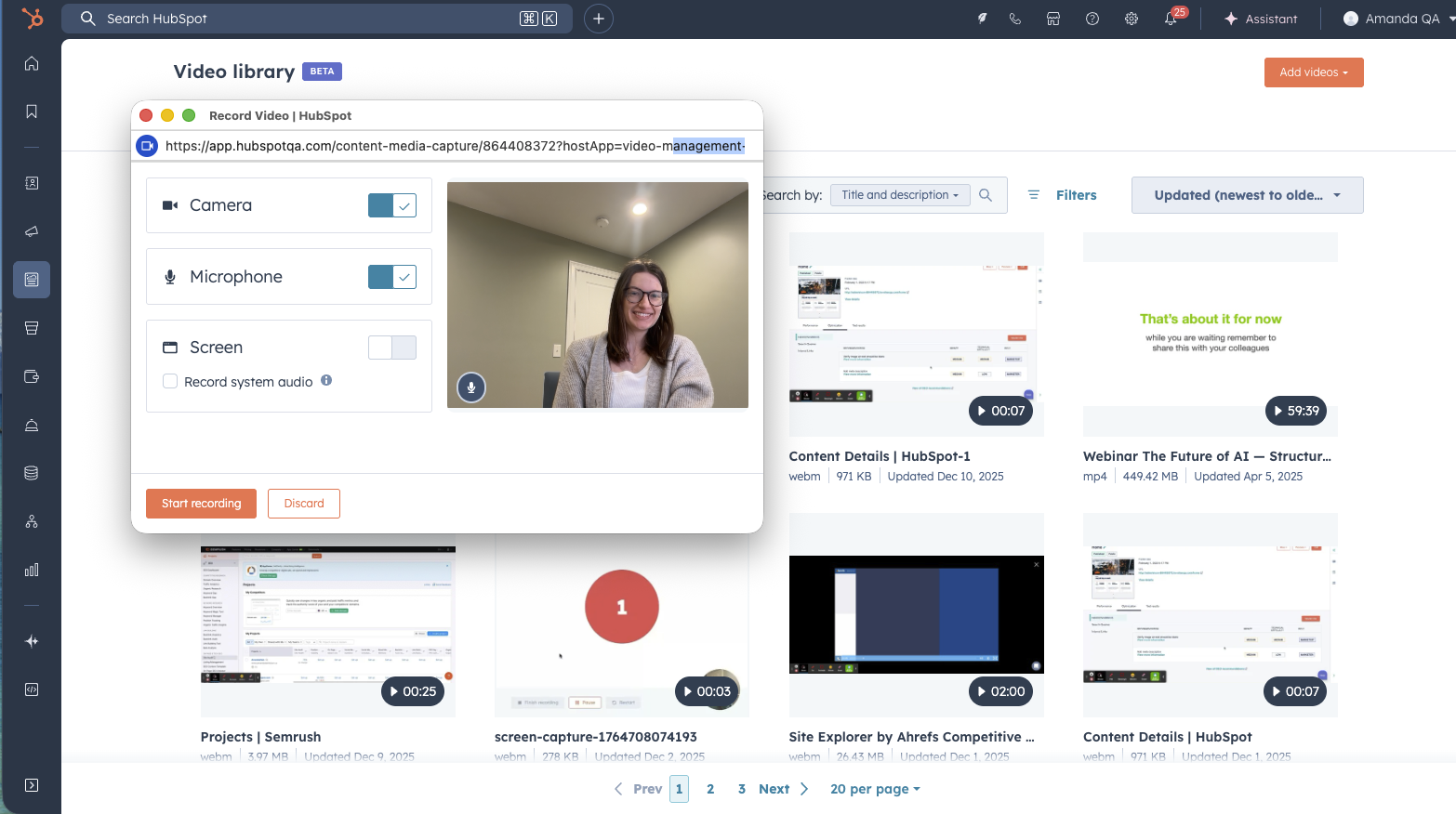
Sales and marketing teams waste time toggling between tools just to create simple videos. This built-in functionality eliminates that friction, saves time, and keeps sensitive work content off personal devices.
Common use cases:
- Personalized bottom-of-funnel sales videos
- Product demos and walkthroughs
- Social media content
- Customer onboarding tutorials
How does it work?
- In the global navigation, go to Content -> Video. Click the "Add videos" button in the upper right, then click "Record video".
- You can also access the video recording tools from the video picker when you go to insert video into apps like website pages or social.
- Choose to record via webcam, screen (current tab, window, or desktop), or combine your screen with a webcam overlay.
- Select audio and camera input, with options to mute/unmute audio or record audio-only.
- Use the on-screen controls to start, pause, stop, save, or delete the recording
- After recording, you can choose to save the video to your video library so you can use it in other HubSpot content.
SurveyMonkey App: Sync Data to HubSpot Surveys
The SurveyMonkey app now allows you to automatically sync data as native feedback survey and survey response objects in HubSpot. This update allows you to use survey data from SurveyMonkey in tools such as Breeze, workflows, reporting, and segmentation.
With this update, your SurveyMonkey survey responses become more integrated HubSpot assets, breaking down barriers between your survey tools and customer insights.
Previously, survey data was trapped in activity timelines, limiting what your team can do with it within HubSpot.
Now, you can:
- Analyze survey data synced from SurveyMonkey with Breeze
- Use SurveyMonkey survey responses as triggers in HubSpot workflows
- Build HubSpot reports using SurveyMonkey survey data
How does it work?
Install the SurveyMonkey app. If already installed, navigate to Settings > Integrations > Connected Apps and find the SurveyMonkey integration settings. You will find the new option to sync survey data directly to HubSpot's native feedback survey objects in the Global Settings tab.
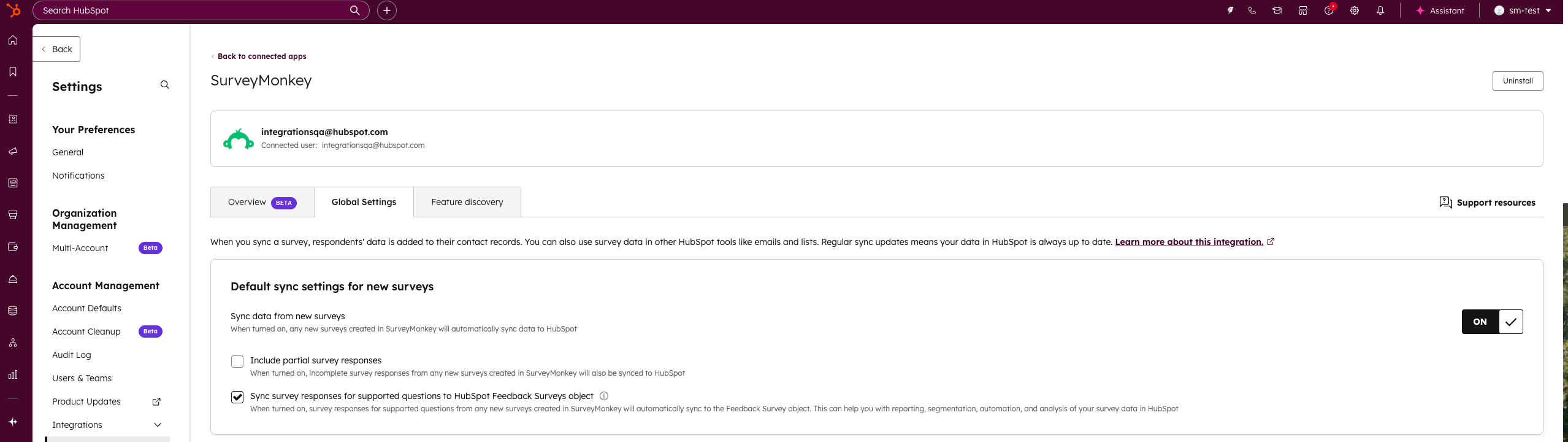
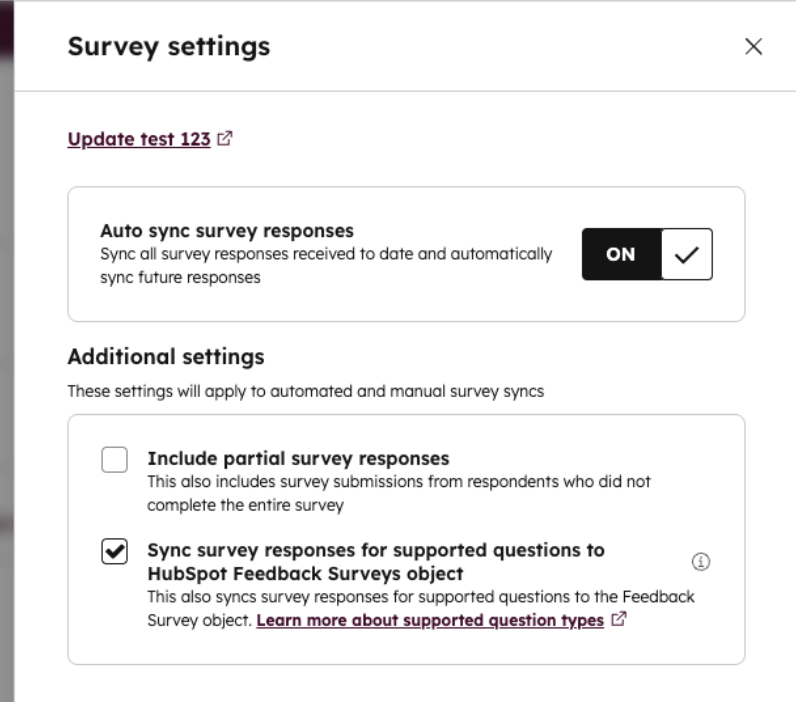
Set up how to sync survey data to HubSpot by choosing to sync all newly created surveys by default, or control this at the survey level for new or existing surveys.
Once synced, survey responses from SurveyMonkey will appear in HubSpot's Feedback Surveys with the SourceType property value set to integration. These surveys cannot be shared or edited in HubSpot, but survey responses will be available on the survey record.
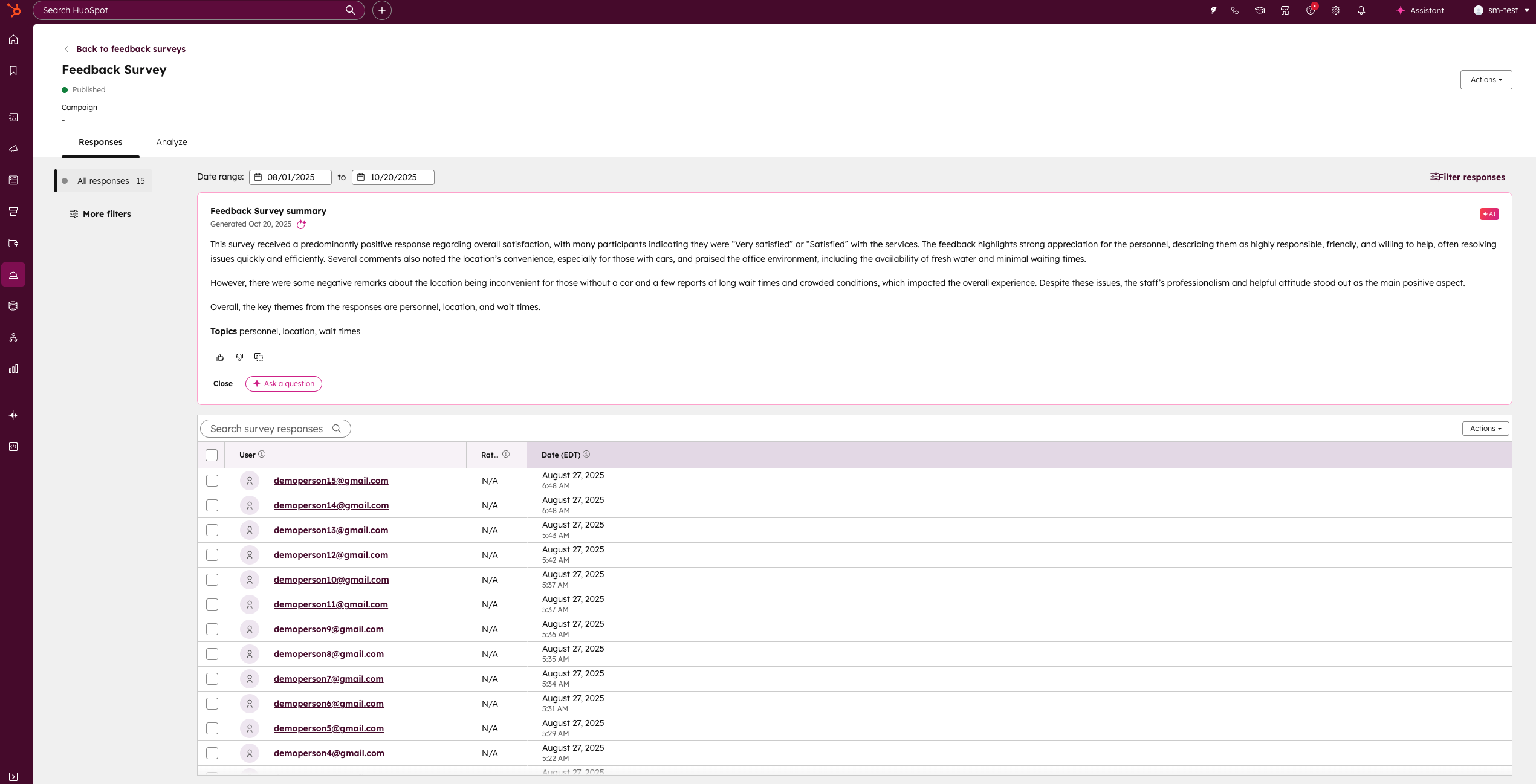
Data synced from SurveyMonkey will be available for use in HubSpot in Breeze, workflows, reporting, and segmentation.
Learn more about this feature here.
Meeting Notetaker with Smart Deal
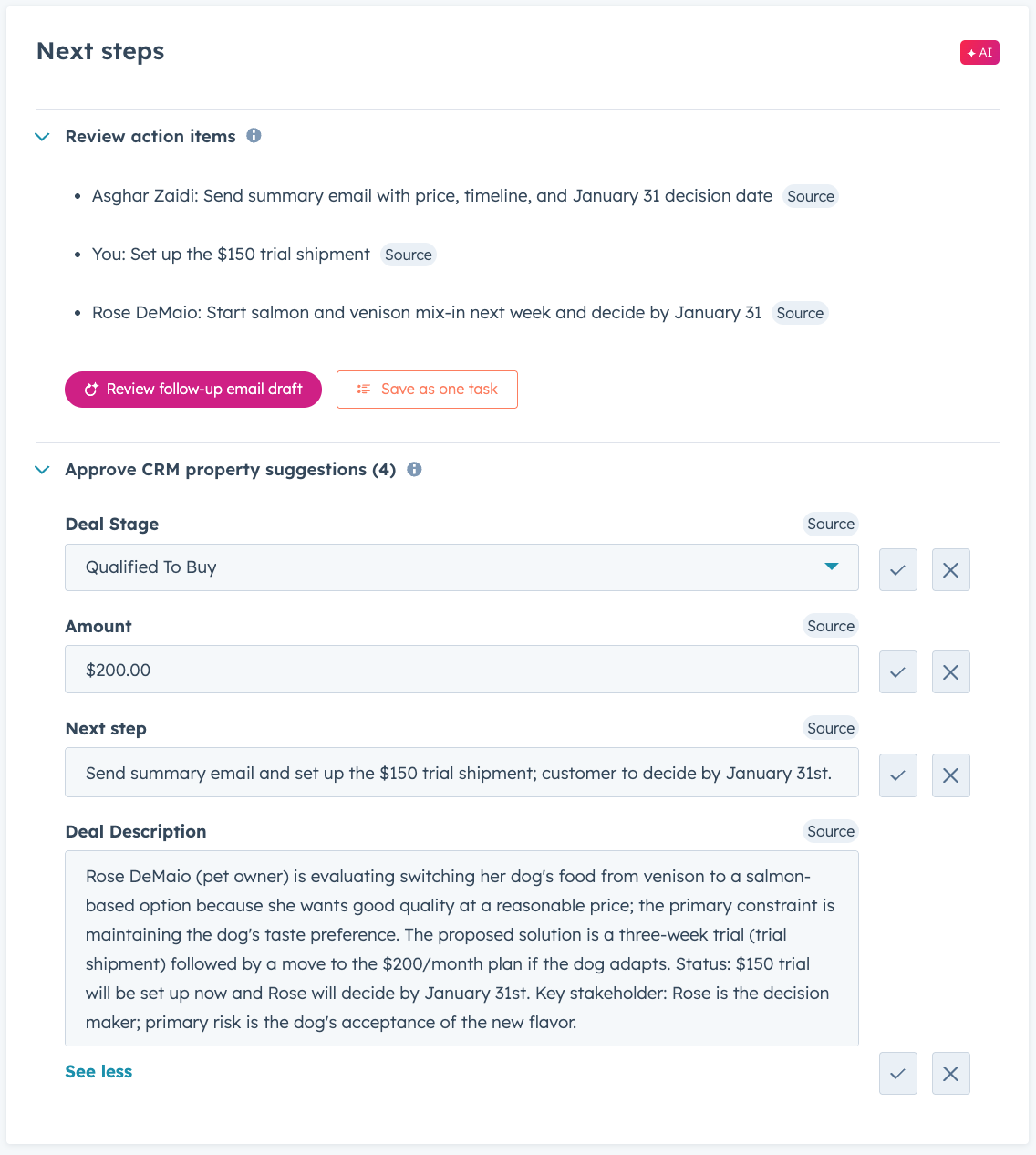
Enable Sales and Customer Success teams to close more deals, faster, by ensuring every conversation leads to clear next steps and timely follow-up.
Smart Deal Progression uses your meeting transcripts and deal history to handle the manual work that follows a customer call. After every meeting, HubSpot analyzes the conversation to suggest CRM updates, draft follow-up emails, and surface high-value next steps such as sending a proposal or booking a follow-up. Reps can quickly review and confirm these suggestions, ensuring every interaction moves the deal forward.
Why does it matter?
Reps spend hours every day on manual tasks like writing follow-up emails, creating tasks, and updating CRM records. Smart Deal Progression automates this busywork so reps can stay focused on their customers.
By using the actual context from your conversations, HubSpot provides accurate suggestions that ensure no detail is forgotten. This helps your team follow up faster, keeps your pipeline data clean, and prevents deals from stalling. When every conversation leads to a clear next step, you can close more deals with less manual effort.
How does it work?
- Set your HubSpot Meeting Notetaker to automatically join and record conversations or utilize a video conference integration to ensure your conversation is captured in HubSpot.
- As soon as the meeting ends, reps receive a detailed post-meeting summary right in their inbox as well as an in-app notification letting them know that action items are ready.
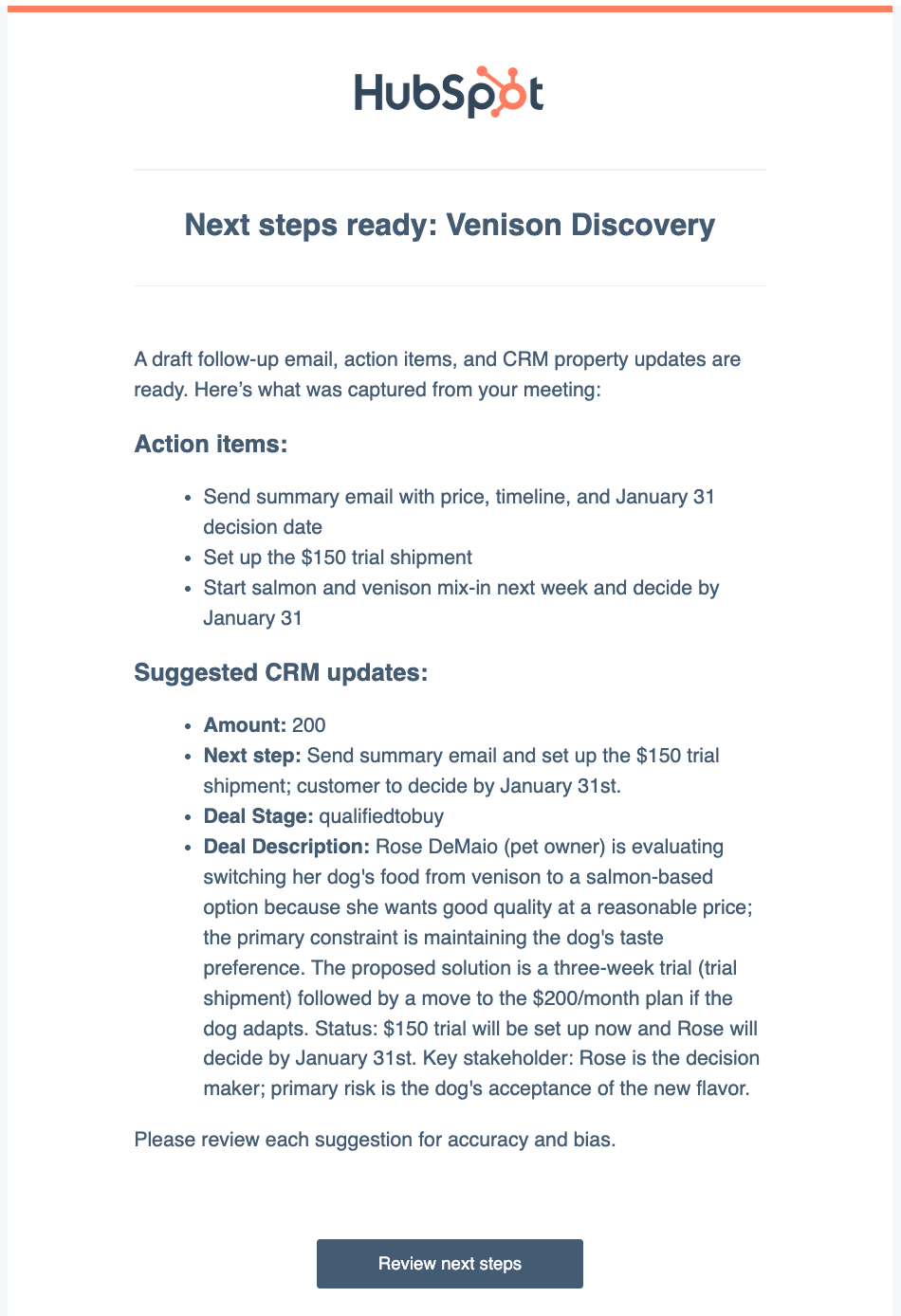
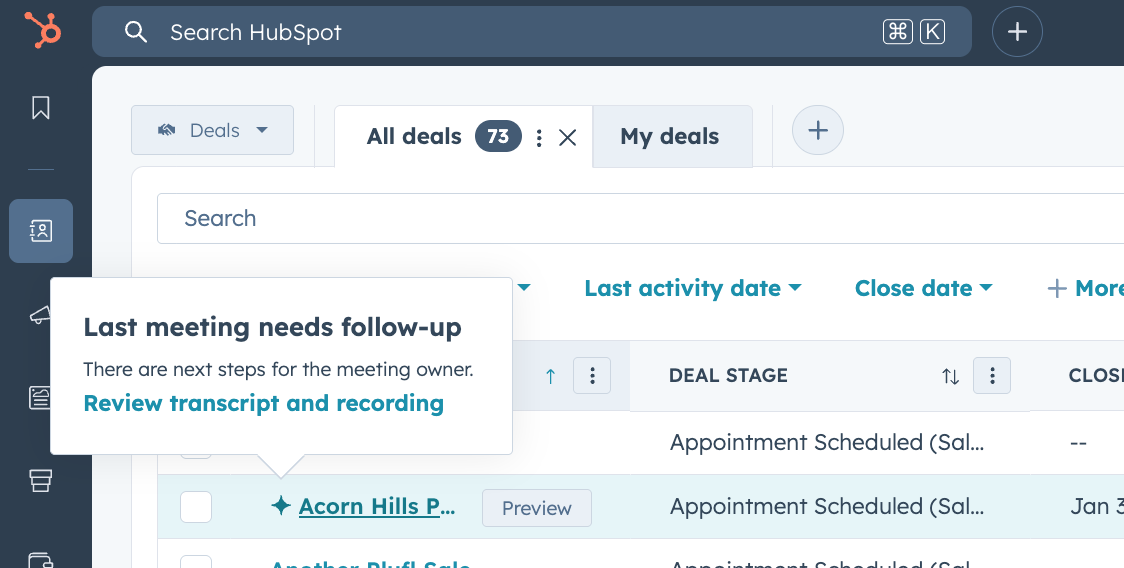
Users can review and action on next steps and property updates from the meeting by clicking “review next steps” in their email or in-app notifications
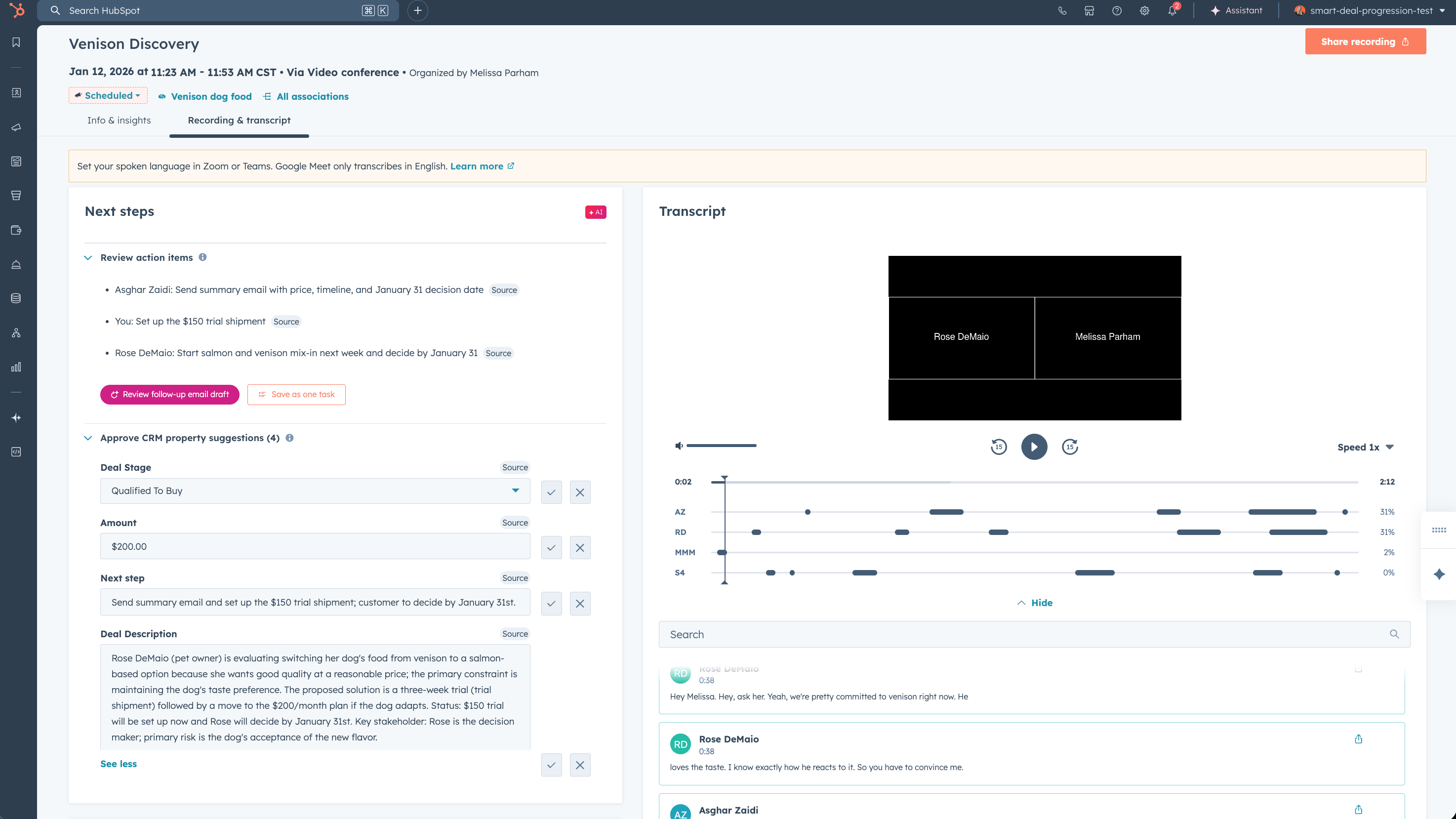
- From the post-meeting summary, reps can:
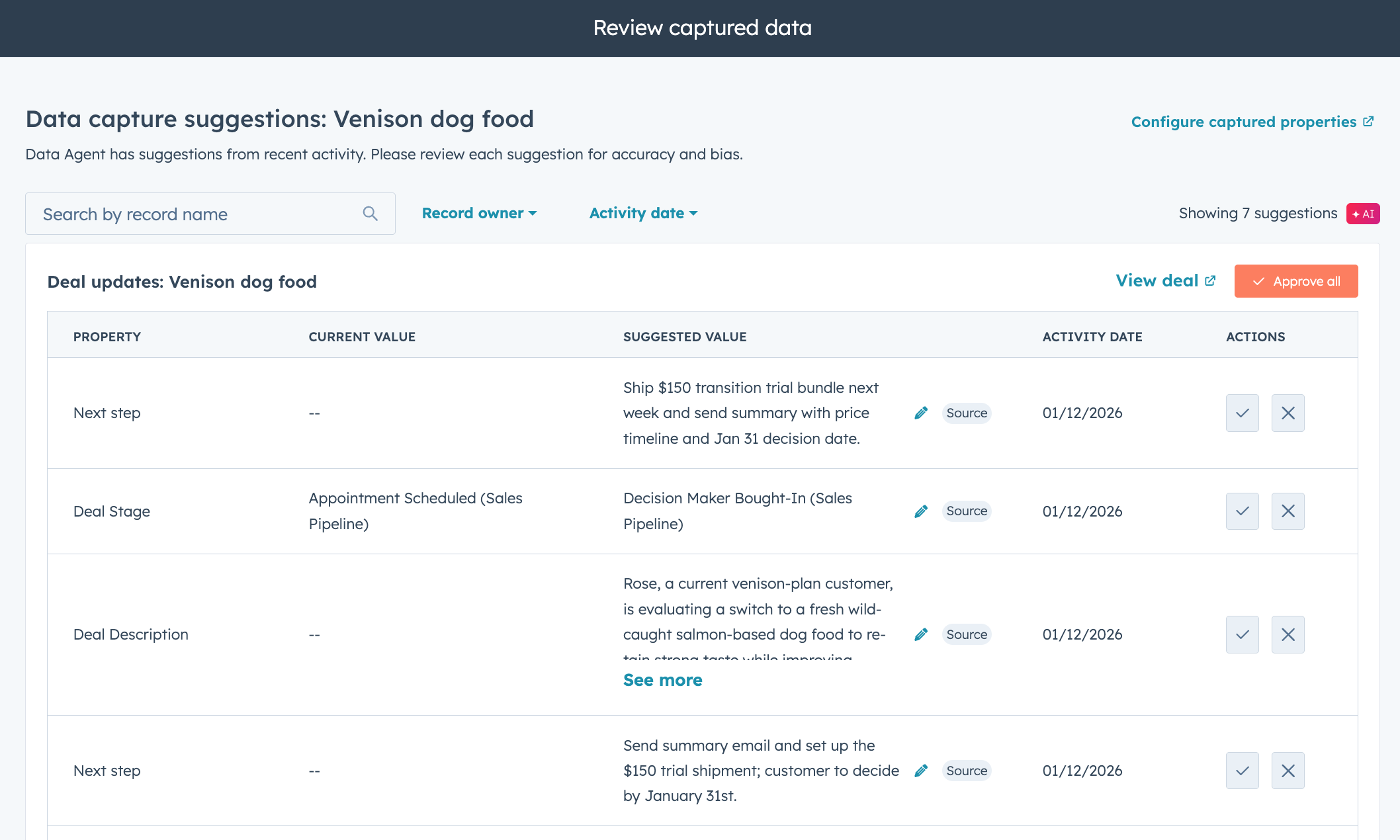
- Approve suggested CRM updates quickly, keeping your CRM organized and up-to-date
- Review AI-generated next steps and quickly convert them into tasks so no follow-up actions get missed
- Quickly approve and send an AI-generated follow-up email containing a meeting summary and next steps based on your conversation
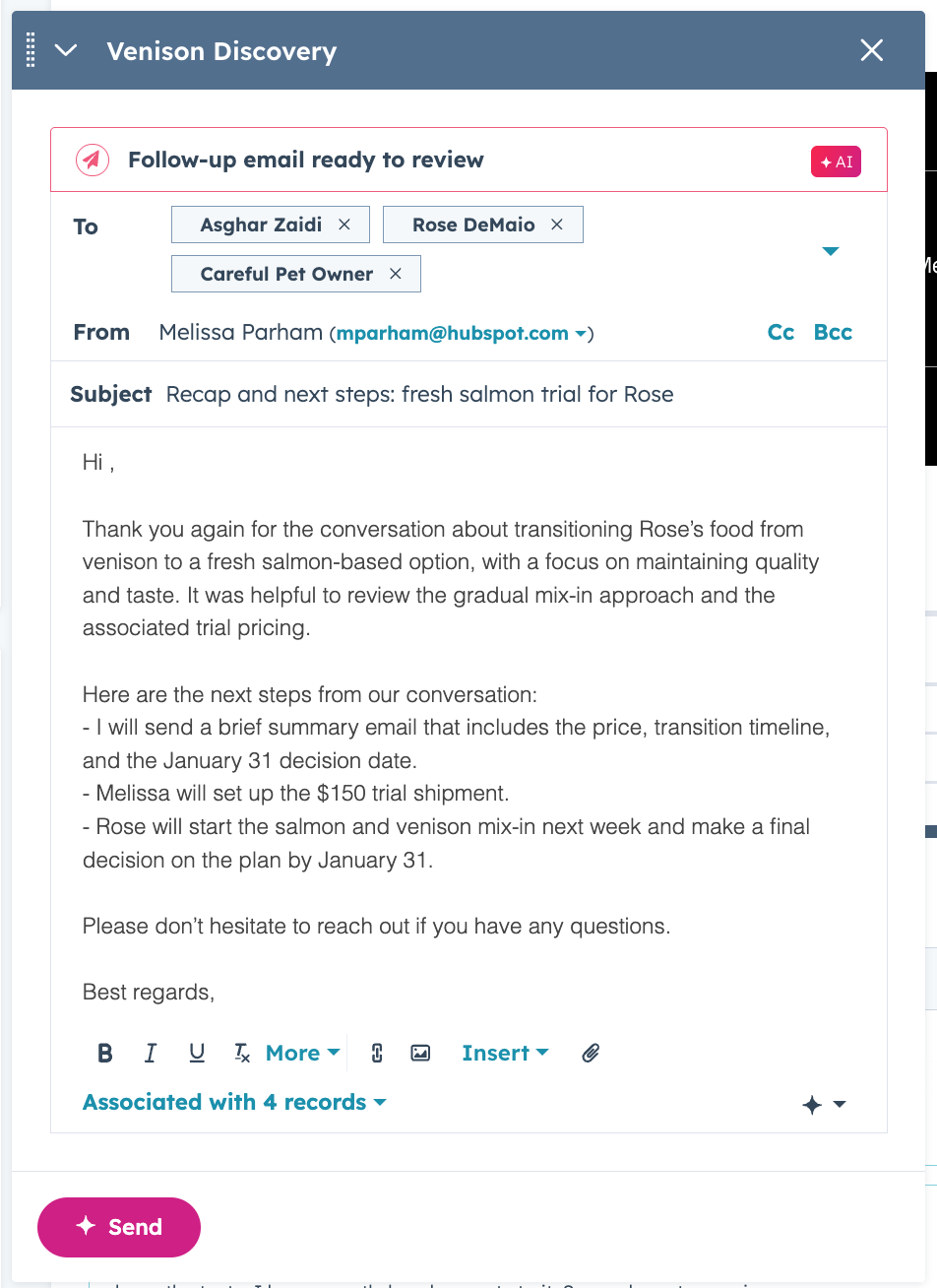
- If snoozed or if follow-up needs to happen later, reps can revisit suggestions via an end-of-day email, in the CRM record page, or in the index page. Click into previous meetings at any time from the sales workspace, customer success space, object record, or meetings index page (beta) to review meetings and refresh on any details.
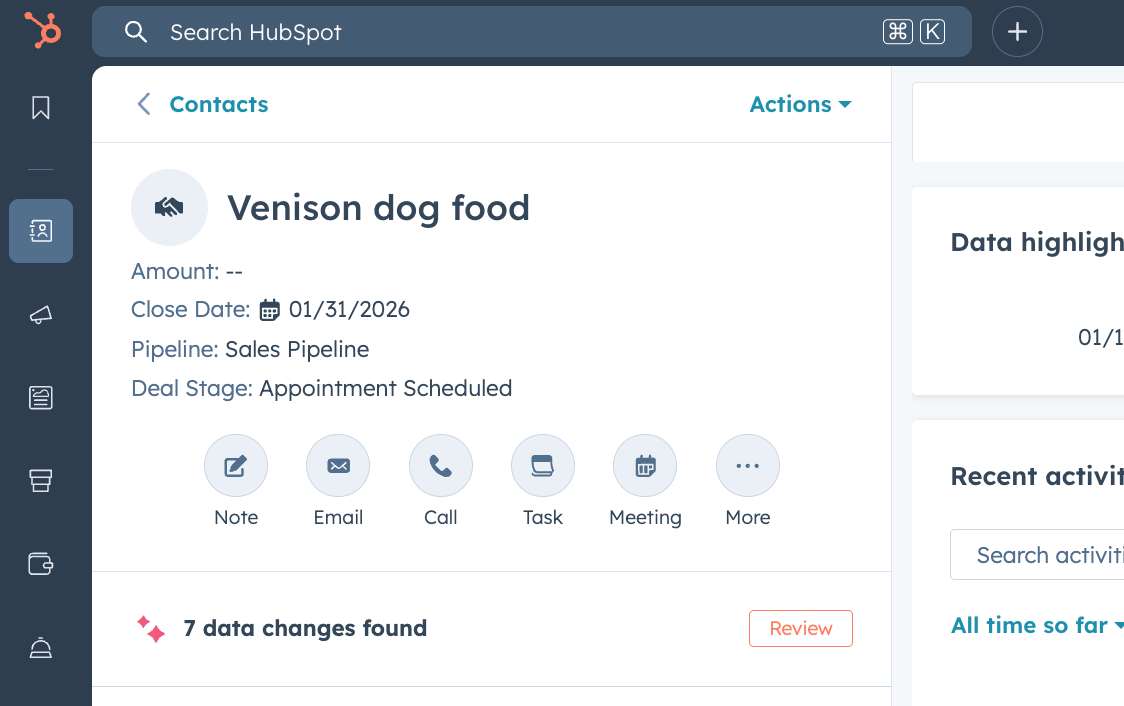
- Bulk CRM property updates are also supported by clicking on data suggestions on a record.
Admin Configuration
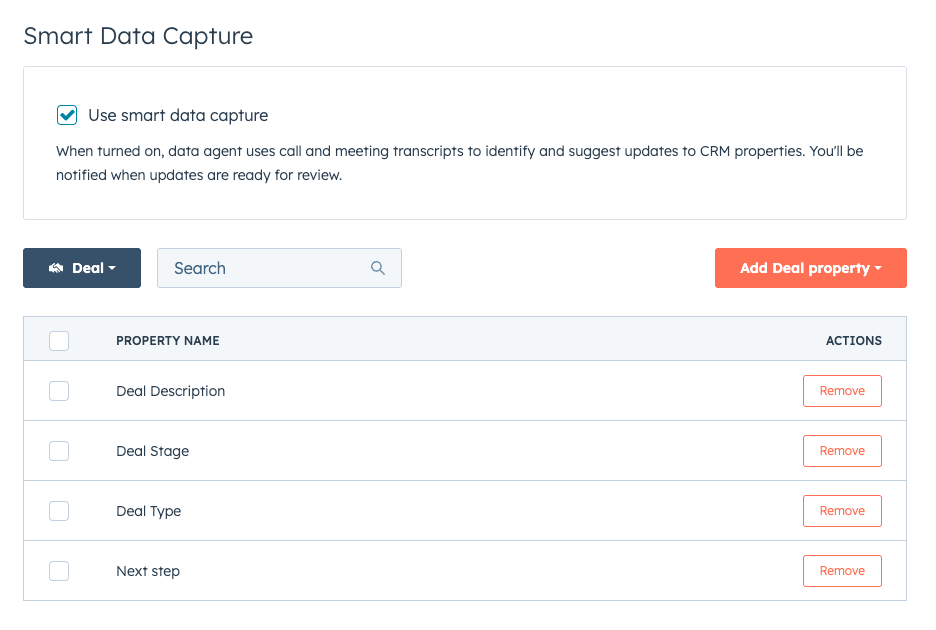
Admins can configure which deal properties are included in suggestions and set guardrails to ensure quality and trust. These settings can be found in Data Management < Data Capture.
To turn on Meeting Notetaker for your account:
- Navigate to Settings > Tools > Meetings > Meeting Notetaker
- Toggle the Meeting Notetaker feature to on
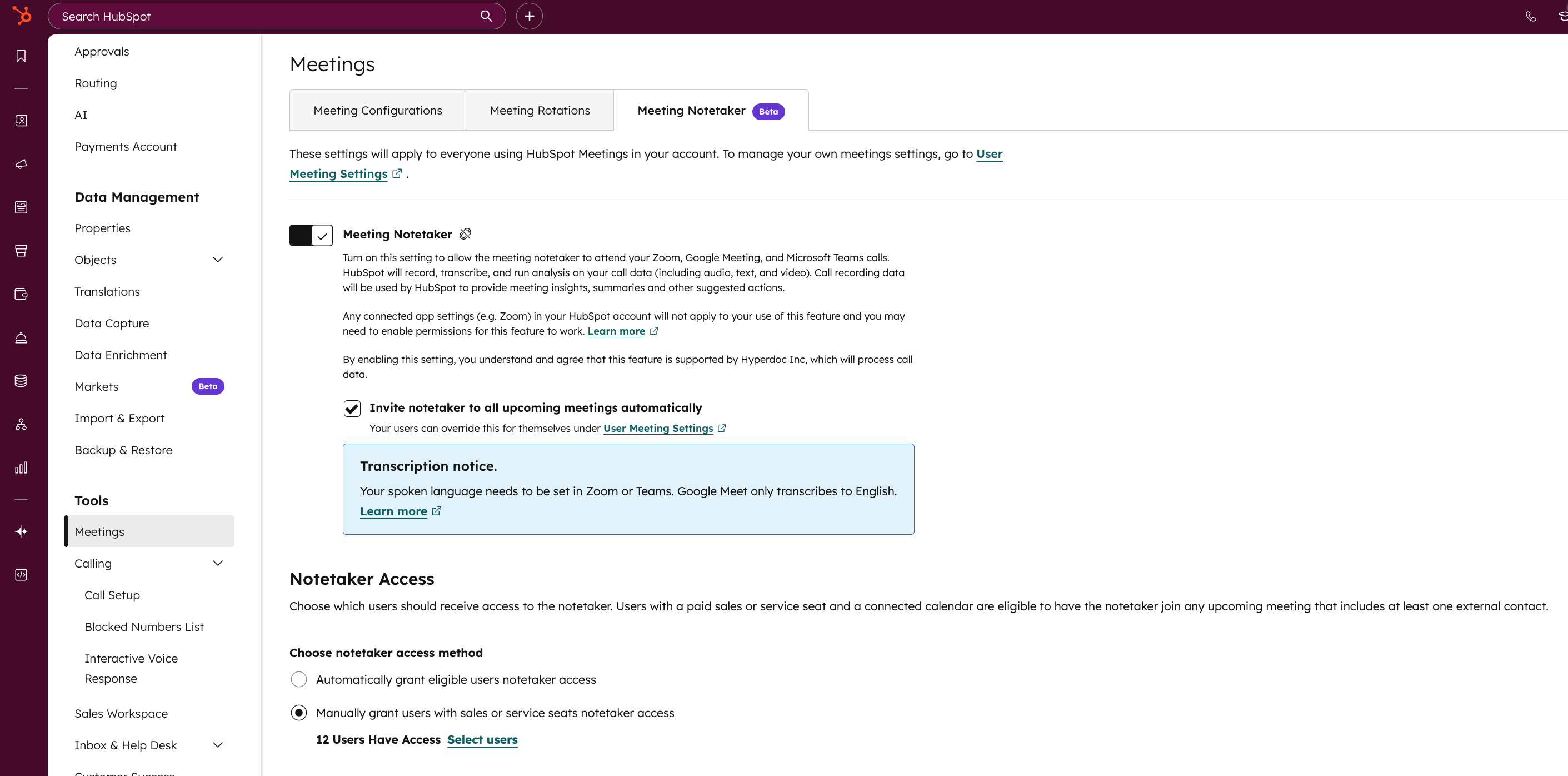
By default, the notetaker is set to join all meetings automatically, though you can change this default for your users on your account by checking/unchecking the setting Invite notetaker to all upcoming meetings automatically. Learn more about the Meeting Notetaker here (now available for Service and Sales Pro+ seats).
Learn more on the KB (PW: Meetings_283939)
Enhanced Multi-Step Form Logic (Hide & Show Steps)
We’re introducing powerful, new upgrades to conditional logic in multi-step Forms, giving you more control over what visitors see as they move through your form.
You’ll now find two new step-level logic actions available in the Forms Editor:
- Hide steps: Hide one or more steps when conditions are met.
- Show steps: Reveal steps dynamically based on a visitor’s responses.
We’ve also improved the field-level actions you already use today:
- Show fields now includes rich text and content blocks, allowing you to reveal content dynamically.
- Skip to step is now deprecated, as Hide Steps provides a simpler and more flexible way to design multi-step paths.
In addition, forms now support a smoother completion experience when logic hides the final step: if Hide Steps removes all remaining visible steps, the form will automatically surface the Submit button, allowing the visitor to submit without navigating further.
These improvements make it easier to build clean, personalized, and frictionless multi-step experiences for every visitor.
Why does it matter?
Forms work best when they feel straightforward and relevant.
Previously, it was difficult to tailor multi-step forms to each visitor’s situation - “Skip to step” required multiple rules and couldn’t hide the final step.
With the new Hide Steps and Show Steps actions, your forms can now adjust automatically based on how someone responds. This means visitors only see the steps and information that apply to them, while irrelevant sections are removed.
The result is a shorter, clearer experience that reduces friction, improves completion rates, and makes complex forms easier to manage.
How does it work?
Adding step-level logic to a form
- Navigate to Marketing → Forms.
- Create a new form or open an existing multi-step form.
- Add or edit a conditional logic rule.
- Under On-form actions, select Hide steps or Show steps.
- Choose which steps should appear or be removed when your conditions are met.
- Review and publish your form.
Completion behavior
When Hide Steps removes all remaining visible steps (including the final step), the form will automatically display the Submit button on the current step.
The visitor then clicks Submit to complete the form and proceed to your thank-you page. This reduces unnecessary navigation while keeping full control in the hands of the visitor.
This behavior is only supported with Hide Steps, since Skip to Step cannot hide the final step.
Deprecation note
Skip to step is still visible for existing configurations but is now deprecated for new forms. We recommend transitioning to Hide Steps, which offers a more flexible, predictable, and modern way to design multi-step form logic.
To find out more about these changes, please visit this knowledge base article.
Missed Our Webinar with ZeroBounce? Catch the Recording
If you couldn’t join us live for our recent webinar with ZeroBounce, don’t worry, we’ve got you covered. We shared practical strategies for improving deliverability, cleaning your data, and making sure your emails actually land in the inbox (not spam).
With all the new HubSpot updates around email validation, segmentation, and smarter automation, now’s the perfect time to put those best practices into action.
Watch the recording and get the insights on demand here: AI is Loud. Email is Louder. 7 Tactics That Drive Results Right Now,