Orange Marketing
%20(4).png)
While the holidays are upon us, HubSpot is still rolling out updates that pack real value, especially for teams focused on smarter outreach and more streamlined support. From new buyer intent signals to more segmentation power and better email control, this week’s releases are all about helping you stay focused, proactive, and efficient.
Here are the notable for the week of December 8, 2025:
- New Company News Signals For Buyer Intent,
- Modify Your Email Preview Text Display,
- Snooze Tickets In Help Desk, and
- Create Segments of Your Quotes, Subscriptions, Invoices, Payments, and Payment Links.
New Company News Signals For Buyer Intent
Ready for more reasons to engage your highest-value accounts?
Starting today, you now have access to 5 new Company News signals that surface when your tracked companies grow or expand:
- Executive Hiring: When a company hires a new C-level executive.
- Product Launches: When a company launches a new product or service.
- Strategic Partnerships: When a company announces a new strategic partnership or alliance
- Mergers & Acquisitions: When a company has acquired, been acquired by, or merged with another company
- Growth Metrics: When a company announces revenue growth or customer acquisition.
Each signal will appear as events directly on company record timelines and can be used in workflows, list filters, and scoring models, just like your existing Intent Signals.
Why does it matter?
These new signals help you identify key milestones for your top accounts—so your team can engage faster, personalize better, and focus where opportunity is growing.
- Spot opportunity as it happens: Know instantly when target accounts are launching products, hiring leaders, or reporting growth, so you can reach out at exactly the right time with tailored outreach.
- Prioritize and route smarter: Use new event types like growth announcements or executive hires in lead scoring and workflows to automatically surface high-potential accounts.
- Target accounts in motion: Build lists and campaigns around real company activity, such as partnerships, expansions, or mergers, and reach prospects as they look for vendors to accelerate growth..
- Give reps richer context: Every signal shows up on the company record activity timeline, giving your team instant insight into what changed and why it matters. No news-scraping required.
How does it work?
Go to Marketing > Buyer Intent and click the Signals tab. From there, you can select which company records you want to track for intent signals.
Within the Signals tab settings, you will see the 5 new Company News Signals that you can subscribe to (they’ll be defaulted to on at no extra cost!):
- Product Launches
- Executive Hiring
- Strategic Partnerships
- Mergers & Acquisitions
- Growth Metrics
Learn More:
See how Intent Signals work via our interactive usage guide.
Modify Your Email Preview Text Display
What is it?
Description
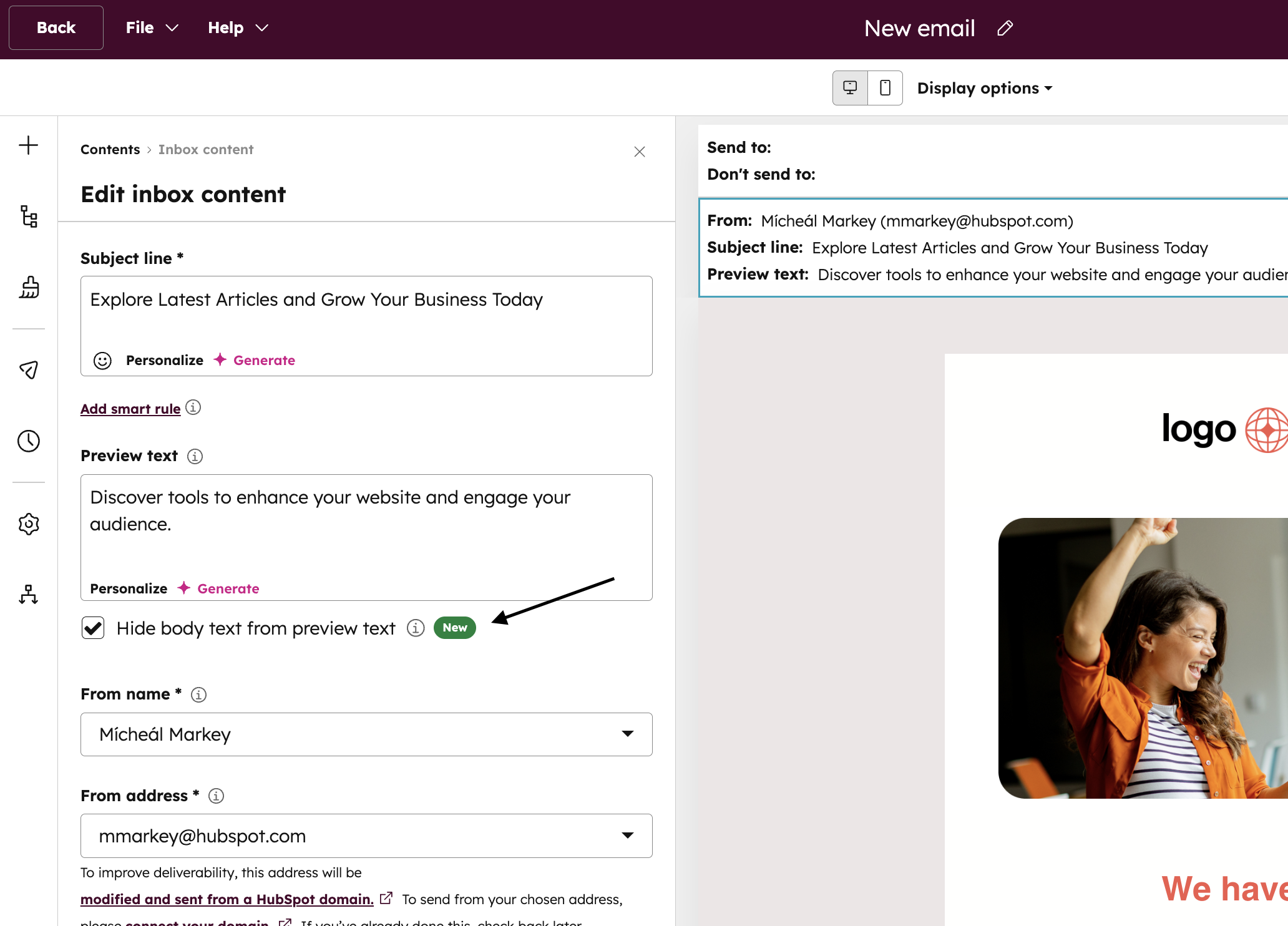
A new option to only show your recipients the defined preview text for your Marketing Emails without automatically filling extra space with email body content.
Why does it matter?
Email Marketers need control over what appears in the inbox preview to avoid clutter and ensure their intended message is clear and enticing, as auto-filling from the email body can confuse or deter recipients.
How does it work?
Today, if the preview text provided in the Email Editor is shorter than the maximum allowed by the recipient's email client like Gmail, Outlook or Yahoo, the email client will start to display content from the email body.

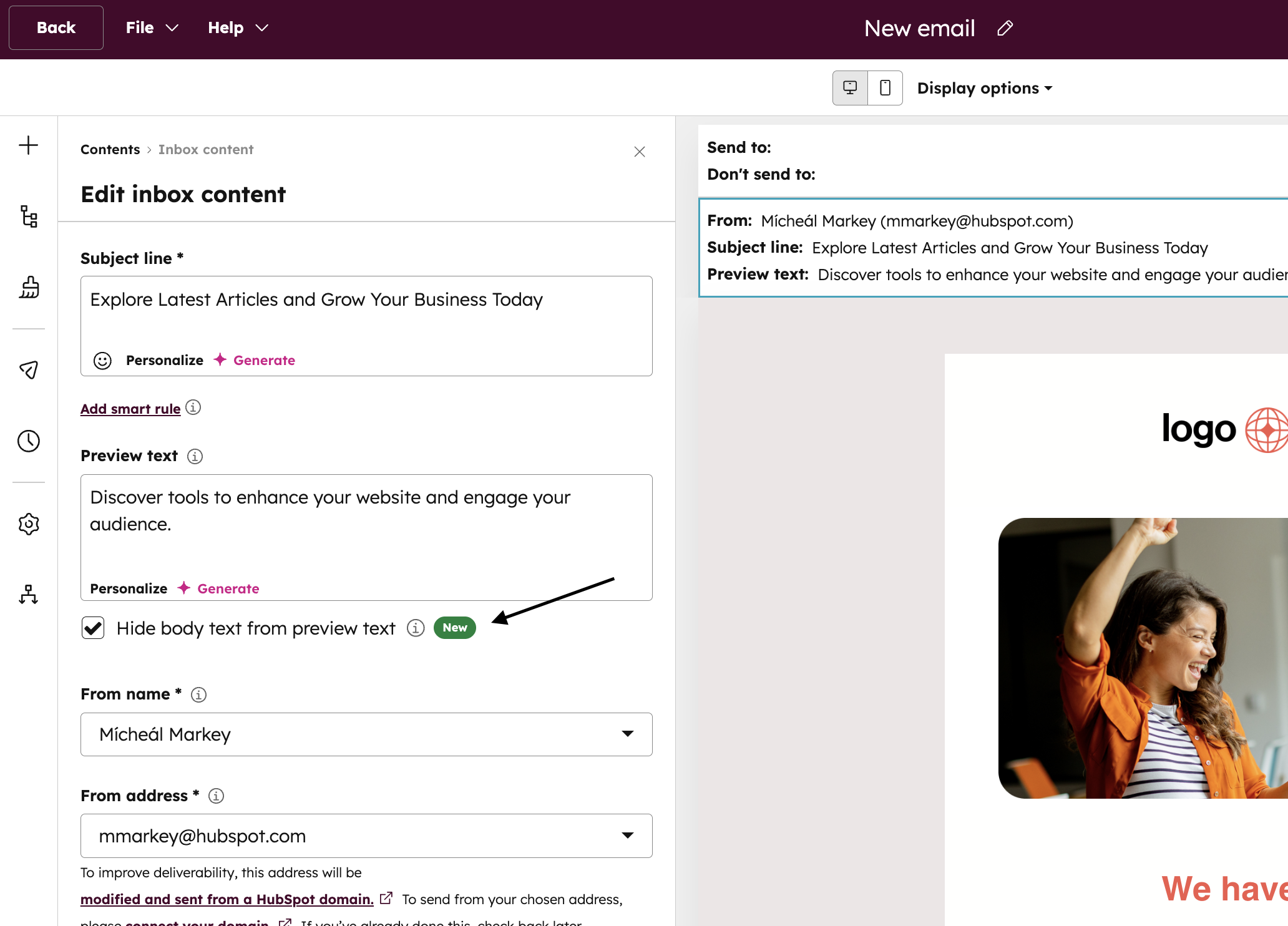
When the Hide body text from preview text option is selected, no additional text from the email body will be surfaced in the inbox, only the defined preview text is shown.

This new setting can be found inside the Marketing Email Editor under the Preview Text field.
Snooze Tickets In Help Desk
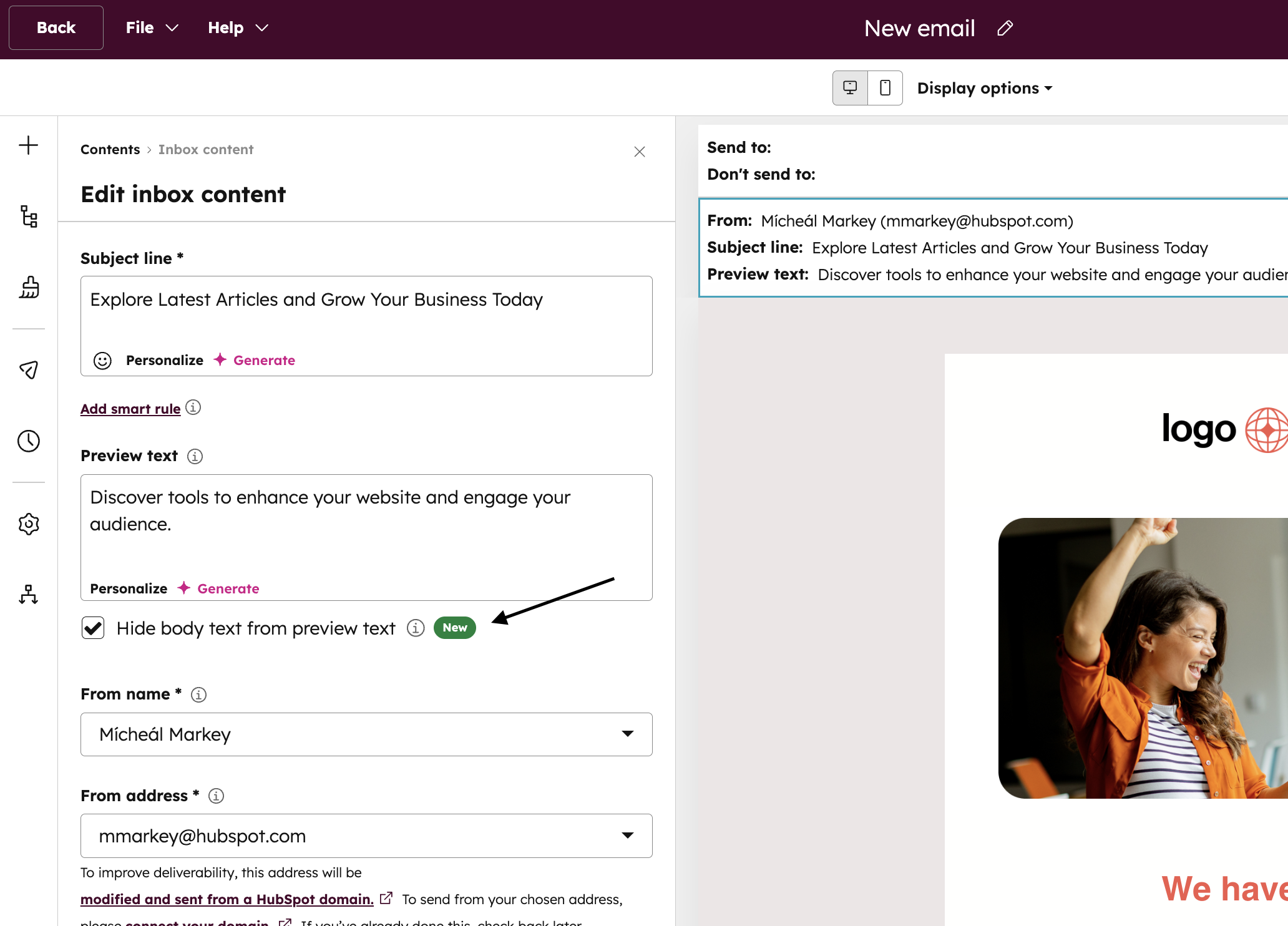
Support reps can now snooze tickets in help desk to temporarily hide them from views and come back to them later without losing focus. Whether dealing with a spike in ticket volume, wrapping up their day, or waiting on follow-up from another team, snooze gives teams the flexibility to stay focused and organized.
Why does it matter?
Prioritization is a core part of a support agent’s role, with reps often juggling multiple tickets of varying urgency levels throughout their day. With snooze, users can temporarily clear lower-priority tickets from their help desk views with a single click, helping to keep their workspace clear and making it easier to identify what needs attention right now.
How does it work?
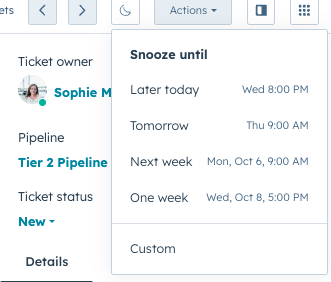
To snooze a ticket:
- Click the “Snooze” button in the top right hand corner on any open ticket. This will remove it from your views.
- Choose a duration (later today, tomorrow, next week, one week, or set a custom time)
- The ticket moves to your Snoozed view until it’s unsnoozed. The Snoozed view only shows tickets snoozed by you, not by other users.
In addition to the Snoozed view, snoozed tickets will also still appear in help desk search results. You will not receive notifications for tickets while they are snoozed.
A ticket will automatically unsnooze when:
- A customer replies
- The snooze time expires
- You manually unsnooze it
- A note is added
- The ticket is closed
With the release of public beta, it's possible to view other users' snoozed tickets by adding the new property "Snoozed by User" to views or filters. "Snoozed by User" will show which user(s) snoozed a particular ticket for the duration of the snooze time frame. If multiple users have snoozed the same ticket, each of their names will show in this property.
Create Segments of Your Quotes, Subscriptions, Invoices, Payments, and Payment Links
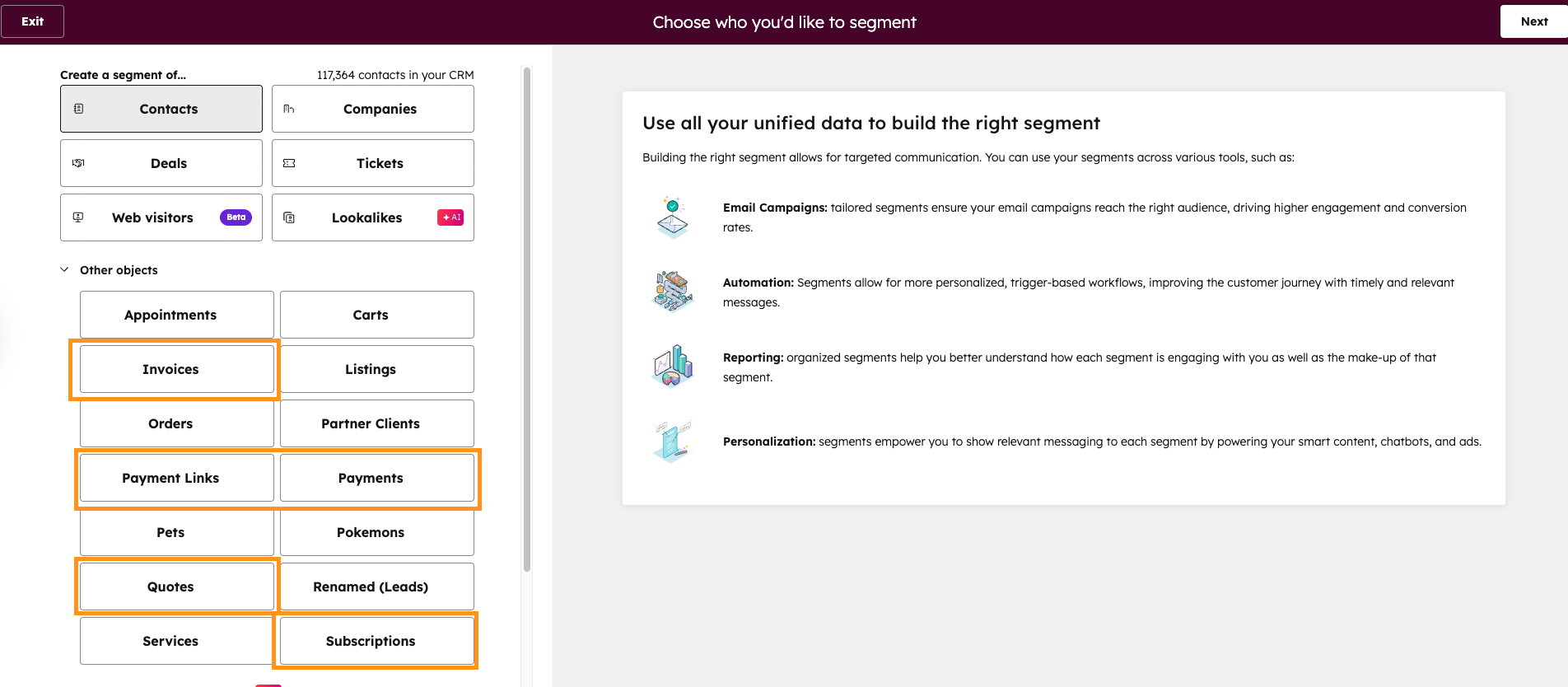
Create segments of your invoices, quotes, subscriptions, payments, and payment links based on their properties and associated data.
Why does it matter?
You can now track and manage specific segments of invoices, quotes, subscriptions, payments, and payment links, and any associated data to create more targeted outreach strategies. For example:
- Identify high-value invoices, and contacts associated with those invoices for priority follow-up
- Group similar quotes, and contacts or companies associated with those quotes, to streamline your sales process
- Segment subscriptions, and contacts or companies associated with those subscriptions, by renewal date to plan retention campaigns
How does it work?
To create a segment:
1) Navigate to CRM > Segments (Lists) > Create segment
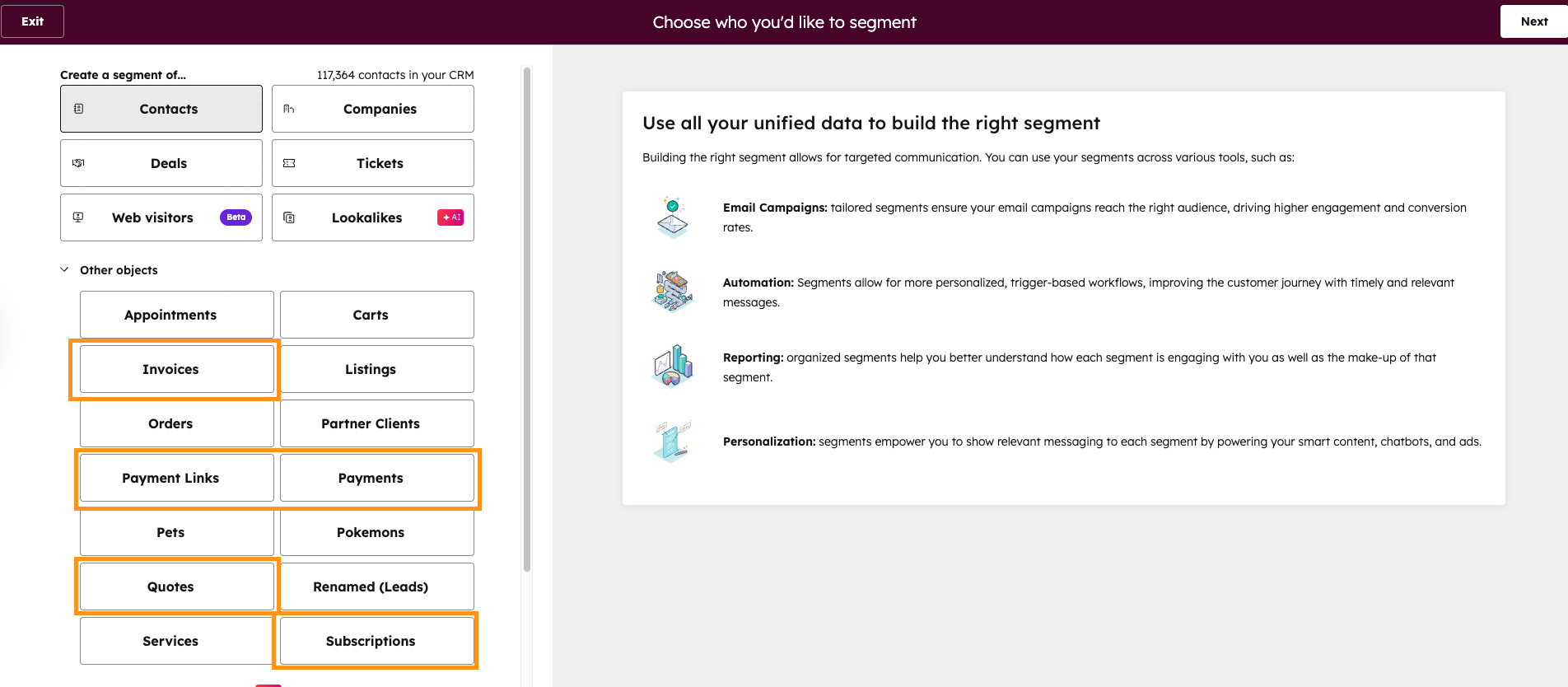
2) Select Invoices, Quotes, Subscriptions, Payments, or Payment Links as your object type
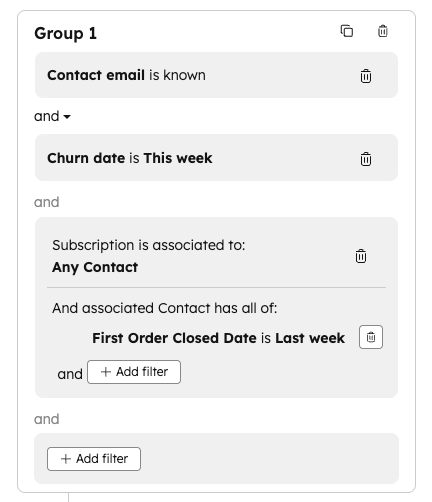
3) Add filters, including:
- Associated objects and their properties
- Associated objects and their interactions
- Associated segment membership
4) After saving your segment, you can:
- Track segment size changes over time in Performance > Segment breakdown
- Use segments in workflows as enrollment triggers or actions
- Compare segments and assess performance in Performance > Segment breakdown and Performance > Active channels
Catch Up on the AI Visibility Playbook
With HubSpot continuing to expand buyer-intent signals and AI-aware analytics, it’s clear where things are headed: your brand’s visibility in AI-driven discovery channels is becoming a core part of modern marketing performance. If you want a practical breakdown of how to show up more often inside tools like ChatGPT, Gemini, and Perplexity, we’ve got you covered.
Watch the recording of The AI Visibility Playbook: A Live AEO Briefing for B2B Marketers for 10 AEO tactics to start 2026!