Orange Marketing
%20(3).png)
Welcome to December... can you believe it? As the year winds down, HubSpot continues to roll out meaningful improvements that make your CRM and AI tools work smarter together. This week, we’re highlighting two powerful updates that bring even more intelligence and personalization to your workflows.
Here are our favorite updates for the week of December 1, 2025:
- HubSpot Connector For Gemini, and
- Customer Agent can now view and edit contact properties directly in your CRM!
HubSpot Connector For Gemini
With the HubSpot connector for Gemini, customers can bring their HubSpot context to Gemini to surface insights, and generate content to be actioned back in HubSpot.
- Marketers can ask: "Show me a list of contacts in the “lead” lifecycle stage, and draft follow up notes that I can send in HubSpot."
- Sales reps can ask: "Show me a list of deals, and draft follow up emails that I can send in HubSpot."
- Support teams can ask: “Show me a list of companies, and recommend a follow up note that I can send in HubSpot."
The HubSpot connector for Gemini is now in public beta and available for HubSpot customers across all tiers with a paid Google Workspace Business Standard, Business Plus, or Enterprise plan and Gemini Alpha turned on.
Why does it matter?
We want customers to be able to use HubSpot context everywhere they're using AI. That's why we're expanding our list of connectors with the HubSpot connector for Gemini.
Nearly half of HubSpot customers are using multiple LLMs to work. So we’ve made it possible to bring their HubSpot context into these tools, get insights, and take action back in HubSpot.
We moved fast to become the first CRM with Connectors for ChatGPT and Claude. And we’re excited to add Gemini to our growing list of Connectors.
How does it work?
Ensure Gemini Alpha is turned on and connect here.
Google Workspace Marketplace app admins control their organization’s access to the HubSpot connector for Gemini. Learn more about Google Workspace Marketplace app admin controls here.
If enabled, users can install the HubSpot connector for Gemini by going to Google Gemini (gemini.google.com) and selecting Settings & Help > Apps > HubSpot. Turn on the toggle for HubSpot. From there, follow the prompt to install the HubSpot connector for Gemini.
Once installed, return to Google Gemini and type @HubSpot into the Ask Gemini field to begin using the connector, which is currently read-only.
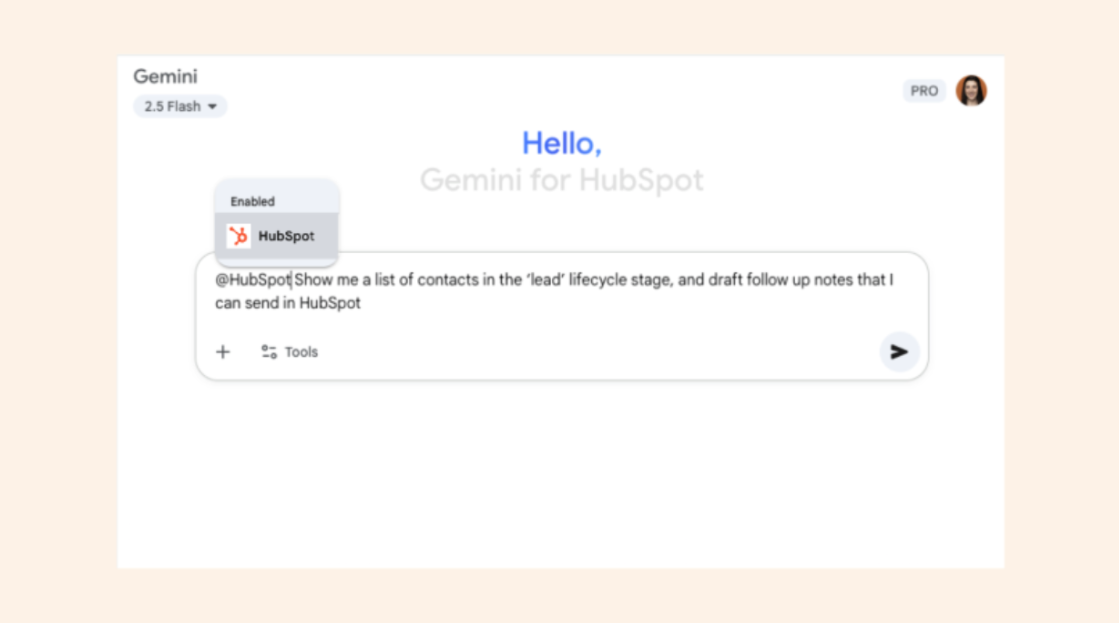
You can use it to fetch information about your HubSpot contacts, companies, and deals directly in Google Gemini. You can also pull lists of these objects based on their default properties.
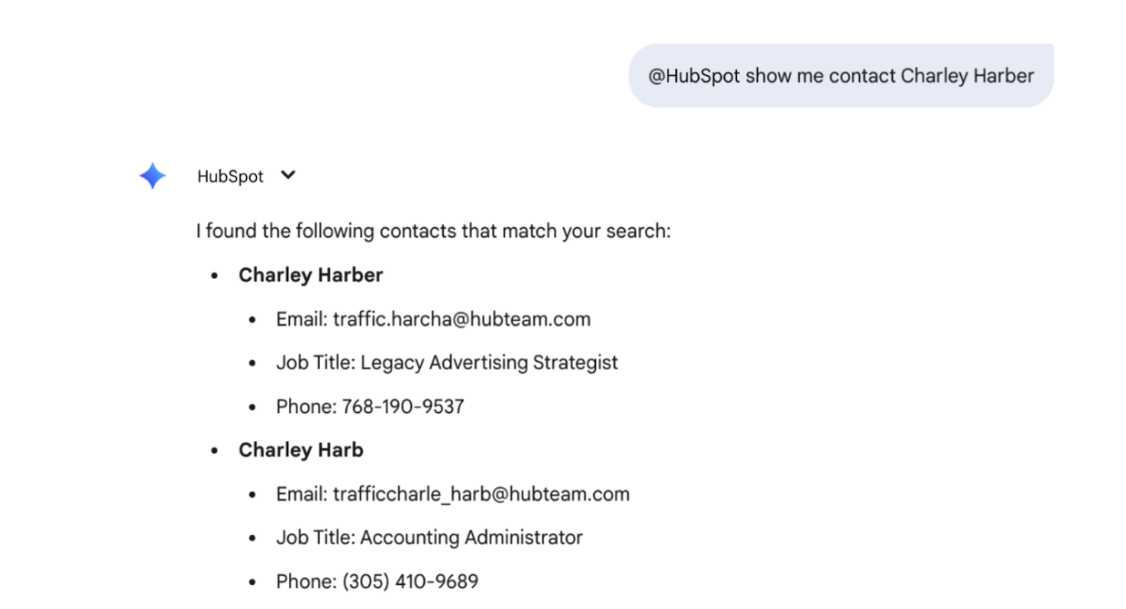
To fetch specific information:
Type @HubSpot, followed by your specific data pull request. For example, “@HubSpot show me contact Charley Harber.” Gemini will respond with information on that contact from HubSpot.
To pull a list:
Type @HubSpot, followed by your request for a list. For example, you can ask Gemini “@HubSpot show me a list of companies located in the state of Arizona.”
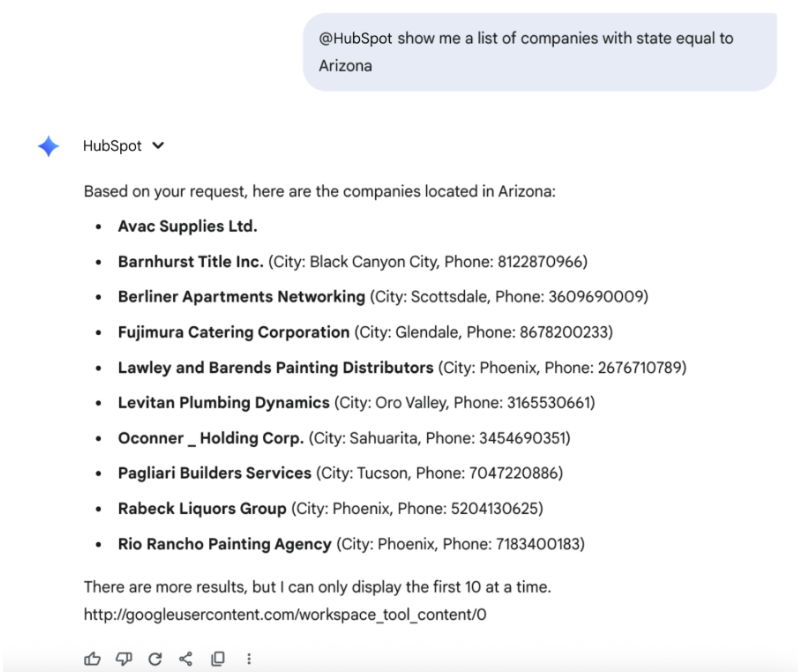
With access to HubSpot context in Google Gemini, users can ask Gemini how to take action back in HubSpot. For example, after receiving a list of companies in Arizona, you can ask Gemini to draft follow up personalized emails for these companies that can be then sent in HubSpot.
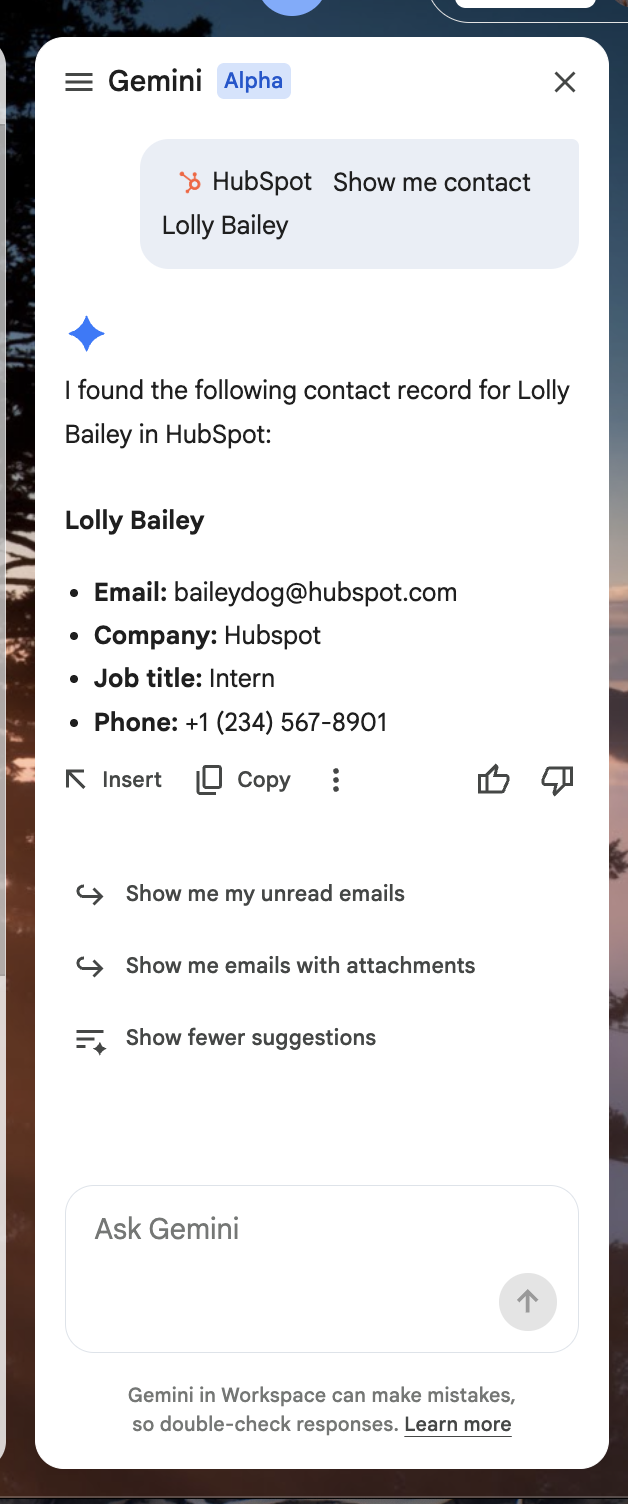
Functionality is also available in Gemini for Google Workspace in the sidepanel with Gmail, Docs, Sheets, and Chat.
Customer Agent can now view and edit contact properties directly in your CRM!
Your CRM holds a ton of context about your business and your customers—and now the Customer Agent can tap into that context to have smarter and more personalized conversations, making customer interactions smoother and more meaningful than ever.
How does it work?
1. Go to the Customer Agent > Manage > Knowledge > CRM Data.
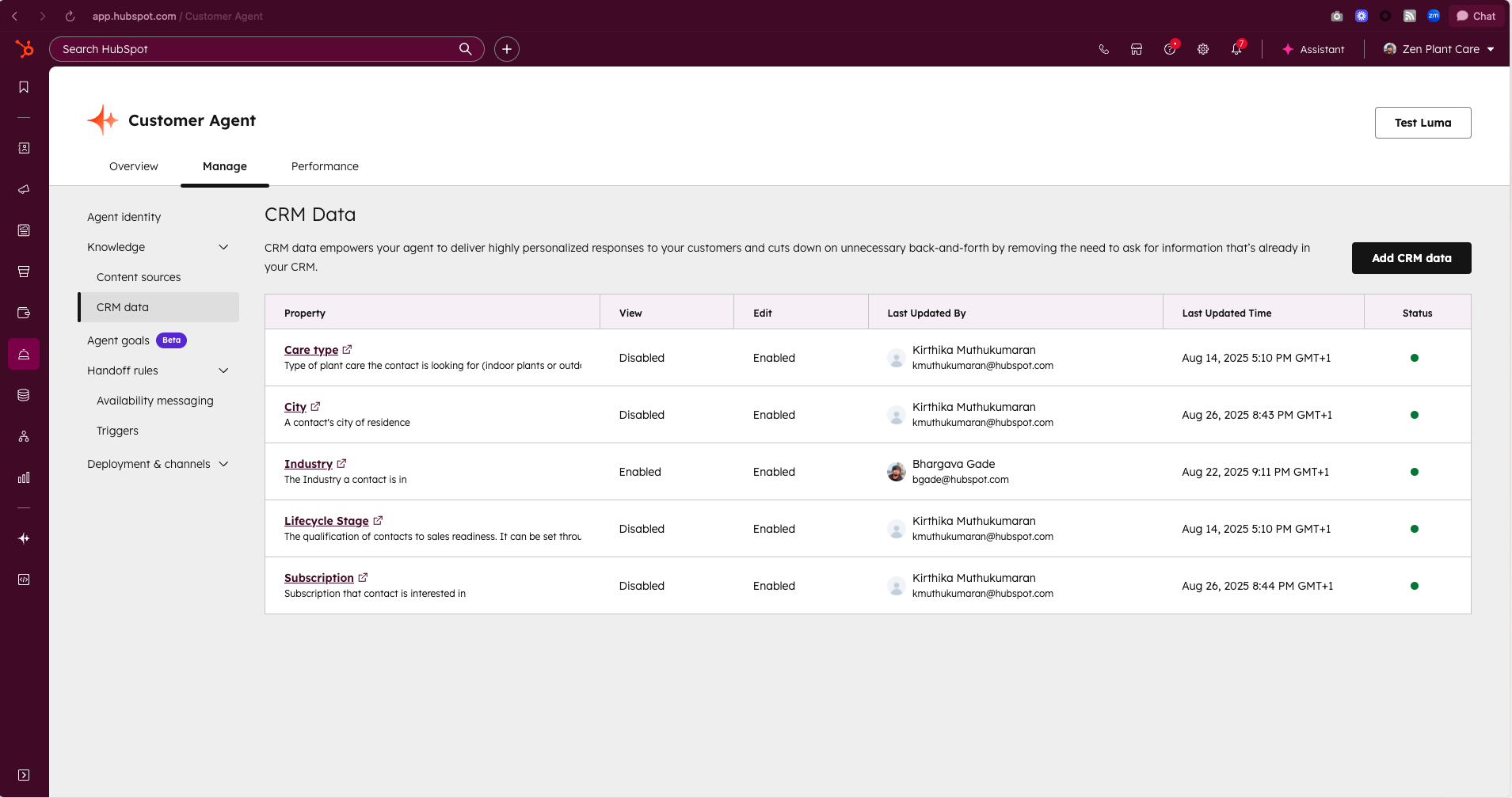
2. Click on the “Add CRM data” button.
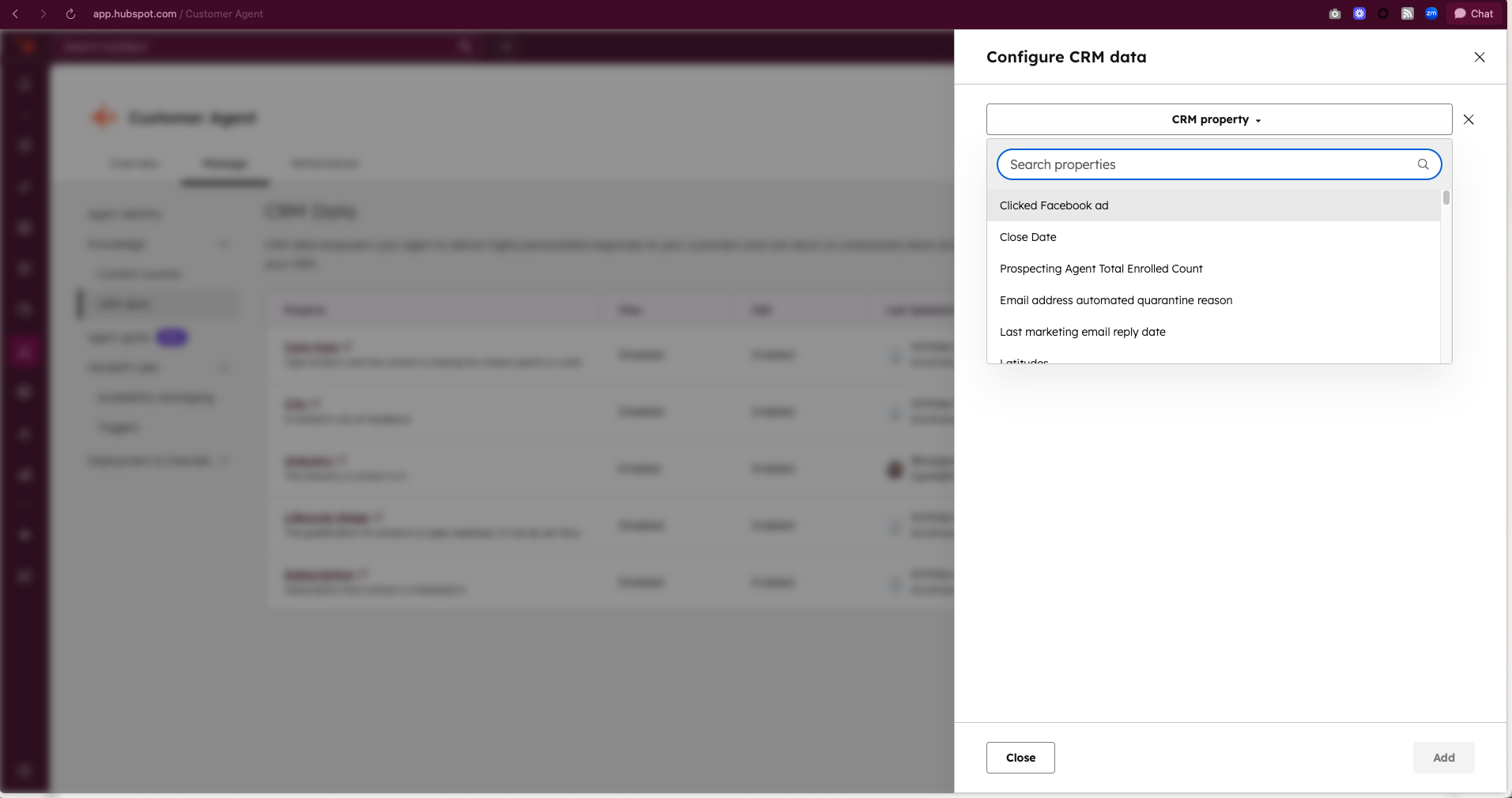
3. Search for the contact property you want your agent to access.
4. If you want your agent to have view access (so it can answer customer questions using CRM data), just toggle on the view option. For example, if a customer asks about their billing address on file, the agent can look it up and share it.
- Keep things secure by picking a data protection level before the agent shares any info with your customer. Choose “Match Email” (the agent checks the email on record) or “Verify Email” (the agent sends a verification link for confirmation).
- You can add instructions to guide the agent on when and how to use the data. For example you could write "If a customer says they haven’t received their bill, share their billing address to confirm it’s correct."
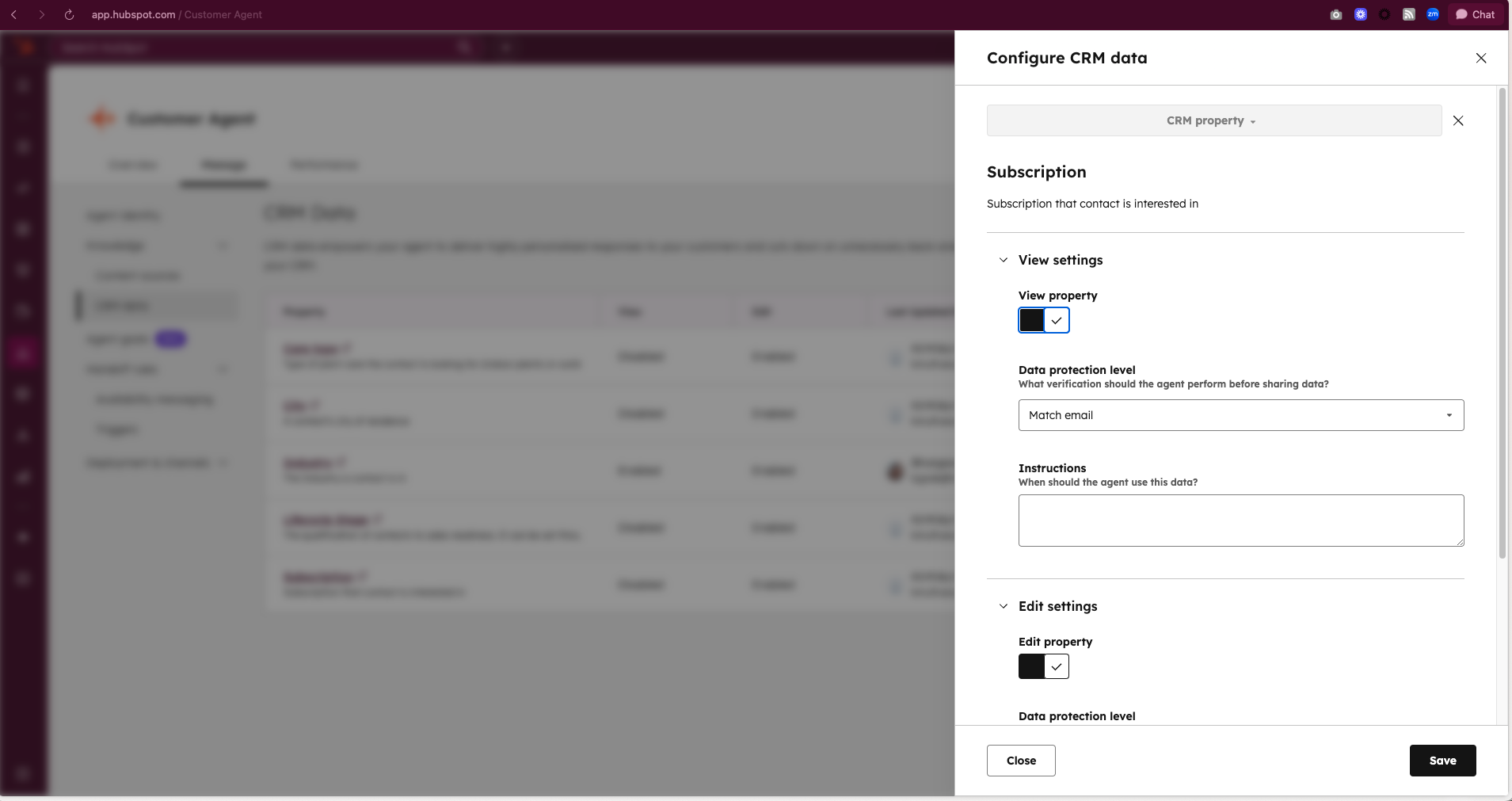
5. Repeat these steps for the edit toggle. Edit access lets your agent update properties—like changing a customer’s billing address if needed.
You can add up to 10 contact properties.
Get ready for faster, smarter, and more personalized customer support with this powerful new feature!
Want to Know How AI Really Sees Your Brand?
With tools like Gemini now integrated with HubSpot, the shift toward AI-powered discovery is accelerating, and your visibility in those platforms matters more than ever. If you missed our recent webinar on AI search and AEO, don’t worry, you can still catch up.
Watch the recording of The AI Visibility Playbook: A Live AEO Briefing for B2B Marketers for 10 AEO tactics to start 2026!