Orange Marketing
With UNBOUND 26 right around the corner, HubSpot is rolling out plenty of updates, and this week is no exception. From deeper AI integrations with Claude and Gemini to smarter CRM customization and improved team collaboration, there’s a lot to unpack as HubSpot continues to expand what its platform can do.
Here are the noteable updates for the week of August 31, 2026:
- Shared Column Configurations in Segments
- Send Designs from Claude to HubSpot,
- Conditional Property Logic with Combination Operators, and
- HubSpot Connector for Gemini.
Shared Column Configurations in Segments
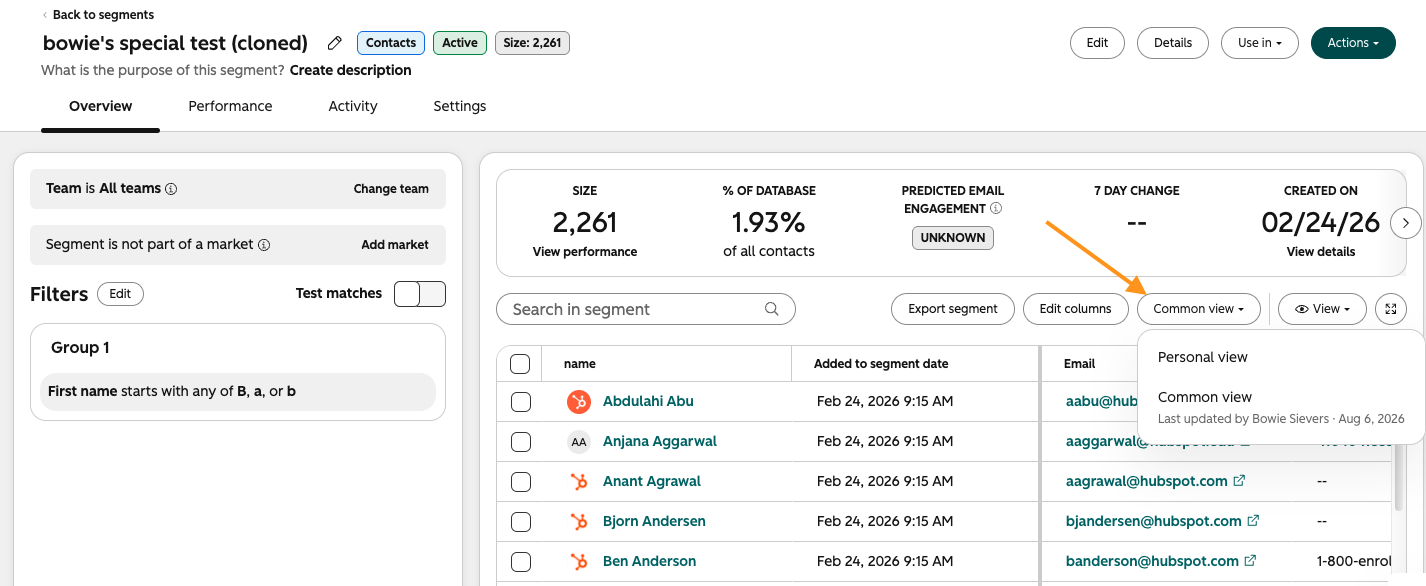
Set a shared, common column configuration in your Segments so that your team members always view the same columns you have set up.
Why does it matter?
Previously, segment column selections were user-specific, which created inconsistent views across teams and friction when sharing segments. With the new common view, teams can standardize how segments are displayed so everyone sees the most relevant columns and properties by default, improving collaboration, consistency, and efficiency.
How does it work?
- Navigate to CRM → Segments (Lists) → click into a Segment.
- You can now toggle between a Personal view and a Common view. The Personal view works exactly as the column configuration previously.
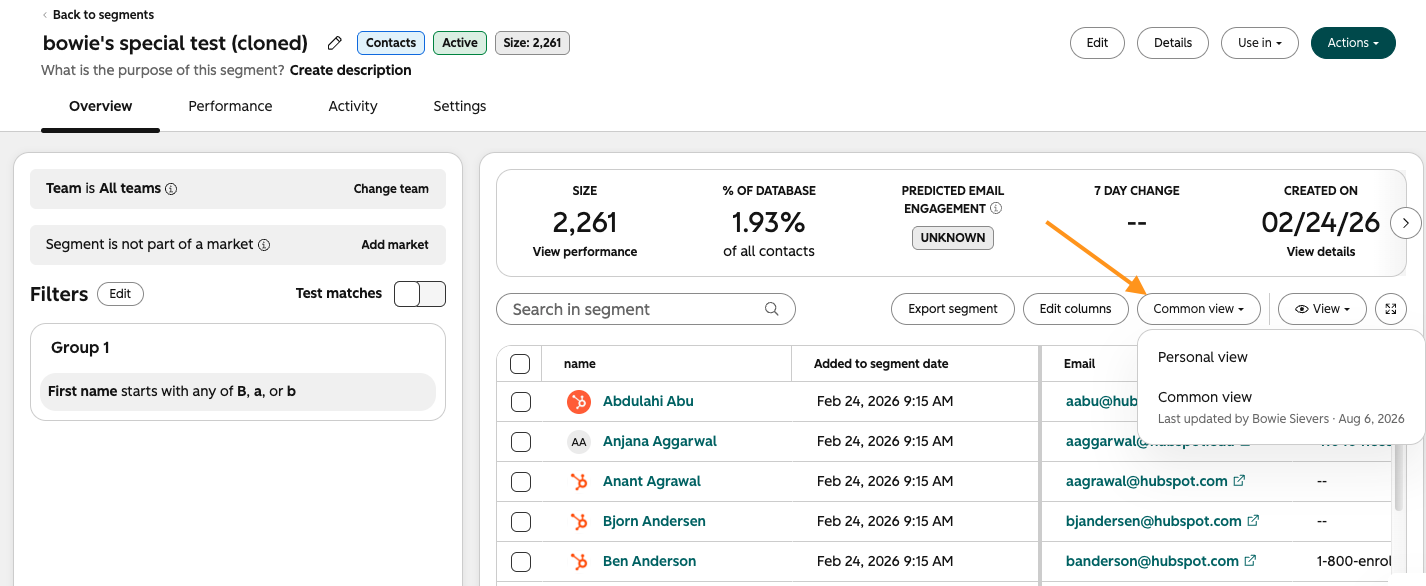
- To configure the shared, Common view, click the "Edit columns" button.
- Admins have the option to set the column configuration as the default for all team members.
- Any non-admins can only customize their Personal view.
- Users can share their customized views with their team members by clicking the Actions button, and selecting "Share".

Send Designs from Claude to HubSpot
Claude Design now connects directly to HubSpot. Build landing pages in Claude Design using your HubSpot context, then send them straight to HubSpot as a draft, ready to review and publish.
Why does it matter?
The gap between "designed" and "deployed" is where momentum dies. Marketers lose hours shuttling assets between tools, reformatting, and re-entering content that already lives in HubSpot or elsewhere. This closes that loop: Claude designs with your business context built in, and delivers directly to where your team publishes, so you go from idea to launch-ready asset without leaving the conversation.
How does it work?
- Open Claude Design from the bottom left in Claude.ai or Claude Desktop
- Build your landing page — Claude references your HubSpot data as it designs
- Click Share → More formats and apps → Send next to HubSpot
- Your landing page lands in HubSpot as a draft, ready to review and publish
To update before publishing: Click Send again from the same Claude design — it updates the existing draft in HubSpot.
To update after publishing: Sending from Claude will create a new version rather than overwriting. Iterate in Claude before you publish to keep edits in sync.
Don't see HubSpot as a destination? Select Connect more destinations and authenticate your HubSpot account via the HubSpot connector.
Note: Use the Send button in Claude Design to push changes to HubSpot. Asking Claude to "update" in the chat will not sync changes.
Conditional Property Logic with Combination Operators
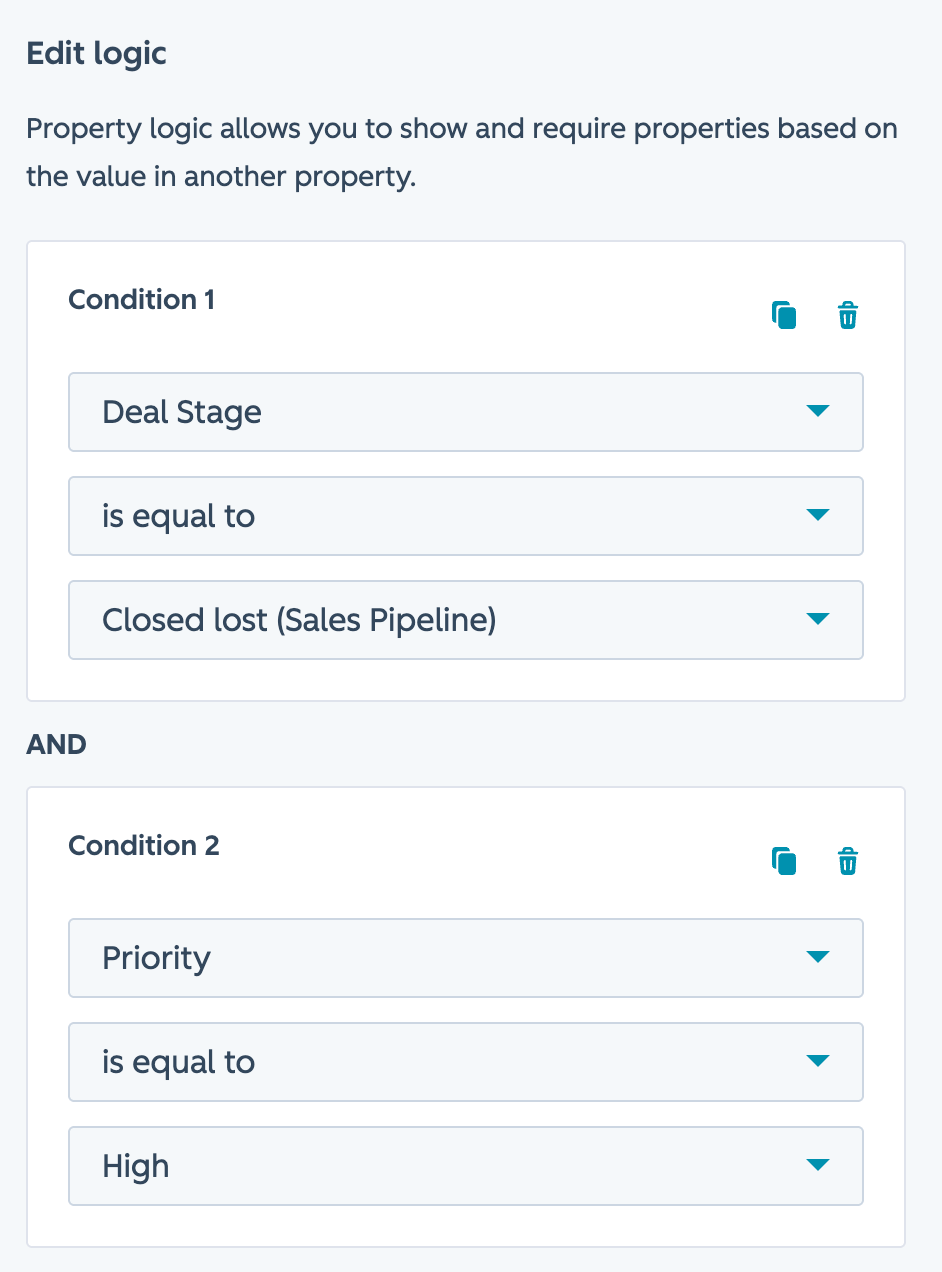
You can now combine multiple conditions when setting up conditional logic on properties, triggering dependent properties to appear based on the values of multiple properties.
Until now, conditional property logic in HubSpot could only look at one property at a time, limiting how you could control dependent fields. With multi-condition logic, your records can now surface the right fields only when multiple criteria are met, without any extra effort from your team.
- Sales reps can show a "Renewal date" field only when a contact is both a customer AND has an active subscription, cutting down on irrelevant fields cluttering the record.
- Marketing teams can apply a specific lead score property only when a contact has filled out a form AND belongs to a target industry segment.
- Ops teams can require a "Reason for churn" field when a deal is both marked "Closed Lost" AND high priority, keeping data collection focused.
How does it work?
- In your HubSpot account, go to Settings, then click Properties in the left sidebar.
- Select your object type (e.g., Contacts), then click the Conditional logic tab.
- Click Create logic and set your first condition, adding a property, operator, and value if applicable.
- Add more conditions to your logic. You can duplicate the first condition to customize logic more quickly.
- Click Save logic.
HubSpot Connector for Gemini
With the HubSpot connector for Gemini, customers can bring their HubSpot context to Gemini to surface insights, and generate content to be actioned back in HubSpot.
- Marketers can ask: "Show me a list of contacts in the “lead” lifecycle stage, and draft follow up notes that I can send in HubSpot."
- Sales reps can ask: "Show me a list of deals, and draft follow up emails that I can send in HubSpot."
- Support teams can ask: “Show me a list of companies, and recommend a follow up note that I can send in HubSpot.
The HubSpot connector for Gemini is now live and available for HubSpot customers across all subscription levels with a paid Google Workspace Business Standard, Business Plus, or Enterprise plan.
Why does it matter?
We want customers to be able to use HubSpot context everywhere they're using AI. That's why we're expanding our list of connectors with the HubSpot connector for Gemini.
How does it work?
Users with a HubSpot account and a paid Google Workspace Business Standard, Business Plus, or Enterprise plan can connect here.
Google Workspace Marketplace app admins control their organization’s access to the HubSpot connector for Gemini. Learn more about Google Workspace Marketplace app admin controls here.
If enabled, users can install the HubSpot connector for Gemini by going to Google Gemini (gemini.google.com) and selecting Settings & Help > Apps > HubSpot. Turn on the toggle for HubSpot.
From there, follow the prompt to install the HubSpot connector for Gemini.
Once installed, return to Google Gemini and type @HubSpot into the Ask Gemini field to begin using the connector, which is currently read-only.
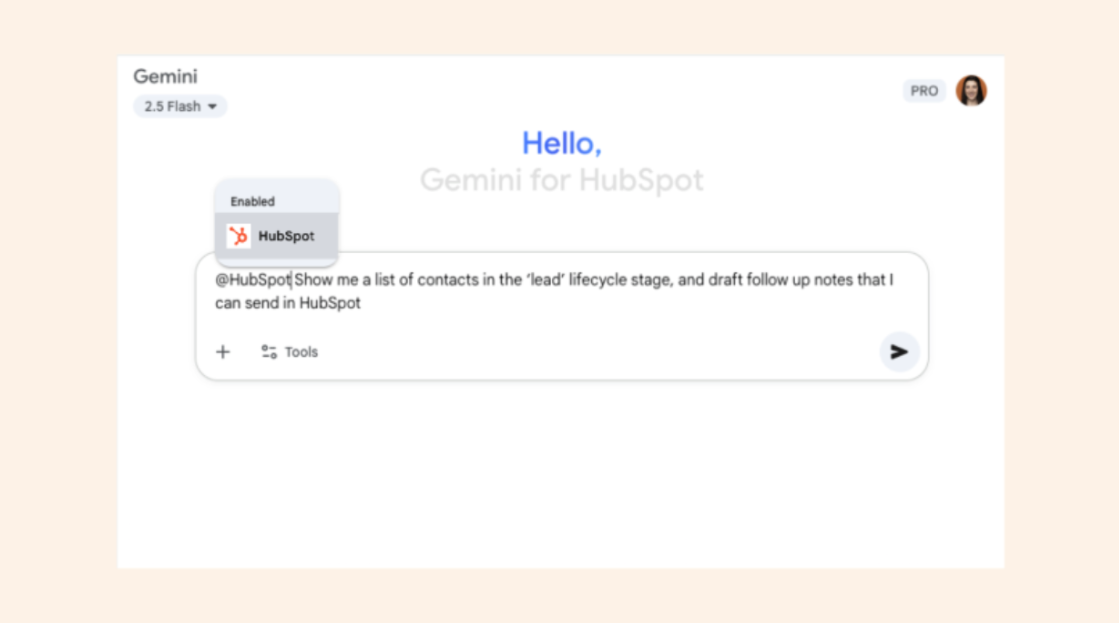
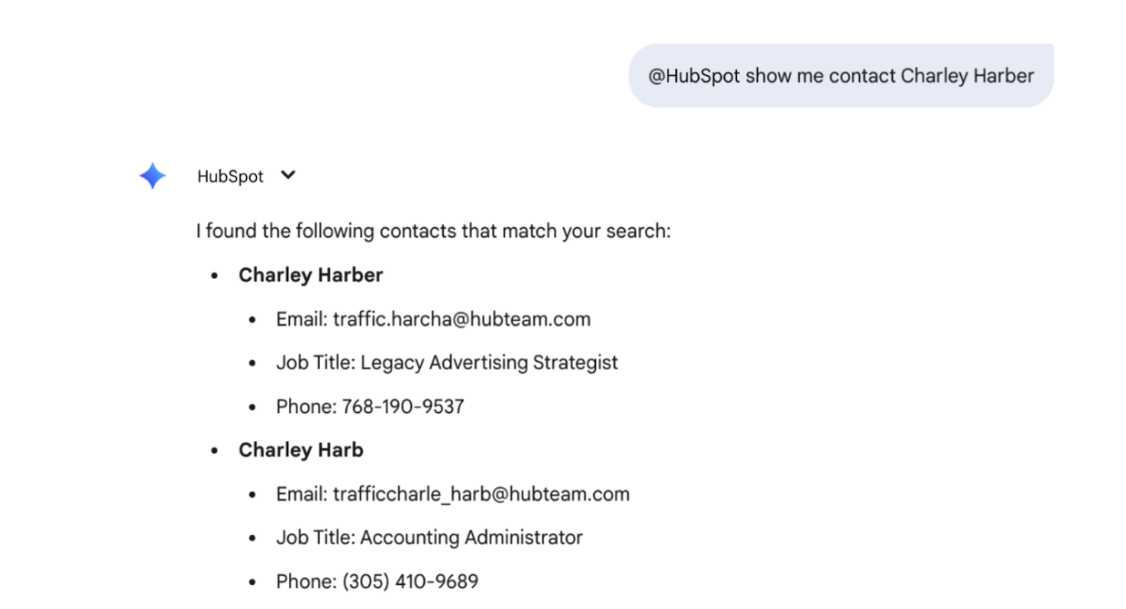
You can use it to fetch information about your HubSpot contacts, companies, and deals directly in Google Gemini. You can also pull lists of these objects based on their default properties.
To fetch specific information:
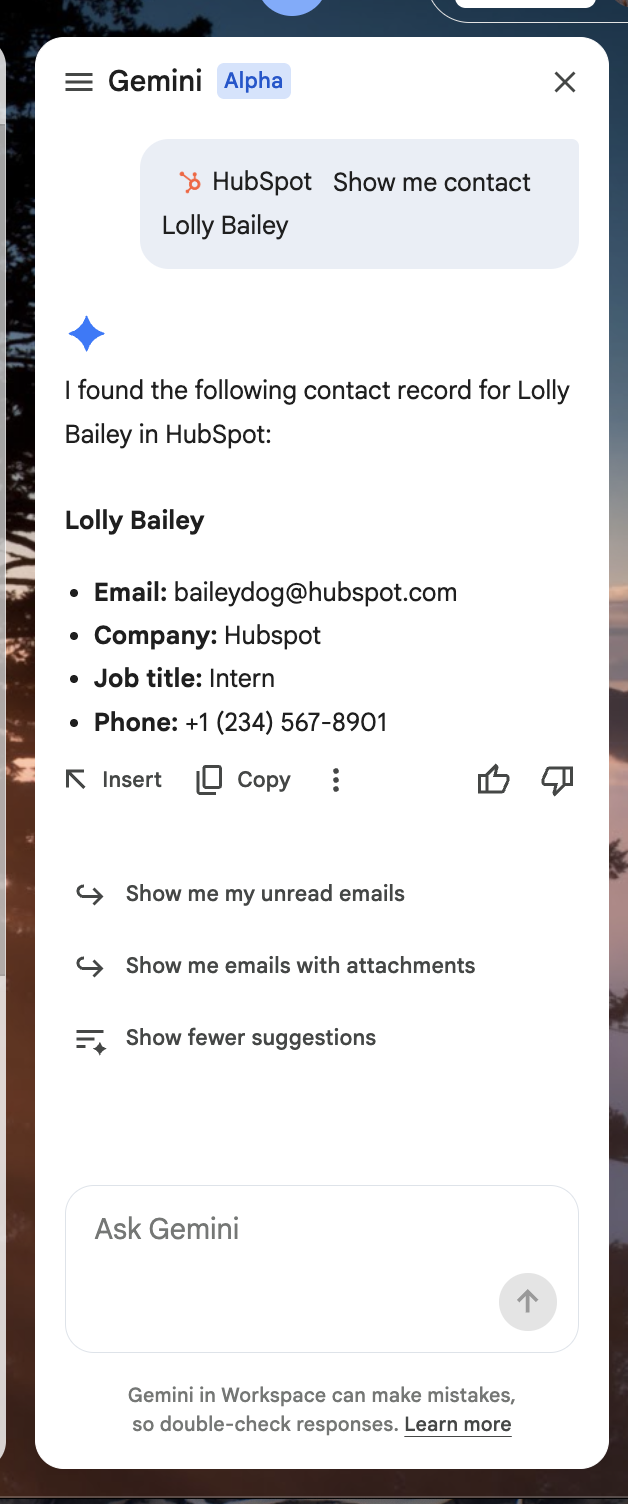
Type @HubSpot, followed by your specific data pull request. For example, “@HubSpot show me contact Charley Harber.” Gemini will respond with information on that contact from HubSpot.
To pull a list:
Type @HubSpot, followed by your request for a list. For example, you can ask Gemini “@HubSpot show me a list of companies located in the state of Arizona.”
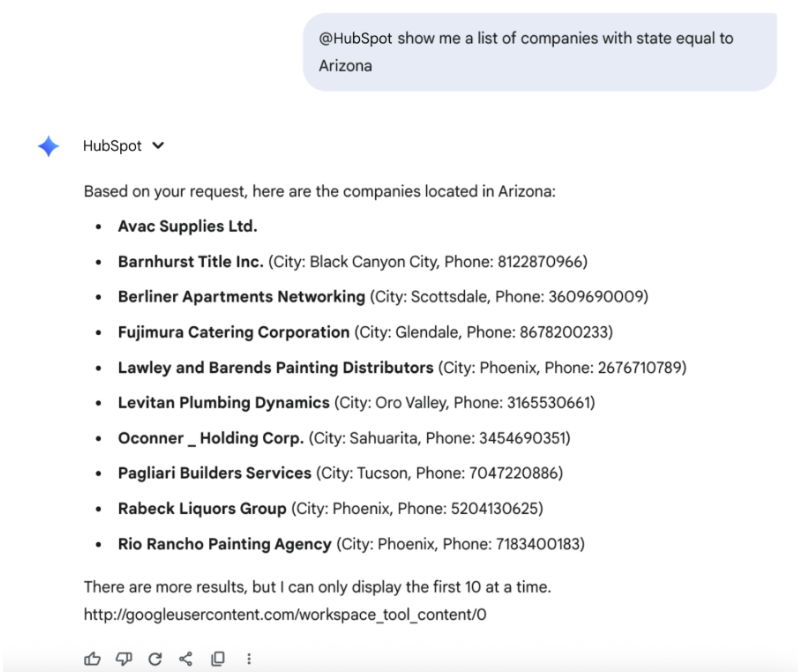
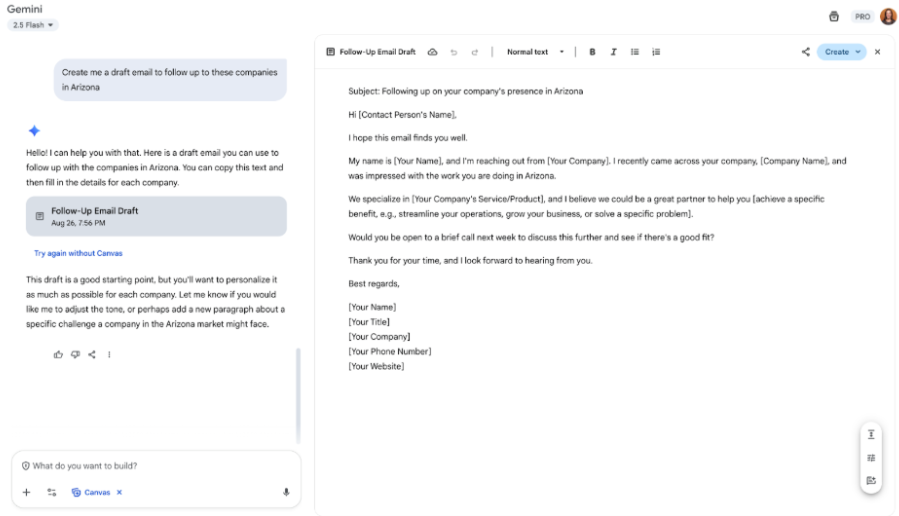
With access to HubSpot context in Google Gemini, users can ask Gemini how to take action back in HubSpot. For example, after receiving a list of companies in Arizona, you can ask Gemini to draft follow up personalized emails for these companies that can be then sent in HubSpot.
Functionality is also available in Gemini for Google Workspace in the side panel with Gmail, Docs, Sheets, and Chat.
Is Your Email Deliverability Hurting Your Results?
Even the best marketing email can’t perform if it never reaches the inbox. From domain reputation and list health to sending habits and authentication, there are plenty of factors that can quietly impact your deliverability.
Missed our live Q&A with ZeroBounce? You can now access the recording and resources from Inbox Denied: What’s Really Blocking Your B2B Email and How to Fix It.
Watch the recording and learn what could be keeping your B2B emails out of the inbox...and what to do about it: