 Orange Marketing
%20(41).png)
This week’s HubSpot updates bring a mix of smarter AI, stronger buyer intent data, and a new safeguard that could help prevent an unwelcome billing surprise. From using Breeze to build landing pages and spotting accounts actively researching topics relevant to your business, to putting a firm cap on your Marketing Contacts, there are some useful additions worth knowing about.
One update deserves your attention right away: if you use Marketing Contacts, be sure to check out the new Maximum Marketing Contact Limits feature below and set your limit as soon as possible.
Here are our favorite updates for the week of August 17, 2026:
- Create Landing Pages with Content Agent,
- Buyer Intent just got a new signal: Company Surge, powered by Bombora, and
- Set Maximum Marketing Contact Limits.
Create Landing Pages with Content Agent
You can now chat with HubSpot's new Content Agent in Breeze Assistant to build a landing page. Your brand kit, brand voice, CRM data, and past landing pages are used from the start to generate a page tailored to your business.
Building landing pages from scratch takes time. Content Agent draws on your existing brand and business context to deliver publish-ready pages in minutes, not hours.
How does it work?
Creating a landing page in the landing pages tool
- Navigate to Content > Landing Pages.
- Click Create a landing page.
- Select Create with AI and follow the prompts.
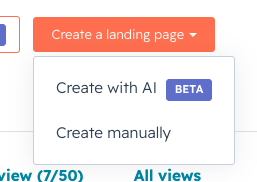
Creating a landing page in Breeze Assistant
- Click Assistant in the top navigation bar of your HubSpot portal.
- Buyer Intent just got a new signal: Company Surge, powered by Bombora, and
- Set Maximum Marketing Contacts.
Buyer Intent just got a new signal: Company Surge, powered by Bombora
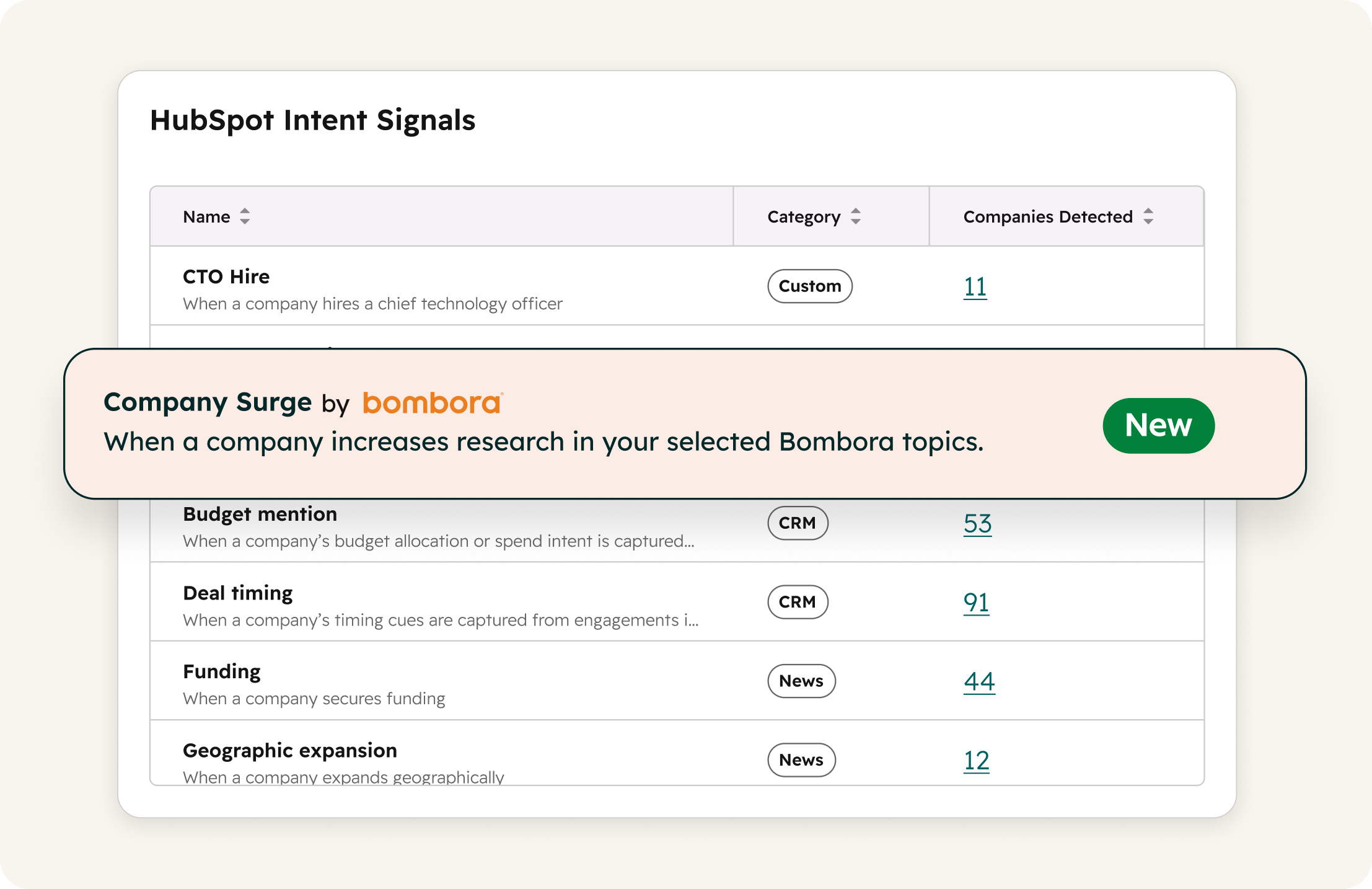
Company Surge signals, powered by Bombora, are now in beta and native to HubSpot as its newest intent signal.
This means you can see which accounts are researching your category right now. That intelligence shows up directly on company records and powers the workflows, segments, reporting, and scoring you've already built.
This signal is included in the cost of standard intent signal tracking — no existing Bombora account required.
Why does it matter?
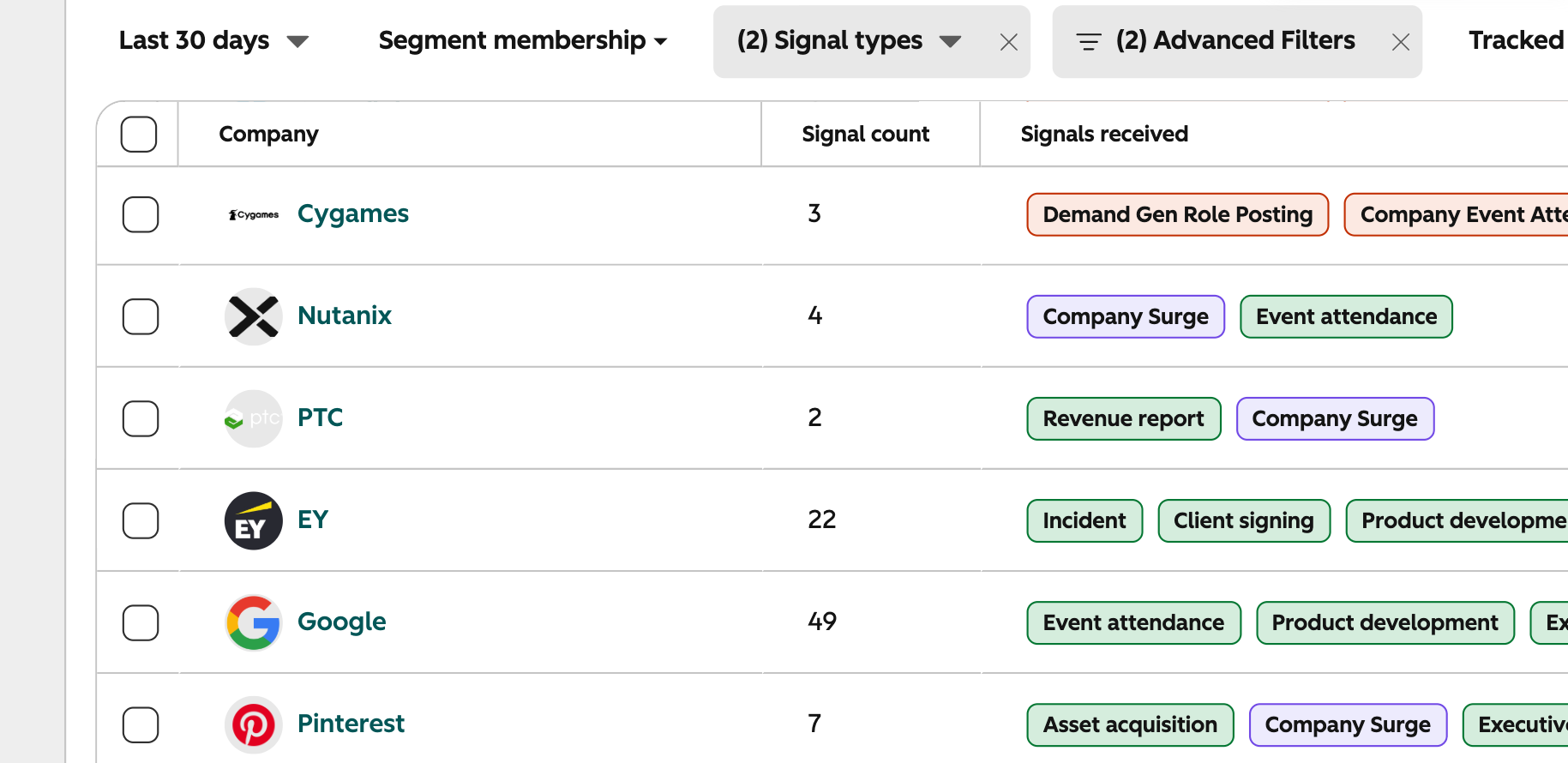
Starting today, you have native access to data powered by Bombora's B2B Data Co-op, a one-of-a-kind data source that reflects the research activity of millions of companies across thousands of trusted publisher and business website sources.
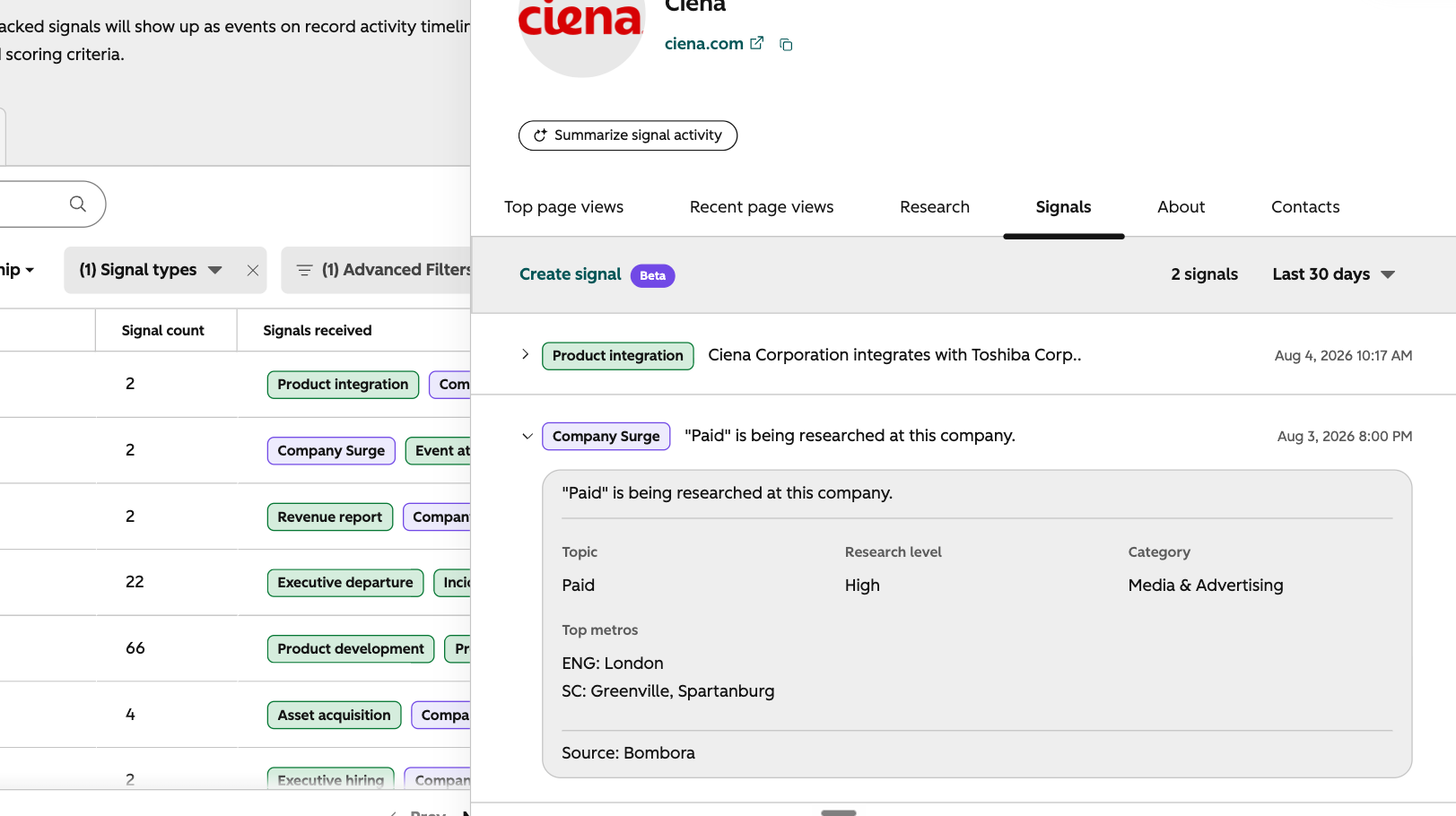
Use Company Surge signals to do the following:
- Catch accounts surging on the topics that matter to your business: Company Surge signals detect when companies are spiking in research. If an account is researching "CRM Software" or "Marketing Automation," you'll know — even if they haven't visited your website yet.
- Prioritize instantly with High / Medium / Low research levels: Every Company Surge signal comes with a research level — High, Medium, or Low — so you can filter to the highest-priority accounts in seconds without interpreting raw scores.
- Filter with Category and Top Metros metadata: Company Surge signals also tell you what category the surging topic falls into, and the places employees are researching topics from. Use this data to refine how you act on these signals.
- Get Bombora intent intelligence included in your standard signal tracking: Every company you're already tracking for standard intent signals is automatically tracked for your Bombora topics too, at no additional cost. One tracking cost. One place to act. If you want to go deeper — more topics, more data volume — we encourage you to explore Bombora's plans directly with their team.
How does it work?
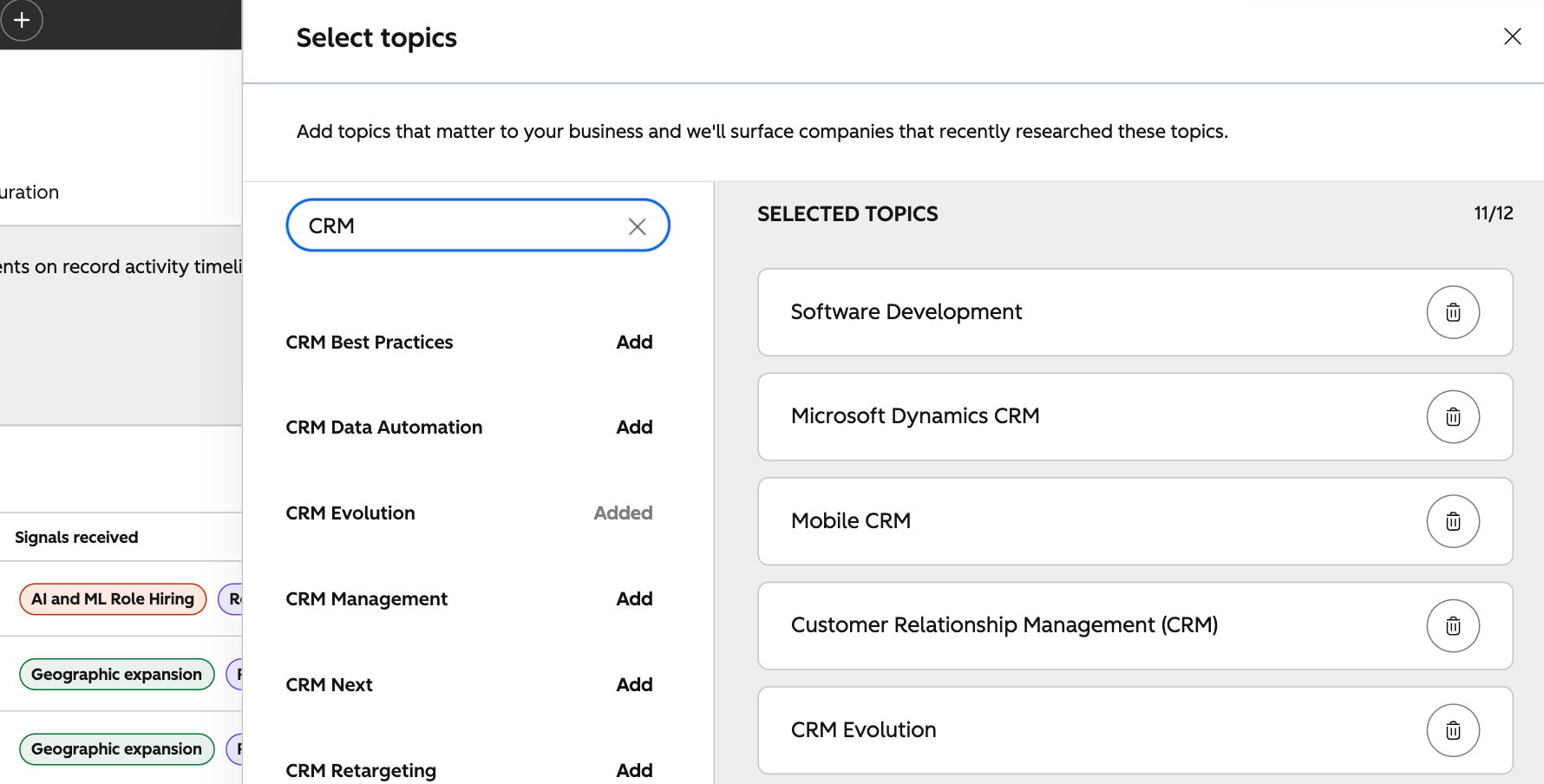
Set up Company Surge signals within Marketing > Buyer Intent > Signals tab > My Signals panel. Find the Company Surge signal row and click Select Topics. From there, you can:
- Review and adjust up to 12 Bombora topics, pre-selected for your portal based on your website
- Search by keyword to explore Bombora's full topic library and swap in topics that match your ICP's buying journey
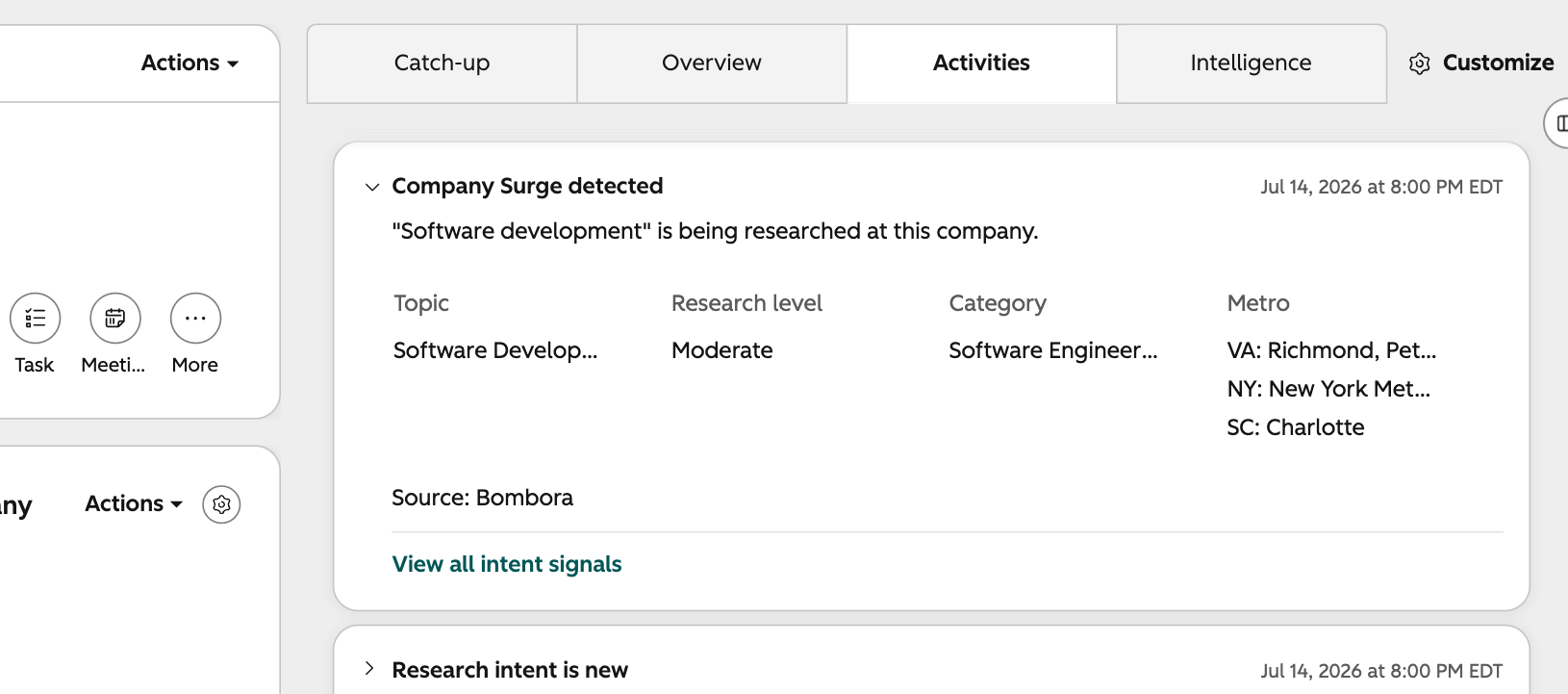
- See these signals fire as events on company records, including topic name, research level, and top metro areas showing activity
- Use research level, topic category, and top metros as workflow triggers, segment filters, personalization tokens, or lead scoring criteria
- Track a company for standard intent signals, and we'll start monitoring that company for the Bombora topics you've selected, including companies you're already tracking, starting today
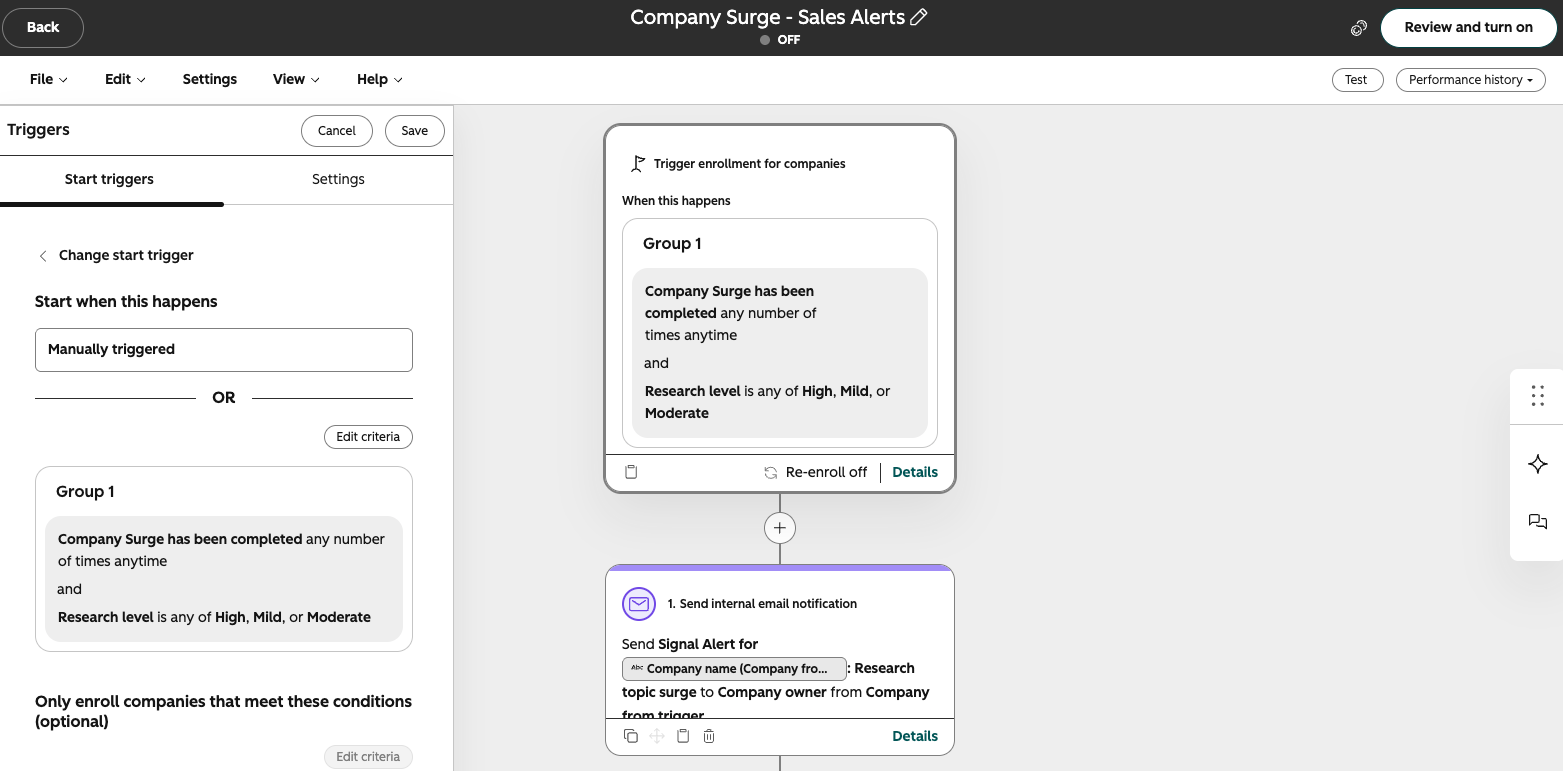
Company Surge events write to company records alongside your other 40+ standard intent signals, visitor intent, news events, job changes, and more, and your custom signals, in the same activity feed your reps already use.
Set Maximum Marketing Contact Limits
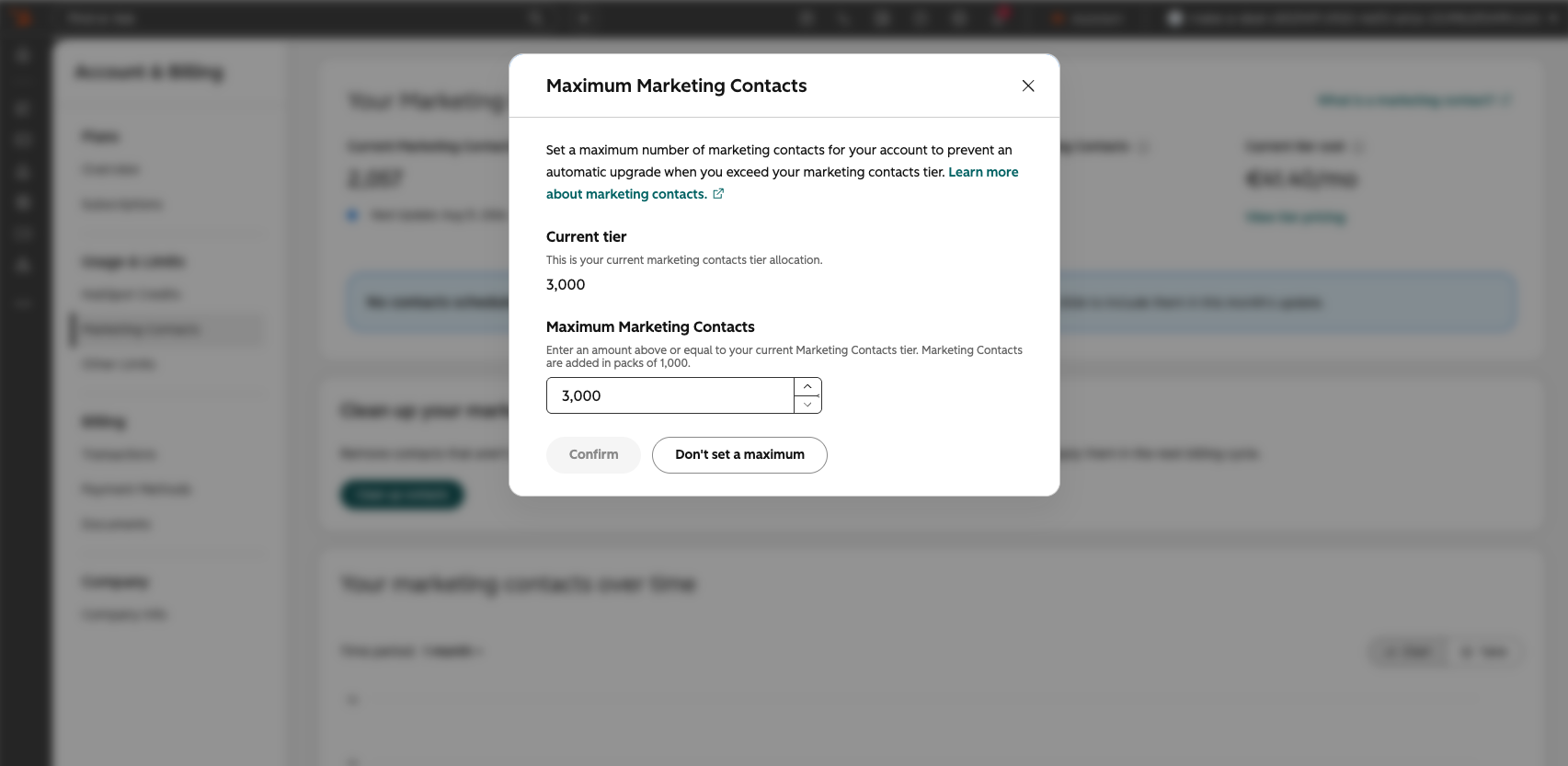
With this release, super admins and any users with 'Modify Billing' permission can now set a maximum marketing contact limit on their portal's Marketing Contacts page within Account & Billing. Once reached manual imports and automated features will no longer set contacts as marketing. Previously, there was no way to cap marketing contacts, leaving portals vulnerable to unexpected tier auto-upgrades.
Action Required: Set Your Limit Now! If you use Marketing Contacts, we recommend setting your maximum as soon as possible to help protect your portal from unexpected contact tier upgrades.
Go to Settings → Account & Billing → Marketing Contacts. Right at the top of the page, you'll see Maximum Marketing Contacts, where Super Admins and users with Modify Billing permission can set the maximum number of contacts that can be marked as marketing.
Once your limit is set, HubSpot will prevent manual imports and automated processes from pushing your marketing contact count beyond that maximum.
Why does it matter?
Customers need greater control over their marketing contact usage to avoid unexpected tier upgrades. When admins can set a maximum, they can confidently manage their contact base without the risk of surprise charges.
How does it work?
Super admins and any users with 'Modify Billing' permission can set a Maximum Marketing Contacts limit from the Account & Billing -> Marketing Contacts page under Maximum Marketing Contacts. Once set, any imported contacts — manual or automated — that would push the portal over the maximum are set as non-marketing.
Once a maximum is hit, users will see messaging in-app stating "You've reached your set Maximum Marketing Contacts". Super admins, workflow owners and users with 'Modify Billing' permission will also be notified through email. Users without the required permissions are prompted to request a maximum increase or add contacts as non-marketing.
Help Buyers Find You
You can have great content, strong offers, and the right audience, but none of that matters if your emails aren't making it to the inbox. And often, deliverability problems are already hurting performance before marketers realize there’s an issue.
Join Orange Marketing and ZeroBounce for Inbox Denied: What’s Really Blocking Your B2B Email and How to Fix It, a live Q&A covering how to recognize deliverability problems, repair a damaged sender reputation, and build healthier sending habits that help keep your emails out of spam.
Register for the live Q&A on August 27 and bring your email deliverability questions.
